General
Welcome to the batch management part of Open Bee™ Scan Capture software.
You will find all the entries validated during the videocoding phase of your documents.
From this page you can export your entries to your accounting ERP, please first check that you have configured it as explained in the accounting export part of this documentation.
Why batch management?
Each of your ledger entries is associated with a journal and a fiscal year. An accounting batch will bring together all the entries concerned by the same financial year and the same accounting journal to allow you to export multiple times.
The display of this page is divided into three parts:
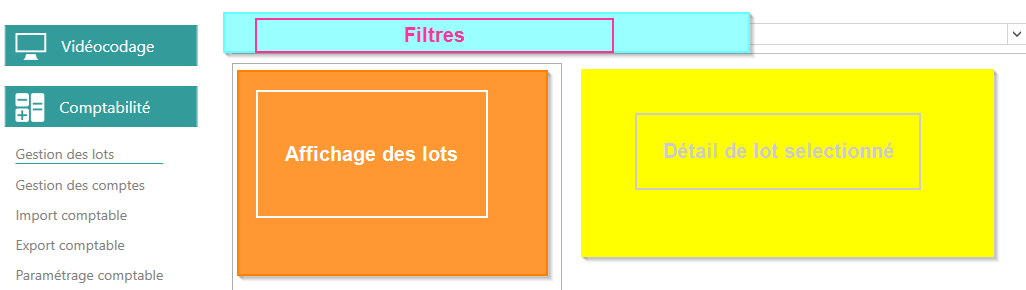
Filters
The upper part of this page is dedicated to the different filters used to sort information.

- Folder: Allows you to select the folder that contains the accounting batch(es) you are looking for. Selecting this filter is mandatory for batch display
To the left of each folder name is the number of writes waiting to be exported for that one
- Status: Allows you to sort your batches:
- In Progress: Shows you only the batches in progress (which are not exported)
- Exported: Shows you only batches that have been exported
- Failed Export: Shows you only batches that failed to export and are therefore waiting for a new export
- Fiscal Year: Allows you to select batches for a specific fiscal year
- Journal: Allows you to select batches from a specific ledger journal
Batch Display
Once at least one folder has been selected, the display of your batches will be available.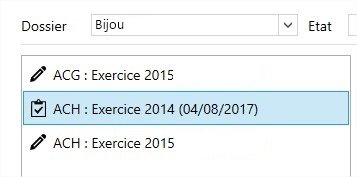
This consists of a list with each row corresponding to a batch. A lot line is constructed like this:
- indicating the status of the batch:
 : Lot already exported
 : Batch being modified or Batch in progress. Even if the change batch has the same journal and fiscal year as one of the current batches, they will not merge because a change batch is attached to a batch that has already been exported
 : Lot whose export has failed and therefore waiting for a new export
- Relevant journal code
- Relevant accounting year
- Batch creation date (depending on the version <= 3.0.0, this represents the date of export of the batch and is therefore not present until a batch is exported)
Batch Details
Once you have selected one of the batches, the right side of the screen will show you the details of the batch. It is composed of different tables, each representing an accounting entry consisting of one or more lines.
The columns of these tables are configurable from the interface presented in the accounting configuration section of this documentation.

History of a document
 : This button allows you to display a window showing all the actions of this document since it arrived in the Open Bee™ Scan Capture software
Example of actions related to a document:
Modifying an entry
If one or more entries are incorrect, you can modify them one by one by double-clicking on them. The videocoding page will then open with the desired script. All you have to do is modify it as you wish and revalidate your changes.
When you arrive on the videocoding page, you may notice the absence of a document image. This does not prevent you from making your changes and can be explained in the following cases:
- Write Already Exported Output File: Open Bee™ Scan Capture has erased the images related to your document.
- Writing already exported DMS output: Open Bee™ Scan Capture has erased the images related to your document, but is in the process of downloading the images of your document from your DMS if it allows it. The images are expected to reappear shortly.
Modifying an entry from a batch that has already been exported, will automatically create a new change batch. Indeed, an exported batch cannot be modified, so your entry will be duplicated and your changes will be applied to the modification batch specially created for the occasion.
Export of one or more entries
To export one or more entries, simply select them using the checkboxes to the right of each entry

Then click on the export button at the bottom of the part concerning the details of a batch