Batch export
Context
Batch export is available for Windows On-premise outputs as well as for “Data” and “Original File” outputs available since version 4.6.0
Configuration
It is possible to set up the export in order to export one or more documents at the same time. This makes it possible to create a single file containing information from several documents and thus facilitate the import of the exported data.
To configure this export, go to the “General Settings” menu, then “Output Settings” and finally choose the output to be configured.

On the first line, you can choose to schedule the export. This means that Open Bee™ Scan Capture will automatically choose to export the ready documents, as soon as it has enough of them. Here we have a scheduled export every 1 document. So we have 1 data file = 1 document.
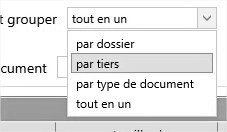
On this same line, you have a drop-down list that allows you to group your documents. By default, it is set to “all-in-one”, which means that all documents will be exported indiscriminately. The other values allow you to group documents by folder, business partner, or document type.
In this way, you can set up the export to: “Create a data file every 10 invoices” or “Create a data export file every 100 documents per folder”.
List of documents
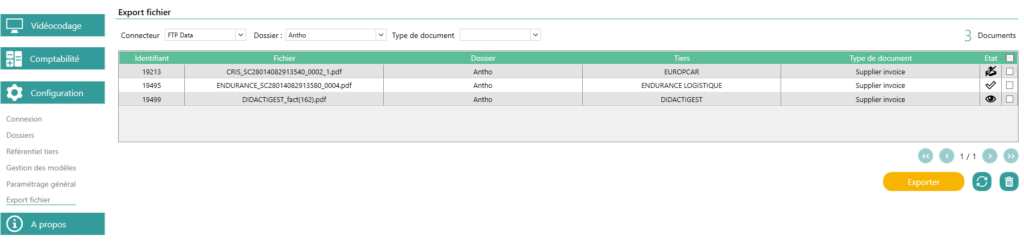
To find the list of documents waiting to be exported, you can go to the “Configuration” menu and then “File export”. You will find a list of documents waiting to be exported because Open Bee™ Scan Capture has not yet accumulated enough documents to reach the configured limit, or automatic export is disabled. You can filter this list in order to manually export with the desired documents.