Import the “third-party repository”
You can import third parties into Capture via a CSV file using the

An accompanying window for this import will open
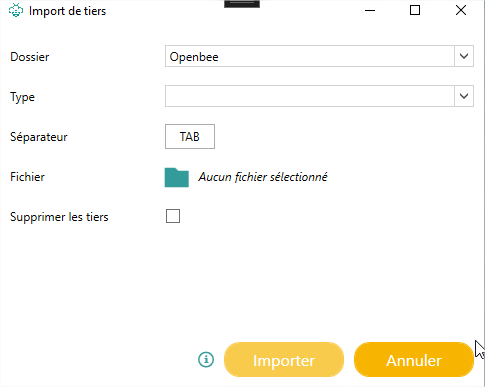
Folder: Capture folder for which you want to import third parties
Type: The type of business partner you want to import
Separator: Separator used in the file (For tabbing use the shortcut TAB)
File: CSV file to import
Delete Tiers: Option to delete tiers already present in Capture before import
Details
Your CSV file must contain a header row. Each header must match a name or index id of the selected party type. The column used to fill in the names of third parties should be named “NAME”.
The values entered in your file will then be imported. By default:
– Blank values will be ignored.
– Values already in Scan Capture are considered “Up-to-date”. If you want to force the use of the values present in your files, you must add the suffix “_FORCE” to the header of the desired columns.
Visualize
From the “Third-party repository” tab, you can view and edit the “third-party repository“:
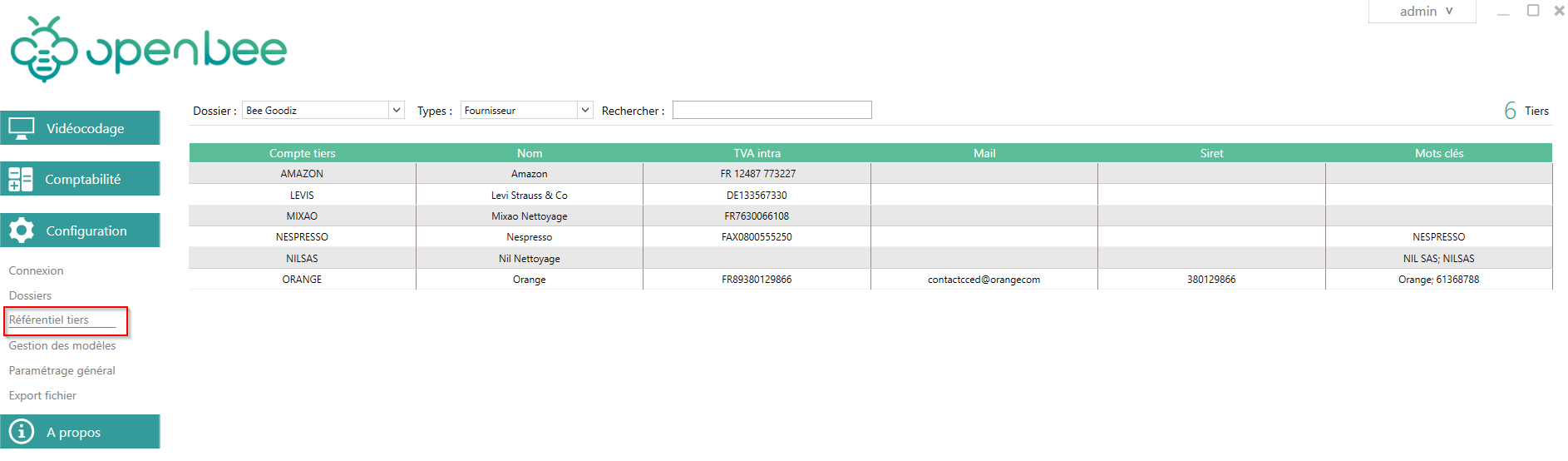
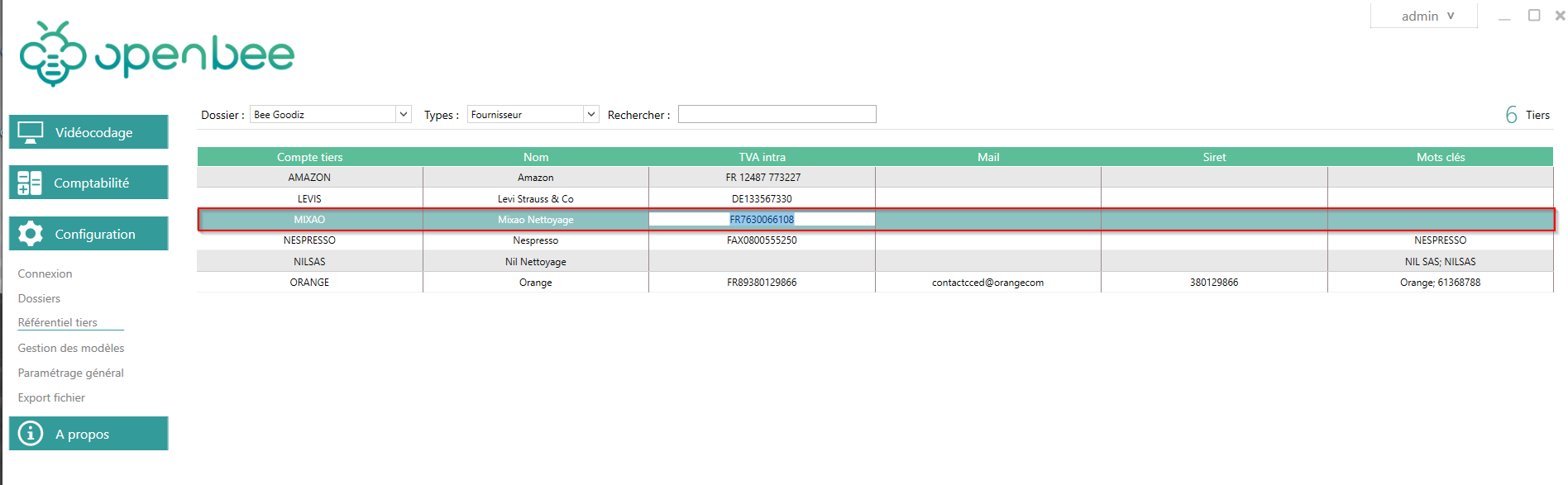
Edit the “third-party repository”
To edit it, simply click in the column to be edited in order to enter/modify a value. Registration is done automatically.
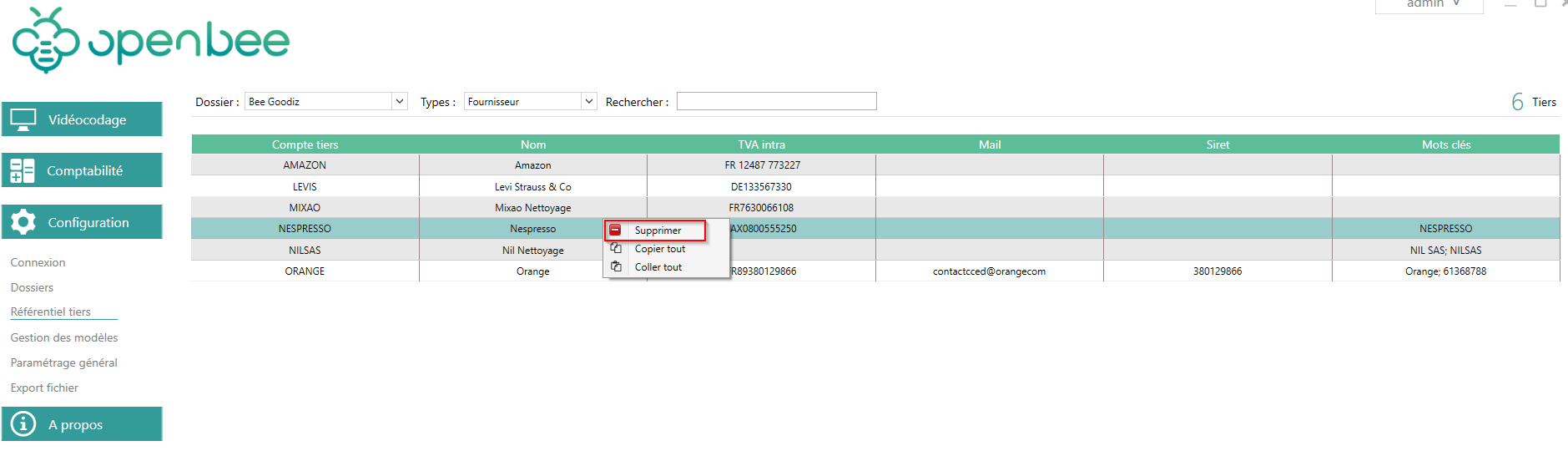
Delete a third party
To delete a third party, simply right-click on the corresponding line and then click on “Delete“:
If a deletion or change has been made on this page then a reinterpretation of the documents in the relevant file will be made