General
Where to find them?
To use the templates:
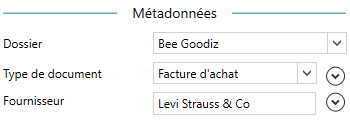
- You can go to the videocoding part of the app. You will then be able to see at the top right of your screen the template used for the current invoice.
- You can also go directly to the page provided for this purpose in the “Configuration”, “Template management”, “Templates” menu of your application (see Document templates)
Definition
“Template” should not be confused with “document type”. A “document type” for example: Purchase Invoice, Sales Invoice, Email, Delivery Note, etc. represents the “genre” to which the document belongs. A “template” represents a “subtype of document” (see diagram below)
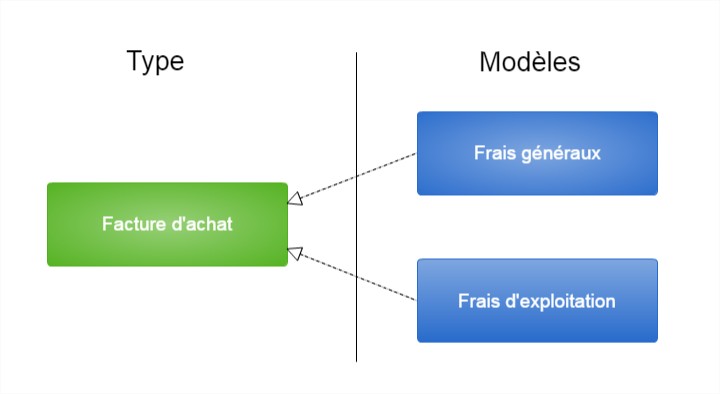
Overhead and operating expenses are two different models, but each document that corresponds to one of these templates is of type purchase invoice. To avoid confusing the user who is not using the templates, the default configuration of Open Bee™ Scan Capture is as follows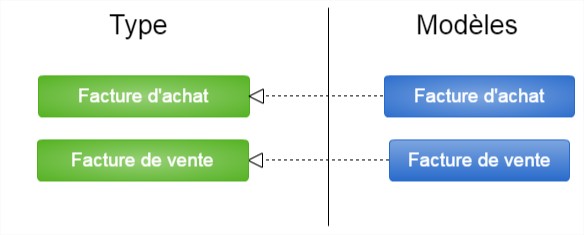
What is their purpose?
Once a document has been placed in the file scrutinized by Open Bee™ Scan Capture, it goes through an interpretation phase. During this phase, Open Bee™ Scan Capture will try to determine which model the document in question belongs to and then assign it the indexes to be searched, the type of third party to be found (Supplier, Customer, etc.) but also to apply the customizations already made for this document template.
This is because document templates allow you to define different uses for the same type of document.
Returning to our example, if a user wants to perform two different processes for these overhead and operating expenses, they will be able to do so by creating two purchase invoice templates with different names (Overhead, Operating Expenses). He will then be able to choose the indexes to be found in each case, if the template contains accounting entries, if customizations are common for all folders on this type of document.
Usage
Editing a template
If the user wants to edit a template that has already been created, simply click on the icon  next to the template you want to edit.
A window will then open, which contains the information of your model.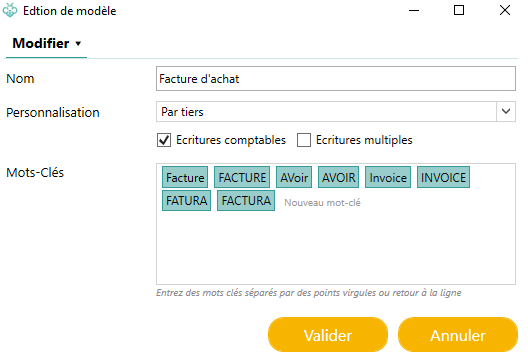
This information is as follows:
- Name: The name of the template displayed to users and in the various menus of the application
- Type: The type of document to which the template is attached (Invoice, Purchase, Sales Invoice, etc.)
- Customization: Allows you to choose whether the customizations made on a document belonging to this template are different for each third party (By Tier) or common for all tiers in the folder (By Folder)
- Ledger Entries: Available only if the application is in Ledger mode, Allows you to choose whether your template will allow the user to fill in ledger entries for documents belonging to them
- Keywords: These are the keywords that will allow Open Bee™ Scan Capture to differentiate between your different models, so you have to be very rigorous in the choice of them. (You can select your keywords directly with your mouse on the current document or type them on the keyboard. For more details on keywords, we invite you to consult the Keyword Use page.
Don’t confuse the keywords that allow Open Bee™ Scan Capture to find your model. With the third-party keywords mentioned on this page, which allow you to find your third-party.
You can modify them as you wish and then validate.
Creating a Template
To create a template, all you need to do is:
- Change the selection of the current model to the empty selection

- You will then see the icon to the right of the template name change. Click on this one
- The same window described above opens
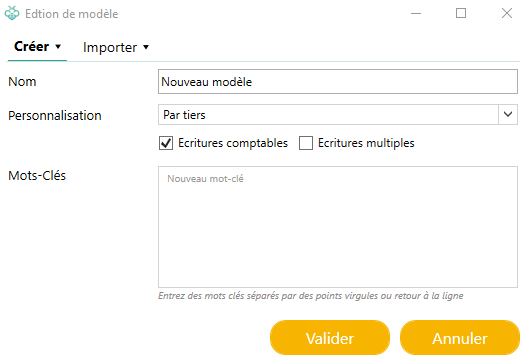
- Edit the information to create your new template. CAREFUL: Don’t forget to fill in the keywords so that Open Bee™ Scan Capture can detect your pattern. Without these, no automatic detection can be carried out
- Validate
- To validate that Open Bee™ Scan Capture recognizes this new pattern for the current document type, you can press the reinterpret button. Once the reinterpretation is complete:
- If the template name that appears matches your new template. This means that Open Bee™ Scan Capture has correctly identified it using your keywords
- Otherwise, you’ll need to change your keywords. Trying to find relevant words on this document template.
Deleting a template
To delete a template, go to the template management page. For more details on this one, we invite you to consult the Document Templates page.
Editing Indexes by Template
Indexes cannot be created or deleted for a particular model. These “create” and “modify” actions are only done on a specific type of document. On the other hand, it is possible to enable or disable an index on a model and to change the settings of the indexes of the model.
To do this, you just need to:
- Go to the index management area. Configuration > Setting up indexes
- Select your file
- The type of document to which the created template belongs
- Select Template
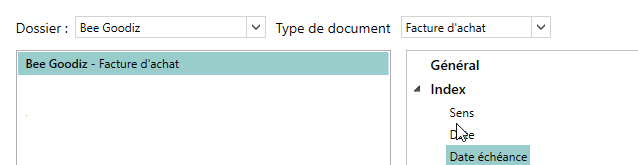
- Apply your changes by following the documentation on this page.