General
The consistency index is a new type of index that has been introduced since version 4.7.0 of Capture.
This type of index allows a user to perform a consistency check between data detected on a document but also with data external to the application. Data external to the application can be directly modified within Capture and reused during scripted output
It is composed mainly of two scripts. If you’d like a refresher on Capture’s scripted indexes, you can check out this page
Configuration
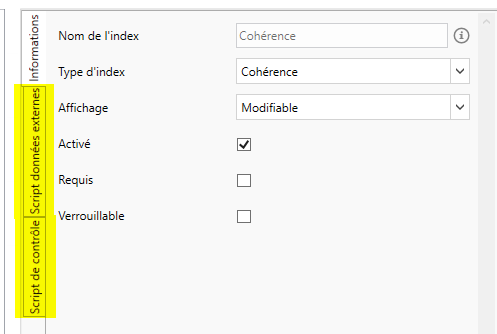
External Data Script
The purpose of this script is to fill the table that will be visible in the videocoding with data external to the software, which can come from a database, web services, files, etc. To work, this script must go through a Gateway
This table is created dynamically via your script, it allows you to define the desired columns, as well as their type. You can also set drop-down lists in these columns
The expected return of this script is a JSE_Datatable object. For more information on this object, you can visit this page
Control Script
The purpose of this script is to display the data to the user when they arrive at the videocoding part. This script is in charge of displaying a status icon, and a message to the user allowing him to know the status of his consistency check
The control must be implemented manually via the script, it can access the data detected on the document but also the data reported via the external data script mentioned above. For more information on data access, please visit this page. And more specifically the “Special Consistency Index” part for external data
The expected return of this script is a JSE_Consistency_Result object. For more information on this object, you can visit this page
Videocoding
In videocoding, the control script is used to send information back to the user and is replayed when data with which it is linked (detected on the document or externally) is modified by the user. The button on the left side of the index takes you to the external data table.

When the button is pressed, the external data table appears

This data can then be changed by double-clicking on the desired box. It is also possible to add or remove a row by right-clicking