General
Your version of Open Bee™ Scan Capture is open for multi-document. This means that your software can be configured to detect several different types of documents as well as several types of third parties. Icon
Please note that this configuration requires prior training as it can strongly influence the recognition rate obtained by the software
The configuration of the different types contained within Open Bee™ Scan Capture is done via the “Types” menu
The interface is then broken down into several parts:
- Types of third parties: Part allowing the addition, deletion, modification of the types of third parties contained in the software
- Types of journals: Part available only if your software is in accounting mode and allows the addition, deletion, modification of types of accounting journals
- Document types: Part allowing the addition, deletion, modification of the type of document contained in the software
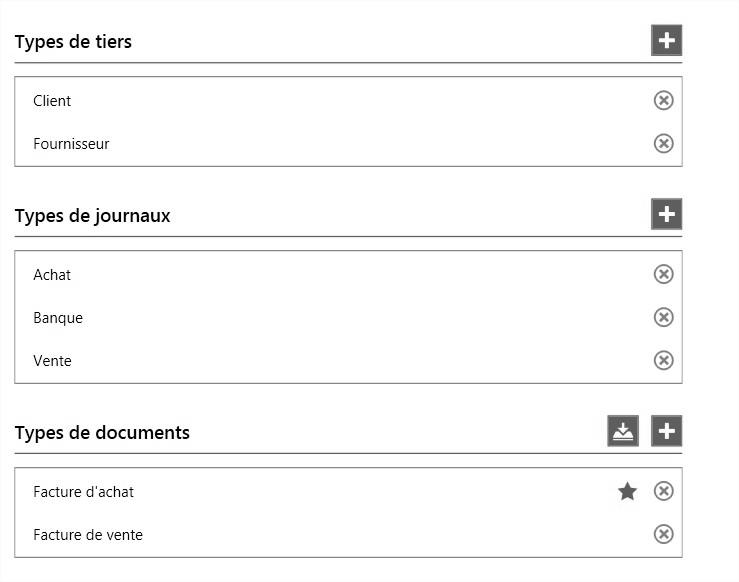
Global Interface
As you can see, these parts work the same way:
Creating a Type
This is done via the button provided for this purpose at the top of each of these Icon parts 
Before creating your new document type, make sure that the associated business partner type is created as this will be requested in the mandatory information
Document Type Specificity: If your software is connected to a DMS, a document type can be imported directly from it. To do this:
- All you have to do is click on the

- A window with the types of your DMS appears
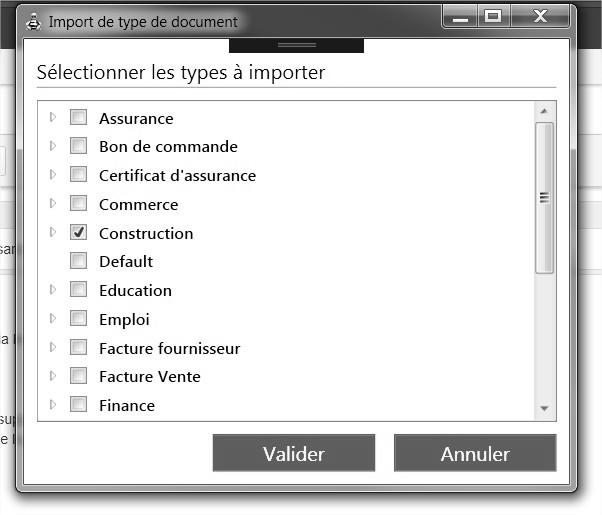
- Select the type you want (You can unstack it to see the different metadata attached to it. If you don’t want to import a particular metadata, you can uncheck it as long as it’s not required in your DMS

Deleting a type
This can be done by clicking on the cross available to the right of the name of the player
Changing a type
This is done by selecting it (Click on its name) and a panel containing the information of the type appears.
Selecting a Default Type (Document Type)
For a document type, it is possible to define a default type for the software. In other words, if the software is not able to determine a type when interpreting the document, the default type will be chosen. To do this:
- All you have to do is go to the line of the type you want
- Move your mouse to the left of the delete cross
- An empty star appears

- Click on it
- A solid star appears
 , this means that your type has been selected as the default type for the app.
Type Details
When adding or editing a type, different information is present on the panel on the right side of your screen.
Type of third party
The information available is:
- Name: Name of the selected business type
- Related Account Type (Available in General Ledger Mode): This allows you to associate your business partner type with an accounting account type. Ex. Vendor – Vendor Account> , Customer -> Customer Account
Type of journals (Available in general ledger mode)
The information available is:
- Name: Name of the selected log type
- Ledger journal type: Your Open Bee™ Scan Capture journal type must be associated with an ledger journal type to be valid.
In most cases, your journal types contained within the application will have the same name as the selected ledger type. - Reversal of entries: Allows you to define whether the journals that will belong to your type will have to automatically reverse the columns of their entries (the amounts usually debited will be credited and vice versa)
Type of documents
The information available is:
- Name: Name of the selected document type
- Associated Tier Type: This list is defined relative to your tier type. The type set here will allow Open Bee™ Scan Capture to properly search for your third party when interpreting a document. In addition, the label of this type will be used in the different parts of the application to display third-party labels. Ex. For an invoice, the third-party column on the home page will show “Vendor”