General
Open Bee™ Scan Capture has a built-in search function that can be used in two ways:
- Search for a document from a known text in it from the long list of pending documents in Open Bee™ Scan Capture
- Search for all occurrences of text within a document when videocoding the document
Searching for a document
This search is done on the Open Bee™ Scan Capture homepage, which can be accessed from the videocoding button in the menu on the left side of your screen.
Once on this page, you just need to press CTRL+F to activate the search box.
- The right side of your screen
 will then turn into
- All you have to do is enter the text that will filter the pending documents
- Press the enter key to start the search (to re-display all the documents, empty the text field and press enter)
To disable the search, simply press CTRL+F again.
Searching for text within a document
To perform this search, you must be on the videocoding page of a document. To search for one or more instances of text within it, press CTRL+F
- The action bar at the bottom of the document activates the search


- Enter the text you want to search for within the document
- Press the Enter key

- Instances of the text found are displayed in yellow on your document
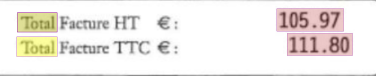
- By pressing the enter key , you can move to the next found occurrence to locate the location of all occurrences.
To disable the search, simply press CTRL+F again.