General
The “Configuration” tab, “Folders“, will allow you to add/modify or delete information related to your folders.
Add a folder
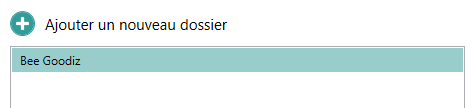
To add a folder, simply click on the “Add New Folder” button located at the top of the page.
News
Open Bee™ Scan Capture allows you to fill in certain information about each case.
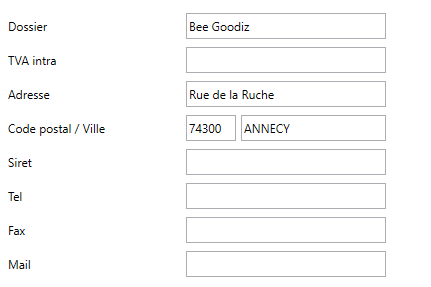
Each piece of information will be used when searching for third parties. Indeed, these will be automatically removed from the information found by Open Bee™ Scan Capture to identify a third party in order to avoid offering erroneous information to the user.
A unique name is required in order to validate your file
Additional Information
Each additional piece of information consists of:
- Name: Used as a unique key
- Of value
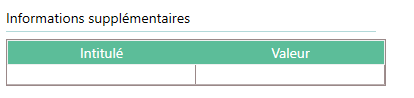
Once additional information is added to a folder, it will be added with an empty value to all other folders in your application. Indeed, this information is generic to the application and can be used during the various exports offered by the application.
Importing Third Parties

The third-party import file must follow a defined format described in the Third-Party Repository chapter. The import will be done when the file is validated.
Document Absorption
To set up the absorption of documents on a folder, go to the “Absorb” tab after selecting your folder.
Absorption Windows
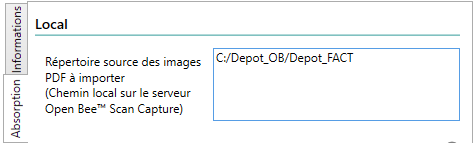
To set up a Windows folder that will be observed by Open Bee™ Scan Capture to absorb the documents contained in it, simply fill in the path to that folder.
The folder path must be a path on the Open Bee™ Scan Capture server. Indeed, the absorption of documents is carried out by the server part of the software
Absorption DMS
This feature is only available if the DMS output is enabled and if it is correct (The connection with it has been verified. See DMS configuration page)
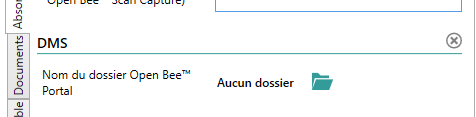
To select a DMS folder in which Open Bee™ Scan Capture will absorb documents, simply:
- Click on the folder icon
- Select the desired folder in the window that has opened. To browse the tree, you can double-click on the folders or go back to a parent folder via the breadcrumbs at the top of the window.
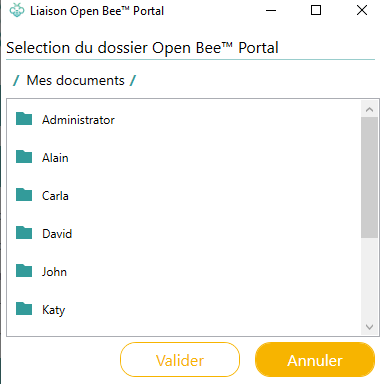
You can also add a folder directly from this window by right-clicking your mouse.
- All you have to do is validate the chosen file and then validate your file
Choice of document types
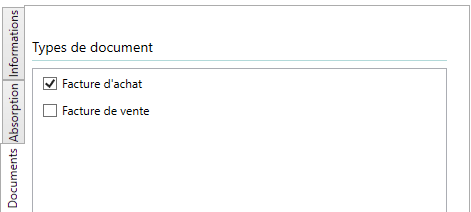
From the folder management, you can also define for each folder which types of documents will be absorbed and therefore configurable.
To do this, go to the “Documents” tab, all you have to do is tick the types of documents accepted
Accounting framework of the file
In the Accounting Framework tab, you can configure the different fiscal years as well as the different accounting journals accepted by the file.
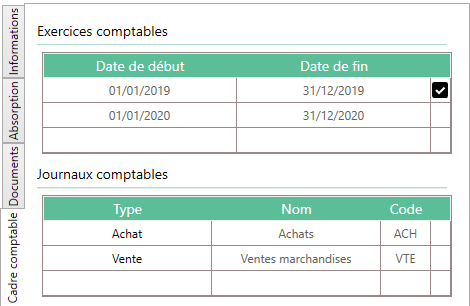
Open Bee™ Scan Capture will perform an audit to ensure that no accounting years overlap.
The symbol  means that the fiscal year is the current fiscal year. For logs, this symbol defines the default log used if multiple logs are of the same type.
Accounting Setup
Like the accounting setup page, this tab allows you to change the configuration specifically for the folder in question.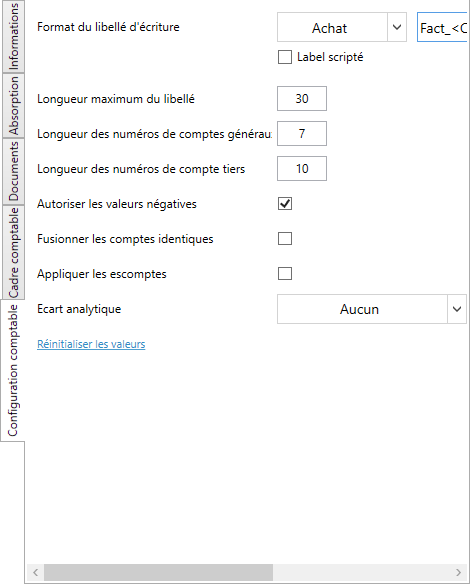
Changes made on the General Ledger Setup page will no longer affect this folder if it has already undergone a specific change.
For more details on the accounting configuration, go to the page provided for this purpose.