General
Open Bee™ Scan Capture allows you to make accounting entries on certain document templates and if your software has the Accounting module.
Before making these accounting entries, you will need to videocode the information of your document, or choose a document that has already been videocoded previously in the home table identified by the icon 
To switch to editing accounting entries mode:
- If you are videocoding a document, simply click on the Entries tab
- If your document has already been videocoded, you will then go directly into write editing mode
Editing mode of accounting entries
Summary of videocoded information
At the top of your display, you can find the information that was validated before.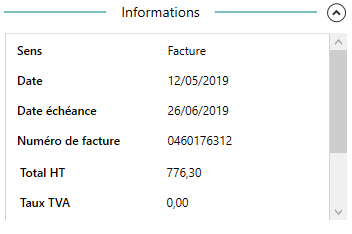
This information can be changed:
- By selecting a piece of information, then selecting the new value directly on the document
- By double-clicking on a piece of information, then manually entering the new value of that information
When information is modified, Open Bee™ Scan Capture opens this window: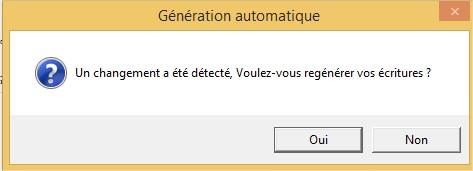
This simply allows you to regenerate your accounting entries if important information has changed. Ex. If the label consists of the invoice number and you have just made a change to it, it is a good omen to regenerate your entries.
It is absolutely not mandatory to regenerate your entries if the changed information does not affect them. Your change will still be saved.
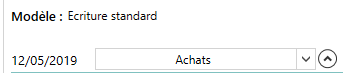
Accounting journal
Choosing the accounting journal will allow you to classify your entries in the right export batch, and to reverse the columns of these if you choose a sales journal. Its logs can be configured for each folder.
Writing Templates
What is it?
Open Bee™ Scan Capture allows you to save one or more accounting entry templates for the same third party.
To access the management of these templates, you just have to click on the button  to open the menu of this management.
Among the templates, one is designated as the default template, so Open Bee™ Scan Capture will automatically apply it to your entry in the accounting module. Of course, you can change the model at any time. Open Bee™ Scan Capture will then recalculate your entry lines to match the selected pattern.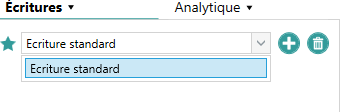
Each third party has a writing template pre-built by the software called “Standard Writing”
Add a template
Adding a writing template is done via the button  . You will then enter edit mode, you just have to fill in the name of the new template
  and confirm by clicking on
  or cancel by clicking on
  . Once the template has been validated, all you have to do is fill in your corresponding entry lines and validate the document. The registration of the model will be done automatically when the document is validated.
Delete a template
Deleting a template is done directly via the button  . You will then be asked for a confirmation of deletion before finalizing the operation.
Select a default template
To select a default template, simply tap the icon  to the left of its name. This icon has two positions:
 : Your template is not designated as the default template
 : Your template is designated as the default template
When you designate a default template, all other templates are changed to no longer be the default
Accounting
The standard accounting entry template for Open Bee™ Scan Capture looks like this: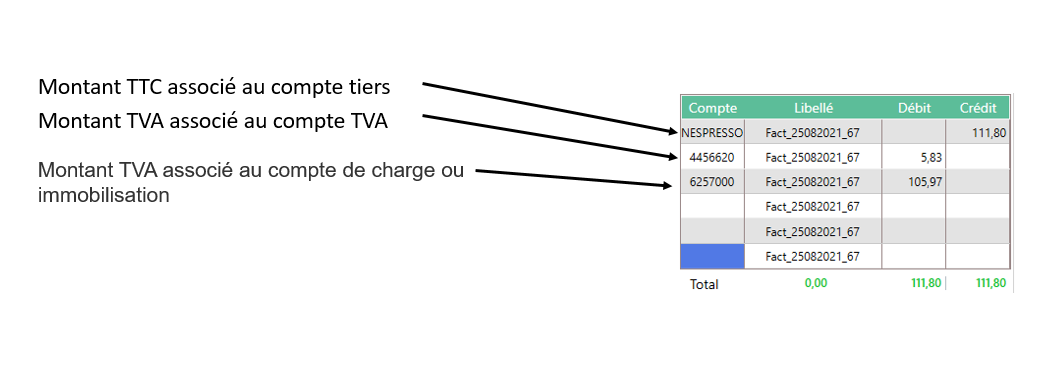 Icon You can delete, add, change the order of the lines, balance your lines… using the shortcuts available on this page.
Write Model Retention
The entry template is initially blank, or contains only a few amounts and possibly a third-party account when an invoice is first posted for a vendor.
Following the posting of an entry: the accounts present, as well as the amounts corresponding to indexes, will be kept in the entry template. This template will be reused to facilitate the entry of future entries.
At each validation the model will be rebuilt from the last committed write. Except in the following cases:
- Edit Entry (from Batch Management)
- The following option is checked:
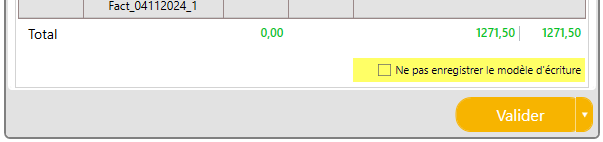
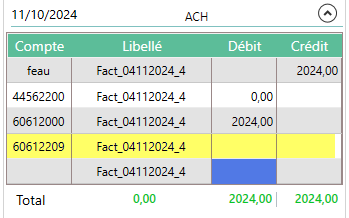
Tip : It is possible to leave a line with an account without assigning an amount to it (0 is an amount). In this case, this line will be kept in the entry template, but will not be kept in the ledger entry that will be exported to the general ledger.
This trick keeps multiple accounts ready to use in the entry template, saving time by changing only the amount allocation.
Example of an account that will be kept in the entry template, but will not appear in the ledger entry that will be exported to the general ledger.
Add an account
To add an account to an accounting line, all you need to do is:
- Start typing the beginning of the account number or part of the account number label in the Account column
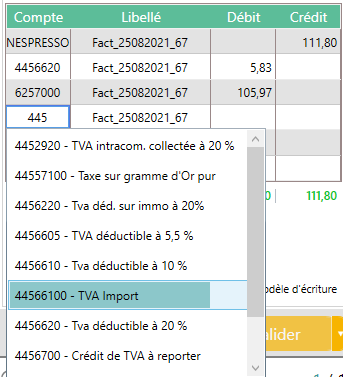
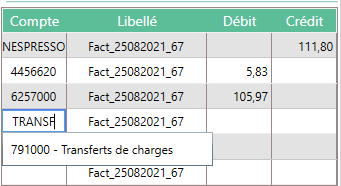
- Then use the keyboard or mouse to select the desired account from the list. You can directly press the enter key if there is only one account left in it.
- Your account is correctly assigned to the line, to change it just do the same operation.
Viewing Accounts
For the row(s) corresponding to a third-party account, the account displayed will be the sub-account. For all other lines, the account displayed will be the G/L account.
For each line you can find all the details of your account (auxiliary account, general account, account denomination) by hovering over the line of the account.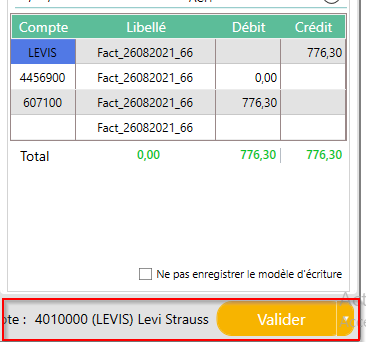
Change the label
To change the label of a row:
- Double-click on the cell in the “label” column of this row
- Enter the new label
- Press Enter or exit the cell to commit the change only on that row OR Press CTRL + Enter to apply the change to all rows.
If you want to change the way the label is constructed, you need to go to the Accounting -> Configuration page to change the overall configuration for all folders. Or Configuration -> Folder -> Select Folder -> Accounting Configuration to change the label construction only for that folder.
Validate the document
To validate the document, the entries must be complete and balanced:
- All lines that have an amount in the Debit column or the Credit column must have an account populated.
- The sum in the Debit column must be equal to the sum in the Credit column. You can find this information under your entry table. The color code is as follows:
- Green everything is correct
- Red, there’s a gap in your columns

Changing the Amount for Lines
Each ledger line amount can be changed:
- If you enter a random amount: Your document will be saved with the rows you entered, but Open Bee™ Scan Capture will not record this amount in your current template because it cannot link it to an index.
- If you enter an amount that corresponds to an index of the document, it will be linked to the index in the template to be automatically replaced the next time you use that template
- If you enter a percentage corresponding to an index e.g. 20% of the tax included, for your calculation to be recorded in the model, you will have to add up some of your lines to 100% of the tax included. ex.
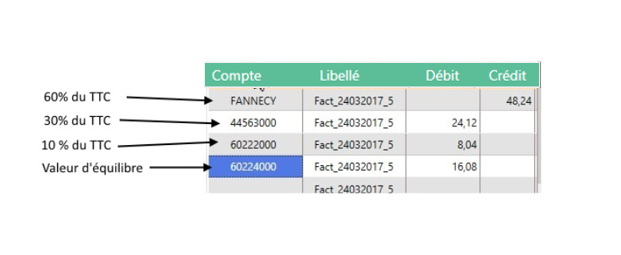
This entry contains several lines whose sum corresponds to 100% of the tax included. Open Bee™ Scan Capture will therefore keep these different lines well in the current model. You can perform a calculation directly in a cell in your table, you just need to start your calculation with =. e.g. if you want to get 20% of 80.4 you just have to write =0.20*80.4 and press the enter key.
When it says that Open Bee™ Scan Capture will not record your amount or the calculation corresponding to your amount in its template, it does not mean that this amount will not appear in the entry. The amount will be recorded as is in the entry, but simply won’t be reproduced if you use this template again on another document.
Special case for multi-rates
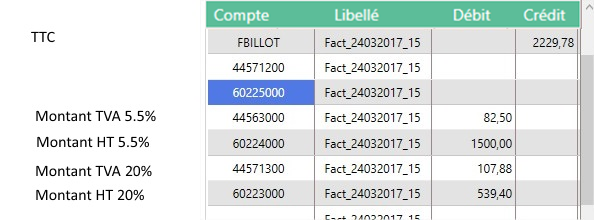
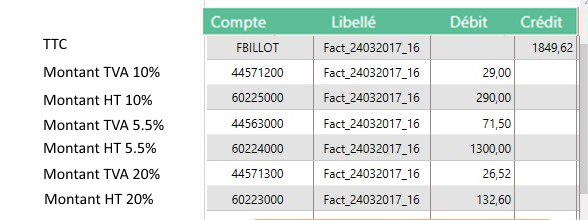
In the case of multi-VAT rates, each line will be recorded in the current model by linking the amount to the corresponding index but also the rate applied. As a result, if a future document from this third party is a single rate or if the rates applied to this document have changed direction (e.g. 5% 10% 20% -> 10% 20% 5%), Open Bee™ Scan Capture will be able to apply your template and enter the correct amounts with the correct corresponding accounts.
Manually Fill in Entries Before Saving the Model
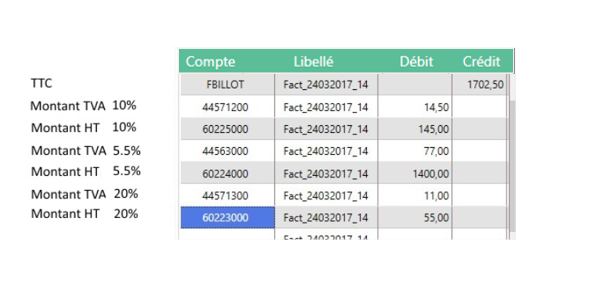
Template automatically applied to different documents from the same third party