Model
The model deals with the contents of the generated file and is also divided into two parts:
- Left : The variables available in the document
- Right : The structure of the document
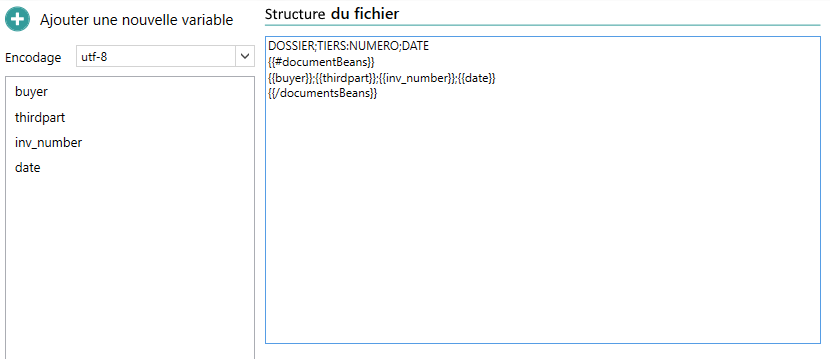
Variable Management
The variable management part allows you to manage the values that will be formatted and then injected into the file structure. In the case of an existing model, this list already contains ready-to-use variables. It is possible to modify them or create new ones.
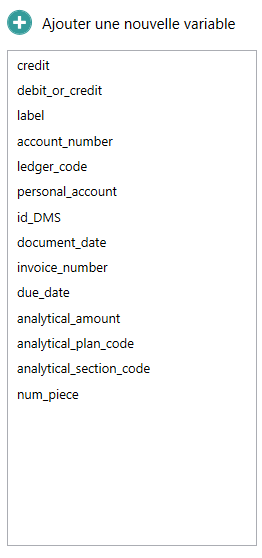
Add a new variable
When clicking on “Add New Variable“, the following window appears:
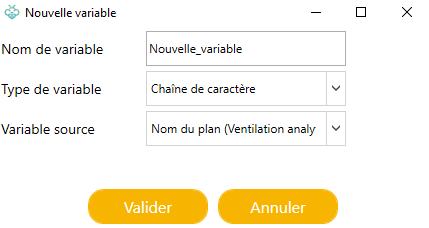
The information requested is:
- Variable Name: The name that will be used to use the variable in the document structure. It is free, but limited to alphanumeric characters and “_”.
- Variable Type: The type of variable used in the document structure. This is independent of the type of the source variable and allows further manipulation of the value to be exported.
- Source variable: The source of the value. The context displayed in parentheses is used to identify the source of the variable. Each variable can be used in a specific context.
Edit a variable
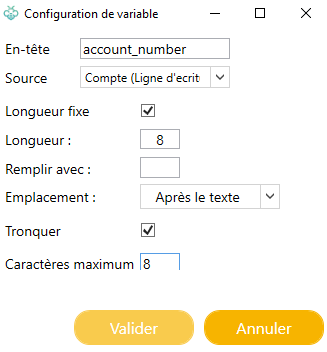
To modify a variable, double-clicking on the desired variable opens a new configuration window that allows you to format the value by offering a particular parameter according to the chosen type.
Strings
String variables have the fewest options. They can only be truncated, or of a fixed size.
If “fixed length” is chosen, the following fields appear:
- Length: The final size of the text to be obtained. If the value is too small, it will be completed. If it is too large, it will be truncated.
- Fill with: The character used to fill in the value if the value is too short (less than the set length).
- Location: The position at which the padding character will be inserted (before or after the value) in order to obtain the desired size.
If “Truncate” is checked, the following field appears:
- Maximum Characters: The number of characters to keep. If the value exceeds this size, characters beyond this limit will be lost.
The “fixed length” setting is available for all types of variables.
Dates
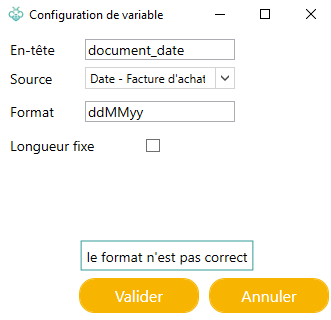
In the case of a Date field, you may need to change the format of the field.
The main groups used are:
y | Year | 1996; 96 |
M | Month | July; Jul; 07 |
d | Day | 10 |
h | Hour | 12 |
m | Minute | 30 |
s | Second | 55 |
Some examples:
ddMMyyyy => 20102017
dd/MM/yyyy => 20/10/2017
For more information on usable formats: http://docs.oracle.com/javase/8/docs/api/java/text/SimpleDateFormat.html
Sometimes you may see the following warning: “The format is not correct”. This means that the format entered is not one of the default formats present in the console.
CAUTION: However, the format can work perfectly if it follows the standard described above.
Number
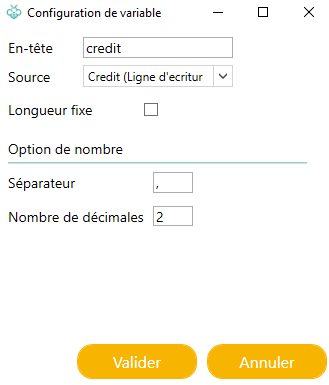
For numbers, the settings are simple:
The separator is used to differentiate between the integer and decimal part of the number.
The number of decimal places is used to define the number of digits for the decimal part of the number. If the decimal part does not contain enough digits, it will be filled in.
Example: 14.1 => 14.10.
The separator field can contain any character. You can just as easily leave it blank, this configuration that allows you to generate particular amounts.
Example: 14.1 => 1410.
Transcoding
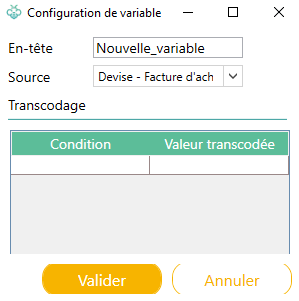
Transcoding allows you to transform values into a constant that is used for export.
Example: EUR = €> or Bank Transfer => 05.
The values to be transformed are often taken from choice lists.
Special condition %OTHER% applies in the event that none of the other conditions are applicable
Part Number
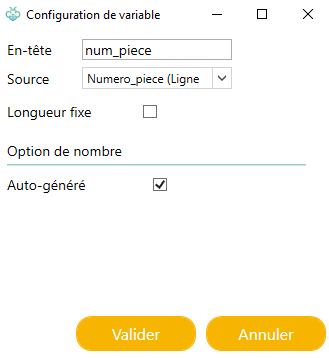
The “Part Number” type is a special type. It allows you to assign a unique number that is automatically incremented to each document in the same batch. Please note that this number is reset each time an accounting batch is exported. All entry lines in the same document will have the same number.
There is only one option for this type: self-generation.
- Auto-generated : The numbering will start at 1 for the first document.
- Not Auto-generated : The user will be prompted to enter the start value of the counter at the time of export.
Other variables can be used as unique numbers for a document such as: Capture ID, DMS ID. But they do not ensure continuity and increasing order
Model Structure
The structure of the model uses the variables created earlier. It is possible to create a wide variety of structures: XML, CSV, Fixed-position format, etc.
Here are two examples of very different formats:

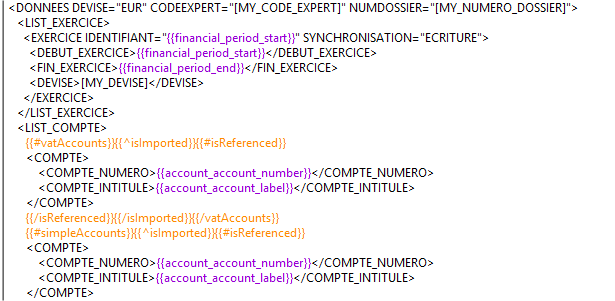
Variables are used in the form of tags, thanks to a special syntax called “Mustache” (https://mustache.github.io/mustache.5.html).
What is a tag?
Capture has a built-in template engine called “Mustache”. To work, it needs specific tags:
- To open a condition (if exist): {{#baliseIF1}}what I want to write if the condition is right{{/baliseIF1}}
- To open a looping tag: {{#MotReserve}}what I want to write at each iteration{{/MotReserve}}
- the inverse of the previous condition (else): {{^IF1 tag}}what I want to write if my previous condition is false{{/baliseIF1}}
User variables
Open Bee™ Scan Capture allows the user to create or modify (double-click) variables that they can use in their model. To use these variables, the user simply writes the name of the variables in curly brackets in their template.
Example: variable: nom_du_plan -> usage: {{ nom_du_plan }}
WARNING: Each variable belongs to a context, it is imperative to use it within its initial context otherwise it will not work.
To know the context of a variable, it is in parenthesis when choosing the source variable.
By default, some characters escape “Mustache”. To avoid this escape, simply precede the name of the tag with an “&”.
Example: {{nom_du_plan}} => {{&nom_du_plan}}