Explanation
Sometimes, Open Bee™ Scan Capture is not able to identify certain information in the document. In some cases, it is possible to help Open Bee™ Scan Capture recognize this information and thus optimize the processing of future documents. Here are some steps you can take to quickly identify why a value could not be recognized:
1 – Is the index present on the document?
Open Bee™ Scan Capture first tries to find the information in the content of the document. If this is not possible and the index allows it, the software will make a deduction from its value.
If Open Bee™ Scan Capture has not been able to find a value for this index, you must make sure that the information is present on the document.


2 – Check the text of the document
To check the text of the document:
- All you have to do is position yourself in a “String” type index so that you don’t have any formatting applied to it
- Left-click and drag to the text area of the document while holding down the left click.
- The text will then be inserted into the index field, and will also be visible below the selected area, in a green frame
| Good OCR | Poor OCR |
|---|---|
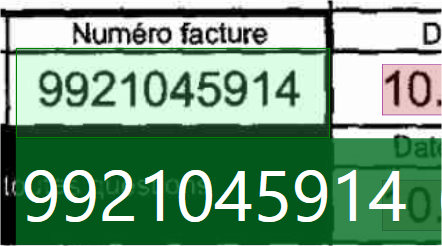 | 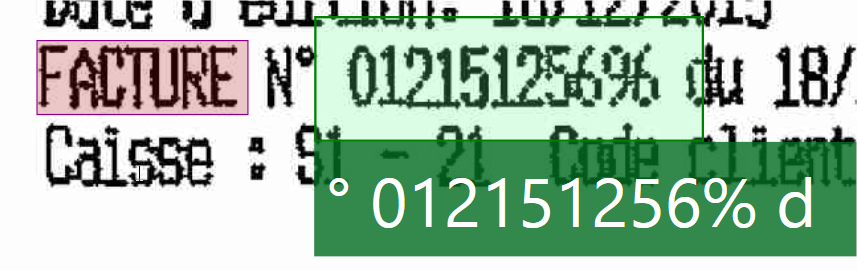 |
If the OCR (Text read from image) is not correct, the identified value will not be valid. This may be due to poor scanning quality, lack of visibility of the original image (addition of pen, highlighting, etc.) or characters that are difficult to identify.
You will therefore have to find this information elsewhere in the document and possibly proceed with a customization (see next part). In the event that this information cannot be read correctly by Open Bee™ Scan Capture, fill it in manually.
3 – Check customizations
To check if any customizations have already been made to your index:
- Go to the menu at the bottom left of your screen
 .
. - Click on “See all customizations”.

Check then:
- or no customization is already present for this index
- either that the customization already done is correct (that the zone is in the right place, that the zone is not too restrictive, …)
If the customization already present is not correct, delete it:
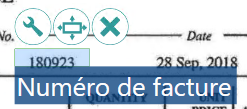
- Double-click on the blue custom area
- Then clicking on the delete icon

4 – Customize the value area
If the document’s OCR contains the value you are looking for, but it has not been identified, you can help Open Bee™ Scan Capture find it by defining a search box.
To set this zone:
- Select the desired field
- Hold down the “Ctrl” key and select the area corresponding to the value on the document.
- A blue area appears. This is the custom search box
- Double click in this frame
- 3 buttons appear above it
- The one in the center allows you to extend the area, in case the value can move on the document, such as the amounts of an invoice. It is possible to extend the area horizontally, vertically, horizontally and vertically or return to the area alone with this button.
- Reinterpret the document to verify that the search box is effective.
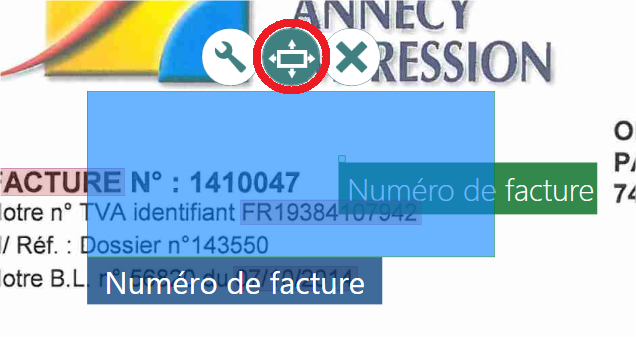
To define a search area, it is advisable to take a larger area than that of the value to be identified, to anticipate the offsets associated with the position of the scan. In all cases, Open Bee™ Scan Capture continues to look for a compliant value within that area.
5 – Value not found
Only for “string” indexes, it is possible to go further in the customization of each index by acting if necessary, directly on the format of the values searched in the document.
The OCR is correct, the search box is restricted, but the value is not yet found. In this case, it is possible that the value does not match the expected shape for this field and requires further parameterization.
- Start by viewing the document customizations:
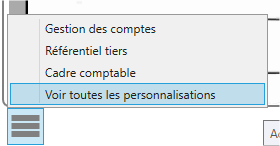
2. Then double-click on the index not found area and on the “Wrench” icon on the left
3. A window opens. If nothing is displayed in the marker box, it indicates that no markers are present in the area.
4. A new one can be added by hand-gripping. But our priority is value.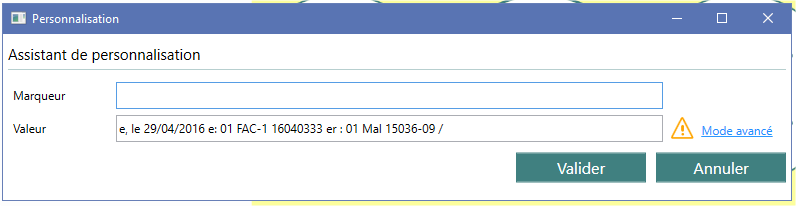
5. Here, the value has been filled with all the text present in the box. So we’re going to reduce it to the value that we want to get. There are two possible scenarios:
5.a. The format of the value is not recognized if an orange panel appears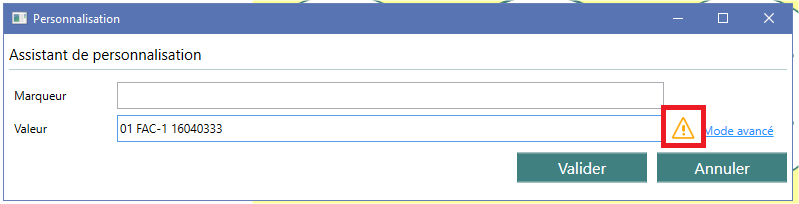
5.b. The format is known if a green check appears, so you can skip to the “Known format” section of the chapter.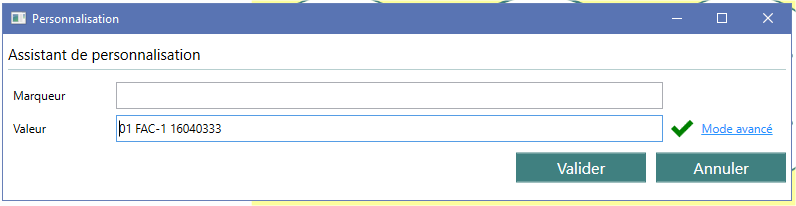
Unknown format
- You can click on the orange panel and a new format that corresponds to the desired value will be generated. The orange sign will then change to a green check.
- All we have to do is validate and reinterpret the document
Known format
If the value matches the format but still isn’t found, it tells you that Open Bee™ Scan Capture is finding another value that is more relevant.
We will therefore make sure to increase the relevance of our format for the software:
- Use Advanced Mode:
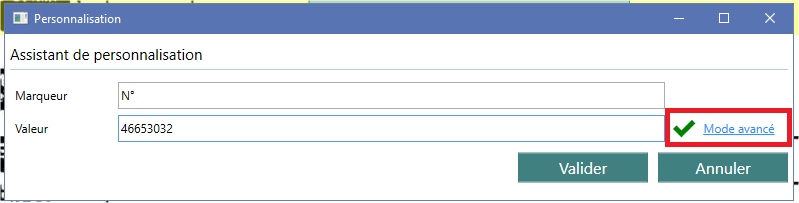
- Identify the line in the format that corresponds to the one of our value
- Bookmark this format by clicking on the star to the right of it
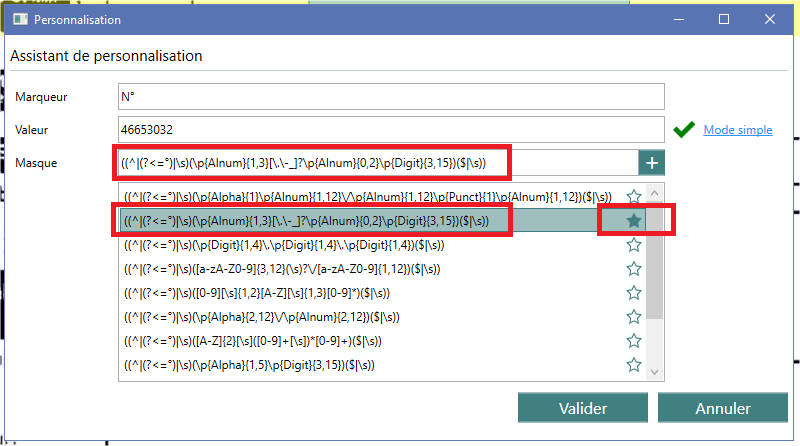
- Finish by validating the window and reinterpreting the document