General
The accounting import of Open Bee™ Scan Capture allows you to import the chart of accounts from the accounting software. Thanks to this import, Open Bee™ Scan Capture will be able to know the different accounts, exercises and accounting journals used in the user’s accounting.
To set up an accounting import, simply go to the Accounting -> Accounting Import page
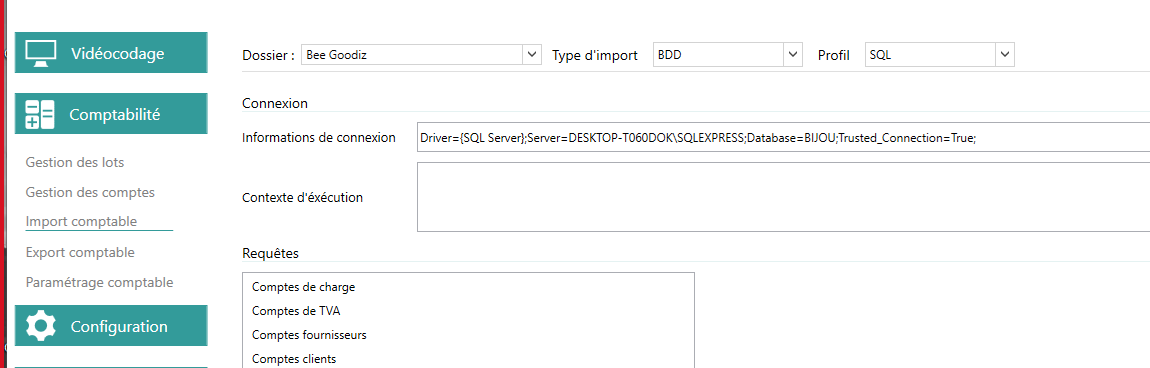
First setup
Import Type
When you set up your ledger for the first time, the page is blank. Open Bee™ Scan Capture then offers you to select an accounting import type
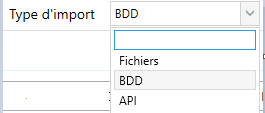
- Files : This type of import allows you to import your data via file exports from different accounting software
- BDD : This type of import allows you to import your data by connecting Open Bee™ Scan Capture to the database of your accounting software
- API : This type of import allows you to import your data by combining Open Bee™ Scan Capture with your accounting software. To do this, your accounting software must have an API that is open to external software (from a programming point of view, an API is made up of different methods made available by the accounting software so that external software can query it directly)
Import Profile
Once the import type is selected, Open Bee™ Scan Capture will then ask you which profile to use for your type.
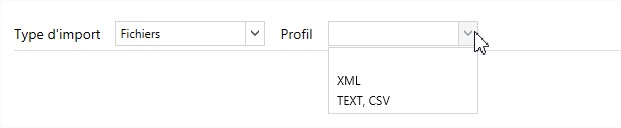
A profile, in the sense of Open Bee™ Scan Capture, is a specification of your import type.
For the types of imports, different profiles will be proposed:
- Files: The proposed profiles will be specifications on the extension of the file to be imported, e.g. XML or TEXT, CSV. TEXT, CSV types are treated the same way because a CSV file can be described as a text file with separators “;”
- BDD : The proposed profiles will be the different database languages e.g. SQL, NO SQL
- API : The proposed profiles will be the various accounting software known by Open Bee™ Scan Capture having an open API pre-programmed in Open Bee™ Scan Capture to be usable.
Import template
When your import type and profile are selected, Open Bee™ Scan Capture will open a window where you can select or create your import template.
An import template is an import that is pre-configured and saved in your Open Bee™ Scan Capture so that you don’t have to do it again later. By default, frequently used templates are pre-set when Open Bee™ Scan Capture is installed and is ready to use.
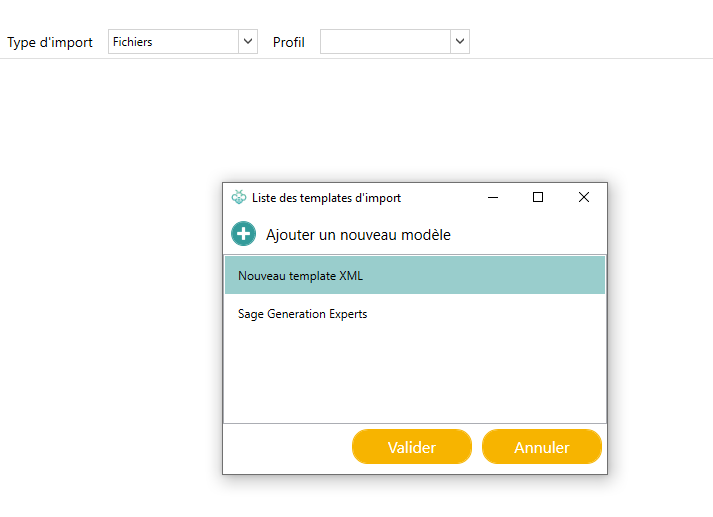
Choosing a predefined template
If your accounting software is already in the predefined templates, then you just need to click on it and then click on the “Open” button. This will then be used as the default template for import into Capture.
Creating a Template
If your template doesn’t exist, then you can create it by clicking the button  , a new row appears in your template list.

You can see that the template was set as the default template directly when it was created. All you need to do is come up with a suitable name and click the “Open” button to save it.
Import
Once the import template has been set up, you can import your chart of accounts with the “import” button at the bottom right.
Scan Capture will update the data already imported and add the new data.
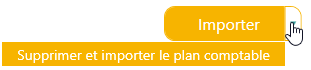
This button also provides access to an additional option: “Delete and import chart of accounts”. With this option, Scan Capture will erase your already imported data and replace it with the new one.