Generality
This part of Open Bee™ Scan Capture allows you to change the appearance of the console, but also to configure the columns displayed on the home page of your software.
To access this page, go to Configuration -> General Setup
Customizing the Home Board
Description
The welcome board can be customized differently depending on the type of document chosen. Indeed, within Open Bee™ Scan Capture , each type of document contains its own indexes. For each type of document, you have the option to add or remove indexes via the page provided. The display of this information on the home page also explains why it is not possible for Open Bee™ Scan Capture to add or remove indexes for particular third parties. If this were the case, the software would not be able to display a summary on the absorbed documents because the information would all be different.
Customization
To customize a document type, simply select it from the drop-down list provided.
The blank choice represents the configuration that will be displayed on the home page when no type is filtered. The indexes that are offered to you are therefore completely generic.
If you have selected a particular document type, Open Bee™ Scan Capture displays the generic indexes as well as the indexes for that type.
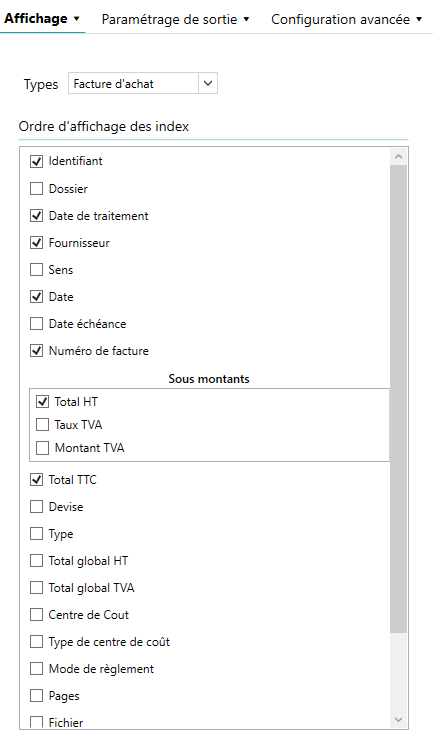
Explanation
Each row in the list is constructed as follows:
- Checkbox: Indicating whether the index is visible on the home page
- Index Name
In the image on the left, you can see the index under Uprights. This one is represented this way because it is of type group. It therefore has several sub-indexes. These indexes can, however, be visible on the home page, their iterations will all be grouped in a single column, separated by “;”
Show/Hide an index
To show or hide an index on the home page, simply check or uncheck the box for the index
Ordering My Indexes
To order the columns on the home page, all you have to do is drag and drop with the indexes to be moved to position them in the right place. This action also works within a single group index.
Please note that this order will also be used to display the indexes in the video coding console.
- For the home page, this order is used from left to right
- For the videocoding console, it is used from top to bottom
Validation
Whatever change you make, don’t forget to validate it using the button provided at the bottom right of the page
Console Preference
Viewing Documents
You have the option to choose whether Open Bee™ Scan Capture should display your documents or not when no type is selected on the home page.
If this box is checked, all documents will be visible on the app’s homepage. The columns displayed will be those configured for all document types (empty choice in the drop-down list in the section above).
Changing the main colors
Within Open Bee™ Scan Capture , you can change the main colors of the application.
Please note that this feature is only available if you are an administrator of your workstation
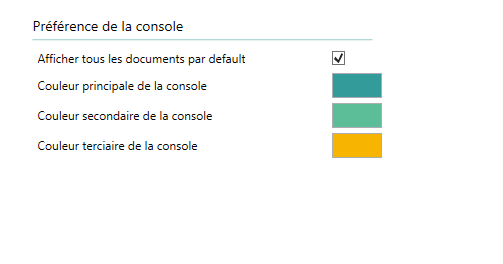
- Primary Color: The color used for all buttons, hovers, and title underscores in the app
- Secondary Color: Color used for the header of tables displayed within Open Bee™ Scan Capture