Generality
Within Open Bee Capture, the output setting is managed as a configured profile. Each profile represents an output that will be executed for a specific document type
Available Outputs
Open Bee™ Scan Capture allows you to send absorbed documents in several ways:
- Towards a DMS (Data Management System), Open Bee™ Portal
- In a file tree
- Running a Javascript script
To access the output settings, simply go to the “Configuration”/”Settings” page and then the “Output settings” tab.
Configuring Profiles
Adding a profile
To add an export profile, simply click on the “Add Output” button
Deleting a profile
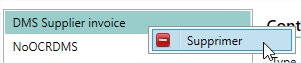
To delete a profile:
- Select this one from the list
- Right-click
- Delete
Editing a profile
Once your profile is selected, the setup screen will appear
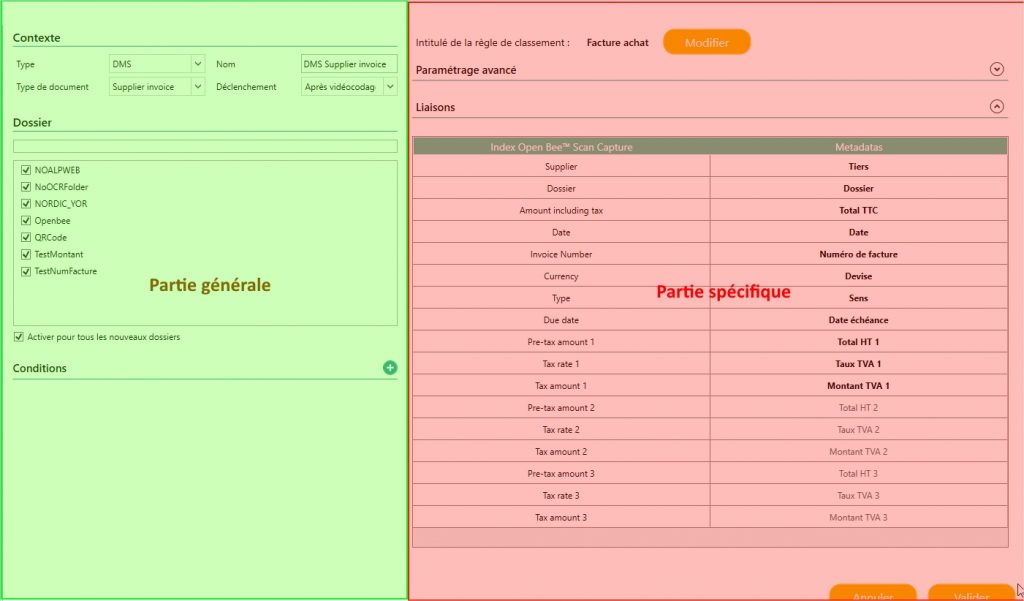
It is divided into two parts:
- A general part : This one has options that can be found for all output profiles
- A specific part : This includes options specific to the type of output profile
General part
Context
Type : Allows you to choose the type of profile. This can be of three types:
- DMS : Portal Output
- Windows : Creating a Windows File (Available only in OnPremise)
- Script : Running a Javascript script
Document Type : Allows you to choose which type of document this output profile will apply to
Name : Profile name
Triggering : Option to choose the time to trigger the profile (After videocoding, After accounting entries, After accounting export
Trigger details
Triggers are ordered as follows:
After Accounting > Export After Accounting Entries After Videocoding >
Warning : The “After accounting export” trigger is subject to certain restrictions, outputs that have already been successfully completed will not be retriggered, unlike other triggers. (See example 3)
Example 1 : I validate my ledger entries => The outputs “After videocoding” and “After accounting entries” will be triggered whether they have been made successfully or not.
Example 2 : I come back to a document that has a failed DMS output (After videoencoding) and a script output successfully completed (After accounting entry), revalidating this document that has already been videocoded will retrigger both of these outputs.
Example 3 : I’m exporting my ledger entry batch. My documents have three outputs:
- DMS (After Videocoding / Success)
- Script (After Accounting Entry / Failure)
- Script (After accounting export / Not yet triggered)
Exporting the batch will:
- Trigger the script output “After accounting export”
- Trigger the script output “After accounting entry”
Folder
This section allows you to select the folders to which the output should be applied
Enable for all new folders : If this check box is selected, the output will be applied by default to new folders created in Capture
Conditions
It is possible to subject the output profile to certain conditions. It is therefore possible to make the document export with output only if a certain index is (equal, greater, …) to a specific value
Ex. Total incl. VAT > 500.00
Multiple conditions can be applied to the same output. In this case, all conditions must be true in order for the output to be executed.
Specific part
DMS Profile
For DMS output, it is possible to choose which DMS to use (In case only one DMS is configured Capture the choose automatically) as well as the filing rule to be used to export and store the document within the DMS.

Once you have selected these, you can:
- Configure the tree structure used to store the document

- Configure the link between Capture indexes and DMS metadata
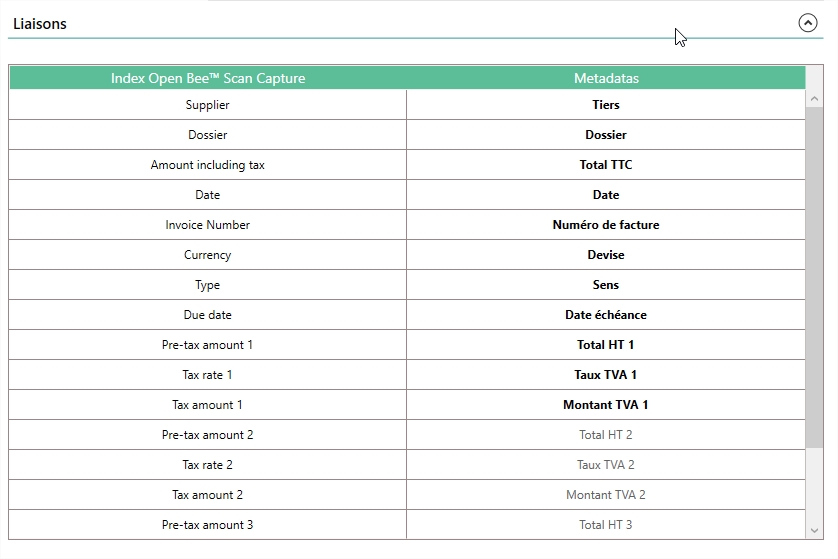
For more information, you can consult the page specific to this configuration
Windows Profile
This type of output is only functional for on-premise installations. Windows outputs use xsl files to transform the raw information from Capture into a data file and store it where the user wants.
These files are to be defined in the Capture About / Maintenance / Configuration configuration
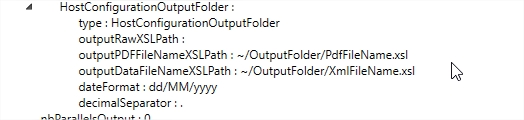
For more information, you can consult the page specifying this profile
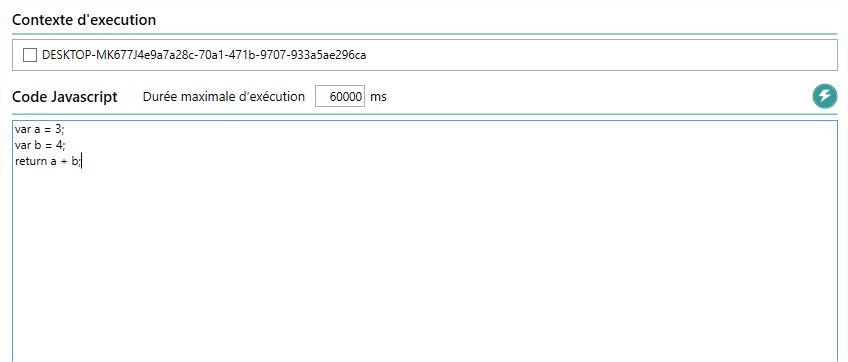
Script Profile
This type of output is used to execute a Javascript script.
You will then need:
- Choose a gateway that has been previously connected to Capture in order to execute the output.
- Implement the script to run