Open Bee™ Scan Capture offers the ability to manage users with specific rights.
When installing Open Bee™ Scan Capture, two users are automatically created and cannot be deleted :
- admin – admin
- anonymous – anonymous
By default, the admin user has almost all the rights available in Open Bee™ Scan Capture.
Each user can be attached to one or more groups. Groups determine the rights assigned to a user.
Enable/Disable Authentication
Open Bee™ Scan Capture console is launched can be enabled or disabled.
When disabled, Open Bee™ Scan Capture uses the anonymous user directly when launching the console and will apply the rights associated with that user. However, it is possible to log out to change users.
To enable/disable this feature, go to “Configuration“/”General Settings“, “User Management” tab:

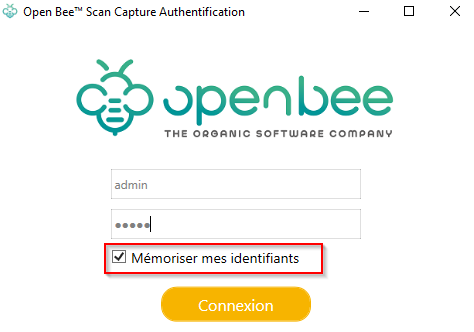
When authentication is enabled, a second option is available: “Allow automatic login“. Checking this box will allow users to retain their login information so that the Open Bee™ Scan Capture console connects directly with their information when the app is launched.
If this option is enabled, the user’s information will be retained as long as the user does not directly close the application without using the “Log out” menu.
Users
Go to “Configuration”/”General Settings”, “User Management” tab. From this interface, you can Add/Remove/Edit users.
Add
To add a new user, click on the “Add User” button.
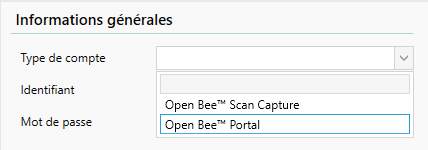
A new user appears. Their card also appears on the right side of the screen, with only an “account type” drop-down list.
This list allows you to choose between a user specific to Open Bee™ Scan Capture or an existing user on the DMS (available only if the DMS is configured).
Open Bee™ Scan Capture Users
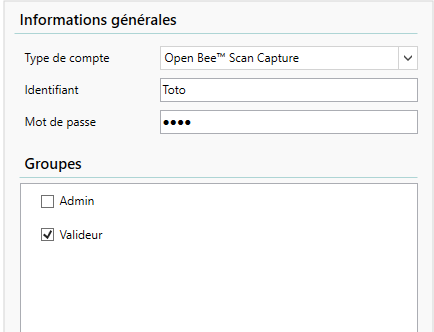
To complete the creation of the user, all that remains is to enter their username, login and then attach them to one or more groups.
DMS User
If you make this choice, a window will open offering you to import different users with an email address from your DMS.
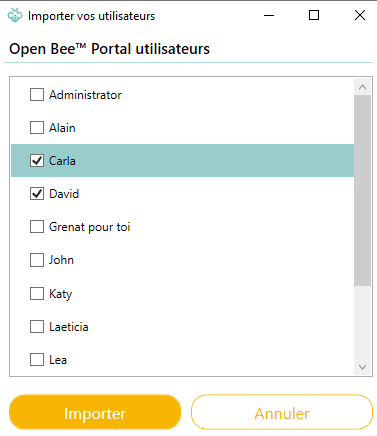
Open Bee™ Scan Capture automatically creates these users using their email addresses as an identifier. The password will not be accessible for this type of user. Their authentication credentials will be directly validated with the DMS when the user logs in.
DMS User Specificity
When a user is imported from a DMS, you can set the document display for it using the “View” drop-down list.
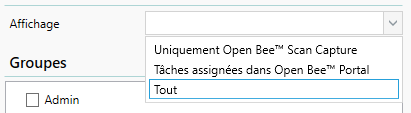
You have two choices:
- Only Open Bee™ Scan Capture: The DMS user will have the same behavior as an Open Bee™ Scan Capture user, he will be able to see the documents for which he has sufficient rights.
- Tasks assigned in Open Bee™ Portal: The user will only have access to pending documents in their Open Bee™ Portal workflow tasks.
Warning: In order for the document to be visible, it must come from Open Bee™ Scan Capture at the base. That is to say, Open Bee™ Scan Capture is at the origin of the ranking in Open Bee™ Portal
Delete
To delete a user, simply right-click on the user to open a context menu, and click on “delete”.

Duplicate
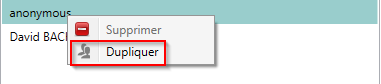
It can be interesting to create new users by duplication.
This method allows you to create a new user with the same groups (and therefore the same rights) as an existing user.