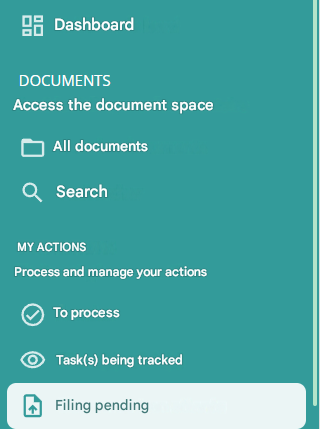
Thanks to a filing interface, you will be able to preview and dynamically classify your documents uploaded to Open Bee™ Portal. Click on ” Pending filing ” in the left-hand menu, you will find all your documents awaiting filing.
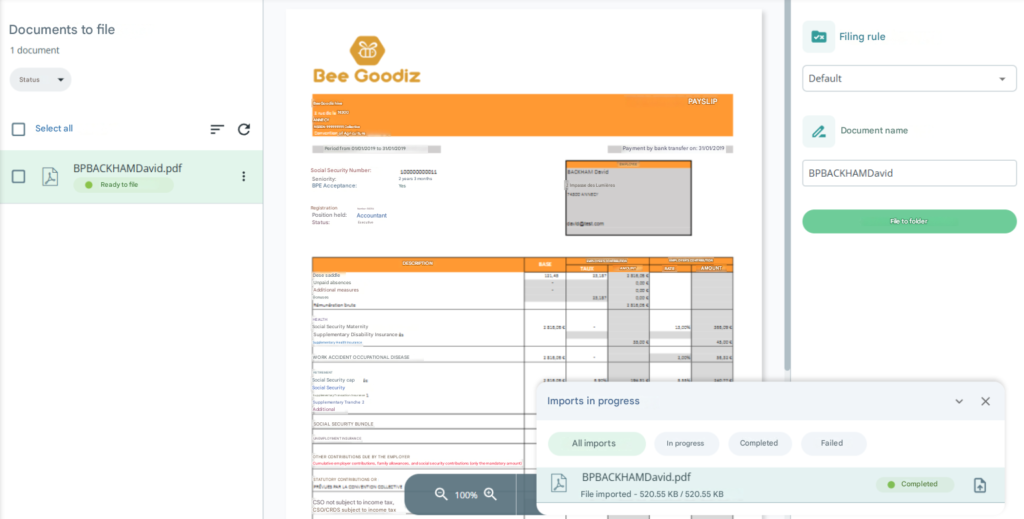
These are located in the “Documents to be filed” column. In the “Document Preview” column, you will be able to see a preview of the selected document.
There are two possible classification modes:
These steps imply that a document awaiting filing is selected in the “Filing” section
Filing a Default Document
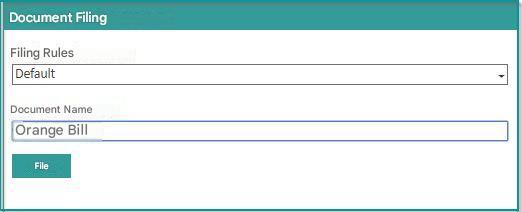
On the right-hand side of the ” Document Classification ” screen, select the ” Default ” classification rule.
Enter the name of the document and click “File“
Select the folder where you want to file the document.
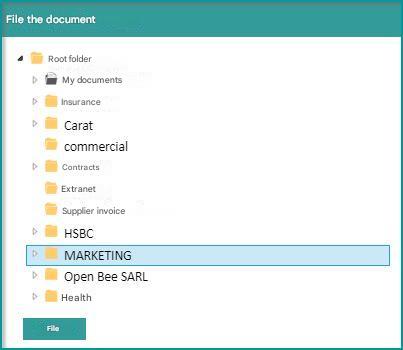
When selecting a folder, its subfolders will be displayed if you click on the small white arrow to its left.
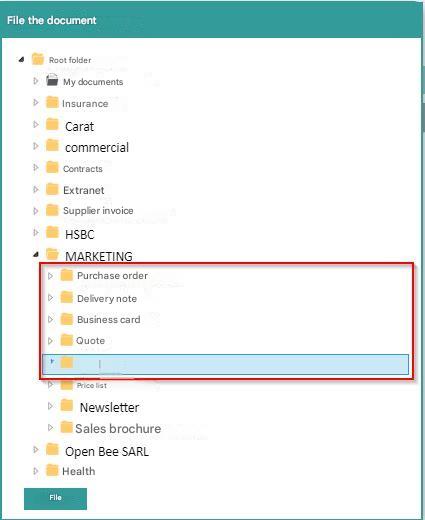
Finally, click on the ” Classify ” button at the bottom of the page.
Your document is then filed in the previously selected location:

Classify a document using a filing rule
Select the filing rule of your choice, and then choose a document type from the list provided.
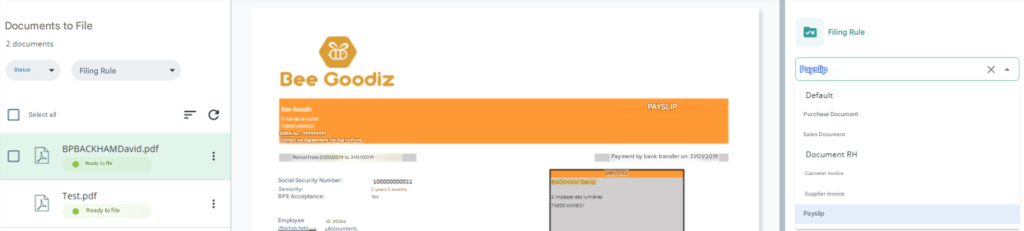
Fill in the document metadata that is displayed dynamically based on the type of document you choose.
Once all the fields are filled in, you will be able to see where your document will automatically be filed and its name.
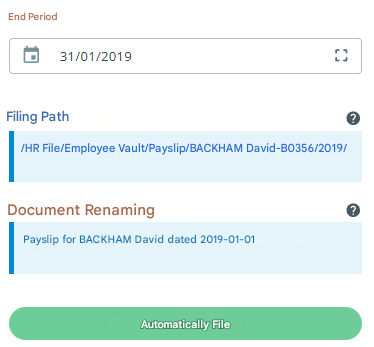
Finally, click on the “Automatically file” button.
A notification informs you that your document has been correctly filed.
Your document is then correctly indexed using the classification rules and automatically renamed:
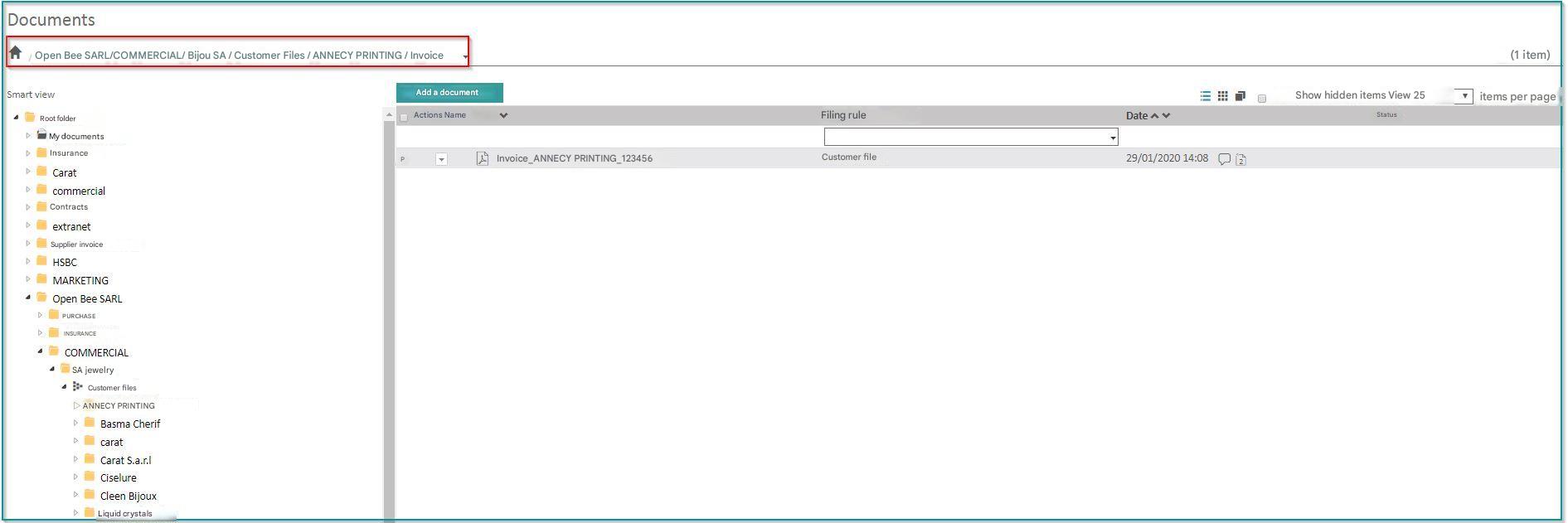
The document will be sorted according to the classification rule set for the selected document type.
For more information, see “Create a ranking rule.”
A document must be filed to be viewable by other users. Any document awaiting filing will not be visible outside the filing section.
There are multiple ways to add documents to the filing area: