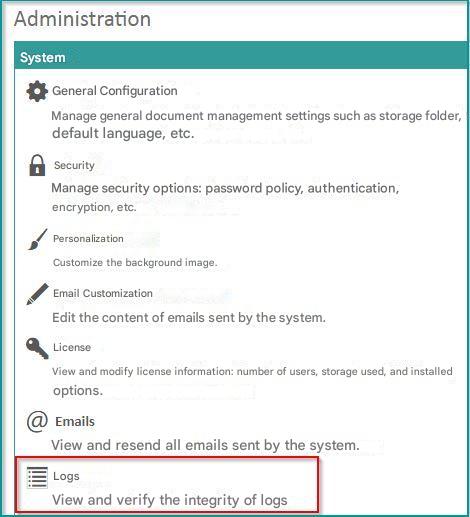
Click on “Administration” “Log” to access this section which allows you to view all the actions performed by Open Bee™ Portal users.
Consultation
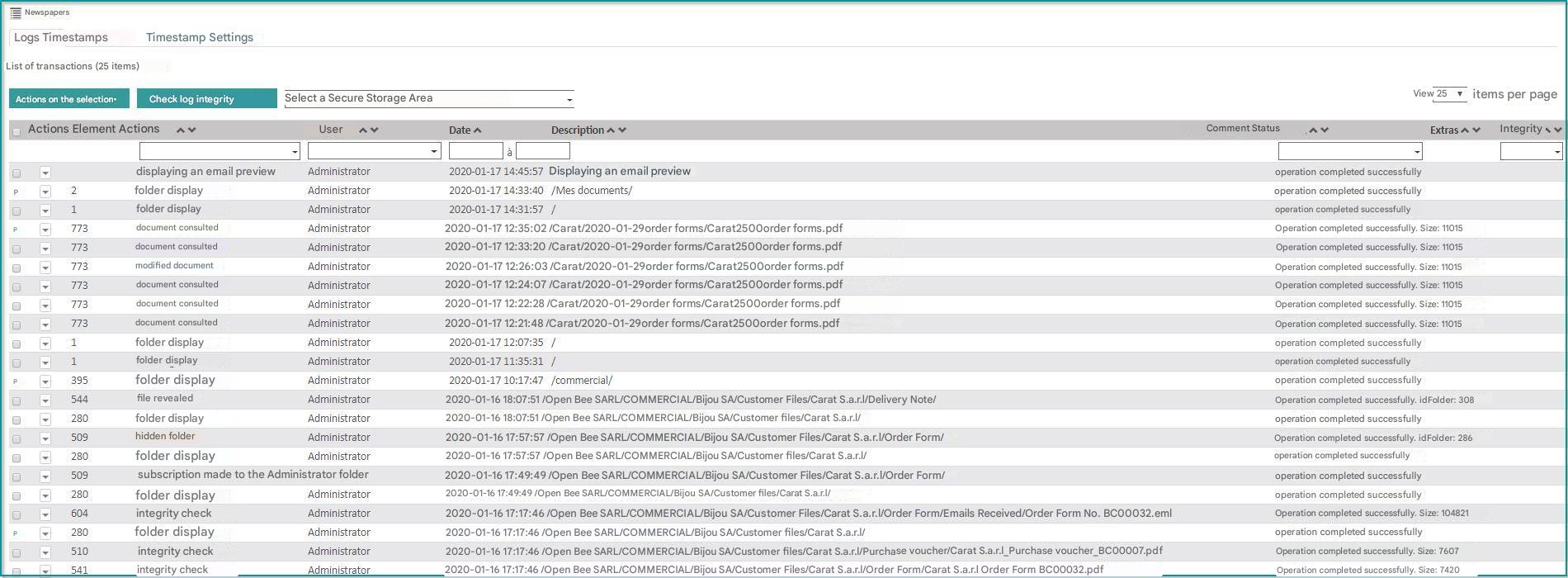
The list of all actions performed in Open Bee™ Portal is displayed in the “Log” tab.
Column Details:
- Element : The identifier of the item affected by the action. Example : An action on a document will contain the identifier of a document.
- Actions : The action that was performed. Example : Add a document.
- User : The person who performed the action.
- Date : The date in ISO 8601 format on which the action was performed.
- Description : An optional field that provides additional information about the action. In the case of folders and documents, it contains the item’s path in the tree.
- Comment:Comments related to the transaction
- Status : The status of the action: Success or failure.
- Extras: Contains additional information e.g.: Size…
- Integrity : The result of the integrity check of the log item.
- Health Check Date : The date on which the last health check of the log item was performed.
Filters on the following items allow you to quickly select the information you are looking for:
- Actions Performed
- Users who performed the action
- Date Ranges
- Integrity
- Integrity Verification Date
A global filter can also be applied to Secure Storage Spaces.
Timestamp
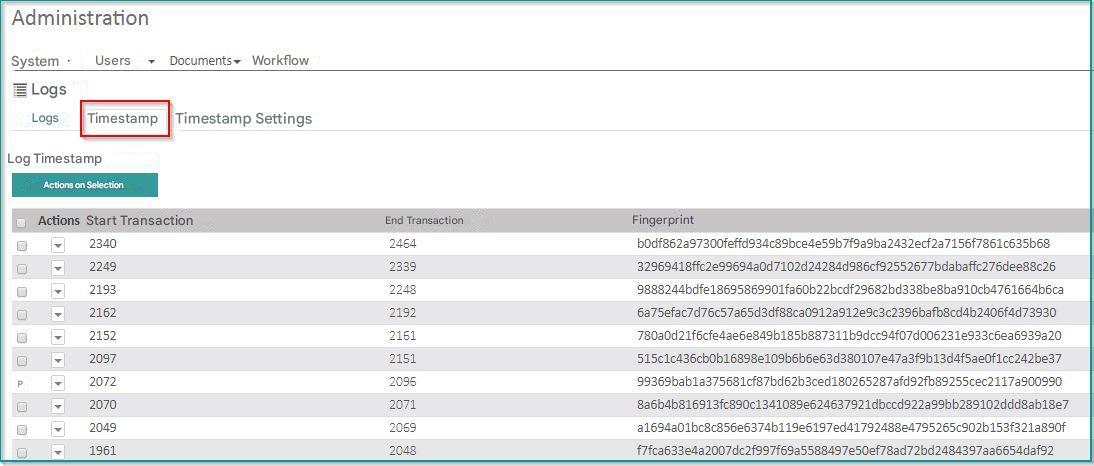
Log items are timestamped in batches. These batches can be viewed in the “Timestamp” tab.
The “Timestamp Settings” tab allows you to define how batches are set up and timestamped.
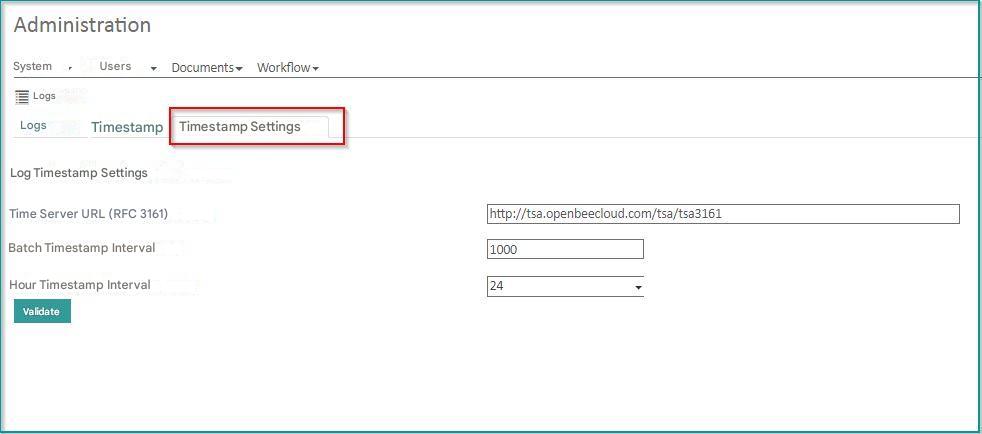
There are two parameters to consider when creating these batches:
- The number of records added since the last timestamp
- the time elapsed since the last timestamp
Both of these settings are set to 1000 items and 24 hours by default. As soon as the system detects that one of these limits has been reached, a new timestamp is made.
By default, the external TSA (Time Stamping Authority) time server used for the timestamping of these batches is the Open Bee™ one.
It is possible to specify in the settings another server that complies with RFC 3161.
Log Integrity
Integrity of one or more elements
To check the integrity of the logs, select the log items you want to check, then go to the “Action on selected items” button.
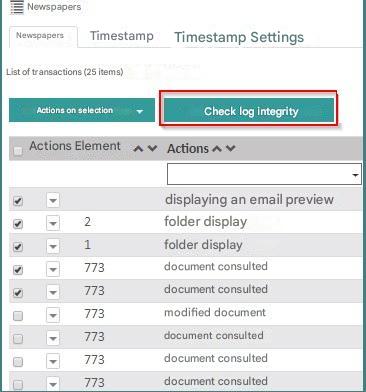
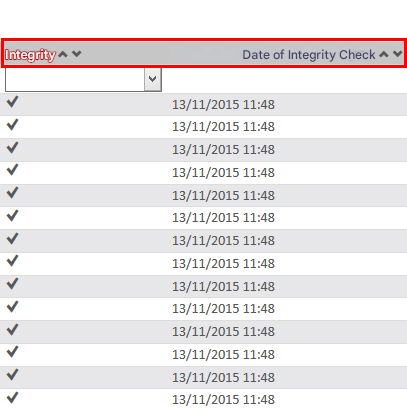
The result of the integrity check is displayed in the “Integrity” column.
The “Integrity verification date” column contains the date the verification was completed. This checks each selected row one at a time.
The verification is carried out by comparing:
- A fingerprint of the entry that was calculated and stored when it was created
- a recalculated input footprint (using the same process) at the time of verification
Batch Integrity
It is possible to verify the integrity of one or more timestamp batches. This is based on the same principle as checking a journal entry, but applies to the batch and all associated entries.
Each batch is also timestamped with an external server, so a second action is used to check the external timestamp.
Integrity of all logs
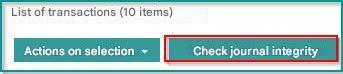
The result of the integrity check is displayed in a message at the top of the screen. This operation verifies each batch and their continuity. In this way, it ensures that all the items in the log are intact.