Roles allow you to define different types of users and thus limit access to certain features of the application.
Click on “Administration Roles”
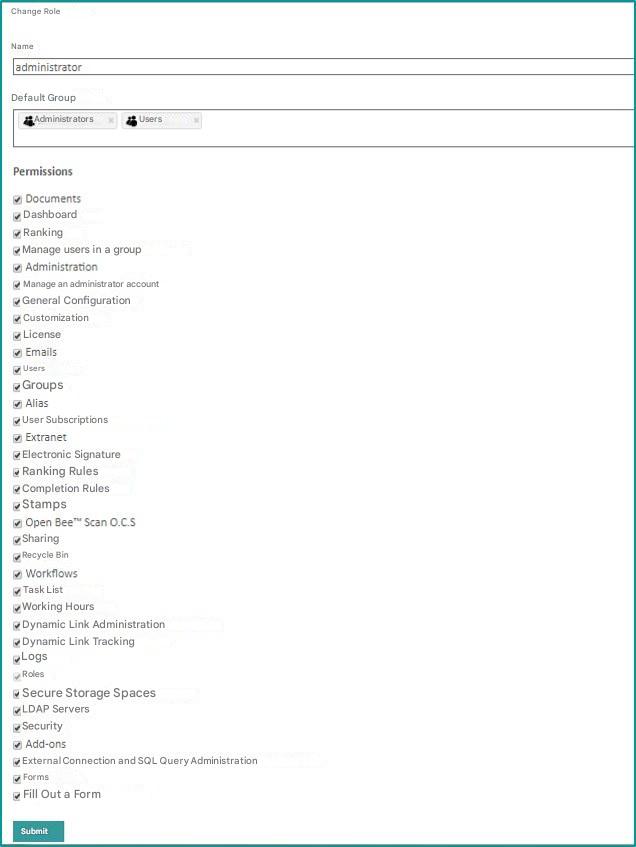
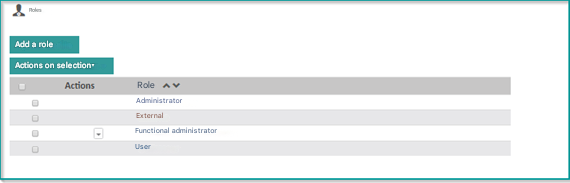 In both cases, the following form appears:
System Roles
By default, Open Bee™ Portal includes all “system” roles:- Administrator : allows full access to all the functionalities of the application and the administration, except the Secure Storage Area.
- Functional Administrator: allows access to the administration of a Secure Storage Area and other administrative functions: filing rule, extranet, logs and editing of users who do not have the Administrator or Functional Administrator role.
- User: Allows access to all features, except administration.
- External: Allows access to documents only. In addition, this particular role limits the user to a subfolder of the folder tree, which severely limits their ability to use the product. Users created by an Extranet have this role.
- Viewing: Allows access to all folders and features but read-only only. However, a user with the consultation role can fill out a form.
Add and edit a role
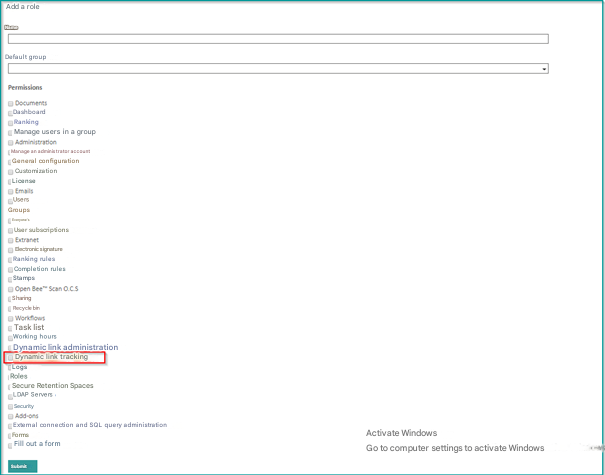
- To add a new role, click the “Add” button.
- To edit a role, click the name of the role.
In both cases, the following form appears:
- Name : The name of the role, as it will later appear in the usage creation form.
- Default group: A group to which a user will be automatically assigned when they are created with this role.
- Permissions : Features of the application that the user with this role will be able to use.
Permissions Detail
- Dashboard : Accessing the dashboard
- Documents : Access to Document Navigation
- Leaderboard : Access to the leaderboard area and the drop zone
- Administration : Required for access to the administration area. Checking only this role displays the “Administration” menu. Each of the subsections of the administration has a corresponding permission
- Manage users in a group: Allows you to assign users to a group
- Manage an administrator account: allows you to edit user accounts with the “Administrator” and “Functional Administrator” roles
- Dynamic Link Administration : Allows you to provide access to the dynamic link settings screen
- Consultation of the links: Allows you to view links in the search screen, document tree, and document preview screen
- Dynamic Link Tracking:
Allows you to show/hide the batch link tracking screen, including dynamic link information. To access this feature, simply:
- Click on Administration
- Click on Roles
- Click Add Role
- Do not select the Dynamic Link Tracking check box
- Click on Validate
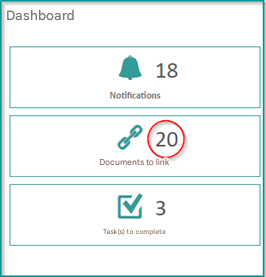
- The other permissions correspond exactly to the different sections of the administration