Creating a Ranking Rule
From the Administration interface, click on “Ranking Rules”
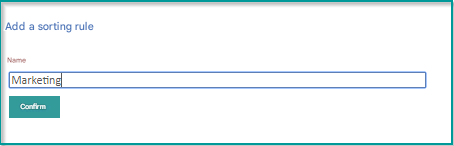
To create a new ranking rule, click “Add Ranking Rule”.
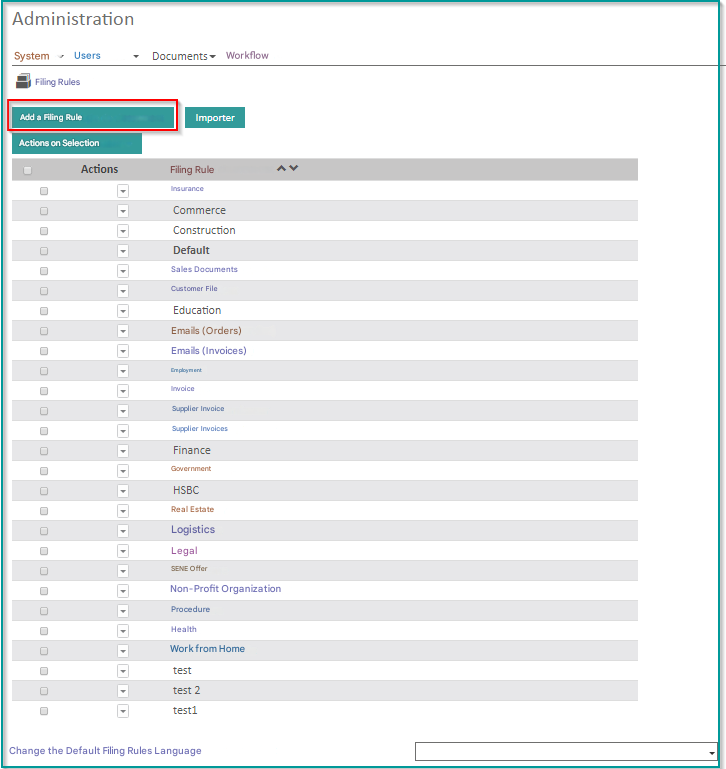
Name your ranking rule.
Import/Export of classification rules
This feature allows you to export a classification rule as a file (.json) to re-import it later on another installation.
To import a ranking rule :
- Click on the “Import” button
- Choose the file in format (.json)


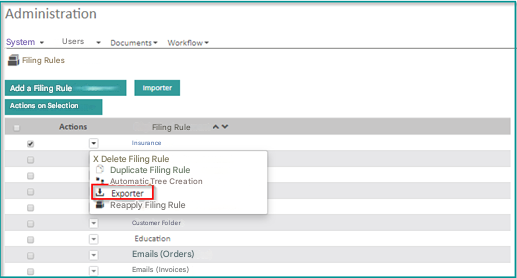
To export a ranking rule:
- From the Administration interface , click on Ranking Rule
- Select the rule you want to export
- Click on Actions
- Click Export
Reapplying a Ranking Rule
This feature allows you to reapply a filing rule on documents that have already been filed. It is available :
Unitarily on a document
- Select a document
- Click Reapply Ranking Rule
The document will be sent to the folder with the same predefined collation and renaming in the collation rule automatically

In bulk on a selection of documents
- Go to Search
- Select Ranking Rule
- Select the documents you want
- Click on Actions on Results
- Click Reapply Ranking Rule
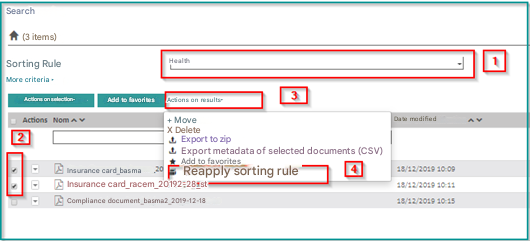
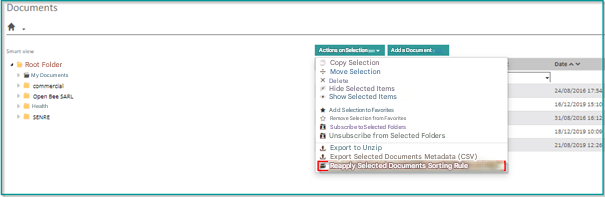
You can also process this feature directly from the “Document” tab
Choosing the “ Ranking Rule”
Select “the desired documents”
Click on “Actions on Selection”
Click on “Reapply Ranking Rule”
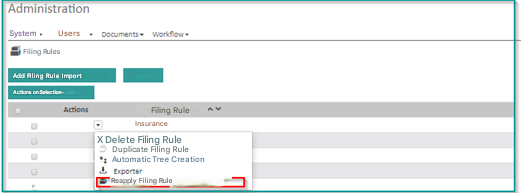
On all documents filed with a rule, since the administration of the filing rule
Click on “Administration” “Ranking Rules”
Click  to view the different Actions
Click on “Reapply Ranking Rule”
Duplicating Ranking Rule
This action allows you to duplicate an existing ranking rule for ease of administration.
Click on “Administration” “Ranking Rules”
Click to view the different Actions
Click on “Duplicate Ranking Rule”
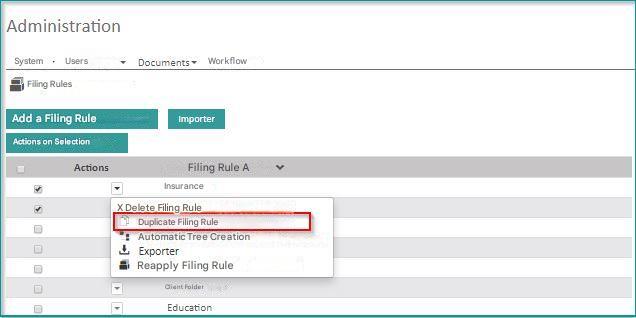
A window appears:
Enter the name of the rule
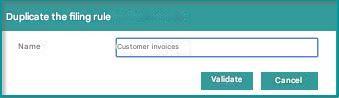
Click on Validate
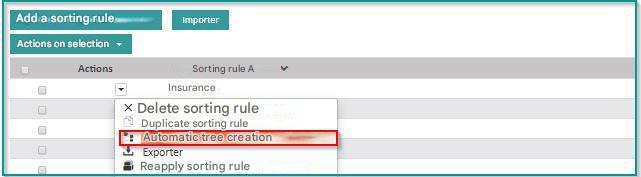
Automatic tree creation
This action allows you to automatically create the folder tree.
Click on “Administration” “Ranking Rules”
Click to view the different Actions
Click on “Automatic tree creation”