Click on the user’s photo.
The user’s preferences are located at the top right of the screen. A menu will be opened to access the various “user” preferences.
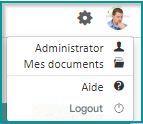
The following items are available:
Profile
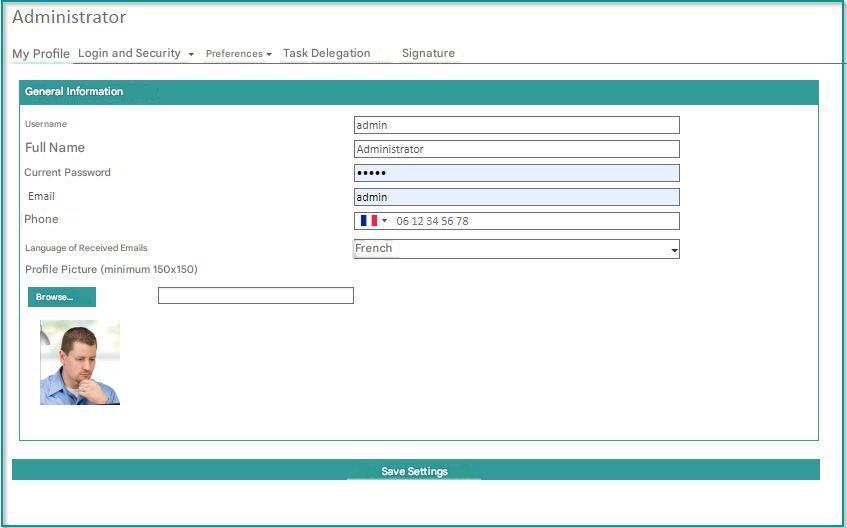
This screen allows you to edit the following:
- Full Name : The user’s name as visible to other users
- Password : Allows you to change your password
- Email: email used to communicate with the user
- Phone: Optional information field
- Languages of received emails: allows you to define the language of the emails received
- Profile picture : allows you to change your photo
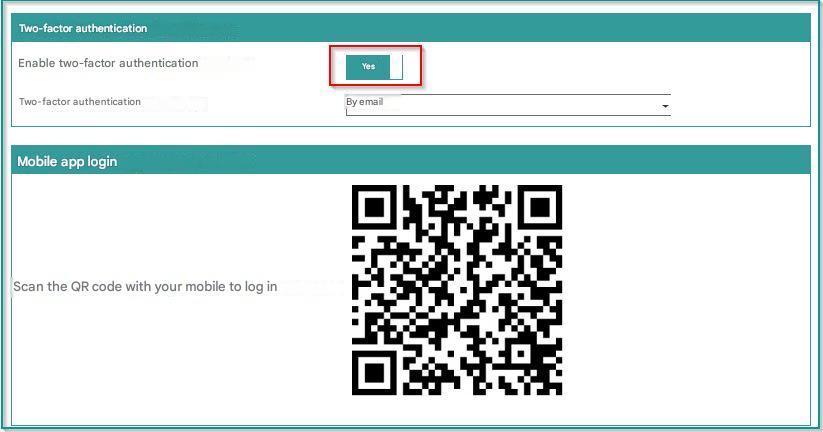
Enable/Disable Two-Factor Authentication:
The following interface allows you to enable or disable the two-factor authentication system, allowing you to choose the type of authentication either by sending a code by email or by authenticating by Google Authenticator:
Connection & Security
In this section you will have the opportunity to:
Change Password: This interface allows you to change your password:
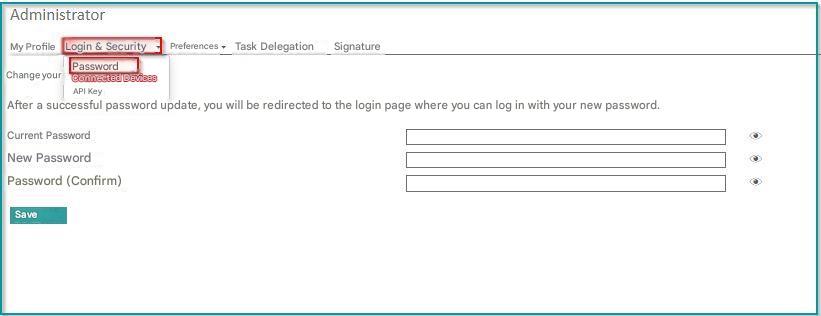
View Connected Devices: Thanks to this interface you will be able to see the list of devices connected to your software indicating (the type of device, the browser, the location and time of the connection)

API Key: An API key is represented by a string of characters and allows external software to securely connect to your account and perform operations on your behalf. Here you will find the list of API keys generated by external software and will be able to remotely “disconnect” these devices if you wish.
You can also generate API keys as you can delete them.

My Notifications
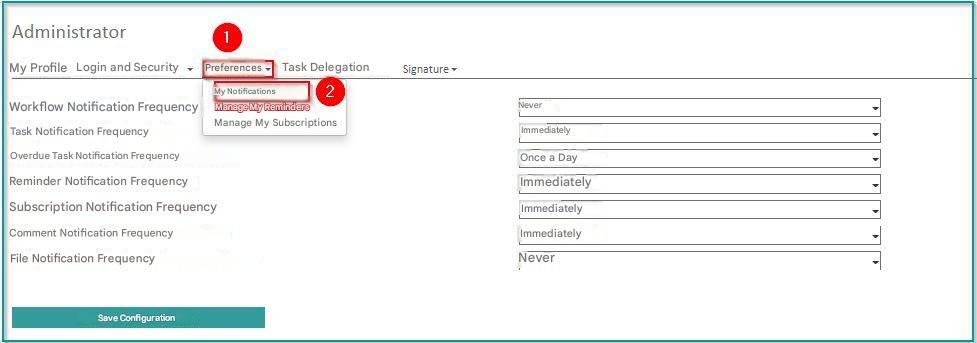
To access this screen, click on Preferences/ My Notifications
These fields allow you to set the email notification policy for workflows, tasks, overdue tasks, reminders, subscriptions, comments, and documents to be filed :
By setting the Notification Frequency either:
- Immediately : as soon as an event triggers the creation of a notification, an email is sent
- Once a day: an email containing all the notifications issued during the day is sent every night
- Once a week : an email containing all the notifications issued during the last 7 days is sent during the night from Monday to Tuesday
- Never : no email will be sent for this type of notification
My Reminders
Allows you to centrally view and edit reminders set by the logged-in user. Refer to the “Document & Folder Reminders” section for more details on this feature.

Subscriptions
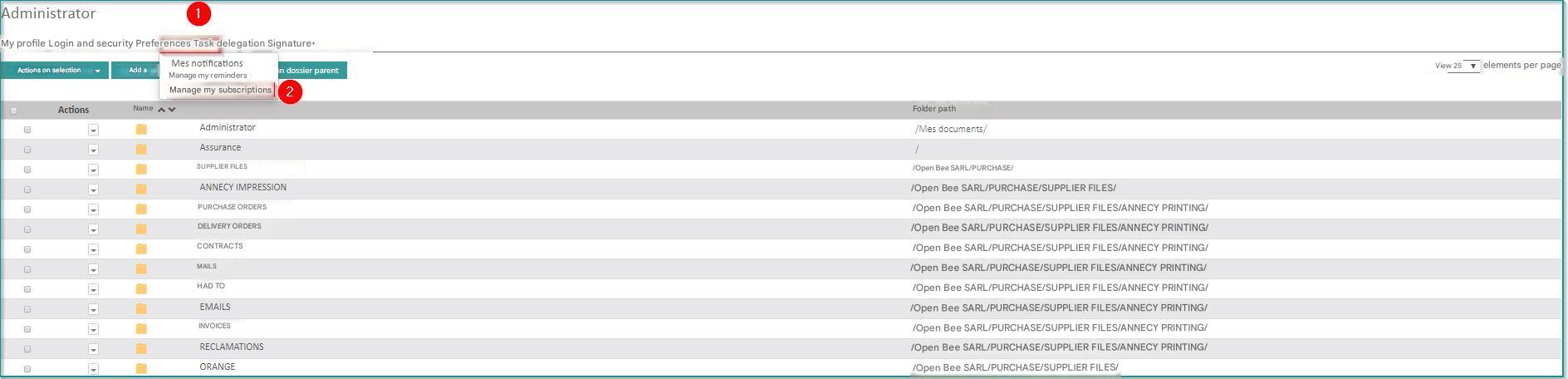
The following interface allows you to centrally view, add, and remove the logged-in user’s subscriptions.
This interface also allows you to filter subscriptions under a parent folder by clicking on the button: 
Refer to the “Subscription Management” section for more details on this feature.
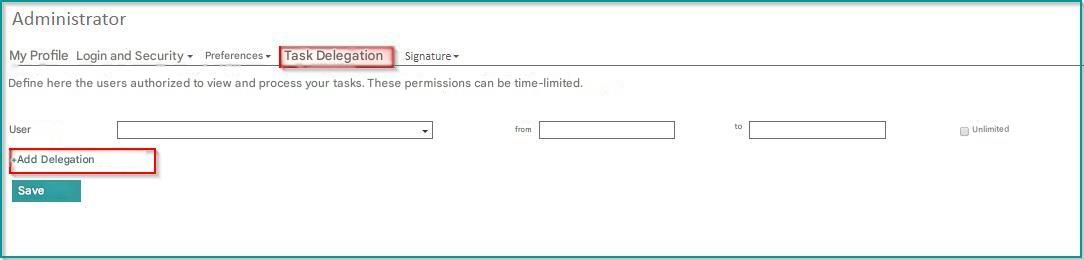
 Delegation of tasks
This tab allows you to define who can view and process your tasks. These permissions may be limited in time.
To add a delegation, click on the 
Click Save to finish
Signature
Electronic signature
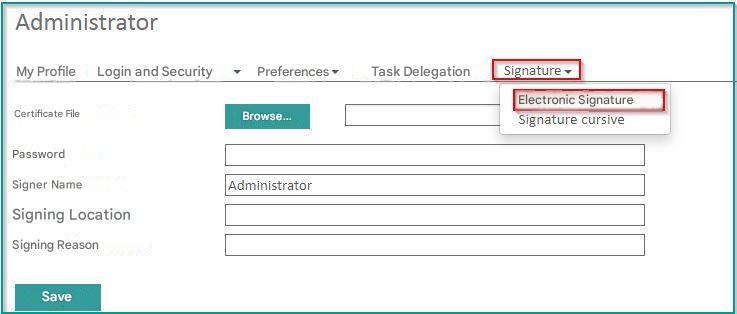
This tab allows you to set an electronic signature specific to the logged-in user.
It can then be used to electronically sign documents.
The certificate used must be associated with the natural person. Example of a suitable certificate: https://www.chambersign.fr/signature-electronique-initio-rgs/
Cursive signature
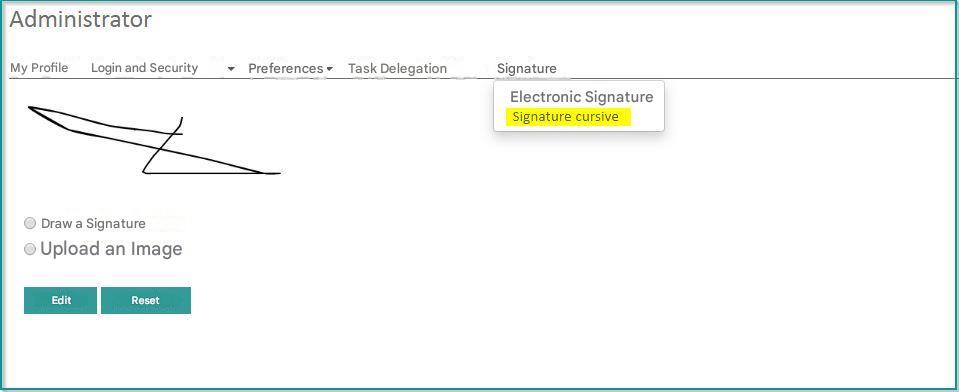
This interface allows you to set up your own signature:
Select the Draw Signature checkbox to draw your signature
Select the Upload Image
checkbox to download your signature as an image
You can also edit your signature by clicking the Edit button
To delete the existing signature, click the Reset button