It can be useful to link two or more documents together, especially if they deal with the same topic but are stored in different places.
The ” Liaison ” function provides a response to this need.
Link documents manually
To add a binding:
- Select the document you want to link to another.
- Select “Add Binding” from the drop-down menu.
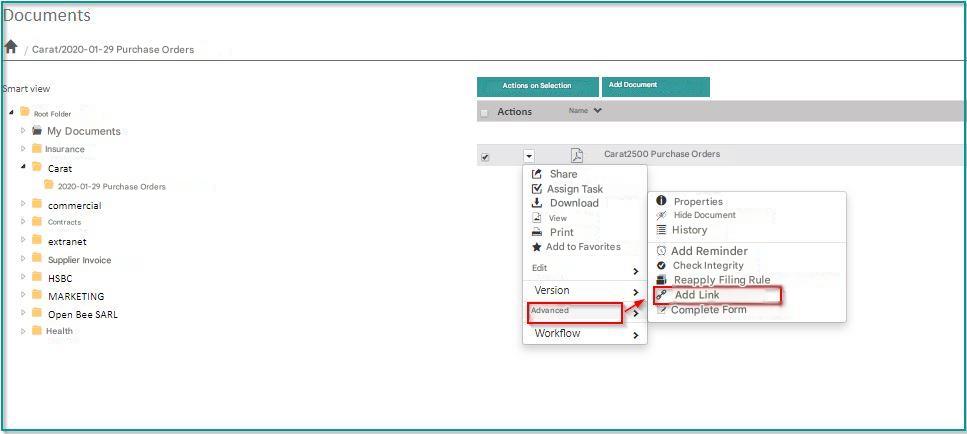
If related documents are detected, they will be offered in the “Suggested Documents” section.
Example:
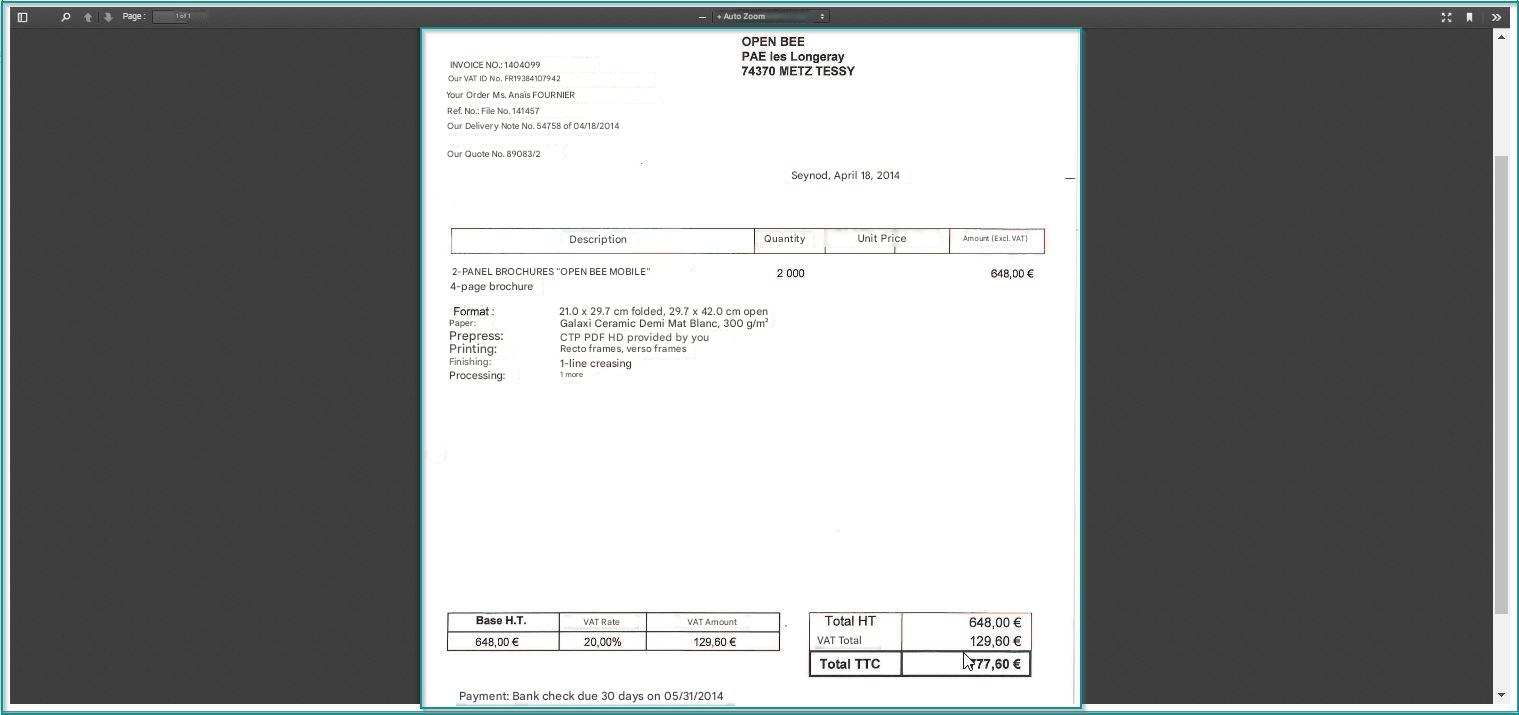
A user wants to link an invoice for €100 issued by the company Open Bee™.
If a €100 purchase order from Open Bee™ is archived in Open Bee™ Portal, it will appear in the “Suggested Documents” section.
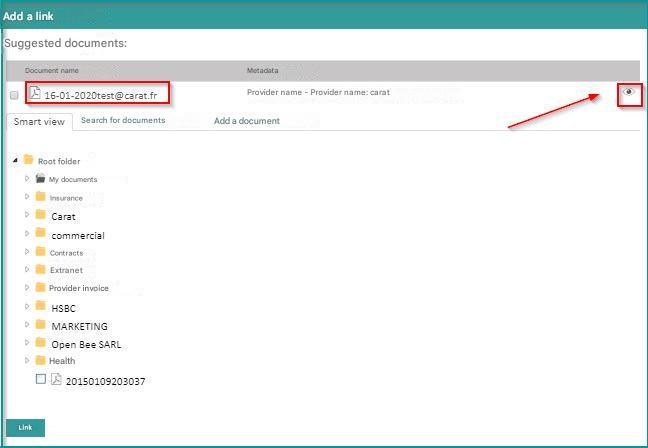
 Suggested documents can be viewed by clicking on the icon on the right side of the screen:
To link a document that has not been “suggested”, there are 3 options:
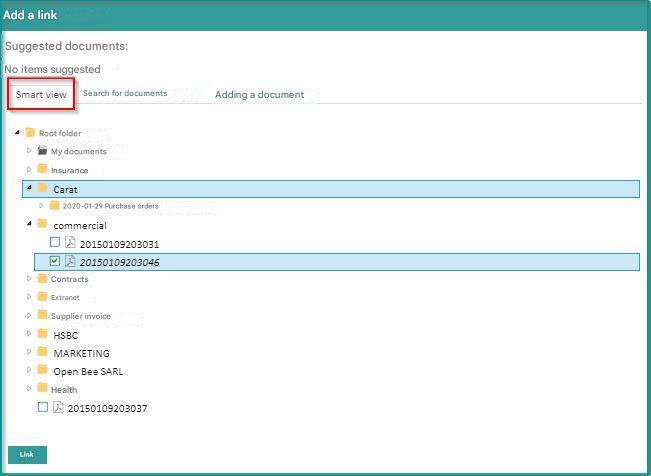
- Navigate through your folder tree to select the document(s) you want to link your document to (by checking them)
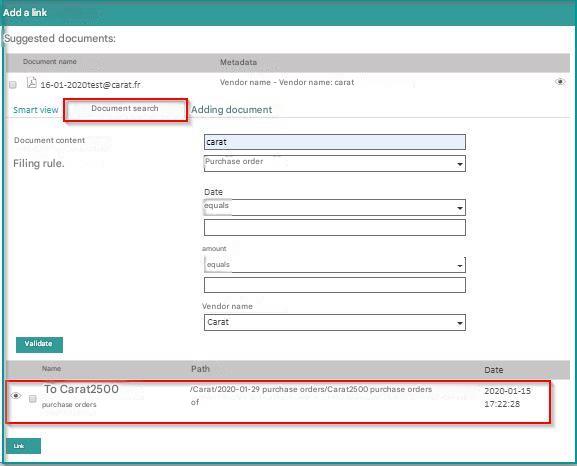
- Use document search. Click on the ” Document search ” tab, choose the search criteria, then validate
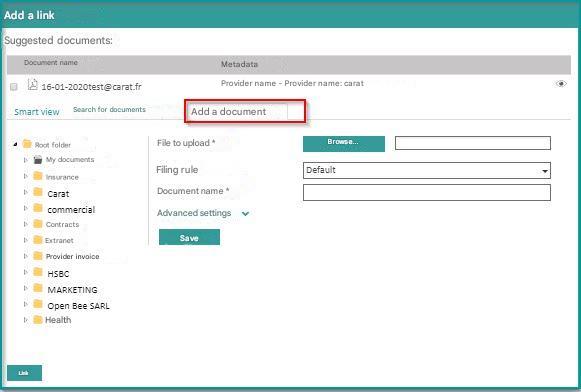
- Add a new document. Click on the ” Add a document ” tab, from which you will find the document addition form.
The added document will be automatically linked.
The paperclip icon is automatically displayed. This indicates that a link has been made to the document.
Link documents in bulk
The dynamic links function (which needs to be set up by an administrator beforehand) allows you to:
- Document suggestion during manual bindings (see above)
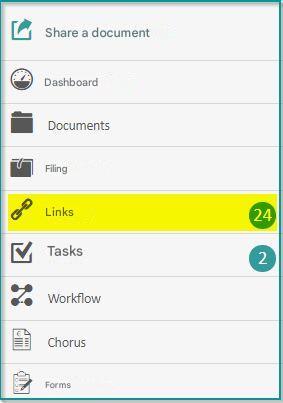
- Batch linking of documents recognized as related by the system. In this case, a tile with a number of documents “To be linked” appears on the dashboard. Click on this tile to access the batch linking screen
This screen allows you to view all documents that are linked or waiting to be linked, according to the rules defined in the dynamic links administration.
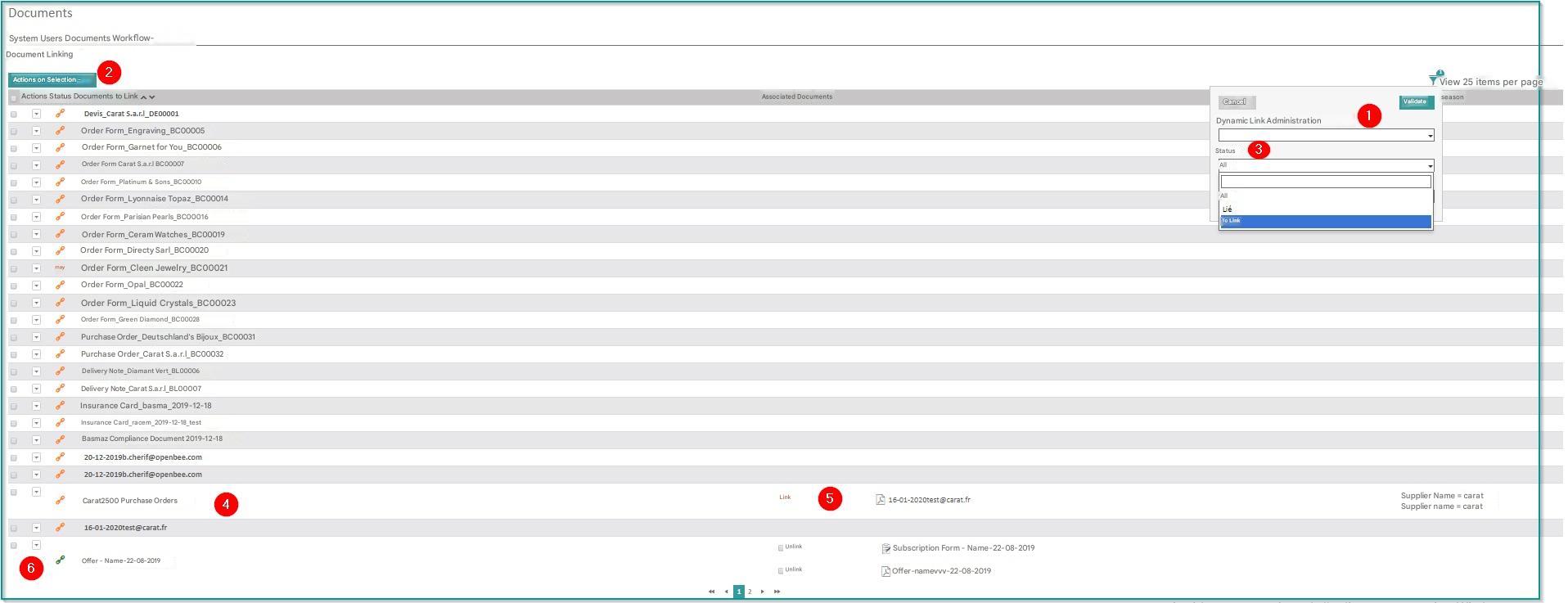
- It is possible to filter by dynamic links rule: for example, if you have two dynamic links rules, one for invoices/purchase orders, one for mails/replies, you can choose one or the other here.
- The selection action allows you to link and unlink documents in batches. Select the desired documents beforehand with the boxes to be chosen and use this button to link/unlink in batch.
- The documents to be linked are classified into two statuses: to be linked or linked. You can filter the display based on this status.
- A single document is a document for which the system is waiting for a document to link, but none has been found. You can use the context menu to add a new document and link it, similar to a manual link described above.
- A document accompanied by one or more other documents, and with a status of “to be linked” is a document for which the system thinks it has found the associated document. All you have to do is check, check the box, and link in batch. Or simply click on the “Link” link.
- A document accompanied by one or more other documents, and with a status “linked” is a document that is already linked. It is possible to untie it.
⚠️ Caution: the use of the link display screen can have a strong impact on the overall performance of the EDM. We do not recommend the use of this screen beyond 10,000 connections, slowdowns may start to be felt, which can affect the fluidity of navigation on the entire platform.
💡 Recommendation: To avoid these delays, it is advisable to disable “Dynamic Link Tracking” in user roles when this feature is not essential.
Adding Sorts and Filters
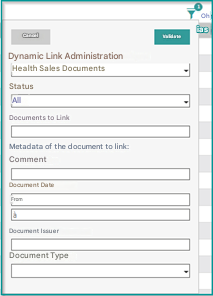
This feature makes it easy for you to search for documents by link status, filing rules, and metadata.
Click on the Filter icon at the top right of the Links interface and choose the criteria you want to search.