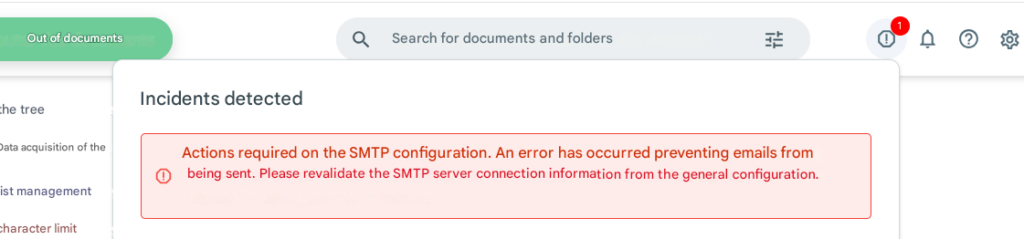
Starting with version 6.10.3, Open Bee™ Portal allows email to be sent via a Google or Office 365 SMTP relay.
This page describes the settings that must be applied to use one of these SMTP relays.
Gmail or G Suite
Prerequisites
A Gmail or G suite account with two-step authentication enabled. This option is activated from the “Sign in to your account” section of your Google Account (https://myaccount.google.com/security#signin ). For a G Suite account, the administrator must first make this option available (Admin > Security > Basic Settings)
Creating an app password
Set an app password that will be used by Open Bee™ Portal, log in to your account, and send emails.
To set a password
- Go to your Google account:https://myaccount.google.com/apppasswords
- Add an app. Choose “Email”, then “Other” and enter Open Bee™ Portal as the name.
- Write down the password provided.
Google documentation on the subject: https://support.google.com/accounts/answer/185833?hl=fr
Setting up Open Bee™ Portal
Then set up Open Bee™ Portal as follows:
- SMTP Server: smtp.gmail.com
- Security: TLS
- Port: 587
- SMTP authentication required: checked
- Username: Your Gmail or G Suite email address
- Password: The app password provided by Google
- Sender: Your Gmail or G Suite email address
Microsoft 365
Authenticating using basic authentication
Prerequisites
A Microsoft 365 email account.
More information about sending emails by SMTP via Office 365: https://support.office.com/fr-fr/article/comment-configurer-un-appareil-ou-une-application-multifonction-pour-envoyer-du-courrier-%C3%A9lectronique-%C3%A0-l-aide-d-office-365-69f58e99-c550-4274-ad18-c805d654b4c4
Setting up Open Bee™ Portal
Then set up Open Bee™ Portal as follows:
- SMTP server: smtp.office365.com
- Security: TLS
- Port: 587
- SMTP authentication required: checked
- Username: Your Office 365 email address
- Password: the password for your Office 365 account
- Sender: Your Office 365 email address
Authenticating using OAuth2 authentication
Prerequisites
- A valid Microsoft 365 subscription that includes Exchange Online and an active Exchange mailbox.
Attention: Aliases (proxy addresses) and shared mailboxes can’t be used to connect through OAuth2. Please use a primary address.
- Before connecting an email address through Azure, it is necessary to ensure that the user account has the appropriate permissions to use the SMTP AUTH protocol.
Step to check:
The SmtpClientAuthenticationDisabled option must be set to false for the account.
Why?
This configuration allows the account to use SMTP authentication.
Essential for sending emails from external applications or integrated services.
Registering the app in Azure AD
- Log in to portal.azure.com
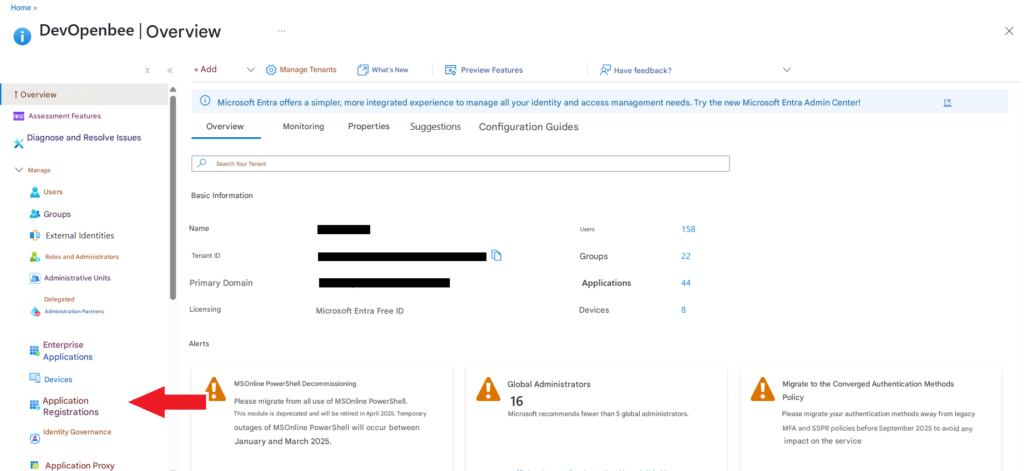
- Navigate to the Microsoft Entra ID service (formerly Azure Active Directory)
- Then click on the Application Registrations entry located in the Manage submenu on the left panel
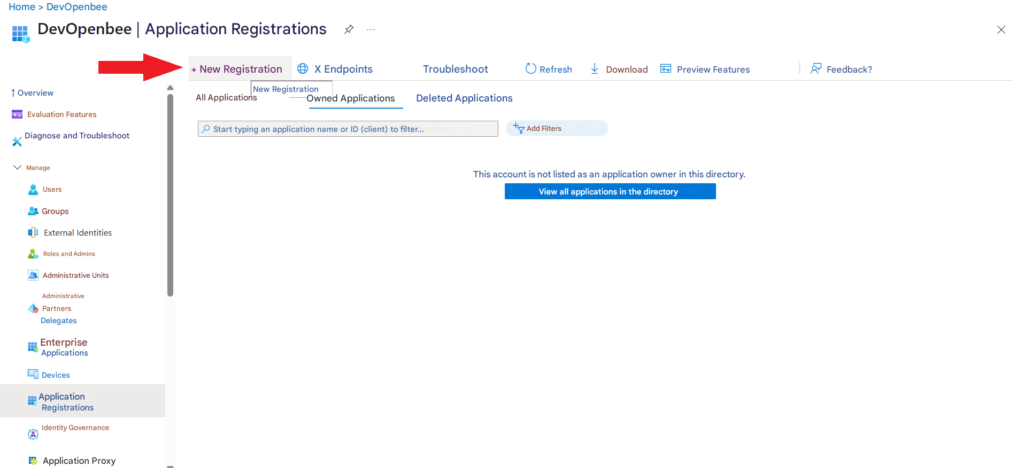
- Click on “New registration”
- Fill in:
- App Name: The name of your choice
- Supported account type: Accounts in an Organization Directory
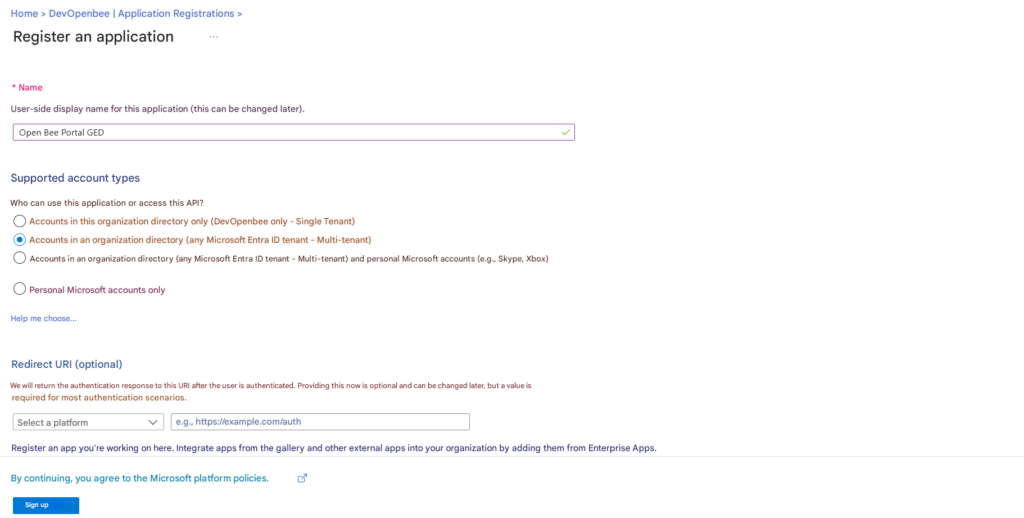
- Click on the “Register” button
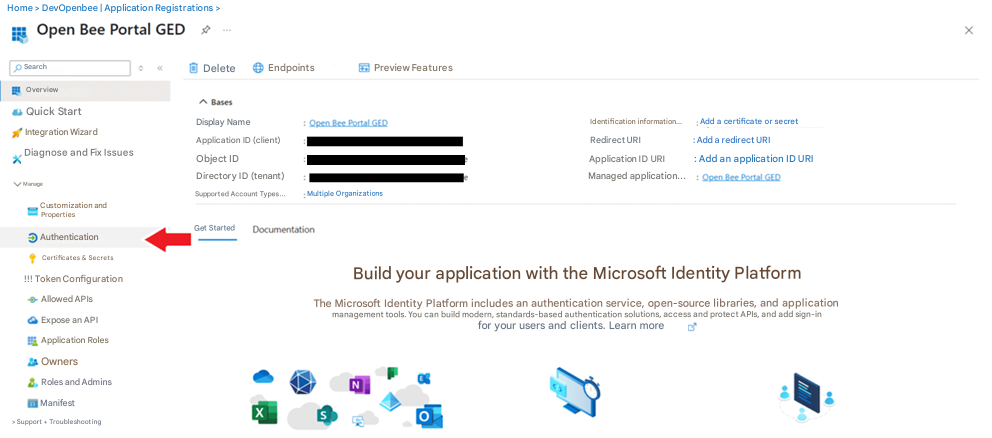
- From the newly created application, click on the Authentication entry in the Manage submenu on the left panel
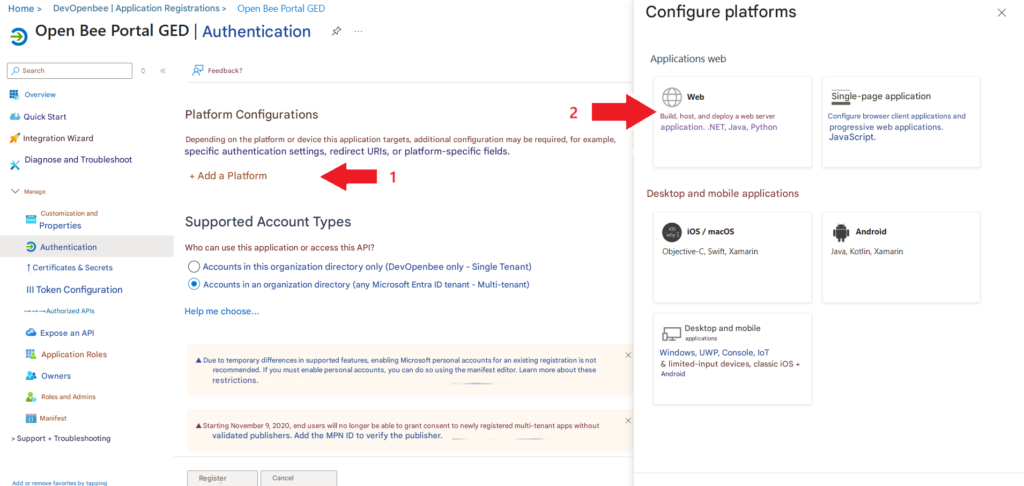
- Click on “Add a platform” then Web Application in the menu on the right
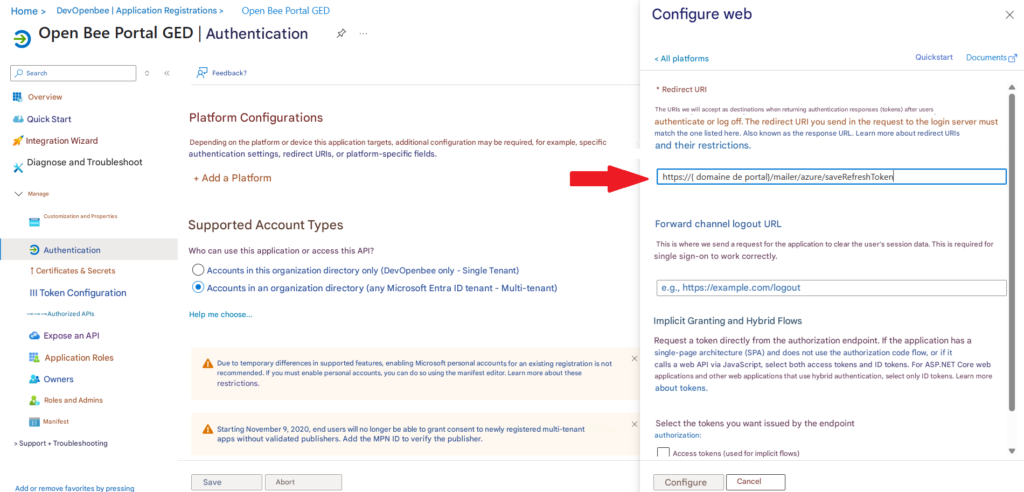
- Enter the redirect URI and click Configure
The {portal domain} variable must be replaced by the URL of the Open Bee Portal instance.
For example: entreprise.openbeecloud.com
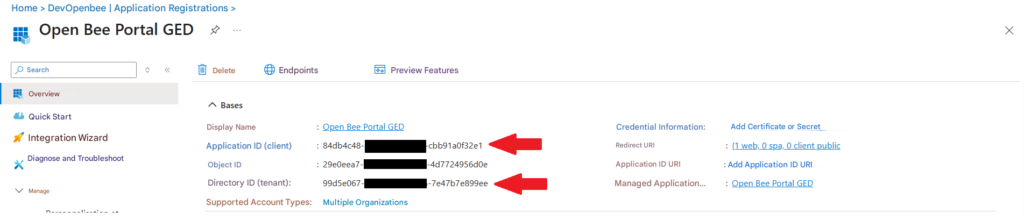
- From the overview, note the following information:
- Application ID (Client)
- Directory ID (Tenant)
- From the menu on the left, navigate to Certificate & Secrets to generate a New Client Secret
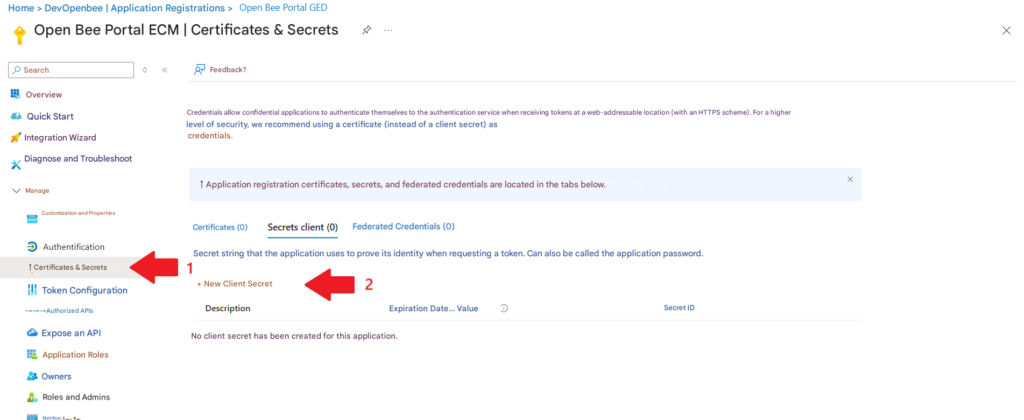
- Inquire Now
- Description: Add a description to remind you how and where the secret will be used
- Expiry date: Secret Client Duration
Attention: Once the client secret expires, emails will no longer be able to be sent through the Open Bee Portal application. It will be necessary to generate a new one and then update it from the General Configuration of Open Bee Portal. Although Microsoft recommends a default term of 6 months, it may be better to set up a term of 2 years.
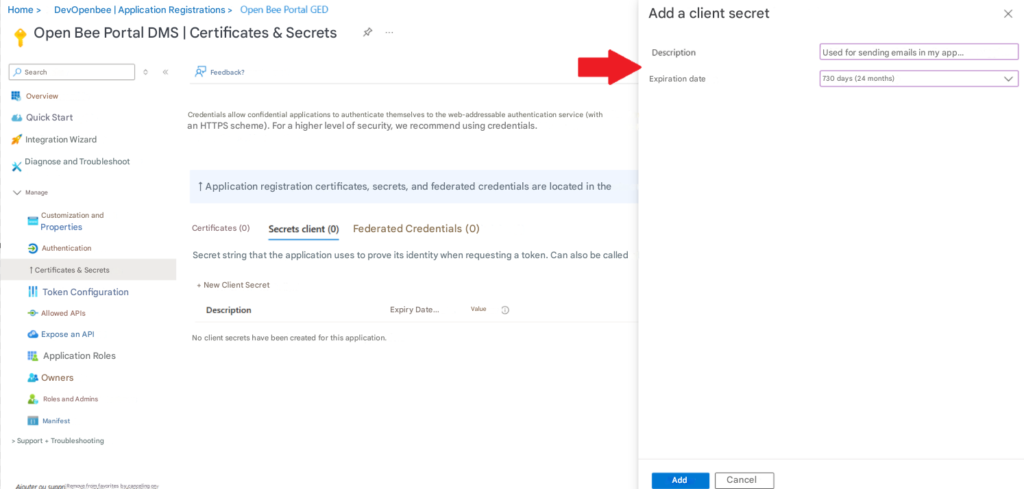
- Also note the client secret generated.
Attention: The value to copy is the data contained in the Value column and the name of the client secret ID. It is only visible at the time of generation. It then becomes hidden.
Setting app permissions
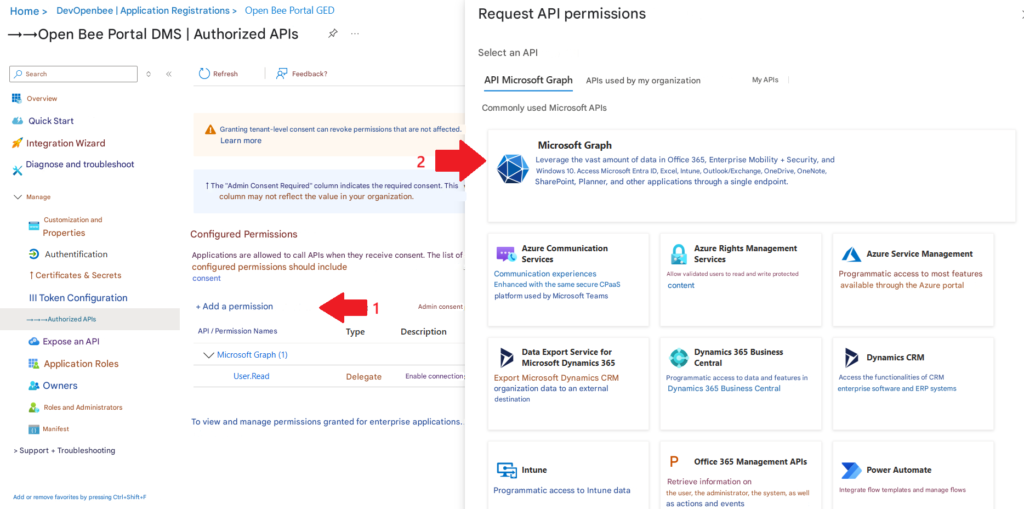
- Navigate to the Allowed API entry in the Manage submenu
- Click on “Add permission” and then “Microsoft Graph” in the right panel
- Select the “delegated permissions” permission type in order to add the Mail.Send permission
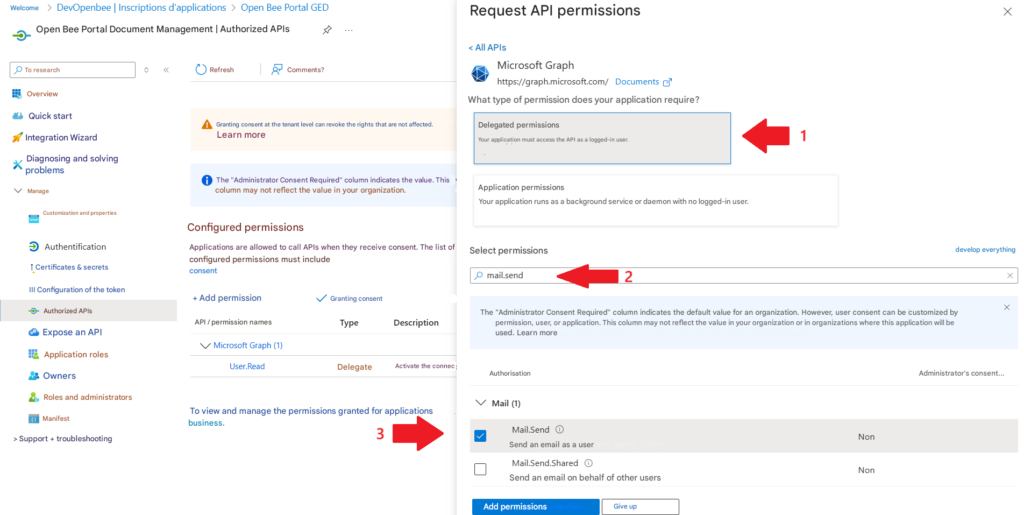
- Similarly, add the User.Read.All permission.
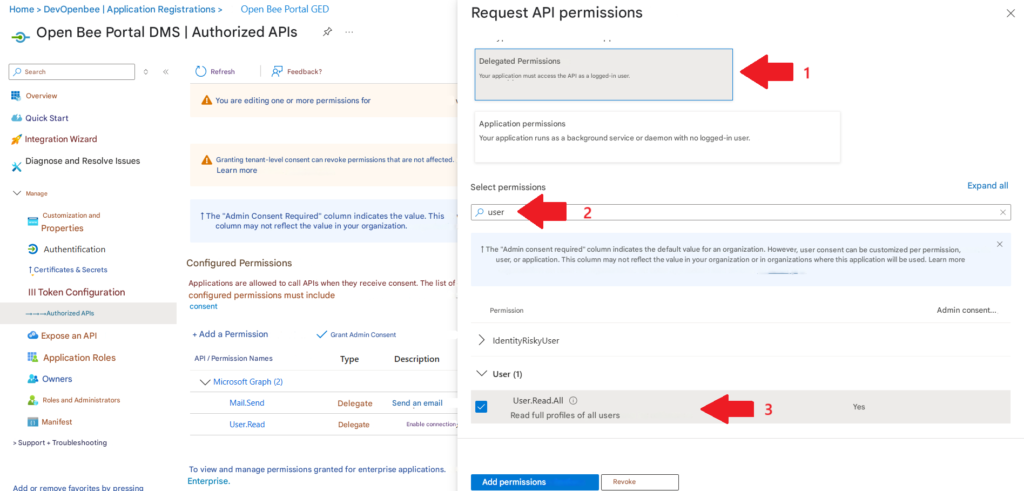
- Repeat the same operations to add the following 2 permissions:
- SMTP. Send
- Mail.ReadWrite
- Permissions require granting Admin consent. Please click on the “Grant admin consent for XXX” button located above the permissions table
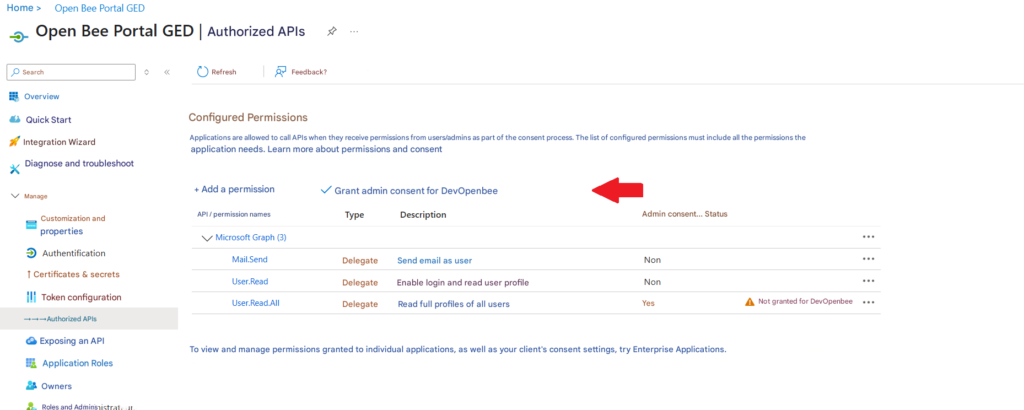
- Verify that all 5 permissions have been added and are granted. All authorisations must be granted in the “Status” column
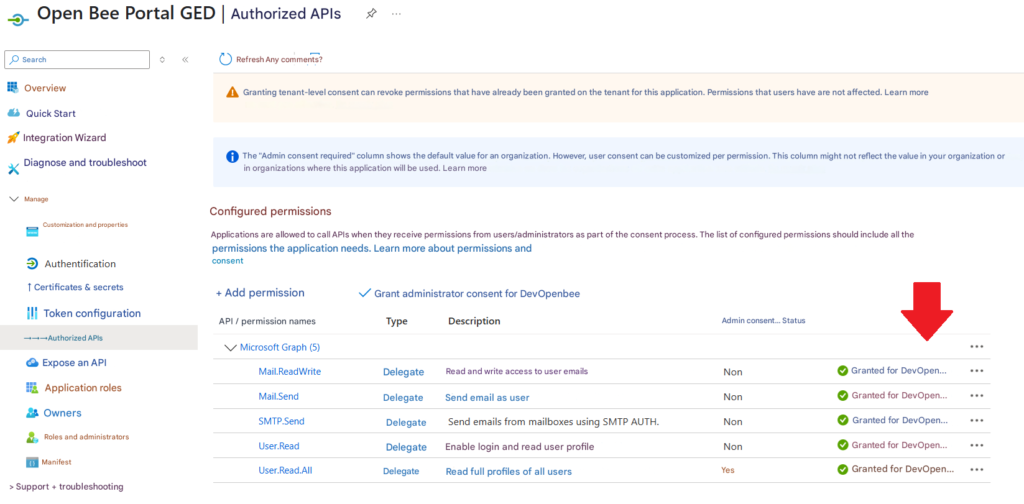
Configure Microsoft SMTP in Open Bee Portal
- Navigating the Administration -> General Configuration
- Choose to use custom SMTP with the OAuth2 authentication method
- Fill in:
- Tenant ID : The directory ID (Tenant) of the application
- Client ID: Application ID (Client) of the application
- Client Secret Identifier: Generated Client Secret
- Customer Secret ID expiration date: This date allows the administrator to be notified one month before the expiration of the client secret, in order to plan for its regeneration in time and guarantee the continuity of the service.
- Sender: Be sure to change the sender’s address to match the email address of the user who generated the client secret. The email can be retrieved in the overview from https://myaccount.microsoft.com/
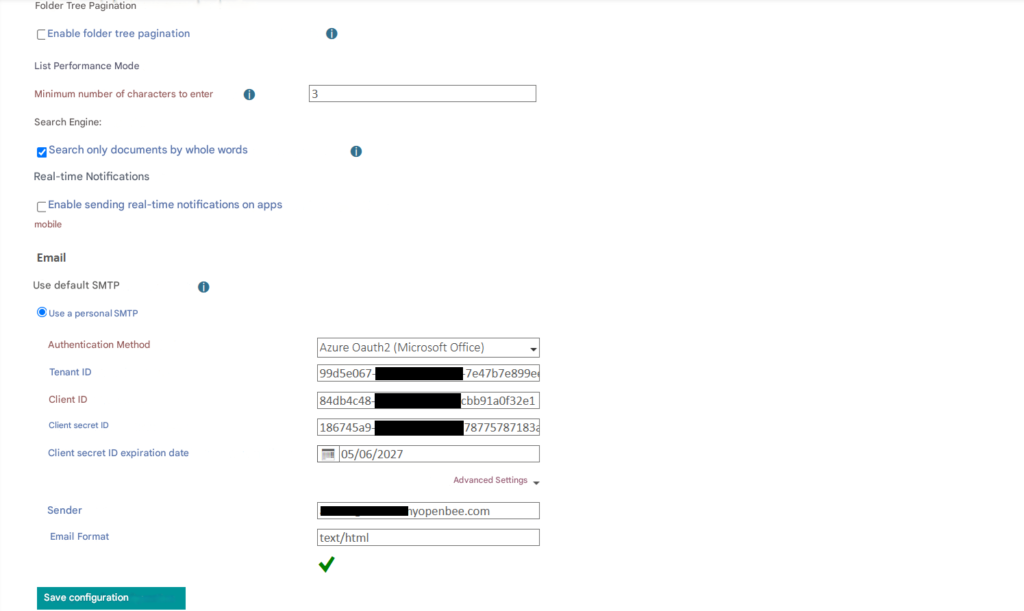
- Save configuration
At registration, a Refresh Token is generated. A pop-up window appears prompting the admin to sign in to their Microsoft 365 account in order to generate the token.
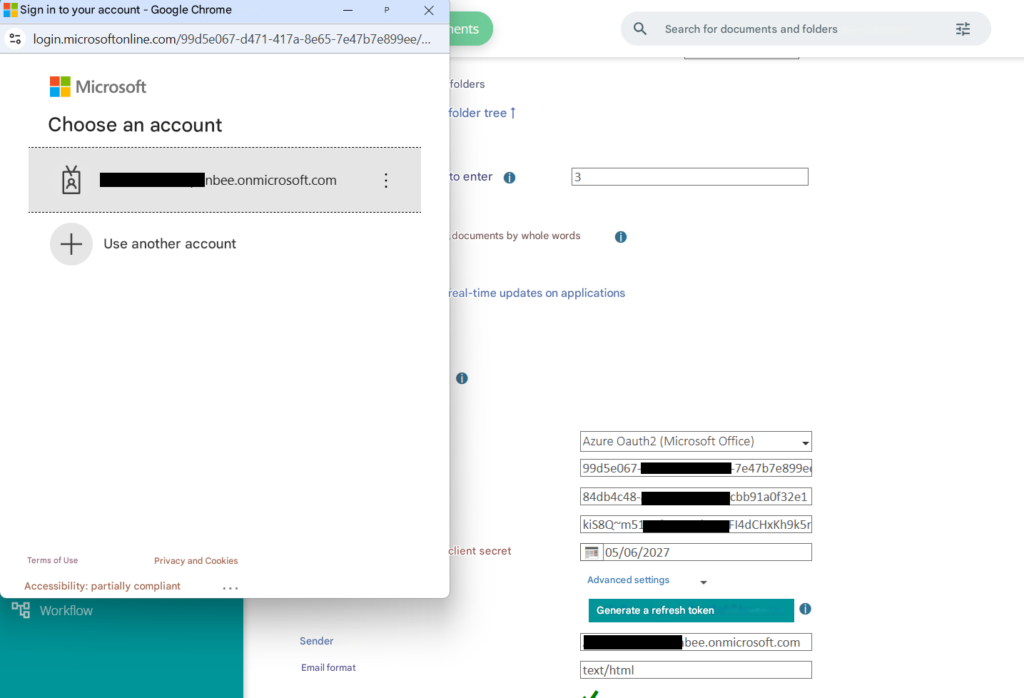
- Sending emails through Microsoft 365 is now available. To check that it is working properly, you can carry out a test by sharing a document from the Open Bee Portal application.”
Attention: If there is an error in generating the refresh token, a crash is thrown in the Open Bee Portal application