Summary
Overview of Saved Searches
Saved searches make it easy to find a specific configuration of your search.
When a search is saved, the following parameters are included:
- Activated search criteria and their configuration
- Column configuration: Columns shown or hidden, pinned columns, column order
- Calculations enabled on columns
Saved searches are unique to each user.
Save a search
To save a search, click the associated icon at the top of the search results screen:

This action opens a window that allows you to enter the desired name for this saved search:
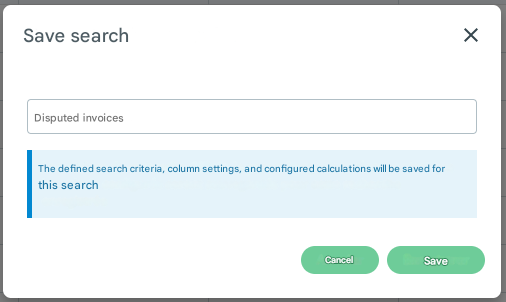
Once you have entered the name, click Save to save your search.
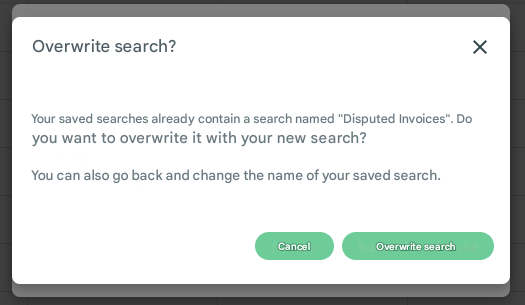
Please note that you cannot have two searches saved with the same name. If this happens, a window will ask you to overwrite the existing saved search:
Access a saved search
To access your saved searches, click the associated icon at the top of the search results screen:

This button displays a drop-down list of all your saved searches, sorted alphabetically:
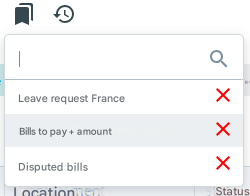
Click on a saved search in that list to immediately start the related search.
This will also change the configured criteria and columns, replicating the configuration of that saved search.
A search box allows you to search for a saved search on its label, which is very useful in case you have a lot of saved searches.