This feature allows you to add a second factor of authentication in addition to the username and password login.
Depending on the policy applied by your administrator, it is either:
- Your choice: you can choose whether or not to activate it
- Required: Your administrator requires you to use it for security reasons
Installing the Google Authenticator app
First, you need to install the Google Authenticator app on your phone or tablet, which you can find on the Googlestore or Appstore.
Enabling the feature
If your administrator’s configuration allows you to do so, you can enable/disable two-factor authentication from your user preferences.
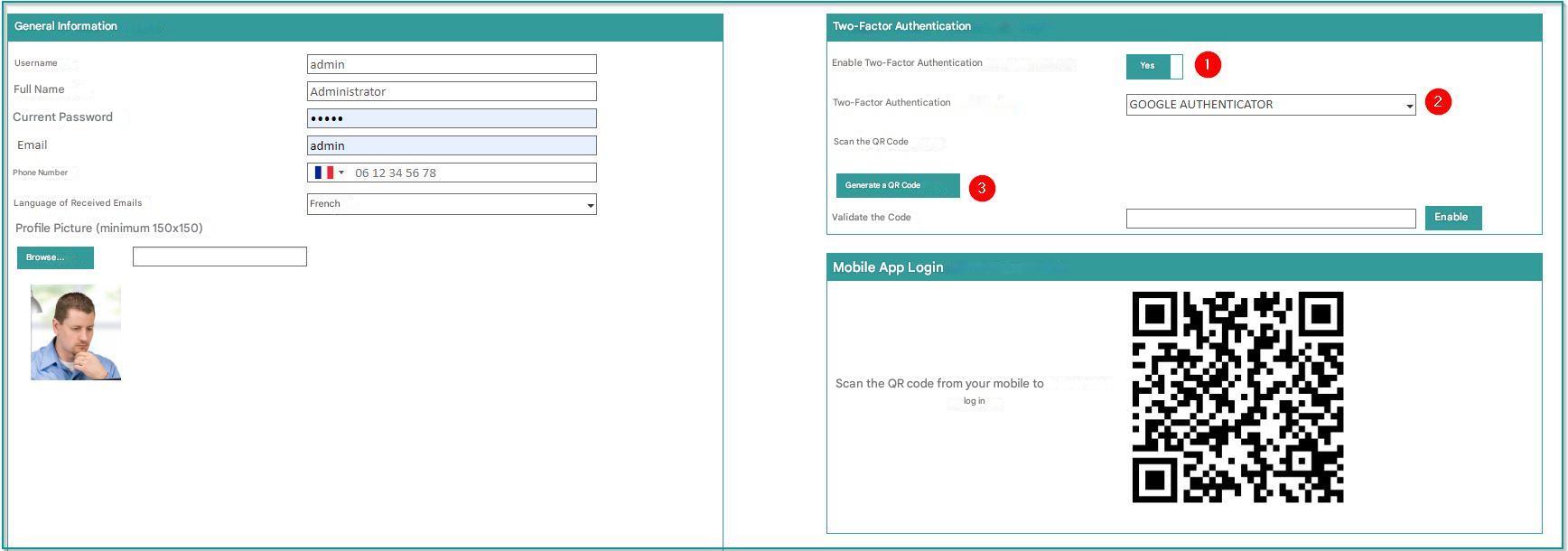
To use two-factor authentication:
1/ Enable two-factor authentication
2/ Choose the two-factor authentication mode by Google Authenticator
3/ Generate the QRCode to link your phone or tablet to your Open Bee™ Portal profile
4/ Launch your Google Authenticator app and choose to scan a QRCode to add an account
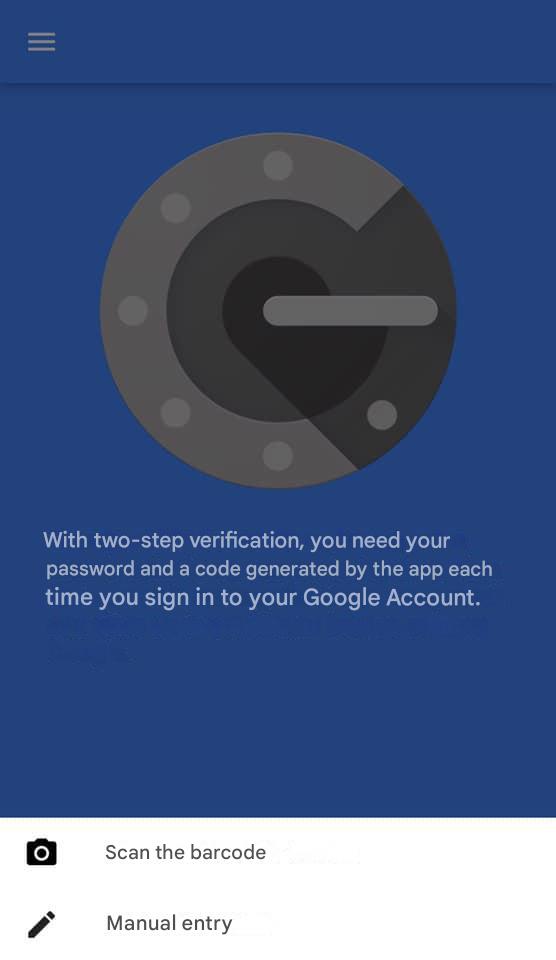
4 / Scan the QRCode you just generated
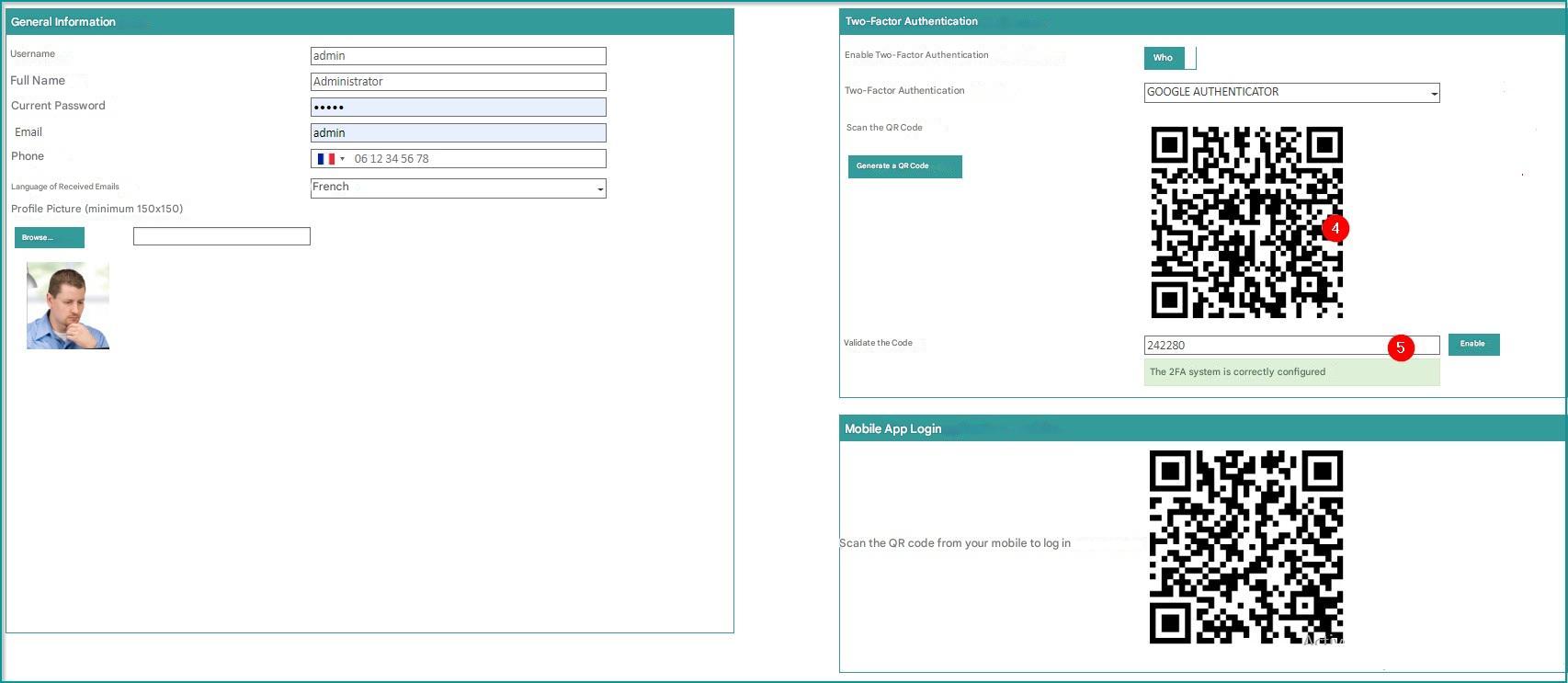
An account is added and associated with your profile
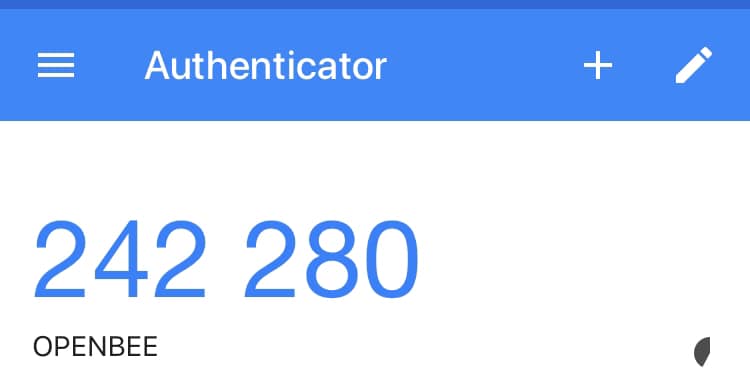
5/ Insert the code displayed on your mobile phone and click on the activate button to finalize the association of the Google Authenticator account with that of your EDM
6/ Don’t forget to save the entire configuration
Authentication is now active and ready to use.
Authentication Process
When you go to log in to Open Bee™ Portal, once your username and password have been verified, instead of being logged into the app, you will be redirected to a new screen asking you to enter an authentication account. This code must be retrieved in your Google Authenticator app from the account created during linking.
This is a code that is regenerated every minute.
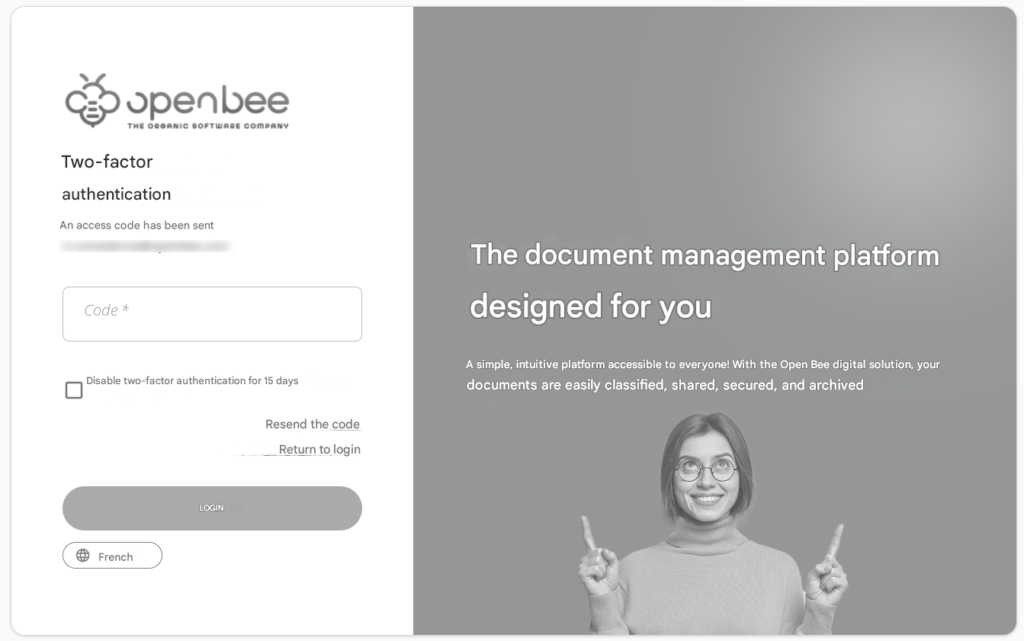
Once this code is validated, you are authenticated and logged in to the application.