In order to be able to edit a Microsoft Office document contained in Open Bee™ Portal, it is necessary to modify the configuration of your workstation so that Microsoft Office accepts document editing on a WebDAV server.
This configuration is applied automatically by a utility included in the Open Bee™ Portal as detailed on the Edit page of a Microsoft Office document.
This article details the operations performed by this utility.
Verifying the existence of the WebClient service
“Computer Start Menu“: Right-click “Manage”
“Service and Applications Services“: Verify that “WebClient” exists in the list of services
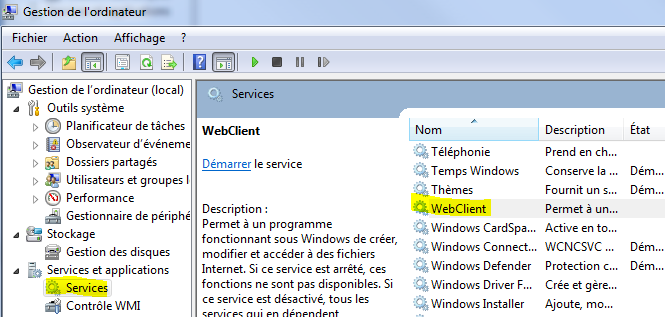
Install the WebClient service if necessary
The installation of this service is included in the Windows “Desktop Experience” feature or if your system is in French “User Experience”
Typically, this service does not exist on Windows Server systems.
Windows Server 2012
Click this icon in the menu bar

The “Server Manager” utility appears.
Go to the “Manage” menu and choose “Add Roles and Features”

Follow the instructions by clicking “Next” to the “Features” section
Expand the “User Interface and Infrastructure” option to be able to check “Desktop Experience”
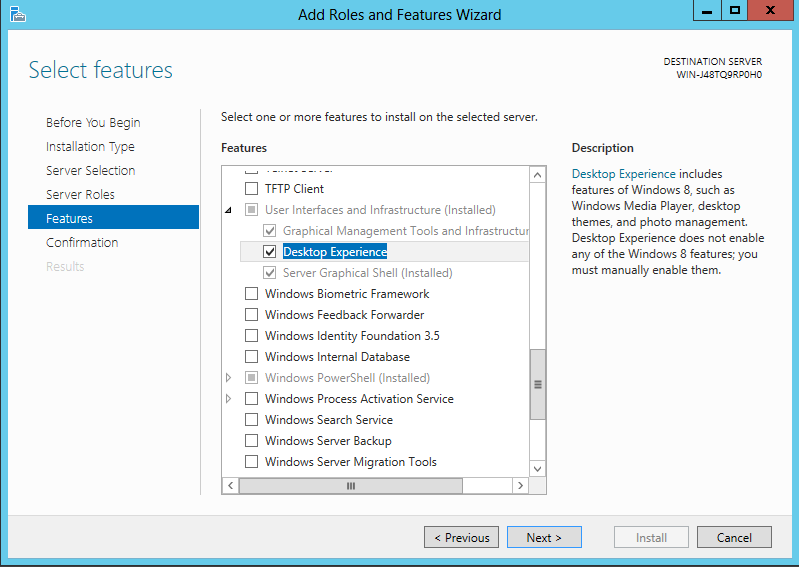
A confirmation popup will appear
Click on “Add Feature” and then “Next“.
Check the auto-restart option and then click on the “Install” button
Windows Server 2008
1- Open the “Server Manager” utility, then click on “Add Features”
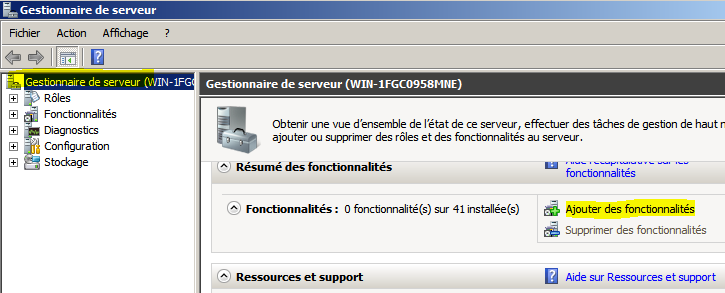
2- Check the “User Experience” option
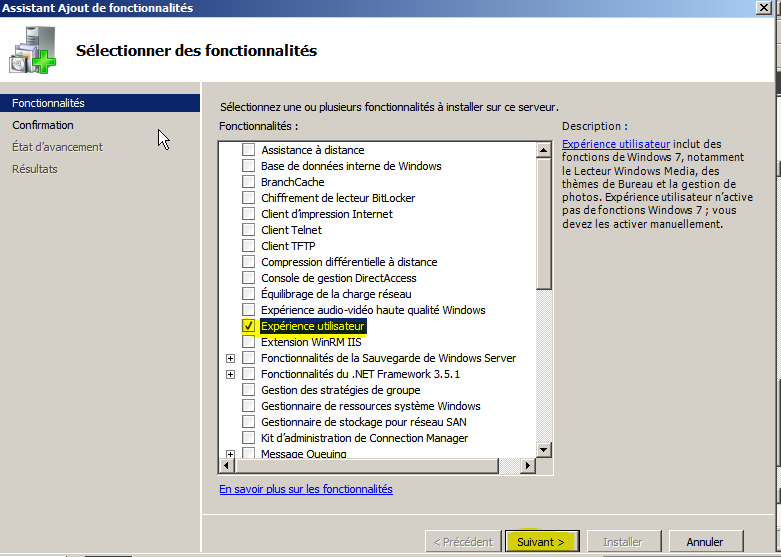
3- Click on “Add required features” to validate
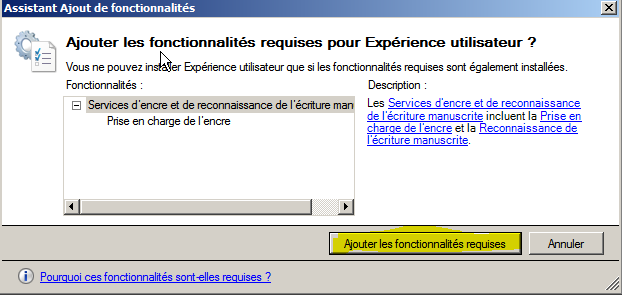
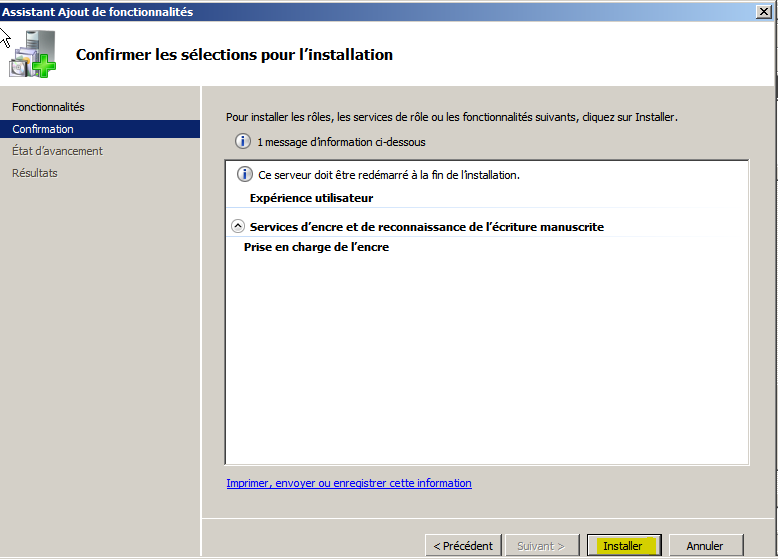
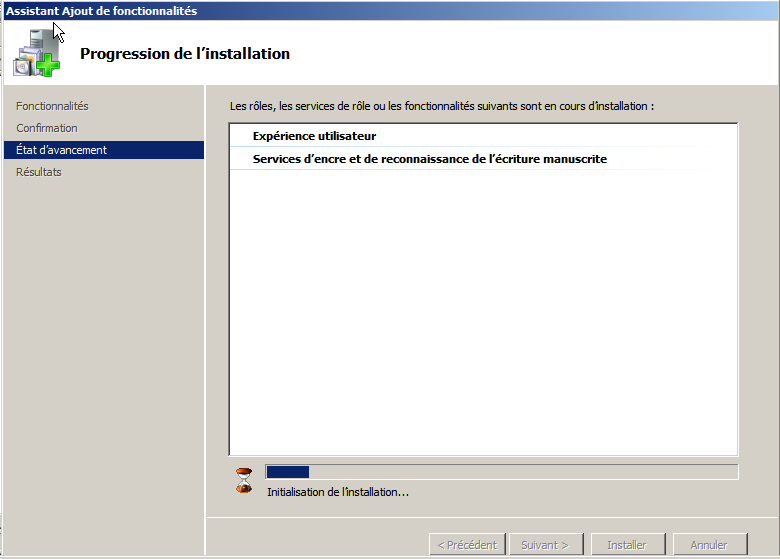
Installation takes a few minutes.
A system reboot is required at the end of the installation.
Useful link: https://technet.microsoft.com/en-us/library/cc754314.aspx
Configuring the WebClient Service
1 – Open the “Windows” Registry Editor (type “regedit.exe” in the Windows “start” menu)
2 – Change the value of the “BasicAuthLevel” key to “2” in HKEY_LOCAL_MACHINESYSTEMCurrentControlSetServicesWebClientParameters
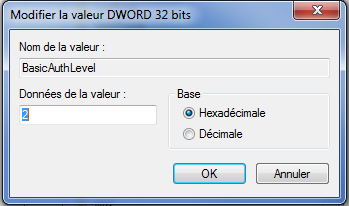
Create a new 32-bit DWORD key named “UseBasicAuth” with a value of “1”
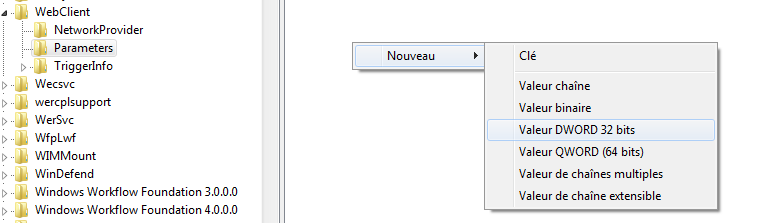
When using Microsoft Office 2010
Open the HKEY_CURRENT_USERSoftwareMicrosoftOffice14.0CommonInternet registry node
Create 2 32-bit DWORD keys
“BasicAuthLevel” with a value of “2”
“UseBasicAuth” with a value of “1”
When using Microsoft Office 2013
Open the HKEY_CURRENT_USERSoftwareMicrosoftOffice15.0CommonInternet registry node
And do the same as for Office 2010
3 – Restart the Windows “WebClient” service
Right-click on “Computer” in the Start menu
Click on “Manage” “Services & Apps Services” >
Select the “WebClient” service that appears in the list
Right-click on it and click “Stop”
Once the service is stopped, click on the “Start” action of that service.