The “Documents” interface
Open Bee™ Portal uses metadata and a flexible document classification structure, in the form of folders.
The organization of the Open Bee™ Portal has been designed to allow users to access documents relevant to their profile and function, by grouping them by group.
By default, the system is blank of users and documents.
Therefore, it is necessary to follow the steps outlined in this manual to add filing documents, folders, and subfolders.
Displayed at the top of the screen, it is possible to access any folder by clicking on it.
When the breadcrumb trail reaches the maximum length, the first folders in the path are found in the “…” to the root folder.
Example:

This navigation mode makes it easy to move through the folder tree, by clicking directly on the desired destination.
Tree
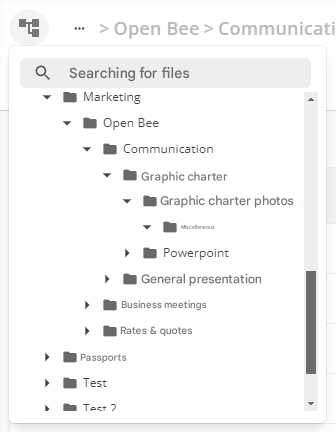
To the left of the breadcrumbs, there is an icon to display the folder tree.
This tree structure makes it easy to navigate between folders. It can also be used to search for a folder.
Document Structure
Each document line displays its name, filing rule, status (workflow validation, bindings, comments, version), modification date, size, and creation date. The display of columns is customizable. It is possible to use keyboard shortcuts to make multiple selection of documents.
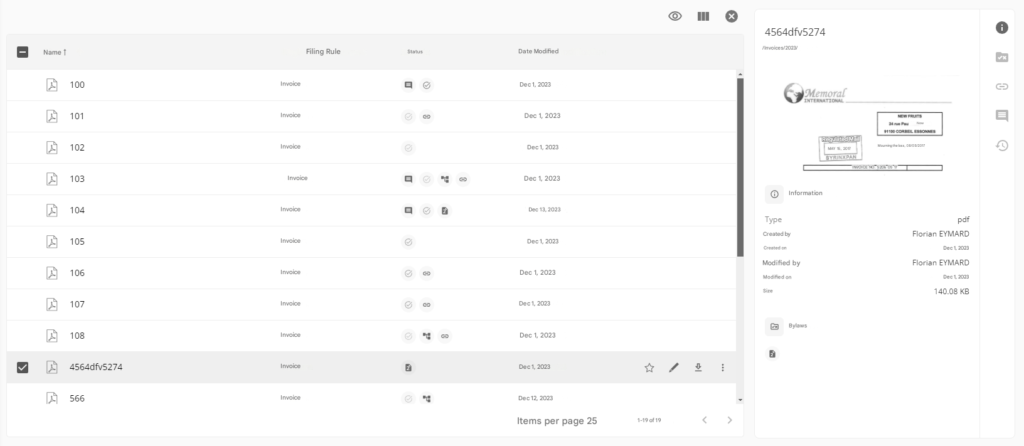
By clicking on the “information” icon at the top right of the list, an information panel is displayed on the right. This panel contains several tabs with different information:
- A preview of the document and key information (type, creation, modification, size, status) about it
- The classification rule used as well as the metadata
- Related documents
- Comments
- The activities of the document
It is possible to switch from one document to another via the arrows on the keyboard. The information panel will then be updated with the information of the selected document.
Preview a document
When you click on a document in one of the various navigation views or in a search result, a document preview screen appears.
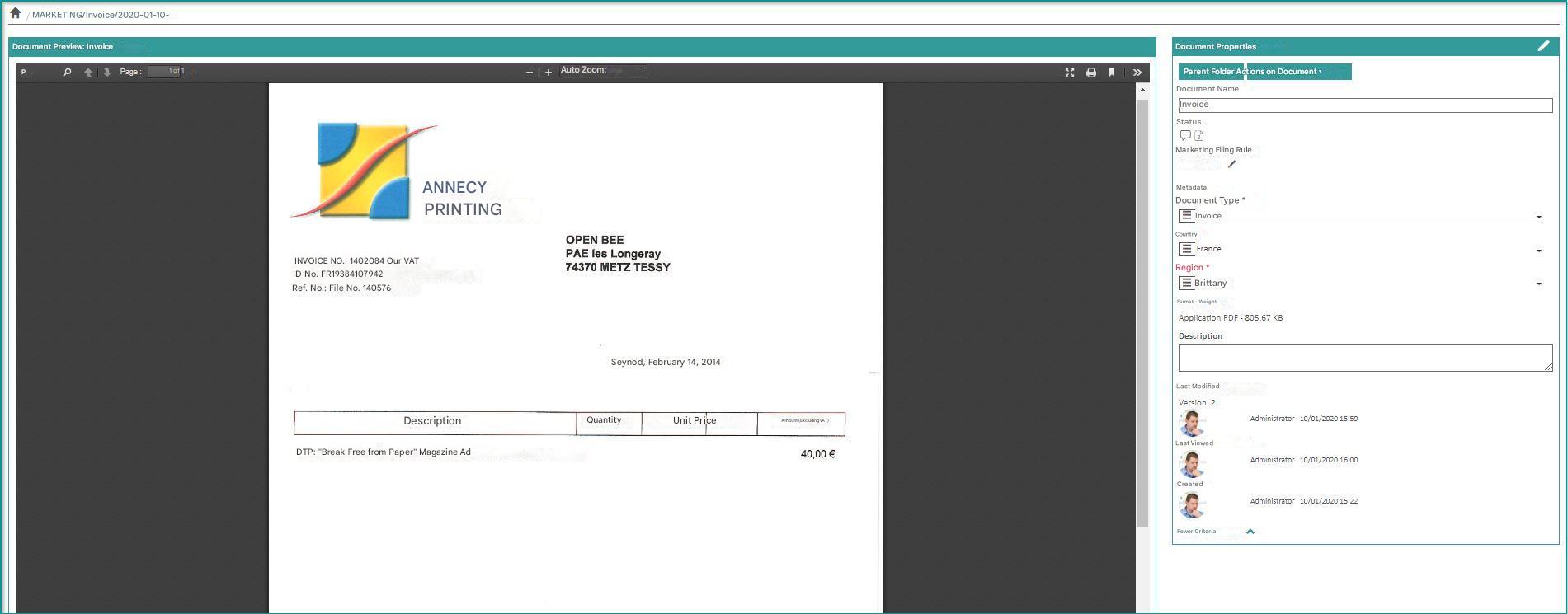
- Document preview is available for PDF documents, images, Microsoft Office documents, and emails in “eml” or “msg” format.
- The “Parent Folder” button allows you to return to navigating to the document’s parent folder.
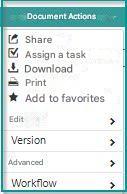
- The “Actions” button provides access to all possible actions on the document:
- The icon bar displays the status of the document (favorite, status in the workflow, comments, etc.)
- It is possible to edit the metadata of the document through the metadata form
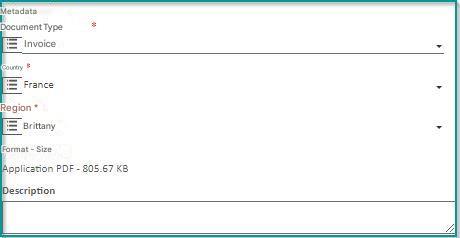
The user can edit the metadata only if they have the “Edit” permission on the parent folder of the document.
Metadata is automatically saved when editing.