Summary
How the criteria work
The search functionality allows you to refine your results with a wide choice of criteria.
The criteria are displayed in the form of dots that you can configure.
A grey dot corresponds to a criterion present on the screen, but not active:

A badge in the colors of the application corresponds to a criterion present and active in the search:

Active criteria are cumulative (AND and not OU): the items returned by the search must meet all active criteria.
Default criteria
By default, the search screen displays a list of criteria that are present but not active:

These criteria cannot be removed from the screen (there is no delete cross in the dot), because they represent essential criteria.
Added criteria
The More Criteria button allows you to view a list of additional criteria that can be added to the current search:
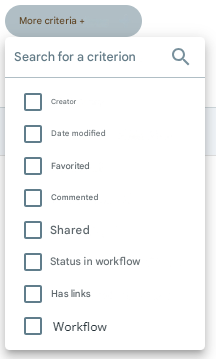
This list of available criteria is sorted alphabetically and combines both technical metadata (Creator, Date modified, Statuses, etc.) and business metadata when a ranking rule is selected in the dedicated criteria.
Enabled criteria also appear checked at the top of this list, and can be unchecked to be disabled.
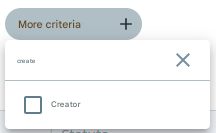
In this list, a search field allows you to quickly find a specific criterion by entering its label:
Launching the search
The way in which the search is launched depends on the criteria used.
Two ways of working are possible:
- Auto-trigger : Easy-to-configure criteria start the search one second after your last entry. This is the case for single-choice criteria (e.g.: Ranking rule) or multiple choice criteria (e.g., Type).
- Manual triggering : Criteria with more complex configurations, requiring multiple parameters to be entered, have an Update button that allows the search to be started after the criterion configuration is complete. This is the case, for example, with date criteria (e.g., Date of Creation) or digital business metadata.
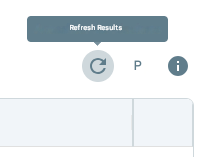
In addition, you can update the results at any time using the dedicated button above the list of results:
List of available criteria
Search Term & Search in
The Search Term criterion is a free text input field:

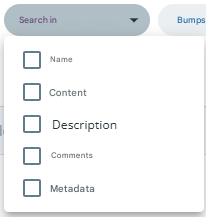
By default, the term(s) entered are searched in the following:
- Name of the document or folder
- Document text layer
- Description of the document or file
- Comments on the document or file
- Document metadata
The search is automatically started a few moments after your last character entered. You can also press Enter on the keyboard to start the search immediately.
A second criterion, Search in, allows you to refine the area in which the terms entered will be searched:
Search behavior by term
By default, the search by term is carried out on exact terms.
You can use the * and “ operators to change this behavior.
Here are some examples and expected behavior:
| Search term entered | Expected behavior |
| Invoice | Returns all items that contain the exact term Invoice. |
| Supplier invoice Supplier invoice Invoice/Vendor | Returns all items that contain the exact term Invoice and/or the exact term vendor. The characters ” ” (space), “-” and “_” act as term separators. |
| “Supplier invoice” | Returns all items that contain the exact sequence of Vendor Invoice terms. |
| “Supplier invoice” 2026 | Returns all items that contain the exact term sequence Vendor Invoice and/or the exact term 2026. |
| Fact* | Returns all items that contain terms that begin with Fact, such as “Invoice.” |
| *cture | Returns all items that contain terms ending in cture, such as “Invoice”. |
Ranking Rule
The Classification Rule criterion allows you to find all documents classified with the selected classification rule.
This criterion lists the available ranking rules:
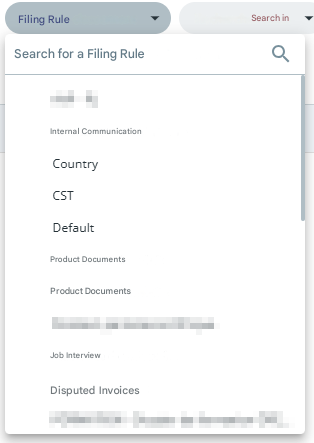
A search field allows you to refine the list of ranking rules.
The document search is started as soon as a classification rule is selected.
Folder
By default, the search is carried out on the entire tree structure of your EDM.
You can limit the scope of the search to a specific folder using the Folder criteria.
This criterion asks you to choose a home folder in the tree:
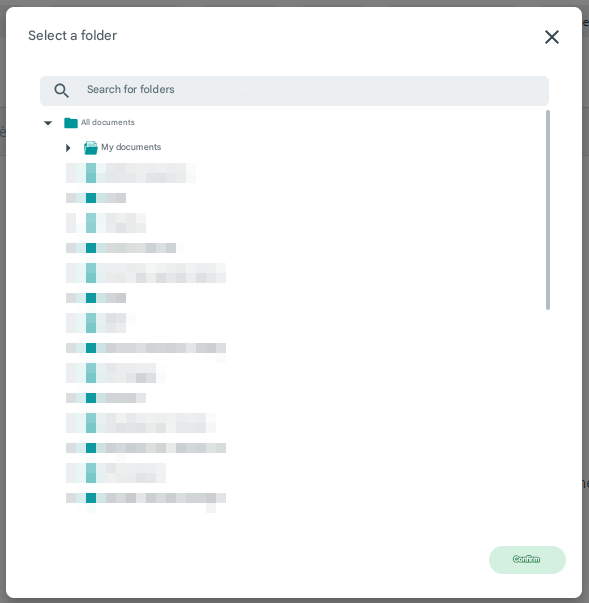
The search is started when you click the Validate button.
The search is carried out on the entire tree structure from the chosen folder.
Type
The Type criterion allows you to refine the type of items returned by the search:
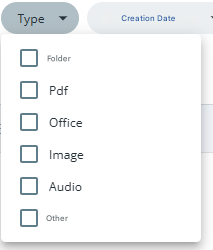
Example:
- To view only folders, choose the “Folder” item.
- To hide only folders, choose “Pdf”, “Office”, “Image”, “Audio” and “Other”.
The search is started automatically moments after your last item selection in this list.
Creation date
The Created Date criterion allows you to filter returned documents and folders by their creation date.
Saving the criteria configuration and refreshing the search is done when you click Update.
Two modes of use are possible:
During the following years :
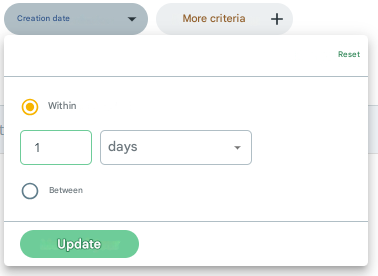
In this mode, you can choose a duration (in days, weeks, months, or years) from now on, which will be recalculated by the system as a date.
For example:
- Over 1 day : Returns all items created in the last 24 hours.
- Over 2 weeks : Returns all items created in the last 14 days.
Between :
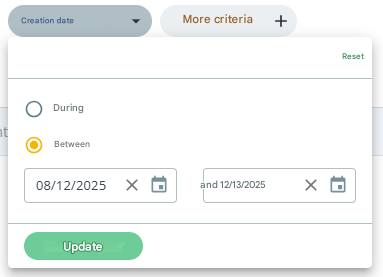
In this mode, you can specify a date range.
Either or both fields can be entered.
For example:
- “From” = 12/08/2025 and “To” = 12/13/2025 : Returns all items created between December 8 (inclusive) and December 13, 2025 (inclusive).
- “From” = 12/8/2025 and “To” = Blank : Returns all items created on or after December 8, 2025.
- “From” = blank and “To” = 12/13/2025 : Returns all items created on or before December 13, 2025.
Date modified
The Date Modified criterion allows you to filter documents and records returned by their last modified date.
It works in the same way as the Creation Date criterion (see above).
Creator
The Creator criterion allows you to filter documents and folders based on the users who created them.
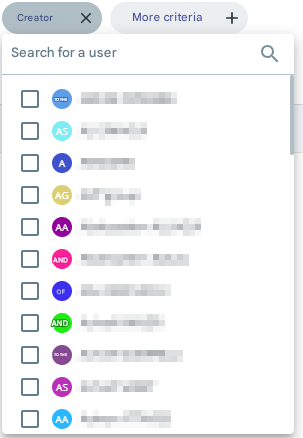
Initially, the criterion only returns the first 50 users of your EDM.
A search box allows you to narrow down this list by searching for other users.
The search is started automatically moments after your last user selection from this list.
Favourite
The Favorited criterion allows you to view only documents and folders that are, or are not, present in your favorites.
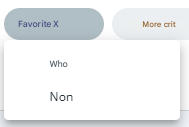
The search is started automatically as soon as you choose one of the two values.
Is commented
The Commented Is criterion allows you to view only documents and folders that have at least one comment, or that have no comment.
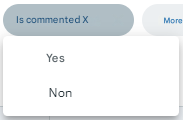
The search is started automatically as soon as you choose one of the two values.
Note : A document or folder can be commented on even if the comment icon does not appear on the item. This is especially the case if you don’t have permission to view comments on that item.
The Is Shared criterion allows you to view only documents and folders that have an active share or at least one share in their sharing history.
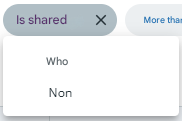
The search is started automatically as soon as you choose one of the two values.
Has connections
The Has Bindings criterion allows you to view only documents and folders that have at least one linked document, or that have no linked documents.
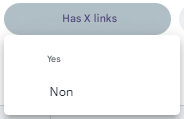
The search is started automatically as soon as you choose one of the two values.
Workflow
The Workflow criterion allows you to display only documents that have passed through the specified workflow.
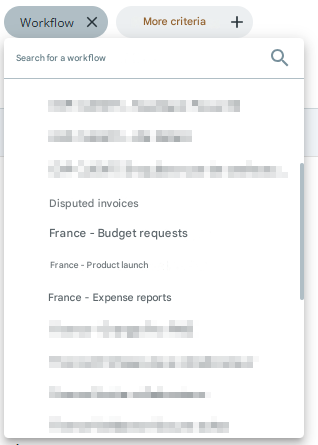
A search field allows you to refine the list of workflows.
Document search is started as soon as a workflow is selected.
By default, a document will appear in the results as soon as it has moved through the workflow, regardless of its final status in that workflow. This behavior can be refined using the States criterion in the workflow (see below).
Workflow states
The States in Workflow criterion allows you to display only documents that have the selected state(s) as the final state in a workflow:
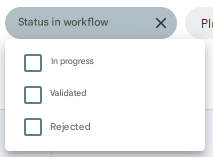
For example, In Progress will display documents that are currently being processed in a workflow.
The search is started automatically moments after your last item selection in this list.
Metadata criteria
When you have selected a ranking rule in the Ranking Rule criteria, the criteria for the metadata associated with that rule become available in the More Criteria list.
The behavior of these criteria depends on the type of metadata associated with it.
Date metadata criteria
As with the Creation Date and Modified Date criteria (see corresponding sections above), the Date metadata has a criterion associated with the During and Between modes:
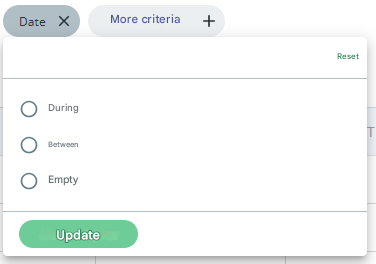
A third mode, Blank, allows you to view documents that have this metadata either left blank or blank.
Numerical metadata criterion
Integer or Decimal metadata has an associated criterion to search for the value of the metadata.
Saving the criteria configuration and refreshing the search is done when you click Update.
Three modes of use are possible:
Comparison :
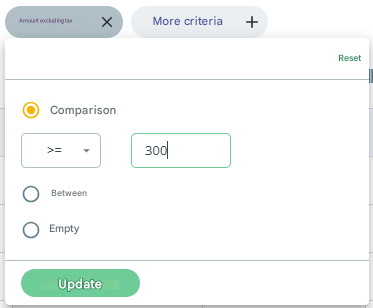
In this mode, you can choose a comparison operator and then enter a numeric value.
For example:
- >= 300: Returns all documents with a value of 300 or more in this metadata.
- != 1000: returns all documents whose value of this metadata is other than 1000.
Between :
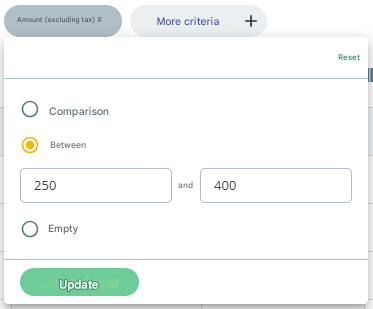
In this mode, you can specify a range of (inclusive) numbers.
Either or both fields can be entered.
For example:
- “From” = 250 and “To” = 400 : Returns all items with a value in this metadata between 250 and 400.
- “From” = 250 and “To” = empty : Returns all items with a value of 250 or more in this metadata.
- “From” = empty and “To” = 400 : Returns all items with a value of 400 or less in this metadata.
Empty :
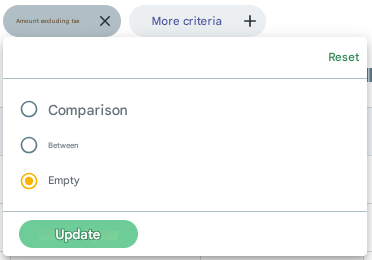
This mode allows you to view documents that have this metadata either left blank or blank.
Metadata criteria of type users & groups
Users & Groups metadata has an associated criterion that can be used to search for the value of the metadata:
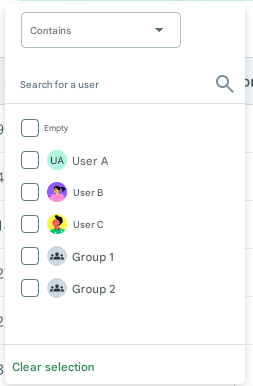
Initially, the criterion returns only the first 50 items in alphabetical order (users and groups combined) of your DMS.
A search box allows you to narrow down this list by searching for additional users and groups.
Selected users and groups appear checked at the top of this list and can be unchecked to be deselected.
The search is started automatically moments after your last item selection in this list.
Two modes are available for this type of criterion:
- Contains : Returns all items whose value in this metadata contains at least one of the selected values.
- Does Not Contain : Returns all items whose value in this metadata does not contain any of the selected values.
You can also select the “Empty” value at the top of the list, to view documents that have this metadata either left blank or blank.
List & Sublist Metadata Criteria
Metadata of type List or Sublist has an associated criterion to search for the value of the metadata:
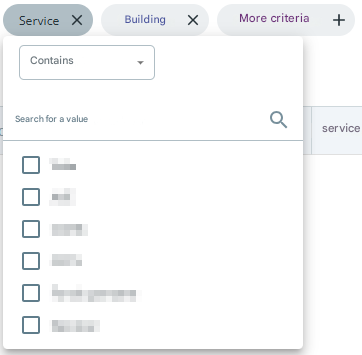
When you add a Sublist criteria, if the parent list is not already present as a criterion on the search screen, it is automatically added.
Conversely, if you remove the parent list criterion, all associated sublist criteria will also be removed from the screen.
For the Sublist criteria, you must have selected one or more values from the parent list. Otherwise, the criterion tells you which parent criterion to fill in:
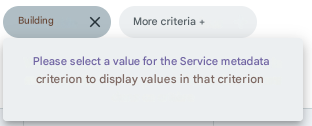
Note that if multiple values are entered in the parent criterion, the Sublist criterion will combine all sublists associated with those values into a single list.
A search box allows you to narrow down the list by searching for values.
Selected values appear checked at the top of this list and can be unchecked to be deselected.
The search is started automatically moments after your last item selection in this list.
Two modes are available for this type of criterion:
- Contains : Returns all items whose value in this metadata contains at least one of the selected values.
- Does Not Contain : Returns all items whose value in this metadata does not contain any of the selected values.
You can also select the “Empty” value at the top of the list, to view documents that have this metadata either left blank or blank.
Text Metadata Criteria & Autoincrement
Text or Autoincrement metadata has an associated criterion that can be used to search for the value of the metadata:
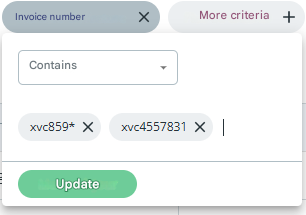
This criterion allows you to search for text values in this metadata.
Saving the criteria configuration and refreshing the search is done when you click Update.
Three modes are available for this type of criterion:
- Contains : Returns all items whose value in this metadata contains at least one of the values entered.
- Does Not Contain : Returns all items whose value in this metadata does not contain any of the values entered.
- Is Empty : Returns all items for which this metadata has not been populated or has been left blank. In this mode, it is not possible to enter values.
By default, the values entered are searched as an “integer term”. You can use the * characters to search for partial terms.
For example:
- xvc4557837: Returns all items whose value in this metadata is exactly xvc4557837.
- xvc455* : Returns all items whose value in this metadata begins with the term xvc455.
Boolean metadata criterion
Boolean metadata has an associated criterion to search for the value of the metadata:
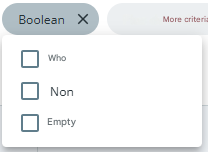
The search is started automatically moments after your last item selection in this list.