The “Extranet” section simplifies the provision of documents to external users.
A customer relationship portal or HR relationship portal are the most common use cases for an extranet.
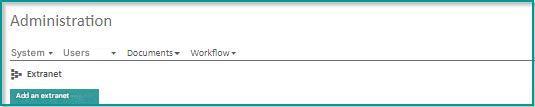
Click on “Administration” “Extranet” to access the extranet interface.
Prerequisites and principle of operation
An extranet requires a personal folder for each user who has access to the extranet.
These applications must meet several prerequisites:
- be grouped together in a “parent” folder called the “root folder” of the extranet
- be named in a way that uniquely identifies the user. Example : a registration number. Using a “name” is not recommended because of the risk of having two homonymous users. The combination of a username and a name is ideal because it allows you to ensure the uniqueness of the file while ensuring that the name speaks for a user.
Below is an example of an extranet tree: “Customer Folders” is the root folder of the extranet and contains the users’ folders of the customers.
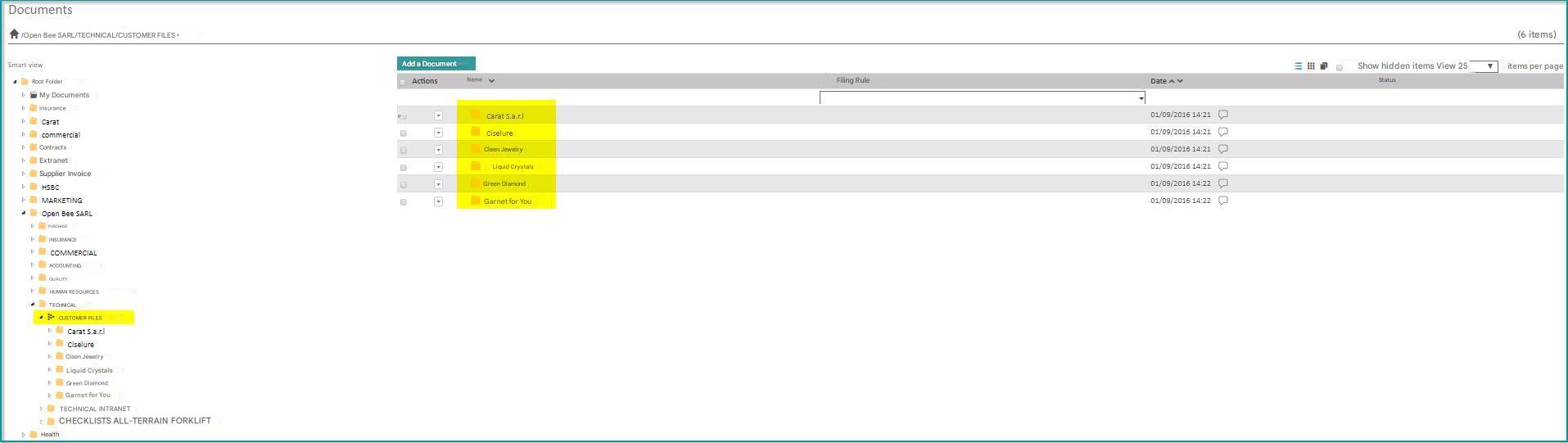
The way an extranet works is as follows:
- Publish documents to users in their own folders
- Create accounts for these users and associate them with the corresponding folders by automatically applying the necessary permissions
Create a new extranet
Cliquer sur ” Ajouter un extranet”
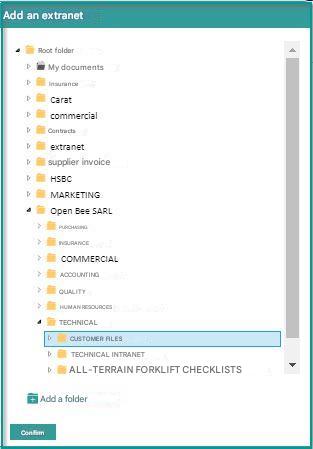
Select the root folder of the extranet:
Extranet users
Create Users
Once created, the extranet automatically detects user folders and offers to create external users for those folders.
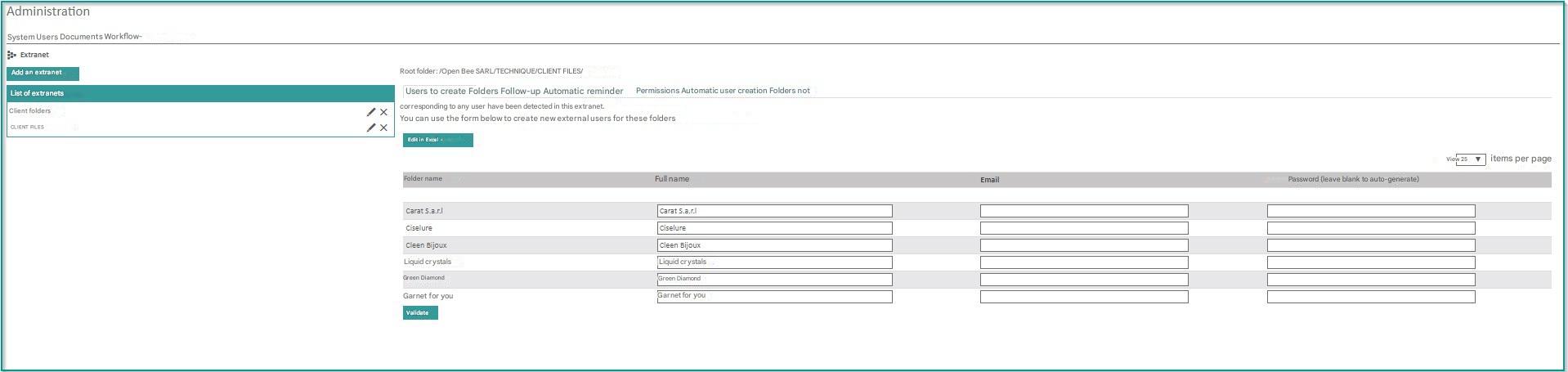
From the interface:
- For some or all of the extranet folders, enter the name, email and an optional password for the user to be created.
- Click on “Validate“.
By Excel import:
- Click on “Edit in Excel“, then “CSV Export“.
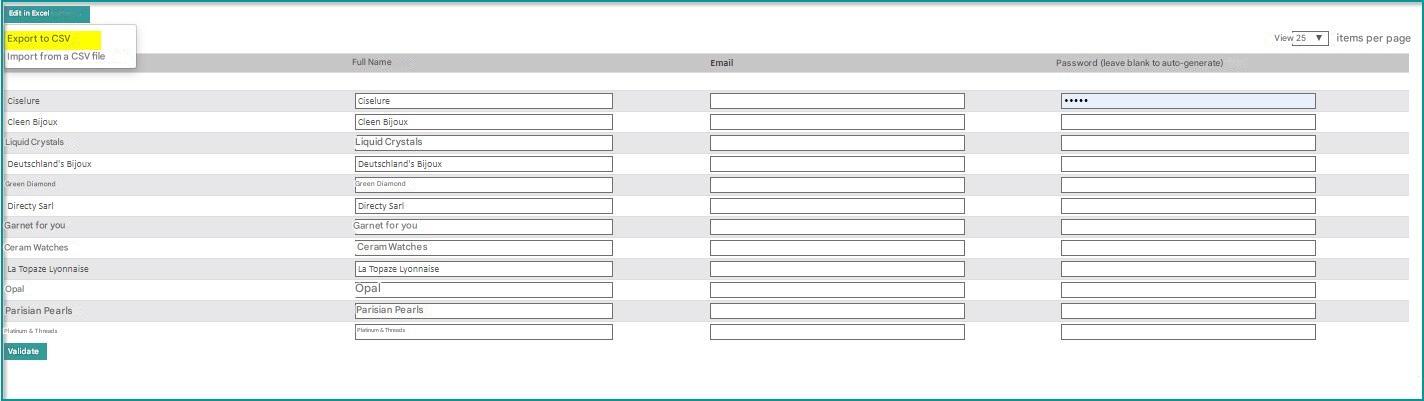
- A CSV file containing the list of folders is downloaded.
- Open the file in Excel and fill in the “Full Name”, “Email” and “Password” columns (optional).
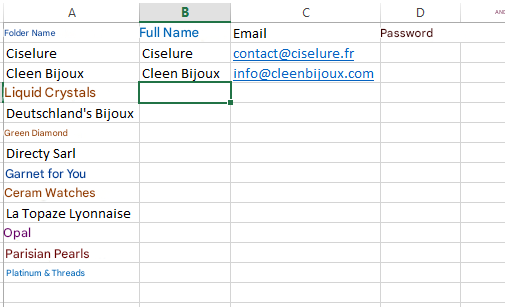
- Back up the file
- Click on “Edit in Excel” again, then “Import from CSV file”
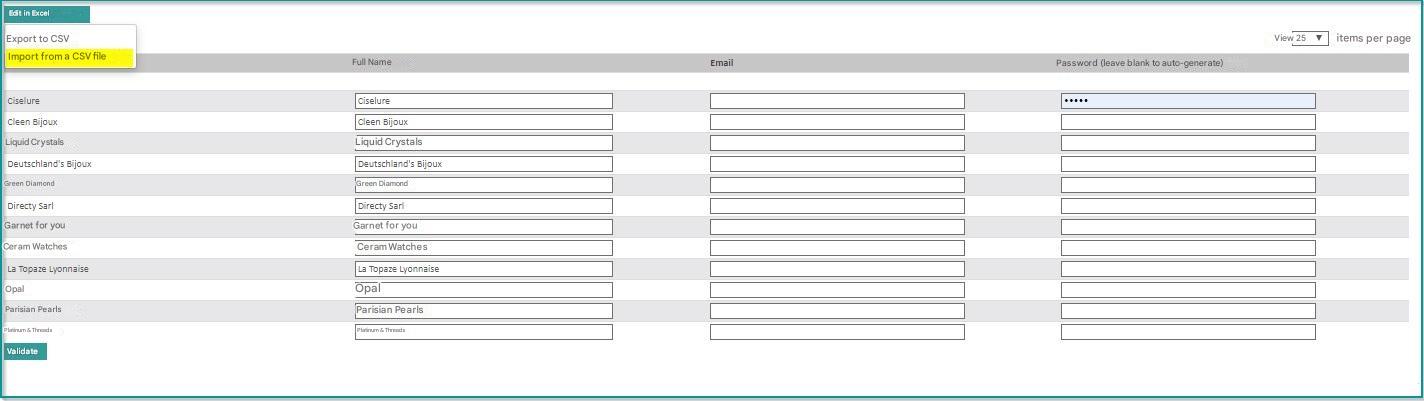
- Select the CSV file you completed. Users are created and associated with extranet folders
Create multiple users for the same Extranet folder
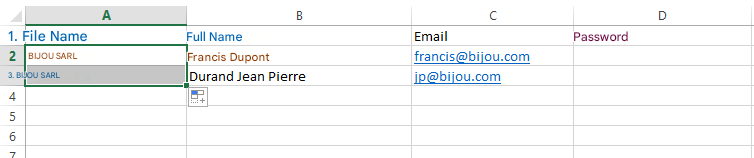
It is possible to associate several external users with the same extranet folder using the CSV import.
To do this, duplicate the row associated with the folder in the CSV file and enter the information of the different users to be created.
In the example below, 2 users “Dupont Francis” and “Durant Jean Pierre” will be created and will have access to the same folder: “SARL BIJOU”
Attach and detach users from a folder
Once created, users attached to the folder can be viewed from the “Folder” tab.
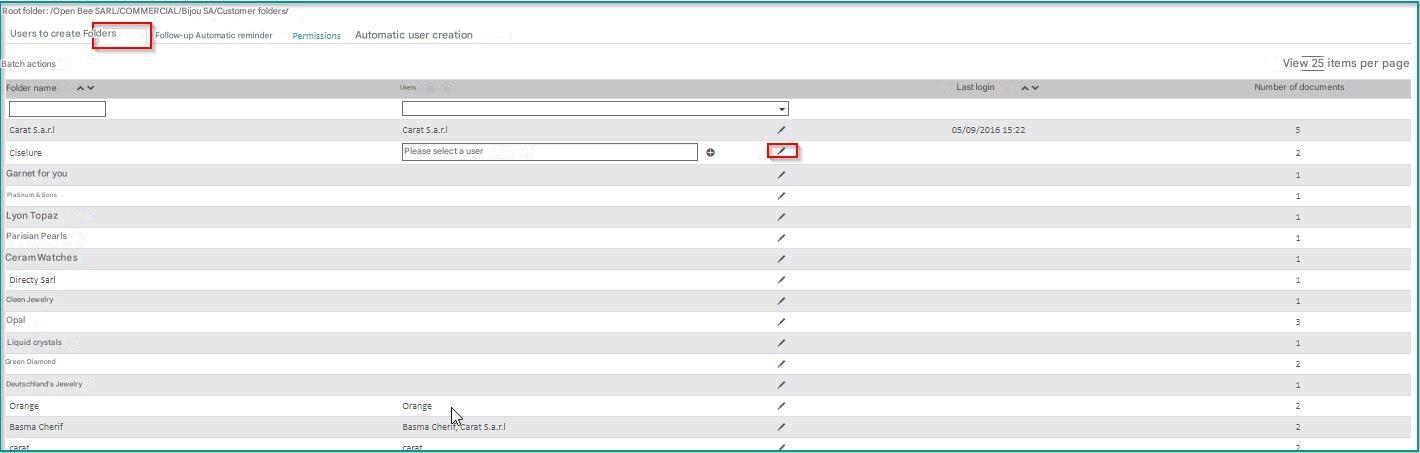
Click the pencil to change the users attached to the folder. This allows you to add or remove users who have access to the folder.
 A simple click on the user allows you to modify it in the same way as from the “User Administration” section.
Assigning and Ungrouping Users in Bulk
This feature allows you to bulk assign or ungroup external users to folders in the extranet.
- In the Administration section
- Click on an existing extranet in the list
- Click on Folders
- Click on Batch Actions
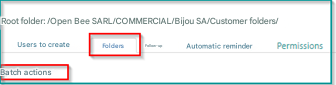
A window appears
Choose the action to be performed Associate/unlink users to folders in the extranet.
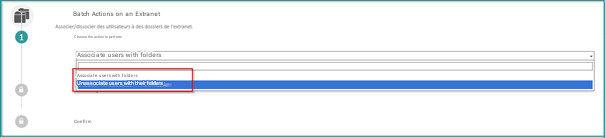
Click continue to proceed to the next step
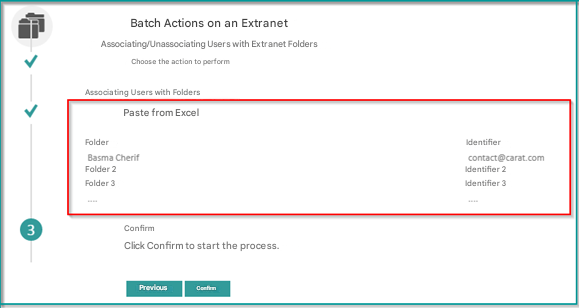
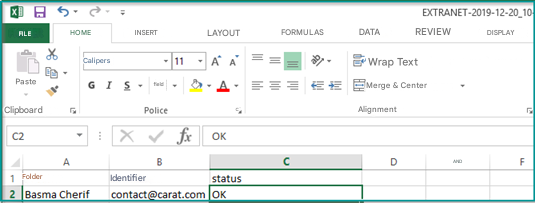
Paste the Folder and ID to export from Excel
Click on Validate to start the process
Example:
A message will appear informing you that “The operation was completed successfully.
Download the report by clicking on the link provided in the message
Here’s the result:
Automatic user creation
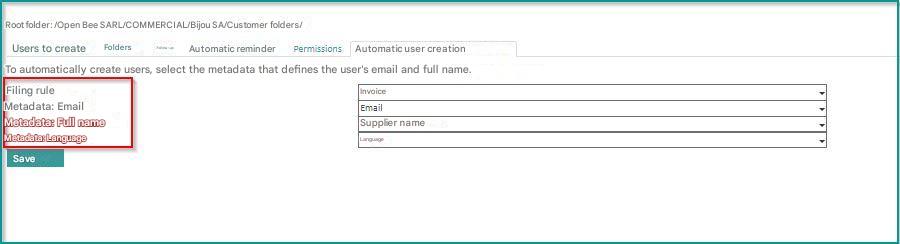
The “Automatic creation of users” tab allows you to define two metadata that will be used to identify the name and email of the users. If this configuration is enabled, the extranet will automatically create the user if it does not exist when the first document is filed.
This feature makes it possible to automate 100% the distribution of documents to customers or employees.
- In the Administration section
- Click on an existing extranet in the list
- Click on the Automatic User Creation section
- Choose the metadata that defines the email and the full name of the users
- Set Metadata:Language (Allows you to add a field to the mapping in order to define the language of the emails received by the external user. The language will be determined by the content of the metadata selected and created by the extranet in the automatic user creation tab.)
- Click Save
When filing a document with the predefined rule
- Click on Administration
- Click on Users
You’ll find that the user was automatically added to the list of users with the full name, email, and “external” role

Permissions
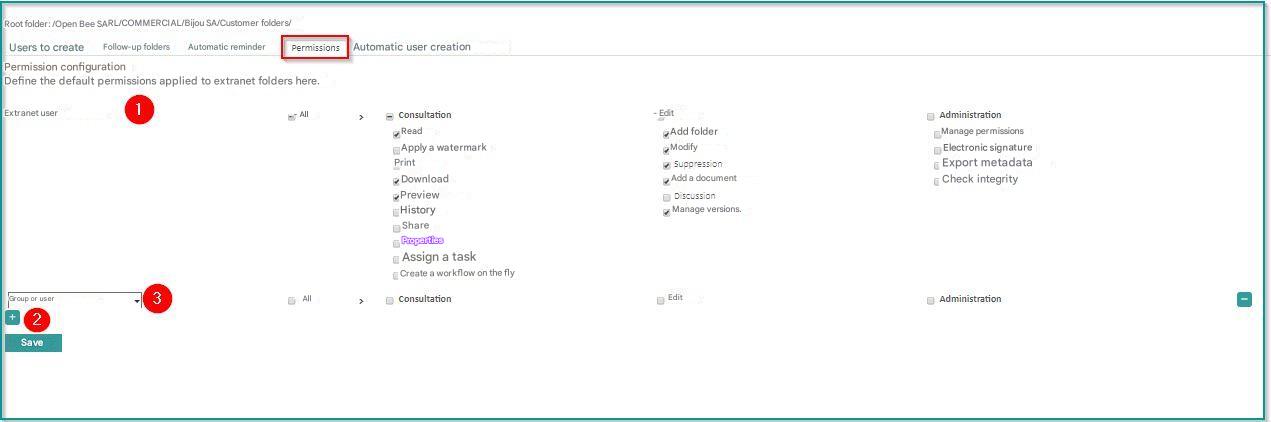
The “Permissions” tab allows you to configure the permissions that will be automatically applied to different users when creating extranet folders.
- By default, only one permission set is defined for the external user who will be associated with the extranet folder. You can change it.
- The “+” button allows you to assign permissions for other Open Bee™ Portal users.
- Add here the permissions for the users or groups that will have to access the different folders on the extranet.
Follow-up of consultations and reminders
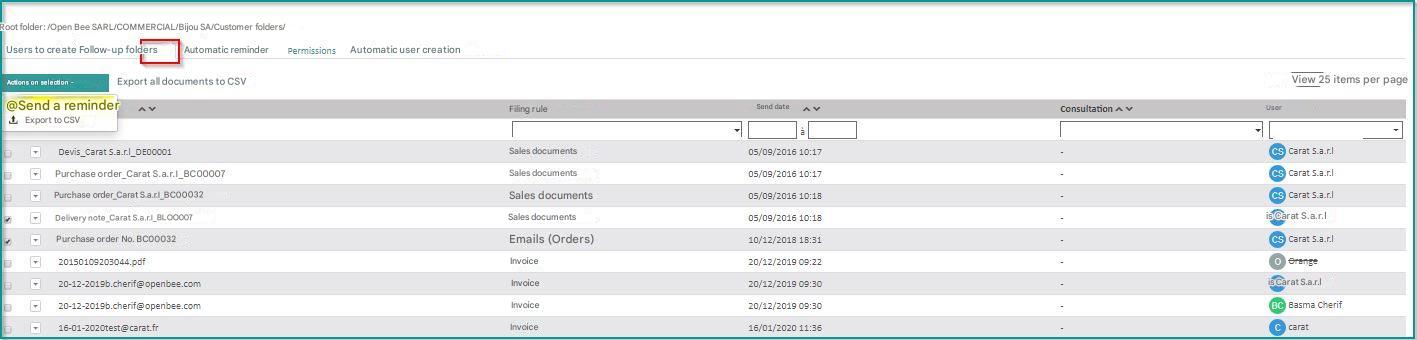
Once the documents have been distributed in an Extranet, it is possible to track which ones have been consulted or not by the users of the Extranet from the “Follow-up” tab.
Filters by “Viewing” (viewed or not) and by “User” are available.
It is possible to send a reminder by email to a user who has not consulted one or more documents.
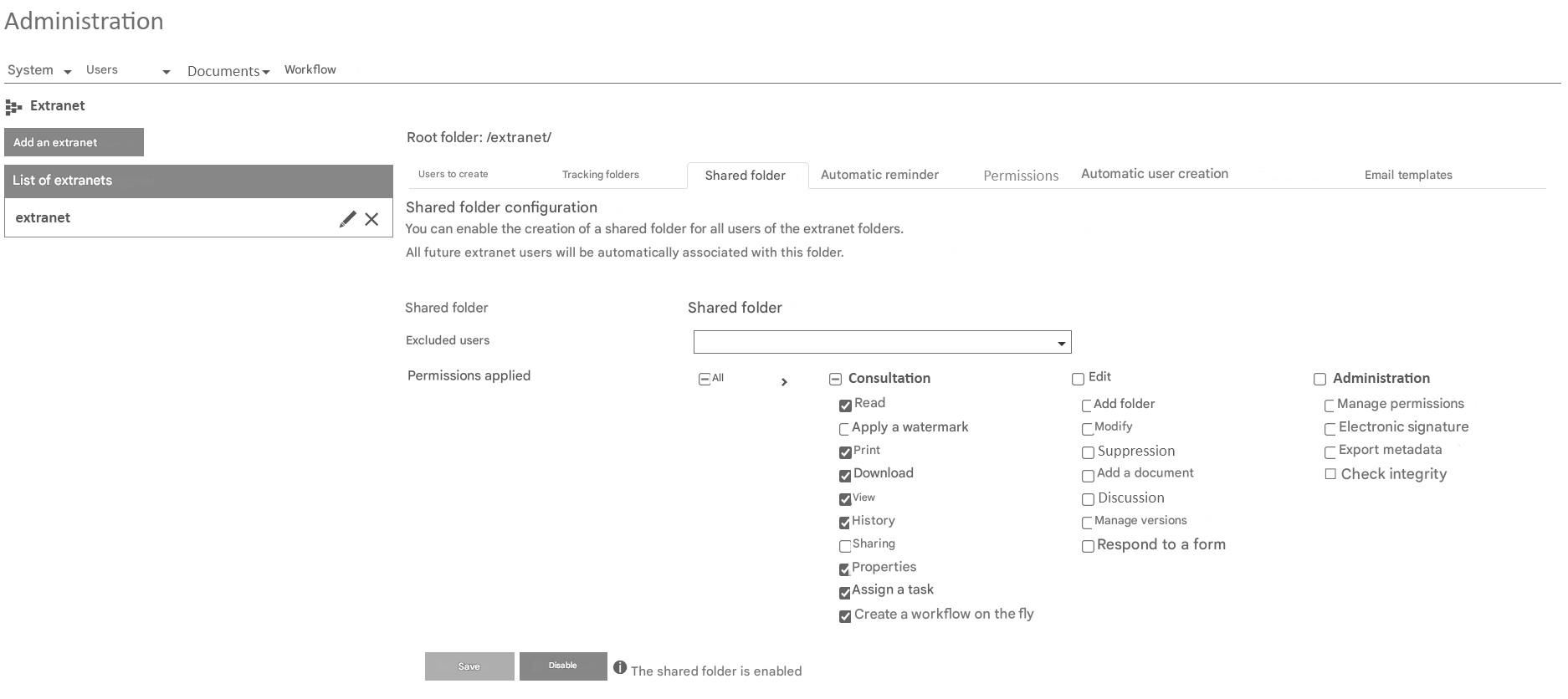
It is possible to activate a folder in an Extranet that will be shared by all the external users present in this Extranet.
On this folder, it is possible to apply different permissions to external users than those applied to their Extranet folder.
Each time a new user is added to the Extranet, they will automatically be associated with this common folder.
Export CSV
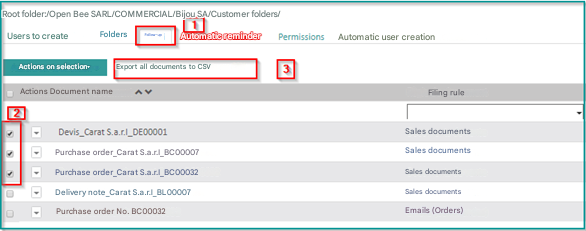
Allows you to add an action to export the list of documents in the Tracking tab of an extranet
To export the document list, simply:
- Click on Administration
- Click on an existing extranet, e.g. “Customer Records”
- Click on the FOLLOW-UP section
- Check the documents you want to export
- Click on Export all documents to CSV
An informational message will appear informing you that the operation was completed successfully. And you can download the report

Reminders can be automated from the “Automatic reminders” tab.
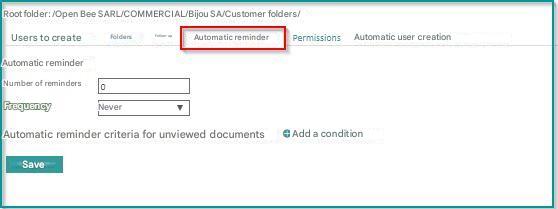
The number of reminders indicates the number of times a reminder email will be sent to the user as long as the user has not viewed certain documents available in their extranet.
The frequency is used to define the interval at which reminders are sent.
The dunning criteria make it possible to limit dunning to certain types of documents.
Rename an extranet
Click on the extranet in the list. It is then possible to rename it. During this operation, the root folder of the extranet will also be renamed.
Delete an extranet
It is possible to delete an extranet.
This operation:
- Keeps all documents and records on the extranet
- Disables extranet users
Once an extranet has been deleted, it is therefore possible to give access to the extranet to a user by reactivating it from the “User Administration” section
Changing the behavior of an expired link
When the user of an extranet clicked on the link to set his password received by email and it had expired, he was blocked.
From now on, an explanation message informing that the link has expired is displayed and it is possible to request an automatic resending of a new email directly from this message.