Summary
- Understanding the list of results
- Sort Results
- Show more results
- Configure columns
- Actions on a profit and loss line
Understanding the list of results
The list of results displays all the documents that match your search, in the form of a table. Each row represents a document or folder, and each column displays a piece of information: name, filing rule, location, dates, metadata, and so on.
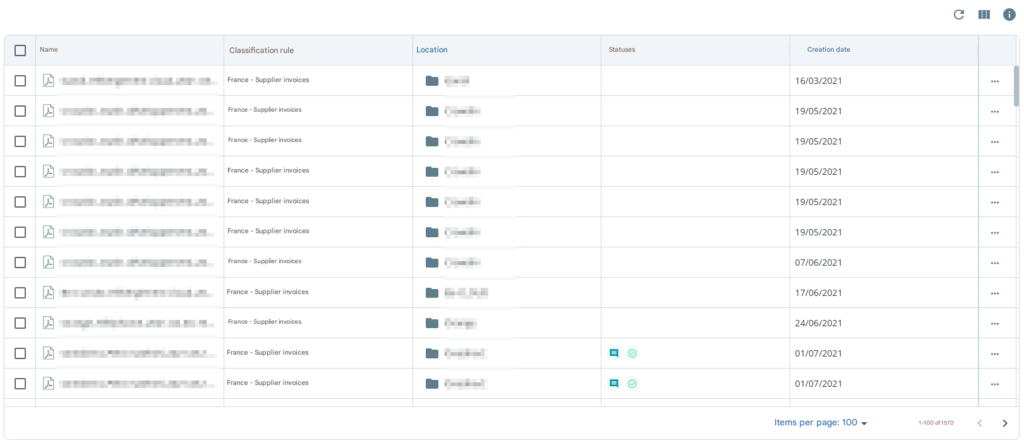
The list header allows you to select several items, sort the results, perform calculations on the columns or reorder the order of the columns.
Sort Results
By default, the search returns results sorted by relevance based on the criteria entered.
You can sort the results on a specific piece of data by clicking directly on the header of the relevant column:

- A first click applies an increasing sorting.
- A second click applies a descending sort.
Sorting is always applied on only one column at a time.
Show more results
The selector at the bottom of the list allows you to change the number of items displayed per page:
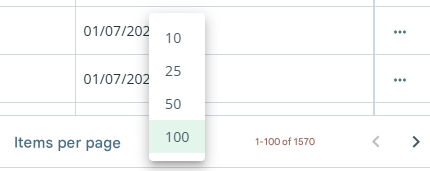
You can choose from the following values: 10, 25, 50, or 100 items per page. This option is useful for browsing a large volume of documents without changing pages too often.
You can easily move from one page to another using the arrows.
Configure columns
You can customize the column display to tailor the list of results to your needs. Two levels of configuration are possible:
- Quick configuration directly from the results header.
- Advanced configuration via the dedicated column settings window.
Column changes are specific to the current search. To keep this configuration and find it later, remember to save your search.
Columns displayed by default
By default, the list displays:
- Technical metadata columns: these are the columns that are common to all elements (documents and folder):
- Item Name
- Ranking Rule
- Item Location
- Statutes
- Creation date
- Columns of metadata associated with the Ranking Rule, when the Ranking Rule type criterion was used in the search.
The metadata columns offered depend on the classification rule definition configured in your system.

Reorder columns from the results header
To quickly adjust the display order, you can reorder the columns directly from the grid:
- Move a column : Drag and drop the column header to the desired position.
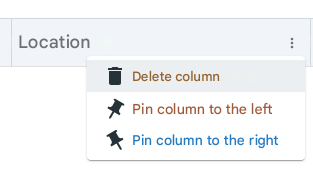
- Hide a column : Use the Remove Column action to hide the column from the view.
- Resize a column : Hover over the boundary between two column headers, then click and drag to make the width larger or smaller.
Reorder columns from the dedicated window
For a more complete configuration, use the column settings window. It allows you to choose precisely which columns to display, in what order, and to add or remove business columns.
This window is accessible from the buttons at the top right of the results list, and looks like this:
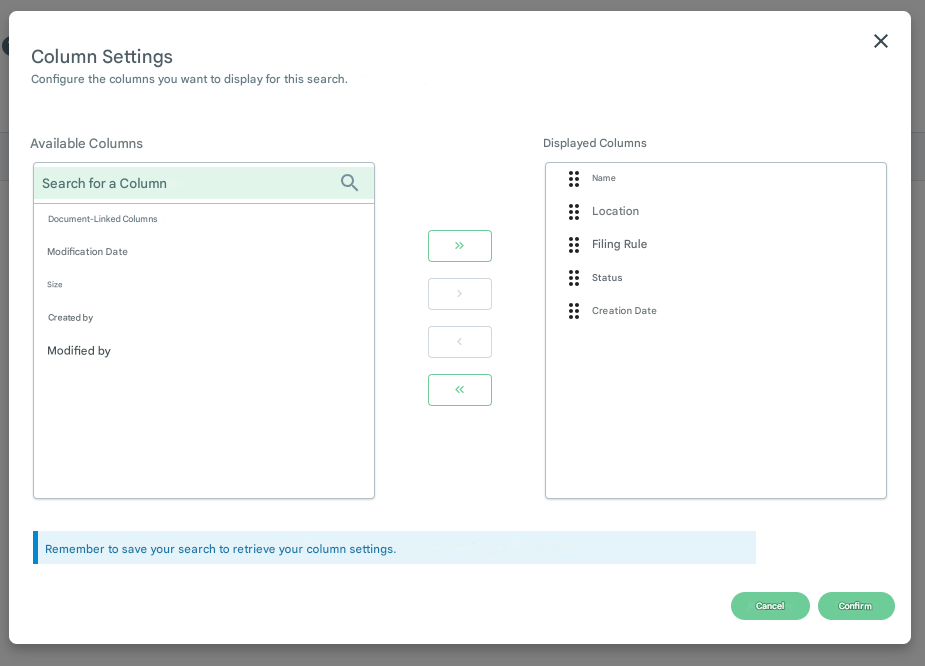
- Available Columns: A list of all the columns that you can add to the view. This list includes columns that are common to all items, plus columns related to metadata if a collation rule was chosen in the associated criteria.
- Displayed Columns : A list of the columns that are currently visible in the results list.
- In this list, you can also drag and drop a column up or down to change the order of the columns
- Add/Remove buttons : Move a column from the list of available to the list of displayed, and vice versa.
- Column Search : A search field allows you to quickly find a column by name.
Pin columns
To keep some information always visible, you can pin one or more columns to the left or right of the results list.
This action can be accessed in the header of each column.
- Pinned columns remain fixed when scrolling horizontally
- It is possible to pin multiple columns in a row
- A column can be unpinned at any time from the same action menu
By default, the item selection checkbox column is pinned to the left, and the action column on the row is pinned to the right.
It is not possible to unpin these two specific columns.
Perform calculations on columns
For numeric metadata columns (Integer or Decimal), you can initiate a calculation directly from the column header.
The Calculation action on the column provides the following functions:
- Sum: Sum of all values in the column
- Average : Average of the values in the column
- Minimum : The lowest value in the column
- Maximum : The highest value in the column
The results of the calculation are displayed at the bottom of the relevant column:
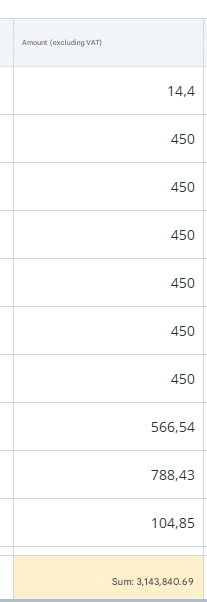
Please note that the calculations are made on all the results of the current search, not just on the items visible on the screen.
For example, if you display 50 items per page but the results contain 12000 items, the calculations will be performed on the 12000 items.
You can also enable calculations independently on multiple columns at once.
Actions on a profit and loss line
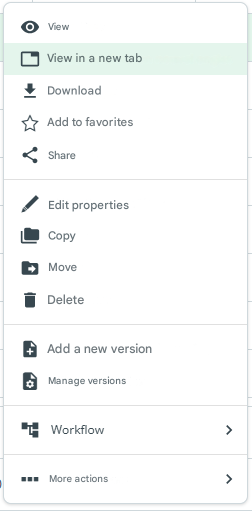
On each result line, a button to the right of the line allows you to perform actions on the item in question:
Tables
Table-type metadata are displayed in search results according to the same principle as other metadata: they appear in a dedicated column.
This column indicates the number of rows present in the table.

By clicking on this sticker, the content of the table opens and the different lines of data are displayed.