Click on “Administration” “Working Hours”
This function allows you to specify the company’s working hours and days. It allows only the actual working time to be counted in the calculation of the duration of a task in a workflow.
For example, a task assigned on a Friday at 6:00 p.m., with a one-day delay, will not be marked “Overdue” on Monday morning.
Enable scheduling support
First of all, tick the box allowing working hours to be taken into account:
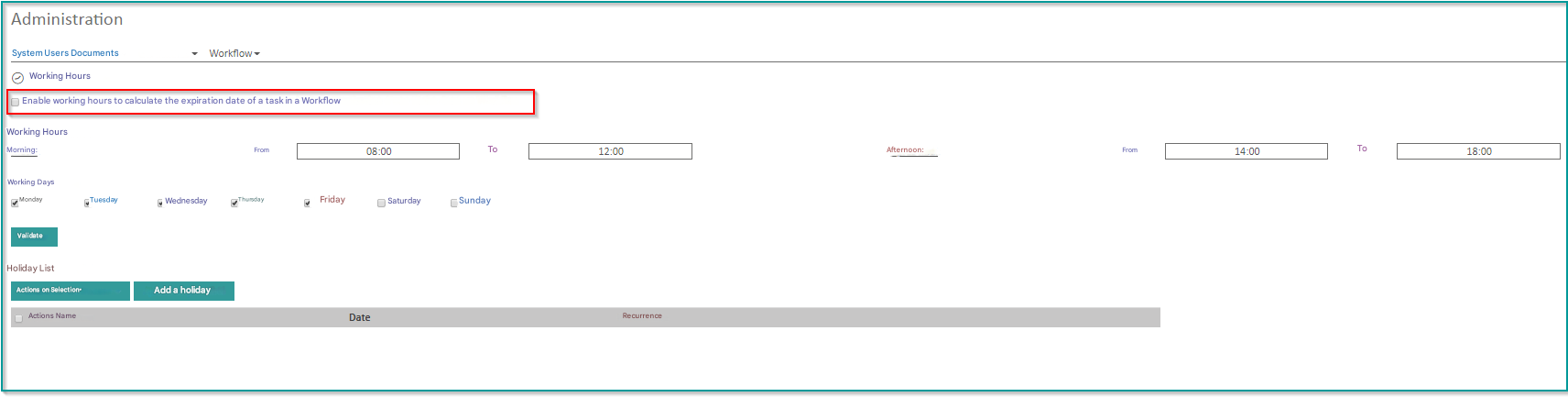
Click on “Validate” to take your changes into account.
Change working hours and days
The default values are 8:00 a.m. to 12:00 p.m. and 2:00 p.m. to 6:00 p.m. Monday to Friday. The following form appears and can be edited.

Click on “Validate” to take your changes into account.
Add and edit holidays
Click on the “Add a holiday” button. The following form appears:
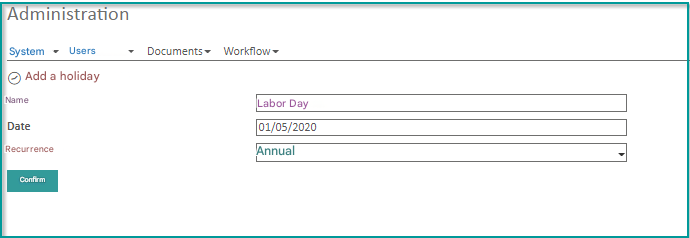
Give a name and date to the holiday, as well as a possible recurrence.
Click on “Validate”
To edit or delete a holiday, use the menu associated with the holiday:
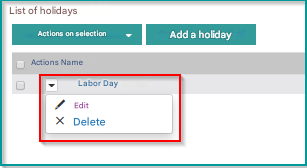
In the case of an edition, the same form as for the creation will be displayed.
It is also possible to perform bulk deletions using the “Select Action” menu