- Historical
- Add a folder
- Add a document
- Copy a folder
- Edit a folder
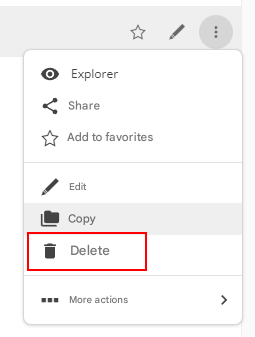
- Delete a folder
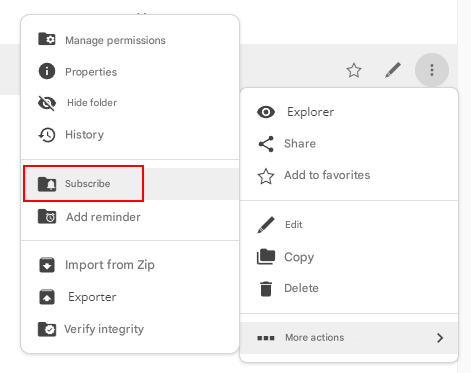
- Subscribing to a file
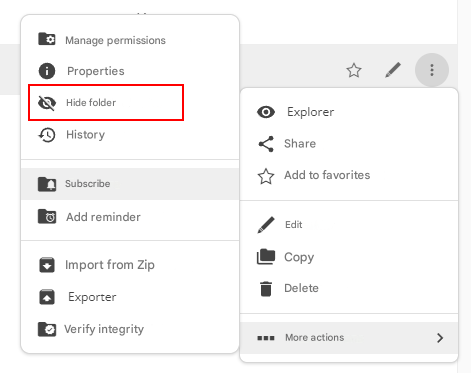
- Hide folders
- Reveal Selected Items
- Properties of a folder
- Share a folder
- Add to Favorites
- Add a reminder
- Add a comment
- Manage Permissions
Historical
Add a folder
Click on “New Folder” from the “Create” button
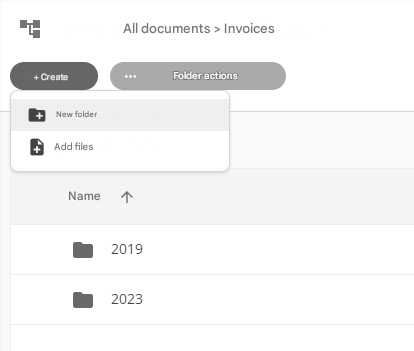
To add a folder to the current folder or to the root folder, click “Add Folder” in the drop-down list in the Open Bee™ Portal “Actions” column
The following window appears:
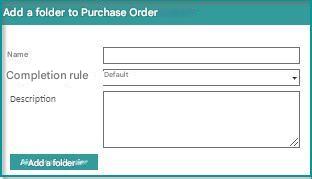
- Enter a name for the folder and, if desired, its description
- Click “Add Folder” to complete the operation
Folder Name Length
The length of a folder name is limited to 255 characters. Adding a document with a longer name is possible, but the name will be truncated.
Open Bee™ Portal is ” case insensitive “, which means that it is not possible to create two folders with the same name, using a different combination of lowercase/uppercase.
Exemple : « Factures » et « factures».
Add a document
Click on “Add Files” from the “Create” button “Actions“
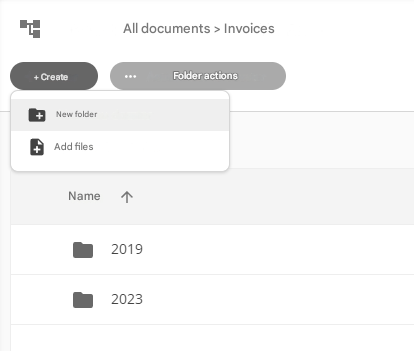
The following window appears:
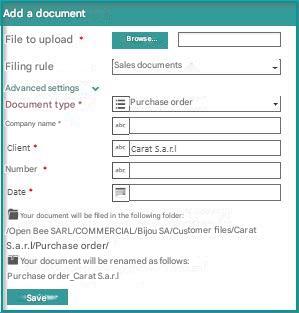
- Fill in the name and description of the document
- Click on “Browse....”
- Select the file you want to add
- Choose the document type (default or other)
- Click on “Add Document”
- The confirmation message: “Document added successfully” appears
Supported Formats for Indexing
Le contenu des documents est indexé automatiquement par Open Bee™ Portal pour les formats suivants :
– .pdf (Pdf text)
– .doc, .docx (Word)
– .xls, .xlsx, .csv (Excel)
– .pptx (Présentation Power Point 2007)
– .txt (Document texte)
– .rtf (Rich Text Format)
– .odt, .ods, .odp, .odg (Open Office)
Name Length
The length of a document’s name is limited to 255 characters. Adding a document with a longer name is possible, but the name will be truncated.
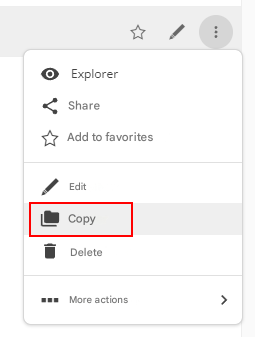
Copy a folder
To access this option:
- Position yourself in the folder.
- Click on ” Actions “
- Click on “Edit“
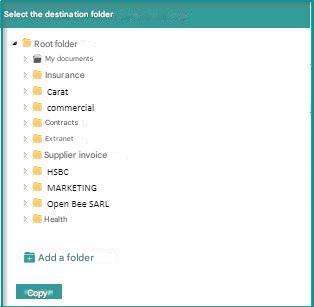
- Click “Copy” from the drop-down menu
Edit a folder
You can edit a folder (if you have the rights).
To do this:
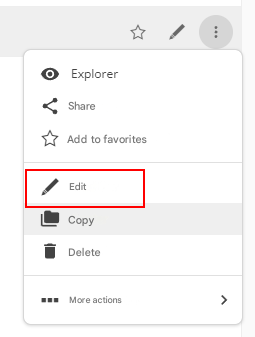
- Click on the drop-down menu (below the ” Action ” column)
- Click on “Edit“
- Click on “Edit“
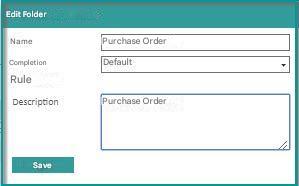
- Make the changes
- Click “Save ” to complete the operation
Delete a folder
Subscribing to a file
Hide folders
This feature allows you to hide folders in Open Bee™ Portal.
These will no longer appear by default in the tree view and in searches.
It is possible to display these items again at any time.
To do this:
- Choose your file
- Hover your cursor over ” Actions”
- Click on ” Advanced”
- Click on “Hide Folder“
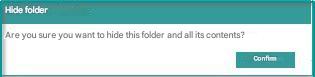
- Click “Confirm”
Show Hidden Items
To do this:
- Just check the icon to show the hidden items
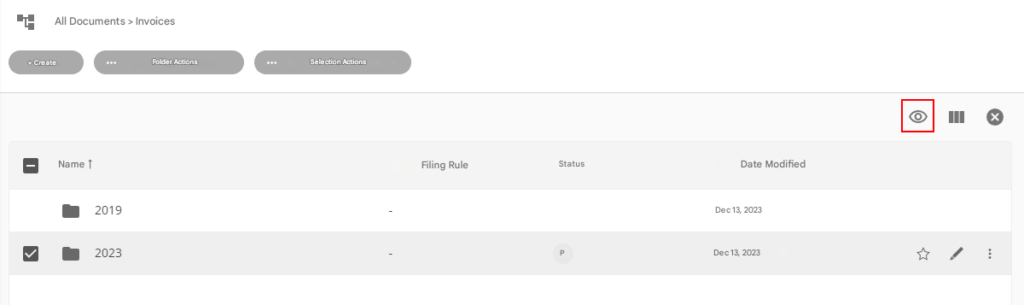
Reveal Selected Items
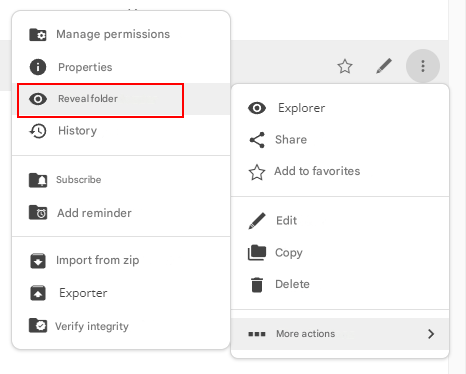
This feature also allows you to show hidden items
- Select the document,
- Click on “Selected Actions“
- Click “Reveal Selected Items” from the drop-down list.
- Click “Confirm“
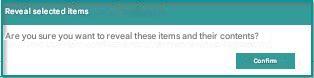
A confirmation message appears.
Properties of a folder
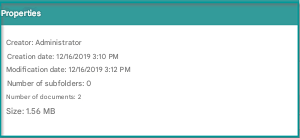
This action on the folder allows you to view all the properties related to the folder, namely:
- The Creator
- The date of creation
- Date modified
- The number of documents
- The number of subfolders
- The size of the documents
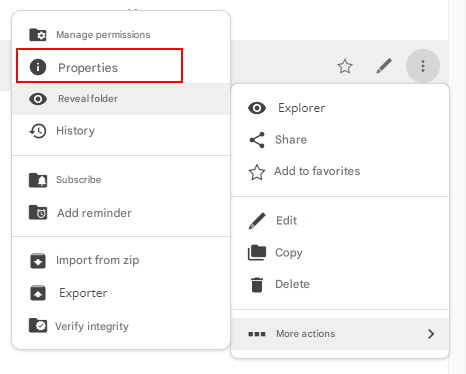
To access the properties window, simply
- Click on “Actions“
- Click on ” Advanced”
- Click on “Properties“
Add to Favorites
Add a reminder
Reminders about documents and files
Add a comment
Comments on documents and files