A Secure Storage Area is a folder in which Open Bee™ Portal administrators do not have access to documents.
A Secure Storage Area has a “manager” who is the only user who can access that folder. This section describes the specific functions of a Secure Storage Space. All other functions available on folders and not covered in this section, are valid both on classic folders and in a Secure Storage Area.
Access to a Secure Storage Area
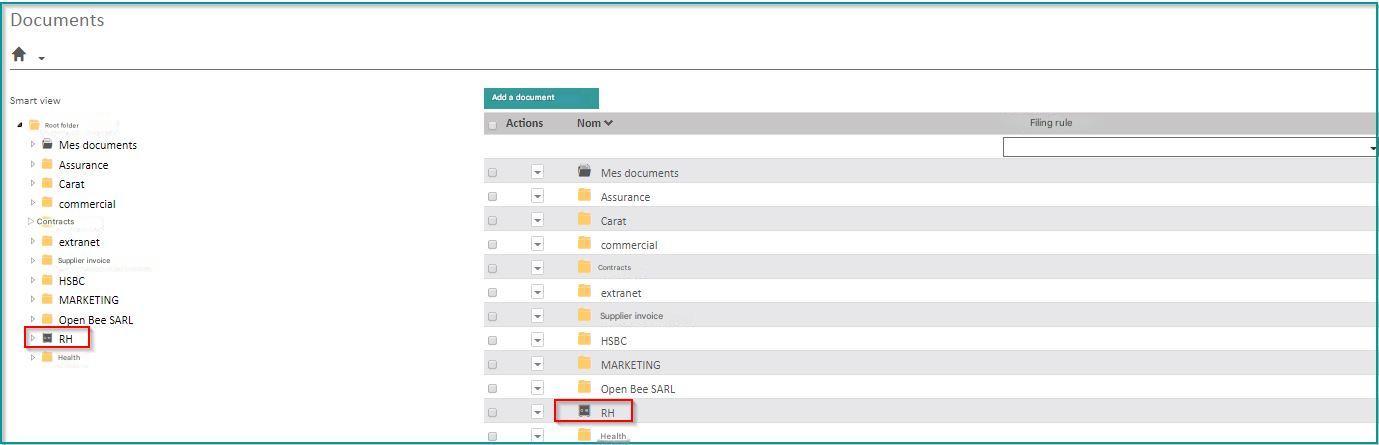
A Secure Storage Area is accessible like any other Open Bee™ Portal folder through the “Documents” tab.
The Secure Storage Spaces are identifiable by the vault icon:
Allow other users to access a Secure Storage Area
As the manager of a Secure Storage Area, you can, if you wish, open access to the Secure Storage Area to other users via the folder permissions system. This option is only available if the administrator who created your Secure Storage Space has given you the opportunity to do so when creating the Secure Storage Area.
This is similar to setting permissions in any folder in Open Bee™ Portal and is detailed in the Document Access Permissionsof this documentation.
Functions specific to a Secure Storage Space
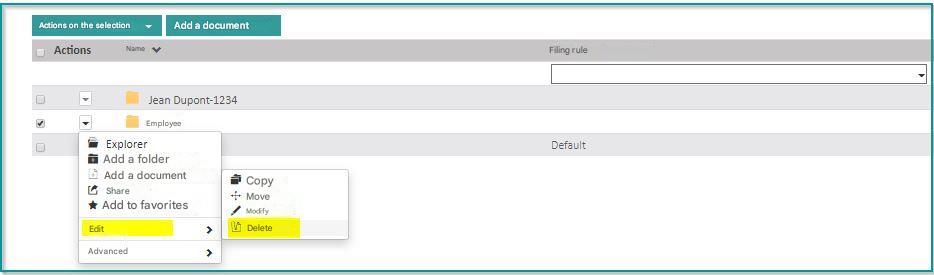
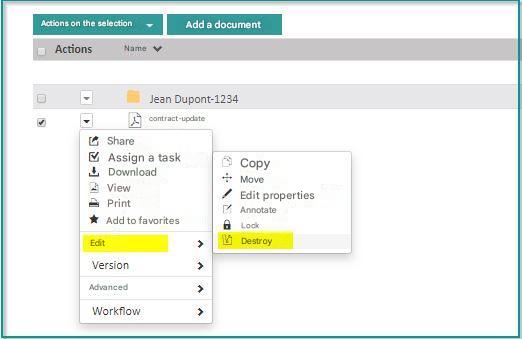
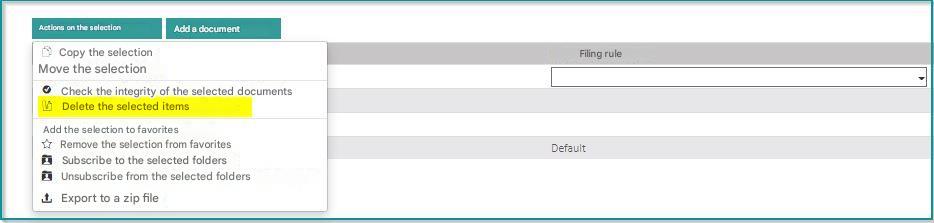
Destroy
Deleting documents or folders in a standard Open Bee™ Portal folder moves the items to a recycle bin. This deletion function is not available in a Secure Storage Area.
It is replaced by the “Destroy” function which, unlike deletion, irreversibly deletes items (folders and documents).
This function can be accessed through the following menus:
| Menu on a folder | Menu on a document | Batch Action Menu |
|---|---|---|
 |
 |
 |
Verify Integrity
The integrity check mechanism ensures that a document is exactly the same as the digital object provided when uploaded to the Open Bee™ Portal.
During this verification, a unique fingerprint of the document is recalculated and compared with the one established at the time of filing. If the fingerprints are identical, the integrity is validated.
The integrity check is also available on an entire Secure Storage Space or a subfolder of a Secure Storage Area. In this case, the integrity of all documents in the file is verified. It is done asynchronously.
To verify the integrity of a document, click on “Check Integrity” in the menu on the document.
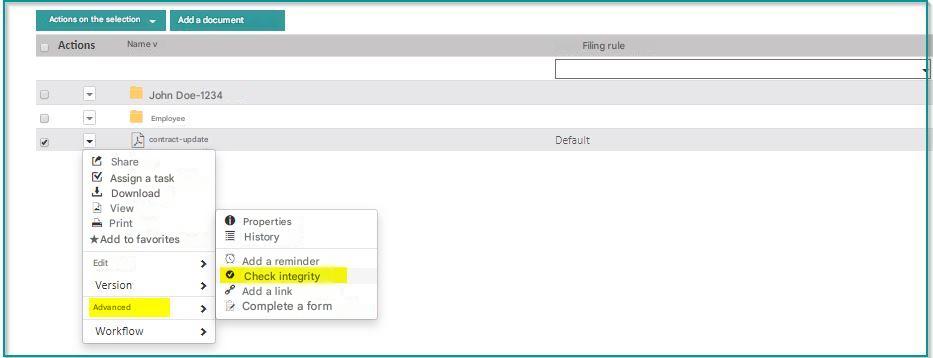
The result of the operation is displayed by a message on the screen.
To verify the integrity of a folder or a Secure Storage Area, use the action available in the folder menu.
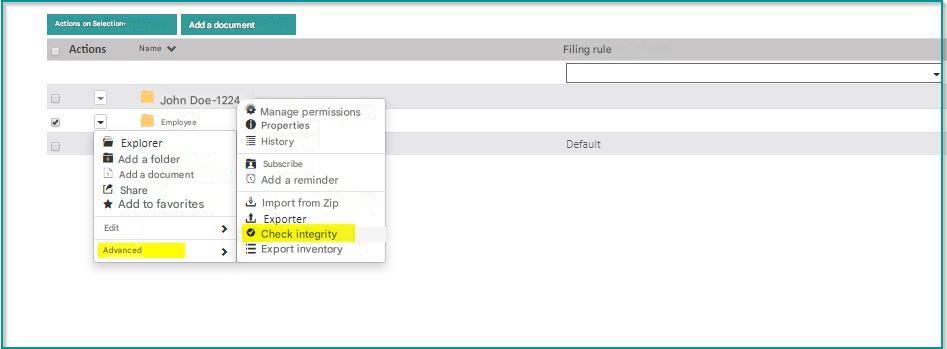
Export Inventory
The inventory of objects in a Secure Storage Area can be consulted in the form of a CSV file.
To view the inventory, click on “Export Inventory” in the folder menu of the Secure Storage Area.
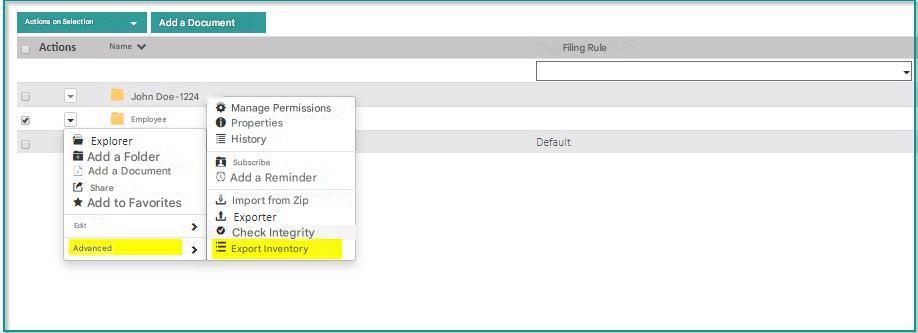
A CSV file is uploaded with the following columns:
- id_document_version : Unique identifier of the document version
- id_document : Unique identifier of the document
- Extension : The extension of the file
- name : Name of the document
- Description : The description of the document (optional field)
- size : The size of the document in bytes
- md5 : the fingerprint of the document calculated with the MD5 algorithm
- sha256 : the fingerprint of the document computed with the SHA256 algorithm
- path : the path of the document in the Safe Custody Workspace tree
