This feature allows quick access to folders and documents that you frequently consult through the “My Favorites” area of the dashboard.
To add an item to “My Favorites”:
- Click the icon to add the folder or document to favorites. This icon is available by selecting the row or hovering over it.

- A message will confirm that the item has been successfully added to your favorites. The star icon means that the item can be accessed from Favorites.
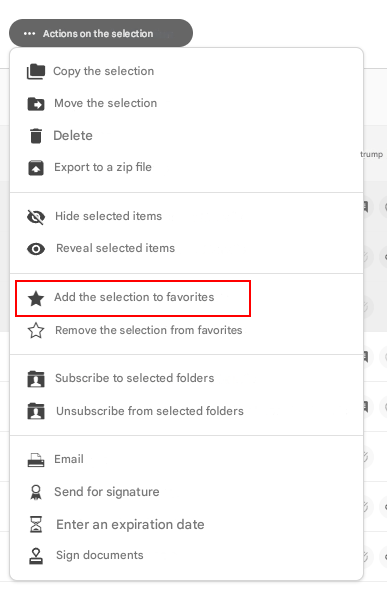
It is possible to add or remove multiple documents/folders from favorites with an action on the selection:
To check the display of your items in “My Favorites”, go to the dashboard and check the presence of the items in the “My Favorites” widget.
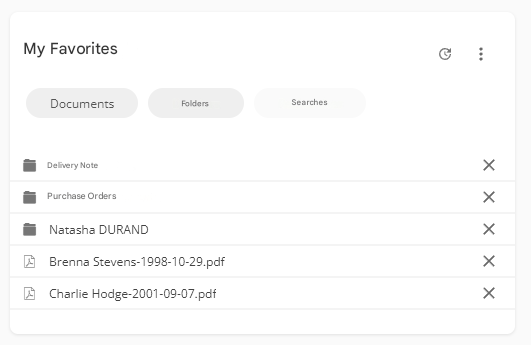
If you want to remove an item from your favorites, simply click on the cross on the right of the window or use the “Remove from my favorites” menu