- Subscription and Notification
- Triggering notifications
- Gérer les souscriptions depuis l’interface de parcours des dossiers ou de résultat de recherche
- Gérer les souscriptions depuis les préférences
Subscription and Notification
The concept of subscription consists of automatically notifying one or more users that an event has occurred on a selected document or folder.
Whenever events take place, users will receive a new notification and a message via email (if this option is enabled in the user’s preferences) to inform them.
Triggering notifications
The actions that trigger notifications on folders and documents are as follows:
- Adding a folder or document
- Editing a folder or document
- Deleting a folder or document
- Adding a new version of a document
- Modifying an existing version
- Deleting a version of a document
- Uploading a document
- Copying a document
- Déplacement d’un document
Manage subscriptions from the file browsing or search result interface
View subscriptions
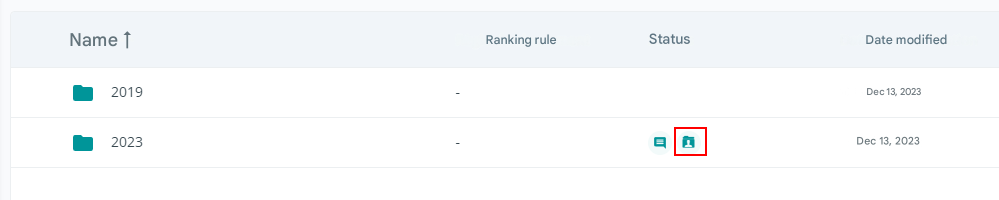
An icon is used to identify the subscribed files during the journey through the tree.
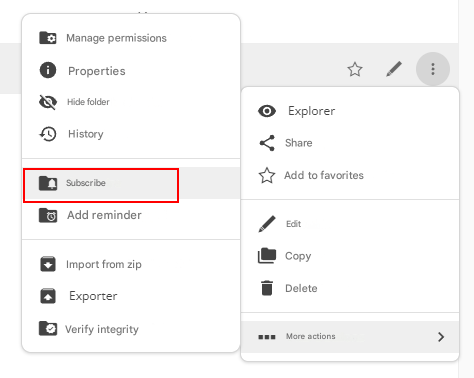
Subscribing to a file
You will be informed, by notification in the dashboard and by email (if this option is enabled in the user’s preferences), of any changes made in the future to the documents in this folder.
Subscriptions on folders are recursive. When you subscribe to a folder, you also subscribe to all of its subfolders.
Delete a subscription
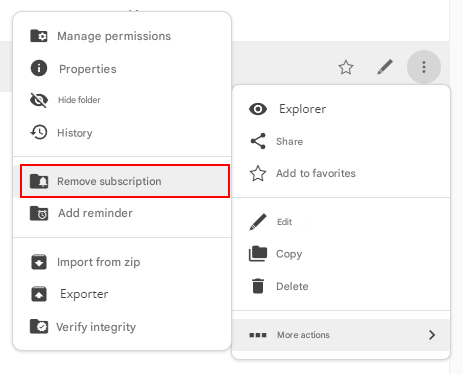
To deactivate a subscription to a folder, select the folder and then select “Delete Subscription” from the drop-down menu.
Add or remove bulk subscriptions
It is also possible to add or remove subscriptions in bulk.
Manage subscriptions from preferences
View all of your subscriptions
A page where you can view all your subscriptions. Click on your profile picture, click on Preferences , and select “Manage My Subscriptions” from the drop-down menu.
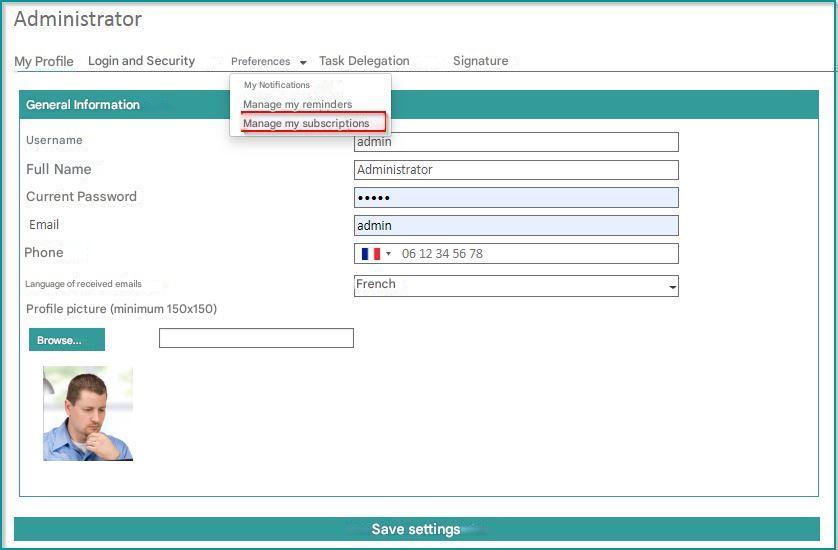
This page appears:
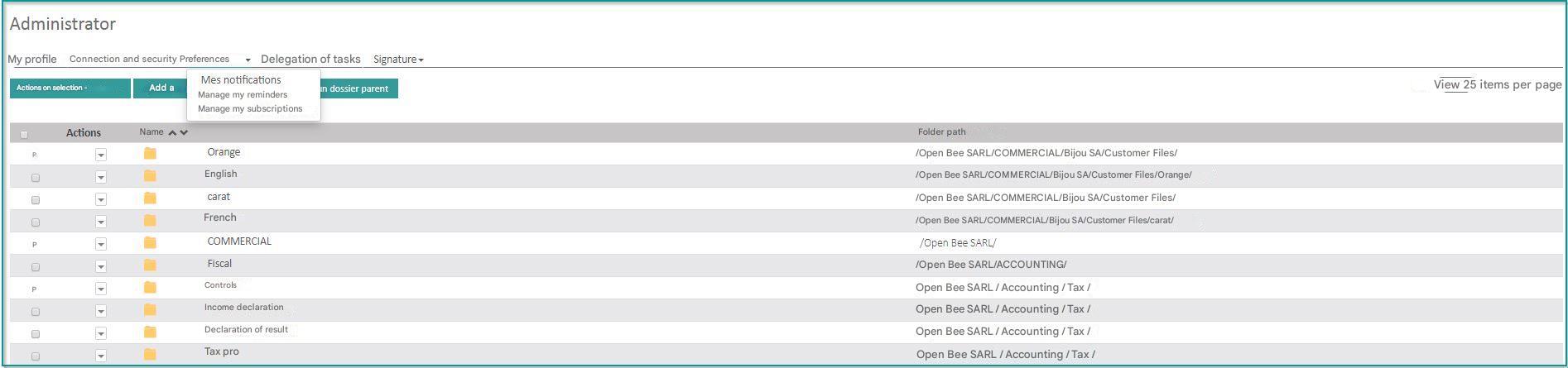
You can also filter the view to show only subscriptions from a selected folder and subfolders, using the “Filter Parent Subfolder” button.
Delete a subscription
Select the folder, in the action menu select “Delete subscription“.
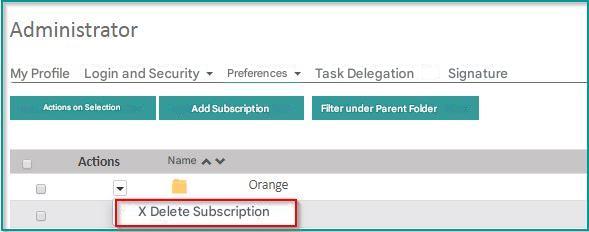
Subscriptions on folders are recursive. When you delete a subscription to a folder, you also delete the subscription to all of its subfolders.
You have the option to delete multiple subscriptions at the same time. To do this, select several folders, then in the “Actions” column click on “Actions on the selection” and select “Remove subscription to selected folders“
Subscribing to a file
Simply click on the “Add a subscription” button and select the folder to subscribe from the tree view.
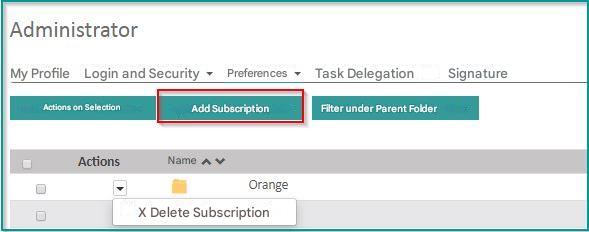
Subscriptions on folders are recursive. When you subscribe to a folder, you also subscribe to all of its subfolders.