This feature allows you to send an email containing a secure link to share a document or folder to a list of recipients.
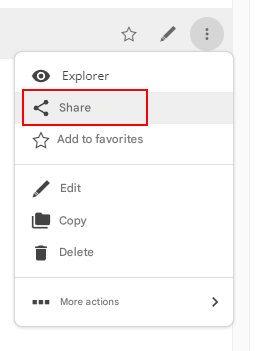
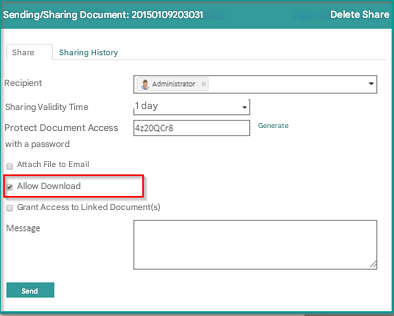
The following window allows you to set the settings for sharing/sending the document:
| Sharing a document | Sharing a folder |
|---|---|
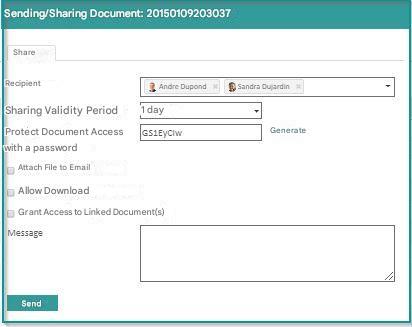 | 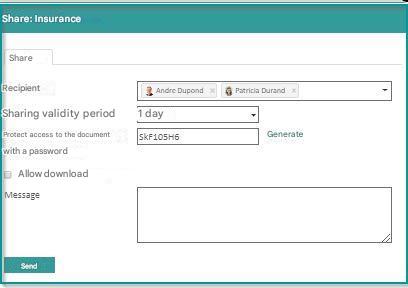 |
- Destinataires : choisissiez un ou plusieurs contacts parmi :
- Groups
- of users
- external contacts by entering their email addresses
- Period of validity: It is possible to terminate access to the document after a predefined period.
Sharing by link with a password
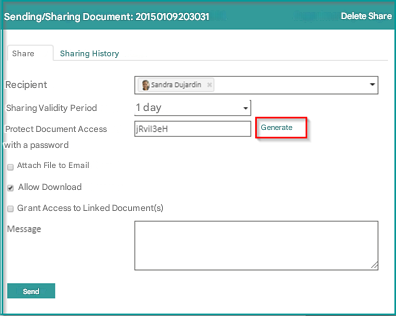
This advanced option allows you to change the default behavior, which is to automatically generate a password to protect the share.
You will be asked for the password the first time you access the file or the first time you access each document.
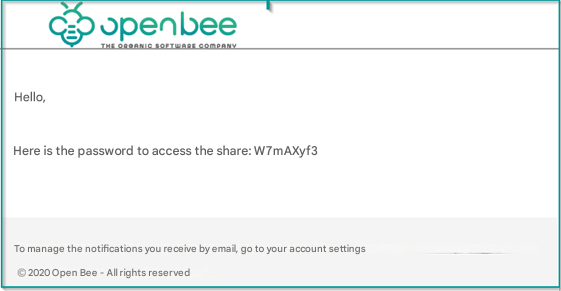
The automatically generated password is sent in a second email, you can also Generate another password if you wish by clicking on the ” Generate ” button.
Attach the file to the email:
Check the box next to Attach file to email to include the document attached to the email.
In this case, the “Validity period” and “Password” options will not apply since the document will be communicated as an attachment rather than as a secure web link.
You also have the option to allow or not allow the document to be downloaded by checking the “Allow download” box. Allowing the download will also allow you to print the shared document directly from the Open Bee Portal interface.
Document sharing: Ability to add linked documents
When creating a manual or automatic document share, the user can now also share all documents related to the original document.
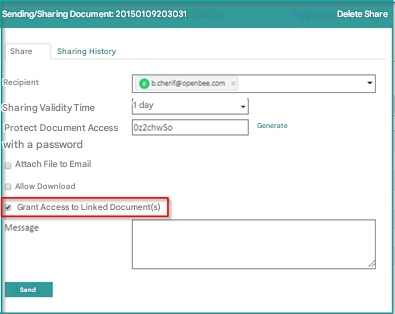
This option is only available if the share has a limited validity period.
- Message: the text entered will be added to the sent email
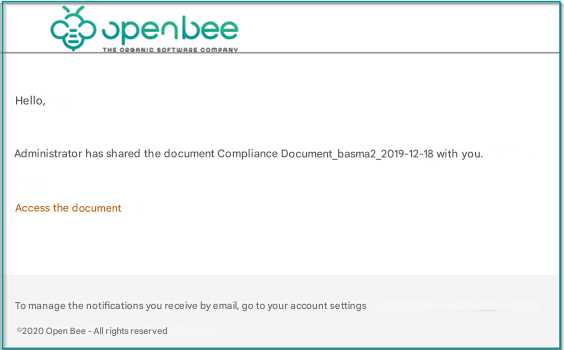
By clicking “Send”, recipients will receive an email that contains the access link.
Example of an email received:
and another containing the password:
– External contacts will be able to view the document/folder without a user account via a secure link.
– Users of the solution will need to log in with their user account before viewing the document/folder.
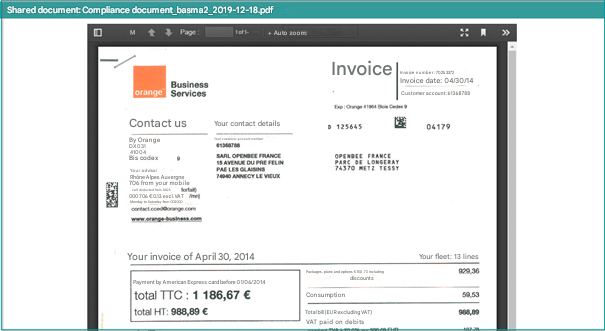
Document sharing by link, to display only the document
A simple screen appears that visualizes the shared document:
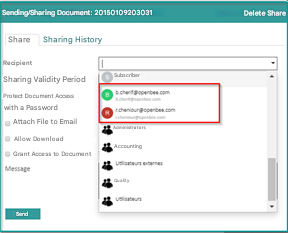
Email Sharing – History of Emails Entered
The app now registers the recipients of a link share and offers them the next time you use the feature.
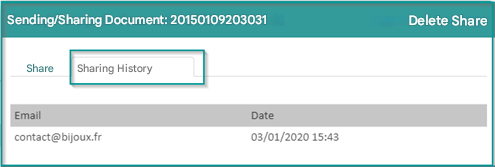
Sharing history
This section only appears when you’ve already shared a document
The same goes for the “Delete Sharing” button