- Download
- Visualize
- Send & Share
- Historical
- Properties
- Manage Versions
- Add a version
- Copy
- Move
- Edit
- Edit online
- Delete
- Add a Binding
- Lock
- Hide document
- Show Hidden Items
- Reveal Selected Items
- Quick action to file a document
- Regenerate PDF Preview
- Add to Favorites
- Add a reminder
- Add a comment
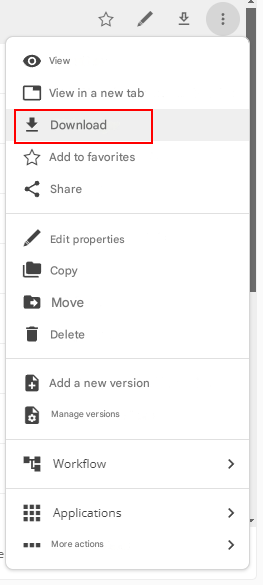
Download
This feature allows you to save the document to your computer.
Select the document, then click “Upload” from the drop-down menu.
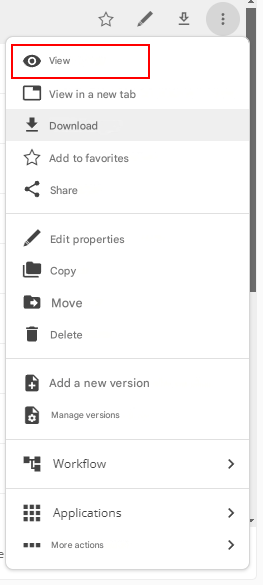
Visualize
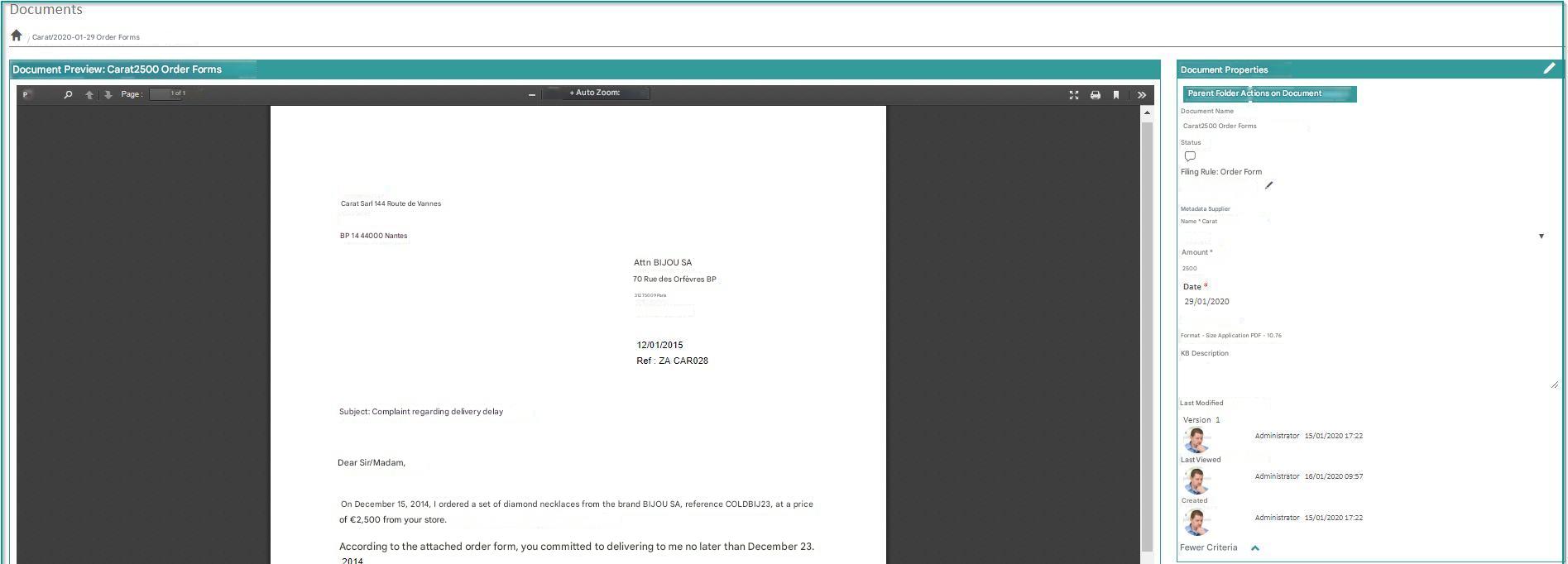
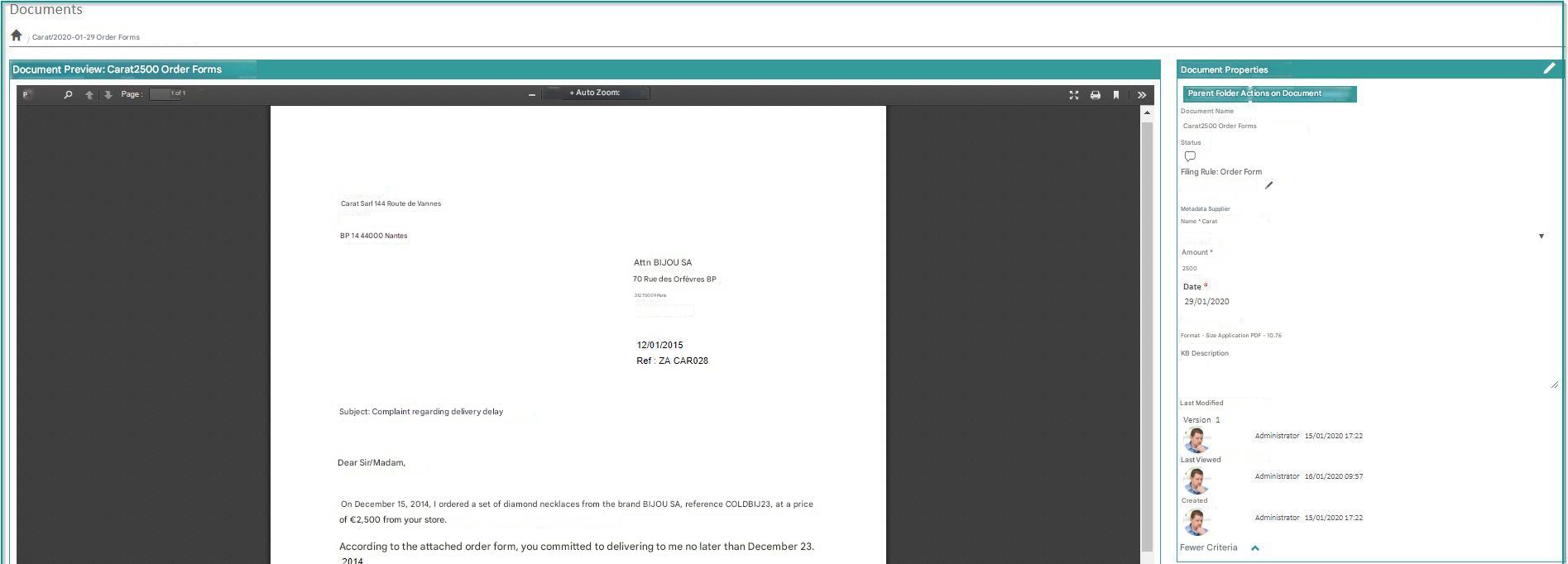
This feature allows you to view your documents without the need to download them first.
It is also possible to click on the name of the document to view it.
Historical
Properties
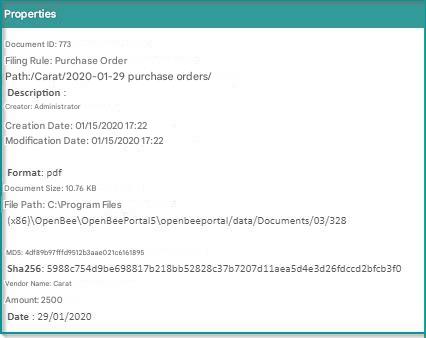
This feature gives you the ability to view information about the document:
- ID: Unique identifier of the document
- path: The path where the document is stored in the Open Bee™ Portal tree
- description
- creator
- Date Created/Modified
- File path: The storage path on the server of the file associated with the document
- Document size
- Document Type
- Document imprint
To access the properties, select the document, then click on “Advanced” in the drop-down menu and then click on “Properties“.
The following window will appear and give you all the information about the document.
To delete an item, you must:
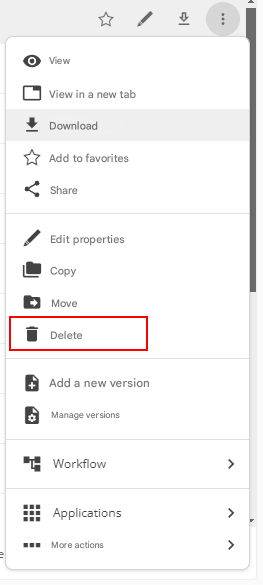
- Select the document and click on “Actions on the selection“
- Click on “Edit” in the drop-down list and then click “Delete“.
- A message appears, asking to confirm the deletion. Click on “OK” or “Tobe naught“.
- Once the document is deleted, a confirmation message appears.
Or:
- Click directly on the Actions
 button next to the document
 - Click on “Edit” in the drop-down list and then click “Delete“.
Manage Versions
This feature allows you to view the version history of a document and edit the current version.
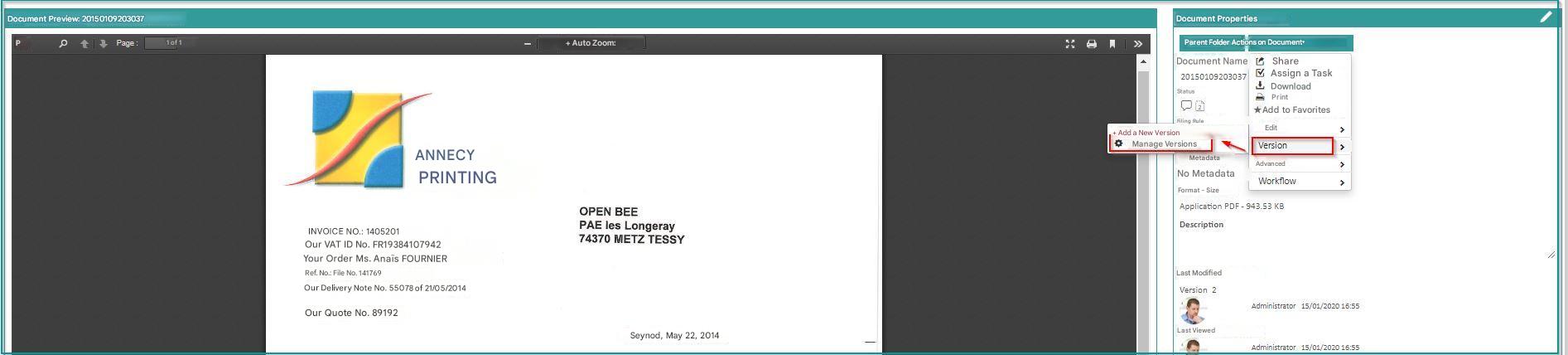
A list of the different versions of the document is displayed:
. 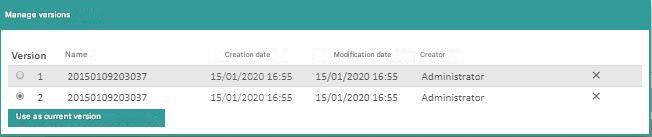
- Choose the version you want to use as the current version
- Select it by checking it (version column)
- Click on “Use as current version“
Add a version
This feature allows you to add a new version to a document.
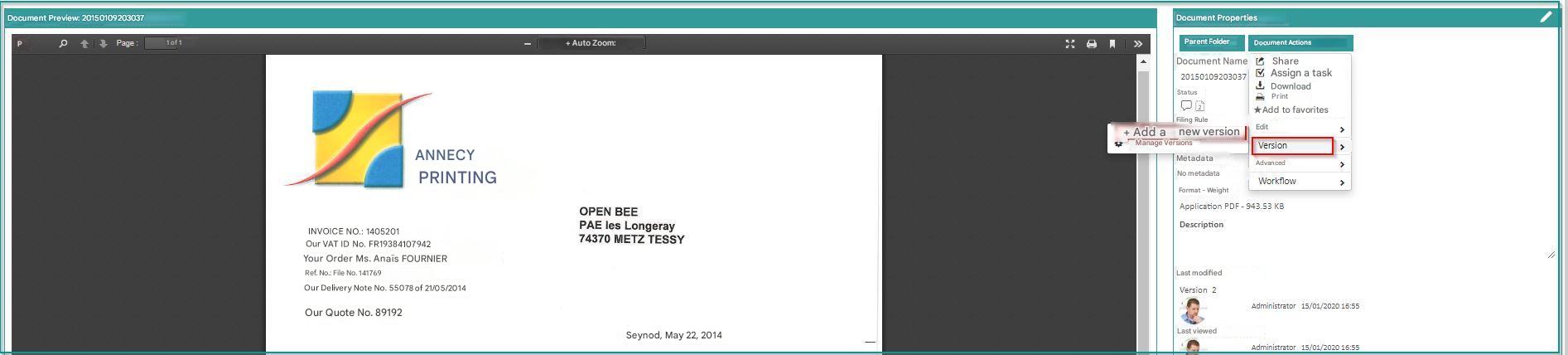
You can then choose a new file on your computer:
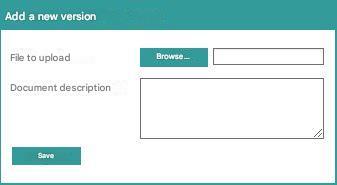
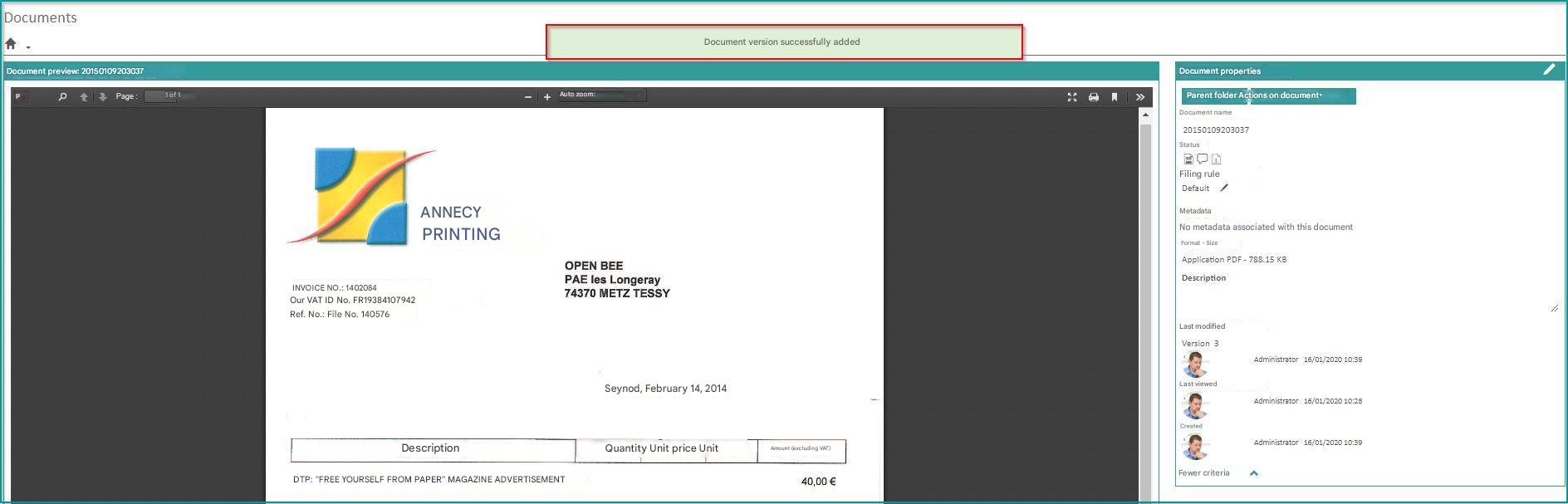
Once saved, this file will become the current version of the document.
Copy
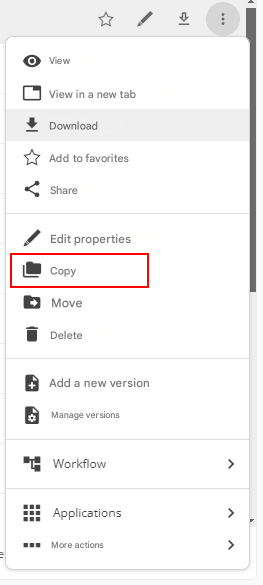
This feature provides the ability to make a copy of a document to a folder of your choice.
- Select the document,
- Click “Copy” from the drop-down list.
- Choose the destination folder where you want to copy your document
- Click on “Copy“.
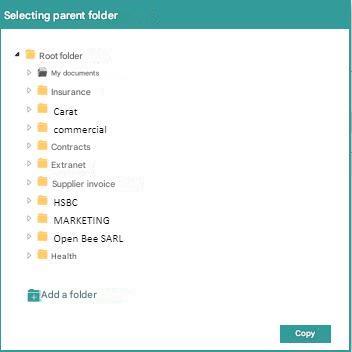
A confirmation message indicates that your document has been copied successfully.
Move
This feature provides the ability to move a document to another folder of your choice.
- Select the document,
- Click “Move” from the drop-down list.
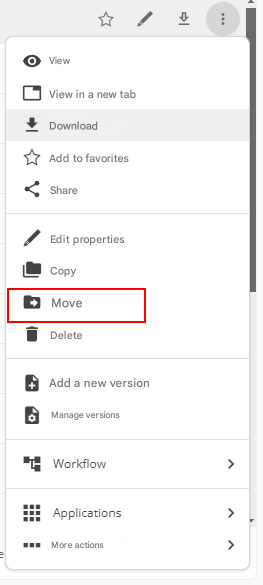
- Choose the destination folder where you want to move your document.
- Click “Move“.
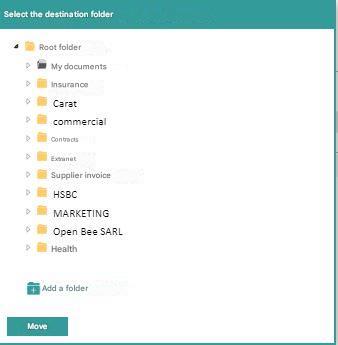
A confirmation message indicates that your document has been moved successfully.
Edit
You can edit a document if you have read and edit permissions.
To do this:
- Position yourself on the document you want to edit.
- Click on “Edit“.
- Click on “Edit Properties“.
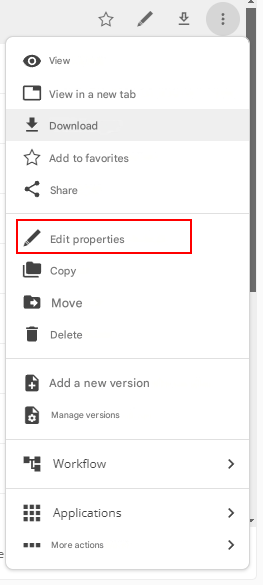
Fill in the new name and click “Save” to complete the operation.
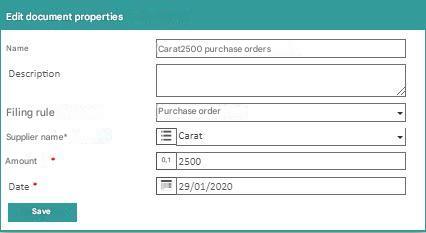
This function is also useful for modifying the indexes of a document as a result of an indexing error.
Edit online
This is only available for Microsoft Office documents.
See: Editing a Microsoft Office Document
Delete
This feature allows the deletion of a document. A deleted document is moved to a global recycle bin and can be restored by an administrator.
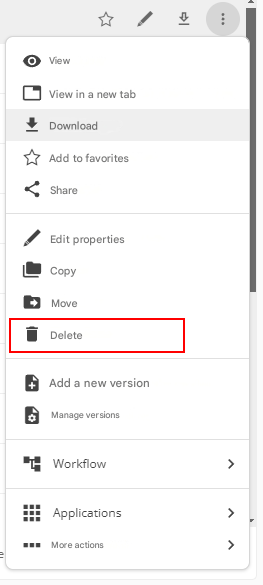
A confirmation window appears. Click “OK” to confirm the deletion:
Add a Binding
The ” Add Binding ” function allows you to define links between documents.
Indeed, it can be useful to link two or more documents together, especially if they deal with the same subject, but are stored in different places.
To add a binding:
- Select the document you want to link to another.
- Select “Add Binding” from the drop-down menu.
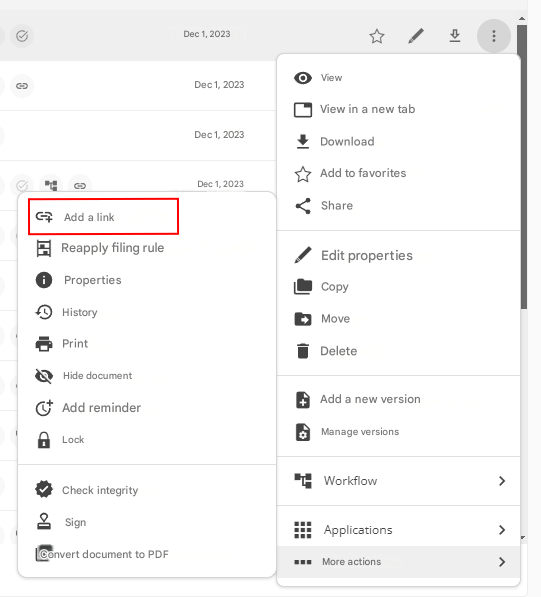
If related documents are detected, they will be offered in the “Suggested Documents” section.
To work, the automatic document suggestion must first be set up by an administrator.
Example:
A user wants to link an invoice in the amount of €100 issued by the company Open Bee™.
If a €100 purchase order from the Open Bee™ company is archived in Open Bee™ Portal, it will appear in the “Suggested Documents” section.
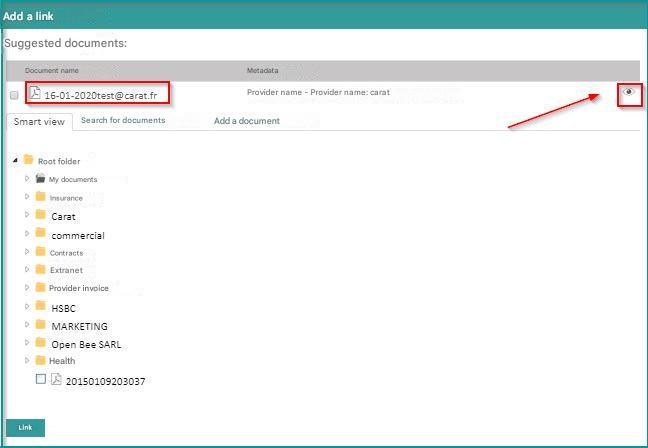
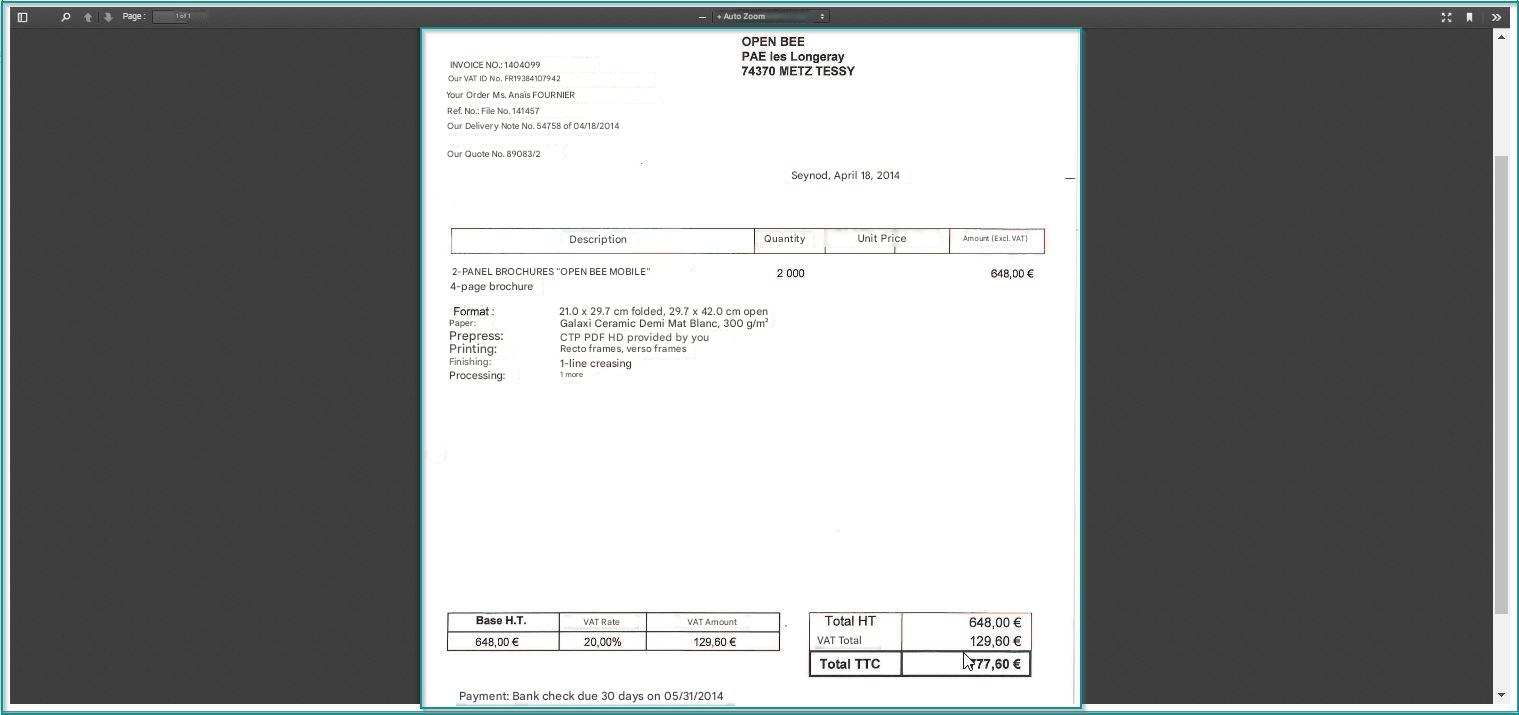
 Suggested documents can be viewed by clicking on the icon on the right side of the screen:
To link a document that has not been “suggested”, there are 3 options:
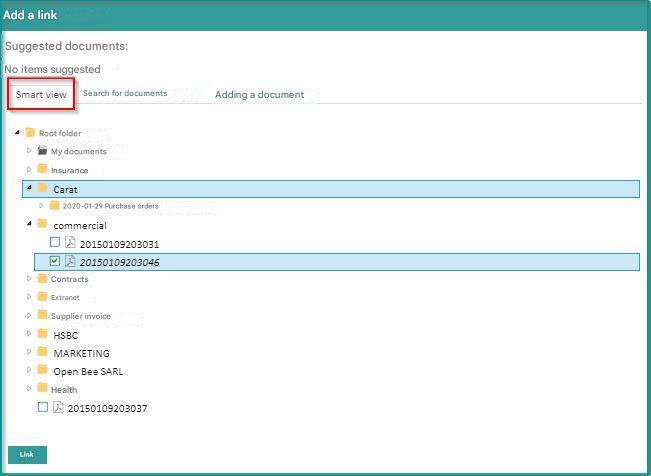
- Navigate through your folder tree to select the document(s) you want to link your document to (by checking them)
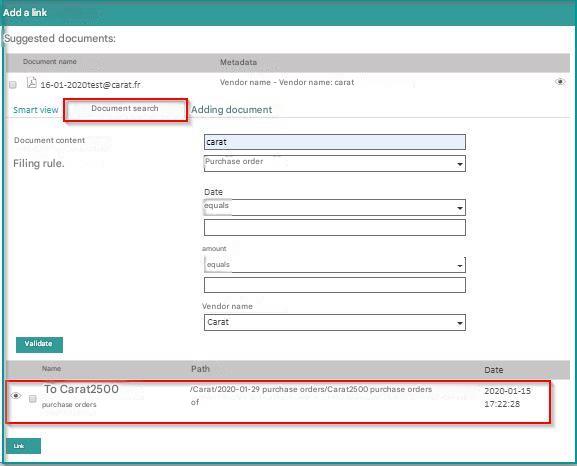
- Use the document search. Click on the ” Document Search ” tab, choose the search criteria, then confirm
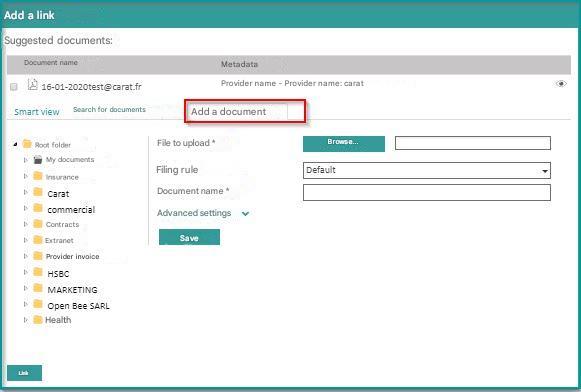
- Add a new document. Click on the “Add a document” tab, from which you will find the form for adding a document .
The added document will be automatically linked.
The paperclip icon is automatically displayed. This indicates that a link has been made to the document.
Lock
Sometimes it is necessary to make changes to a document contained in the Open Bee™ Portal.
In this case, it’s safer to lock the document to prevent other users from editing it at the same time.
To lock a document, click “Lock“ from the drop-down menu. To unlock it, click “Unlock” from the drop-down menu.
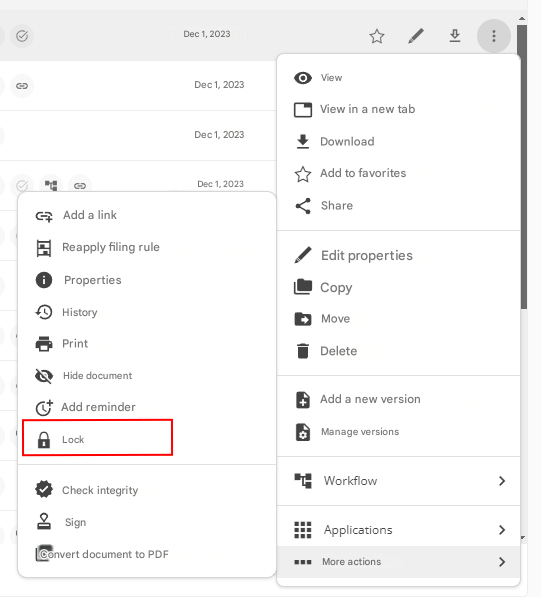
Confirm the action by clicking on “OK”:
A confirmation message appears.
The only users who can unlock a document are:
– The user who locked it
– An administrator
On a locked document, the following actions are available only to the user who locked the document :
- Edit the document name and description
- Edit the document’s indexes
- Add a version
- Change version
- Download the document
- Delete document
Other users can’t download or edit a locked document.
Hide document
This feature allows you to hide documents or folders in Open Bee™ Portal.
These will no longer appear by default in the tree view and in searches.
It is possible to display these items again at any time.
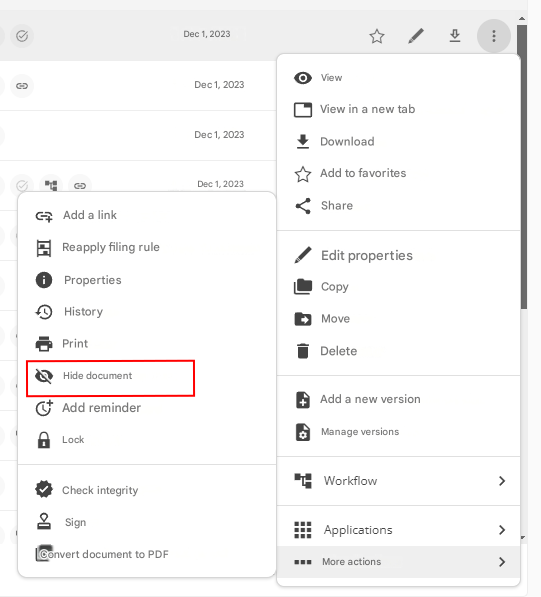
To hide a document:
- Choose your document
- Hover your cursor over “Actions“
- Click on “Advanced“
- Click on “Hide document”
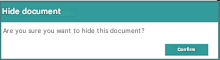
- Click on “Confirm“
You can also hide the document as follows:
- Select the document,
- Click on “Selected Actions“
- Click “Hide Selected Items” from the drop-down list.
Show Hidden Items
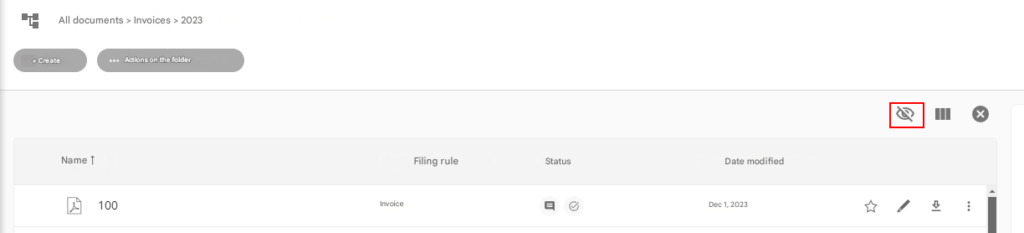
To view the hidden document:
Just check the “Show Hidden Items” box
Reveal Selected Items
This feature also allows you to show hidden items
- Select the document,
- Click on “Selected Actions“
- Click “Reveal Selected Items” from the drop-down list.
- Click “Confirm“
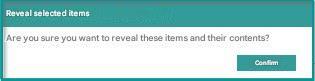
A confirmation message appears.
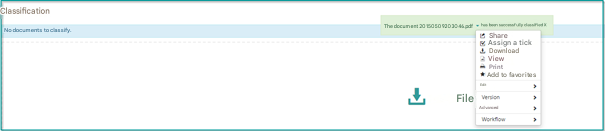
Quick action to file a document
Access to the action menu has been added to the classification of a document in the EDM
Regenerate PDF Preview
In order to display a preview of an Office document or image, Open Bee™ Portal generates and saves a PDF file from the original document.
The rendering of the conversion performed by Open Bee™ Scan OCS may sometimes contain layout errors.
It is possible to manually regenerate the document preview.
Add to Favorites
Add a reminder
Reminders about documents and files