- Introduction
- Search by Classification Rule and Metadata
- Document Properties Search
- Scoring for search results
- Search in Secure Spaces
- Actions on search results
- Warning users when taking action on search results
- Maximum size of the ZIP export of search results
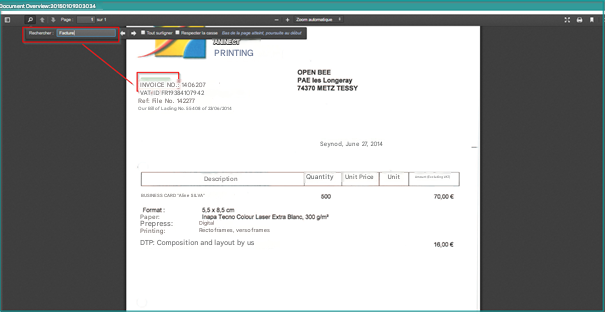
- Preview a document: highlight the search word
Introduction
The advanced search allows you to search for one or more documents by entering one or more search criteria (document name, date of creation, document type, etc.).
If you search with multiple criteria, the search result will only show you documents that match all of the search criteria entered.
Search by Classification Rule and Metadata
The search by the classification rule allows you to search for the value of the metadata of the documents (previously filled in with Open Bee Scan XE or Open Bee™™ Doc Office Manager or others)
Select a ranking rule
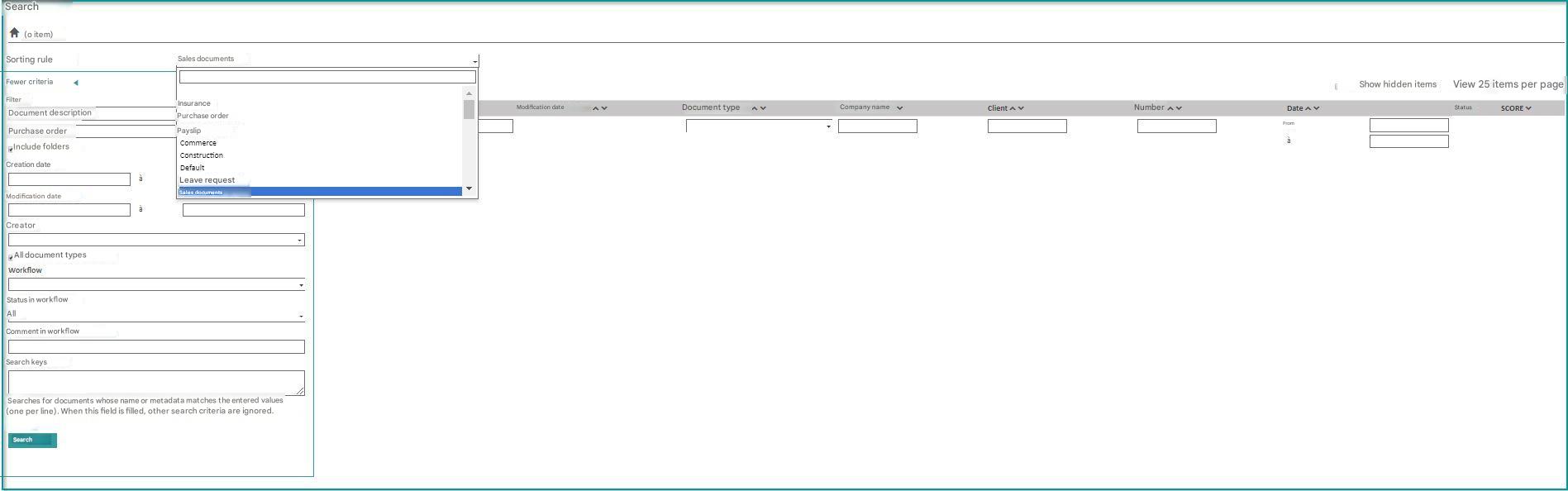
Documents filed with this rule appear. New columns, for each metadata in the ranking rule, are displayed. You can then add search criteria on each of the metadata to narrow down the results.

It is also possible to search for a value range.
Example: All amounts in 1000 and 2000. This type of search is very useful on numeric metadata, but can be unreliable on metadata containing strings.
If you search with more than one search criteria, the search result will only show you documents that match all of the search criteria entered.
Document Properties Search
Additional search criteria can be accessed by clicking on the “More criteria” link:

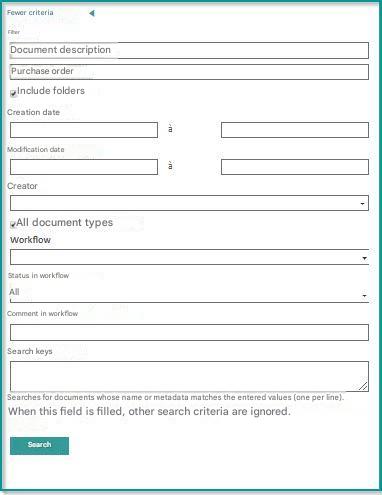
Search by document description
The search works with one or more strings.
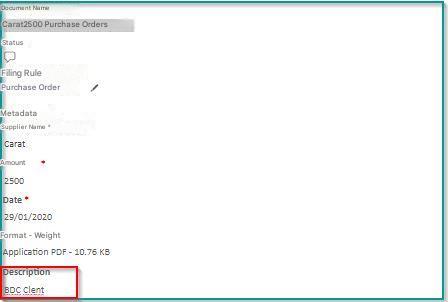 | To find the document opposite, you can enter the following strings in the “Description” field: BDC Client Voucher Purchase Order |
For example, with “BDC” we find the following document: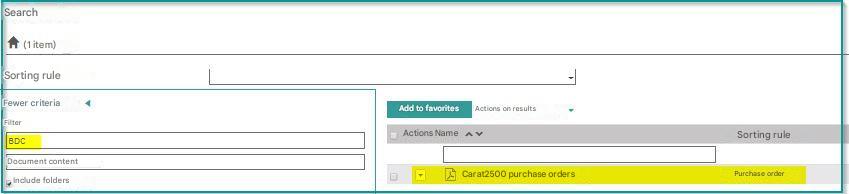
Search by document content
The search by the content of the document allows you to search for several words or strings of characters in the content of classified documents.
This search is the same as the simple search, performed from any screen of the application from the search bar in the document header.
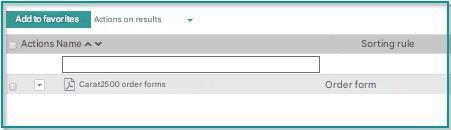
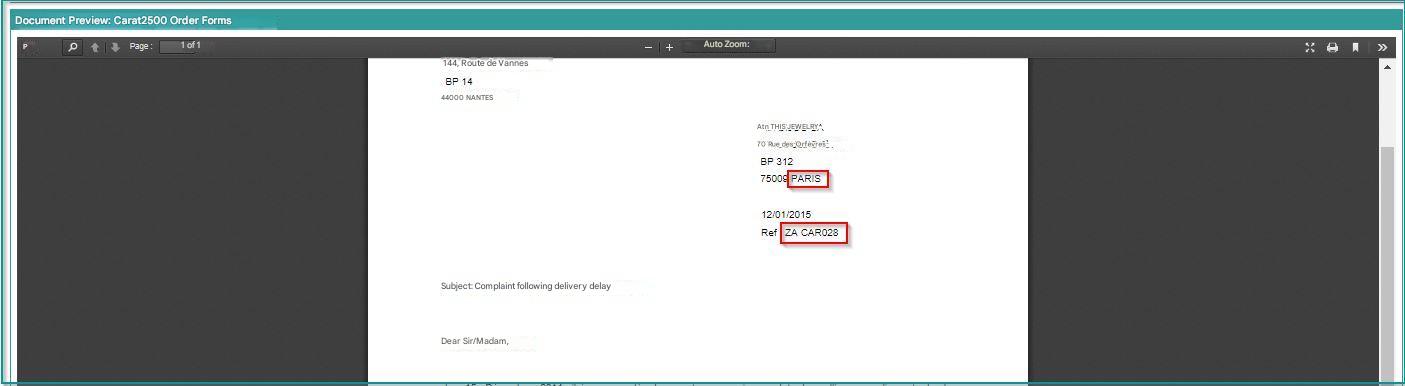
Example : Search for a document that contains the word “Paris” and the reference “ZA CAR028”.
In this case, you need to enter both pieces of information in this field (see the following image).
Search by creation date
Searching by “Date Created” allows you to find documents using their creation date.
You can select the creation period from the calendar.
Example : January 4 to 18, 2011 (see image on left)
The app will show you all the documents created
between January 4, 2011 00:00 and January 18, 2011 23:59.
Search by date modified
Searching by “Date Modified” allows you to find documents using their modification date.
You can select the change period using calendars.
Example : election from February 8, 2011 to February 8, 2011
(see image on left) The app will show you
All documents amended on February 8, 2011.
Search by Creator
This search makes it possible to find one or more documents created by a person.
Search by type
The search can be limited to one or more types of documents.
It is possible to choose between the different types:
- Documents Office
- Documents PDF
- Documents Images
The “All Document Types” selection will display all documents without restriction.
Search by workflow status
This search option allows you to bring out documents that have gone through a workflow (validation circuit) before being filed.
This makes it possible to search for “Declined”, “Validated” or “Pending” documents in a workflow.
Search by workflow
Use this field to search only for documents that have been processed by a workflow before being filed.
Workflow-specific search fields are hidden if the user license does not have the Workflow option.
Scoring for search results
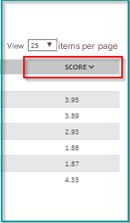
The result of a full-text search allows you to automatically sort by “score”.
The score is determined by the number of occurrences in the text corresponding to the search word. The more the word is present in a document, the higher the score will be and the higher the document will move up in search results.
To do a full-text search, you must first go to the Administration/ General Configuration section and check the box Search only documents by whole words
Search in Secure Spaces
Full text search is available by default in Secure Spaces.
Actions on search results
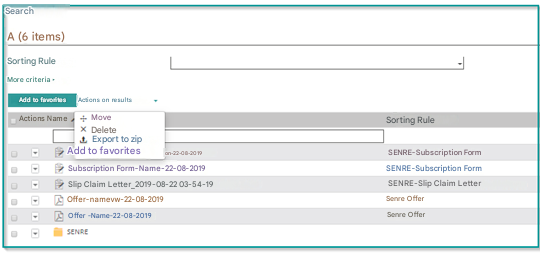
This feature allows you to perform an action on all the results of a search. You can Move, Delete, Export to Zip and Add to Favorites all search results.
These actions will be treated as a background task and then you will receive an informational message from the status.
Warning users when taking action on search results
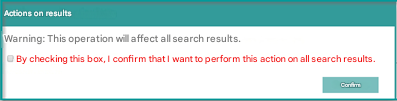
A warning, with double validation of the user, is displayed before any action is taken on all search results.
Maximum size of the ZIP export of search results
This export function no longer has a size limit.
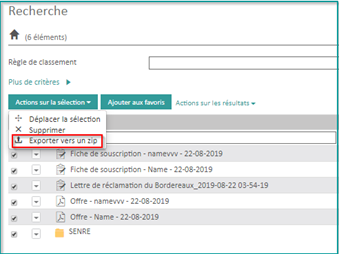
To export the search results zip
- Select the documents, folders you want
- Click on Selection Action/ Export to Zip
Preview a document: highlight the search word
This feature automatically highlights the search word.
When accessing the screen from a document’s search screen, the search word is automatically highlighted.
Example below after searching for the word Invoice.