- Notifications of tasks to be processed
- List of tasks to be processed
- Task processing
- Notify users that a task is being processed
- Actions on the document before a task is processed
Notifications of tasks to be processed
A user is notified of tasks to be processed in a workflow:
- by email
- from the dashboard
- from the “Workflow” menu
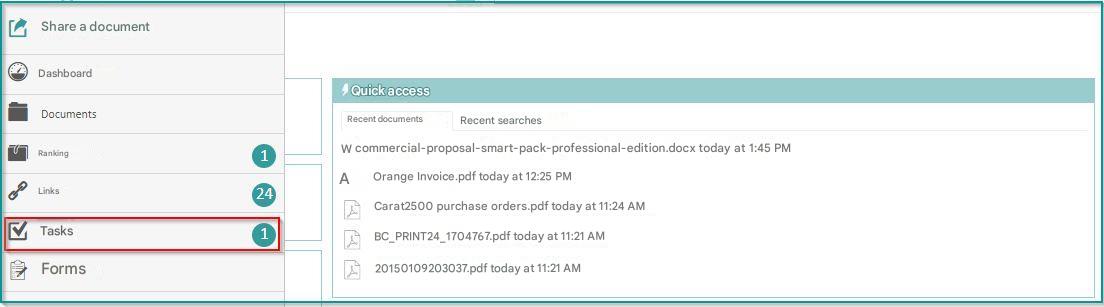
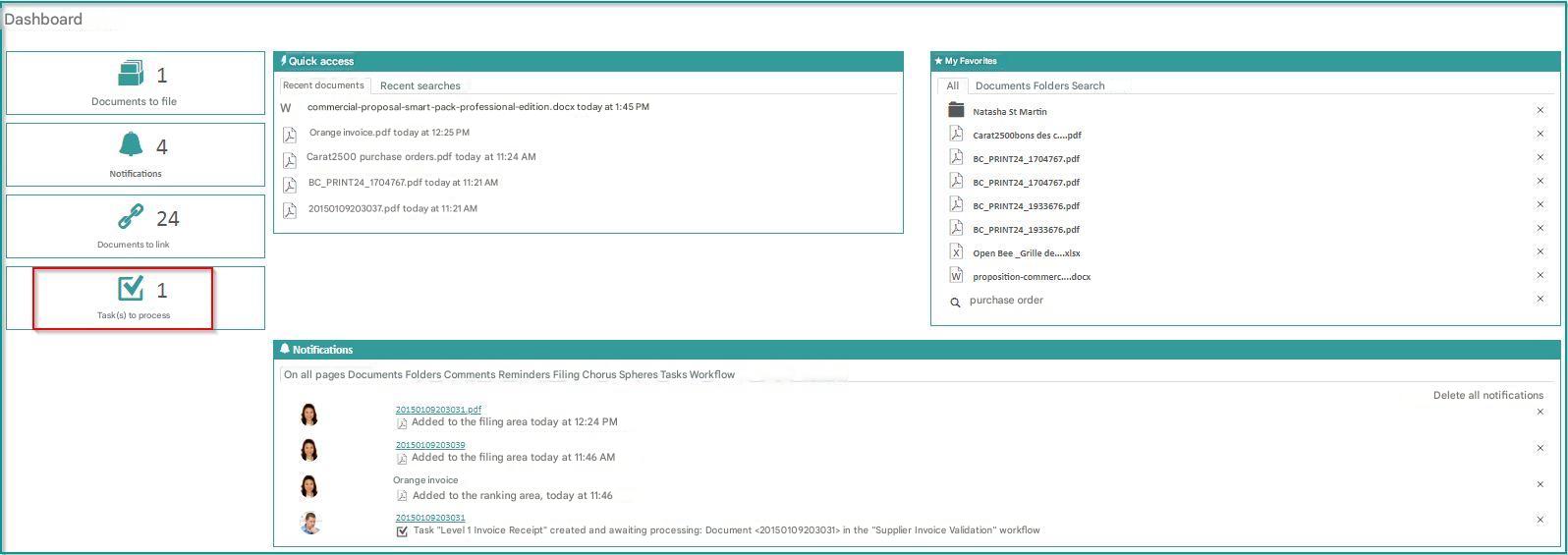
Clicking on any of these items redirects the user to the “Workflow Task List” screen
List of tasks to be processed

It is possible to sort on all columns. Some columns also allow a filter, such as to view tasks assigned to a particular user.
Column descriptions:
- Status : “Pending”, “Overdue”, “Approved” or “Denied”. By default, “Pending” and “Overdue” tasks are displayed
- Entry Date: The date the task was assigned
- Deadline: The amount of time left before the task is overdue
- Name : The name of the workflow to which the task belongs
- Task : The name of the task.
 If the logged-in user is the actor of the task, they can click on the task to view the detailed view
 - Actor : The person in charge of the task
- Document Name : The name of the document that triggered the task. Click on the document name to open a preview of the document in a pop-up
- Filing Rule : The rule with which the document that triggered the task was filed
- Metadata: Metadata associated with the document. In order to keep lines low, only the first two metadata are displayed. Click the arrow to view the other metadata.
- Comments : The number of comments associated with the document. Click on the number to see the comments and add new ones.
By selecting a filter on a ranking rule or on the name of a workflow triggered by a ranking rule, columns corresponding to the rule’s metadata are added. This allows tasks to be sorted by metadata values.
As of version 6.13.4, it is possible to configure custom personal filters.

Task processing
Unit processing
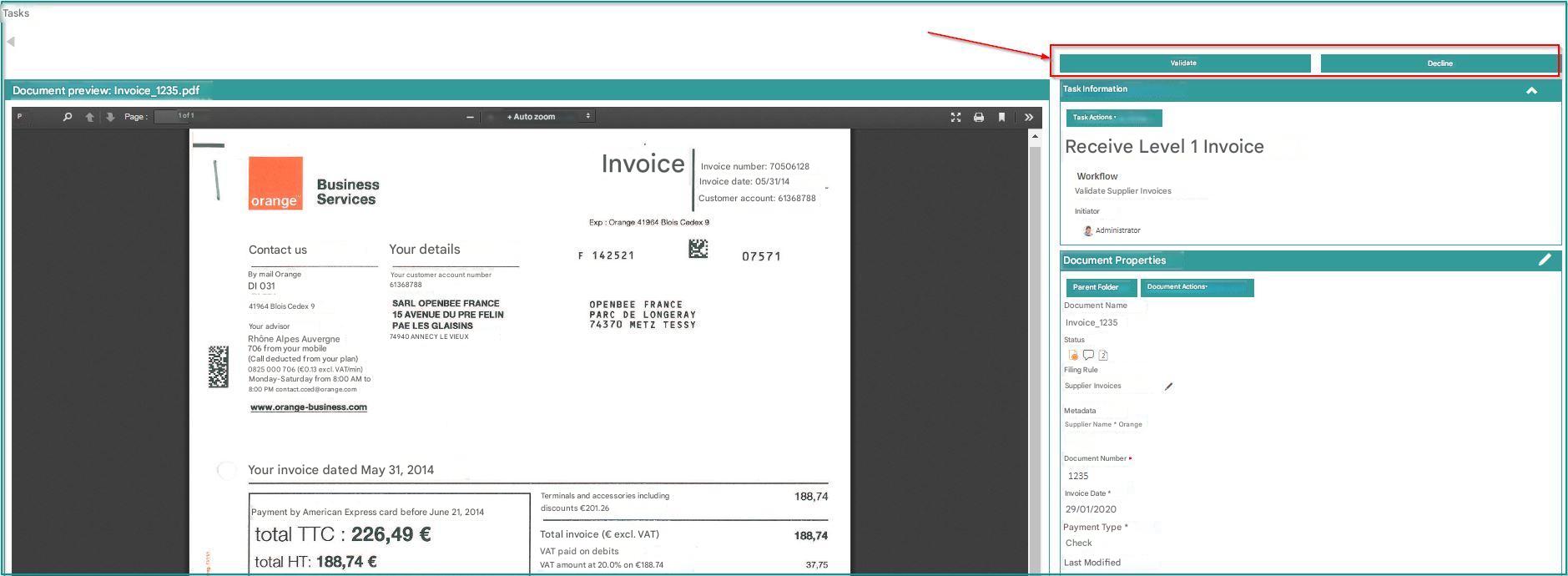
To complete the assigned task, the actor can click on the name of the task:

A window will then open offering a preview of the document concerned by the workflow on the left and possible actions on the right:
If, during the workflow settings, the administrator has selected a group of users for the next task, then the actor will have to select the next actor from this group of users at this stage.
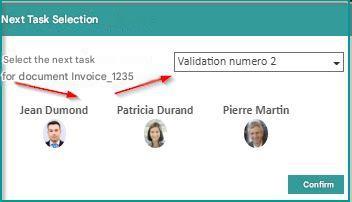
Depending on how the workflow has been configured by the administrator, you may have to choose the next task and/or the actor of the next task.
Processing of tasks on an assembly line
After validating a task, the next task will be automatically presented to the user.
Batch processing
It is possible to “Validate” or “Refuse” batch tasks from the task list:

Notify users that a task is being processed
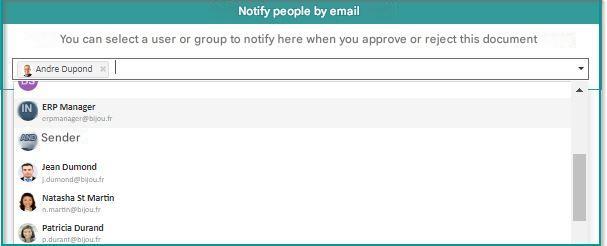
This feature is only available if the workflow administrator has allowed it when setting up the current task.
When validating or declining the task, you can choose to send a notification email to a group or user.
Actions on the document before a task is processed
All the actions usually available on the document are accessible from the validation screen of a task:
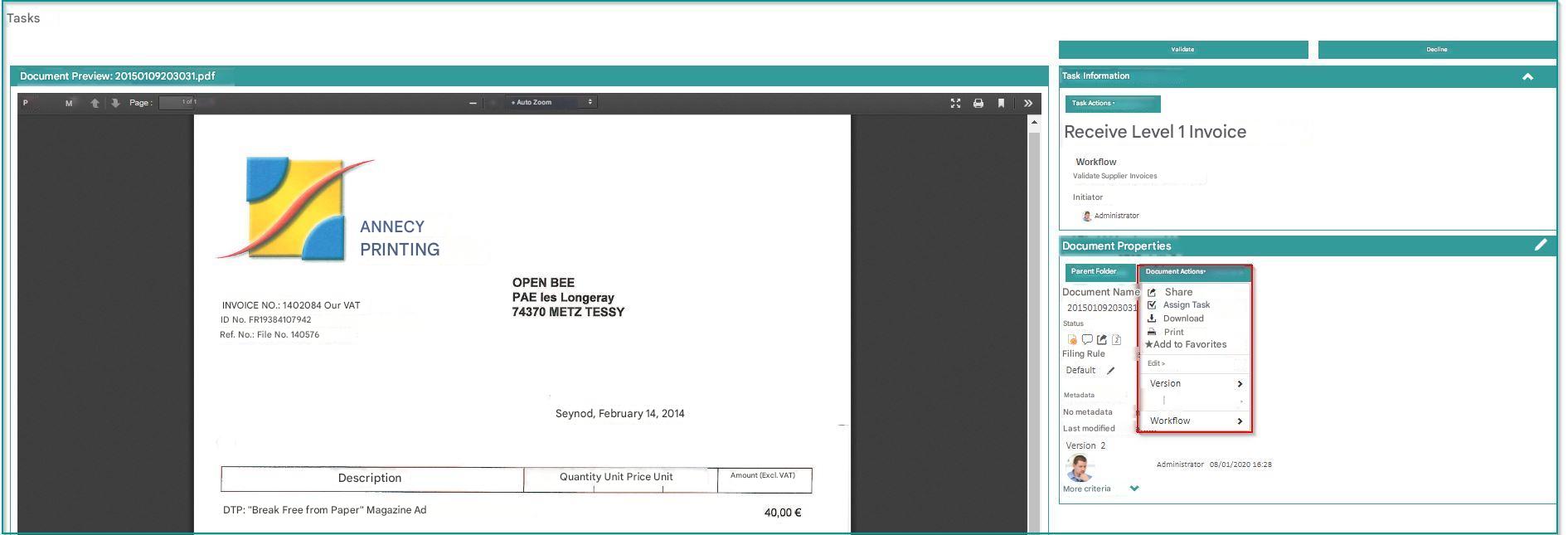
Only actions that are allowed by the user’s permissions on the document are accessible.
In the event that the task administrator allows versioning, versioning and versioning actions are available even if the logged-in user does not have permissions for these actions on the document.