In order to be able to make external SQL connections, such as ORACLE or Microsoft SQL SERVER, it is necessary to configure PHP PDO extensions: http://php.net/manual/fr/book.pdo.php.
Drivers Microsoft SQL SERVER
Windows
The SQL to SQL Server connection driver is pre-installed and configured by default since version 6.9.0 of Open Bee™ Portal.
Linux
The mssql.so extension offers a driver for php to connect to a Microsoft SQL Server database.
To successfully enable the connection to a Microsoft SQL Server database ,simply run the following two commands to install the mssql module:
 apt-get install -f php5-sybase -y --force-yes
 pear install --nodeps MDB2_Driver_mssql
ORACLE
Windows
The pdo_oci extension offers an Oracle driver for php so that it can connect to the Oracle database.
- Download Oracle Instant Client from
the Oracle site
and download:
Version 12.2.0.1.0 =>
instantclient-basic-nt-12.2.0.1.0.zip(71,881,824 bytes) (cksum – 3943816961)
- Extract Oracle Instant Client Files from Zip Archives in C:Program Files (x86)OpenBeeOpenBeePortal5Utility
- Add the C:Program Files (x86)OpenBeeOpenBeePortal5Utilityinstantclient_12_2 directory to your Windows PATH.
Note: Be sure to insert the Instant Client directory before any other Oracle paths in the path list.
- Verify that the php_pdo_oci.dll extension exists in C:Program Files (x86)OpenBeeOpenBeePortal5Apache24modulesphp5ext
- Activate the php_ extension pdo_oci by editing C:Program Files (x86)OpenBeeOpenBeePortal5Apache24Modulesphp5php.ini and decommitting the line ( remove the “;” at the beginning of the line ) and save:
extension=php_pdo_oci.dll
- In a console (Batch or Powershell), run
php -i | findstr oci
Check that there is no error displayed and that the “PDO drivers” line contains the value “oci”:
PDO drivers => mysql, oci, odbc, sqlsrv
- Restart the Apache service.
Here’s the new procedure for connecting with Oracle in odbc starting with 6.14.6:
(This example shows how to make a SQL connection with Oracle 12g)
1/ Download the two ZIP files from Oracle’s website (you need to have an account on Oracle’s website to be able to download).
Download Oracle Instant Client from
the Oracle site
and download:
Version 12.2.0.1.0 version 64 bit =>instantclient-basic-windows.x64-12.2.0.1.0.zip and instantclient-basic-windows.x64-12.2.0.1.0-2.zip
2/ Unzip the first zip in “C:\instantclient_12_2”
3/ Add the path “C:\instantclient_12_2” in the “PATH” environment variable For the Windows System and not for the user
4/ Unzip the contents of the second zip in the same directory “C:\instantclient_12_2”
5/ Launch the console as an administrator from the “C:\instantclient_12_2” directory, then run the following commands:
| odbc_install.exe |
6/ Restart the server machine so that it can read the new environment variable added to the PATH System
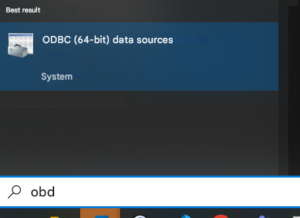
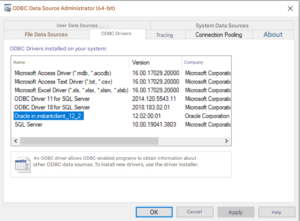
7/ On Windows, check for the “Oracle in instantclient_12_2” driver in the list of 64-bit ODBC drivers
PHP Configuration:
1/ Activate the 3 PHP extensions “pdo_oci”, “oci8_12c” and “pdo_odbc” from the file
“C:\Program Files (x86)\OpenBee\OpenBeePortal5\Apache24\modules\php7\php.ini”
2/ Type the following command and check that there are no errors on the output of the console and that the 3 extensions appear in the output:
php -m
3/ Restart Apache
Example of the new ODBC strings to be put:
| odbc:Driver={Oracle in instantclient_12_2}; Dbq=[Adresse du serveur Oracle]/[Nom du service]; uid=Name_User; Pwd=Password; |
Linux
Connections from an Open Bee™ Portal installed on Linux, to an ORACLE database are not supported.