In order to continue to improve the experience and simplicity of processing your tasks in Open Bee Portal, some changes have been made to the processing interfaces of your tasks.
It should be noted that no previously existing features have been removed, but they have been moved.
Here’s an explanation of the major differences
-
Simple task creation (non-workflow)
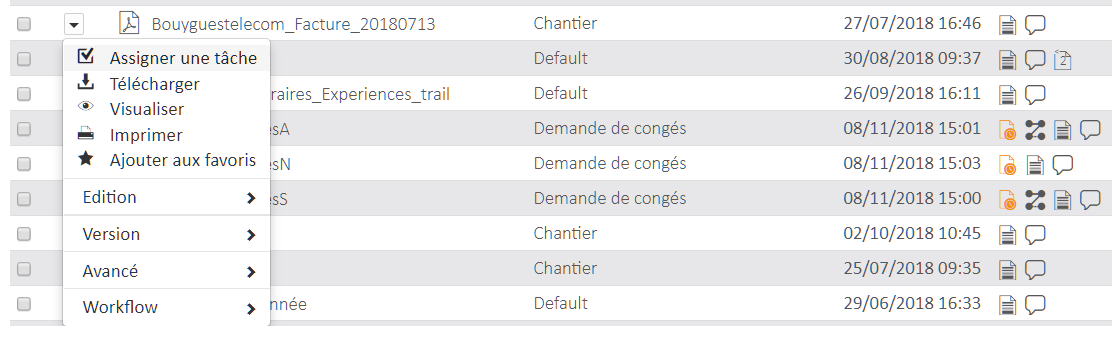
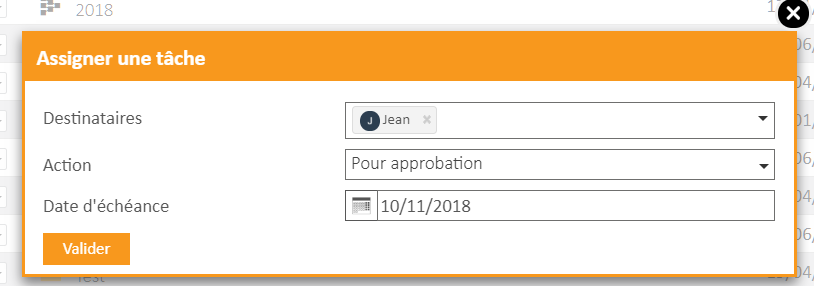
A major change introduced in version 6.8 of Open Bee Portal is that it is now possible for any user to create a simple task outside of any workflow.
This makes it possible to quickly and punctually assign a task to be done without the need to create a workflow.
-
Separating the screen from tasks and workflows
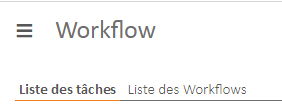
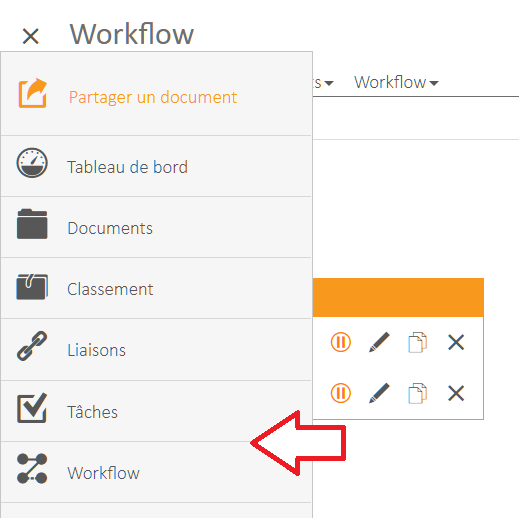
The creation of simple non-workflow tasks has led to another necessary and important change: the separation of task management and workflow management into two different screens.
Before After
-
“Tasks to be Addressed” and “Task to Be Tracked”
- They are the supervisor of at least one workflow, so they have visibility into all tasks in the workflow
- It must process a task because it has been defined as an actor in that task
Before:
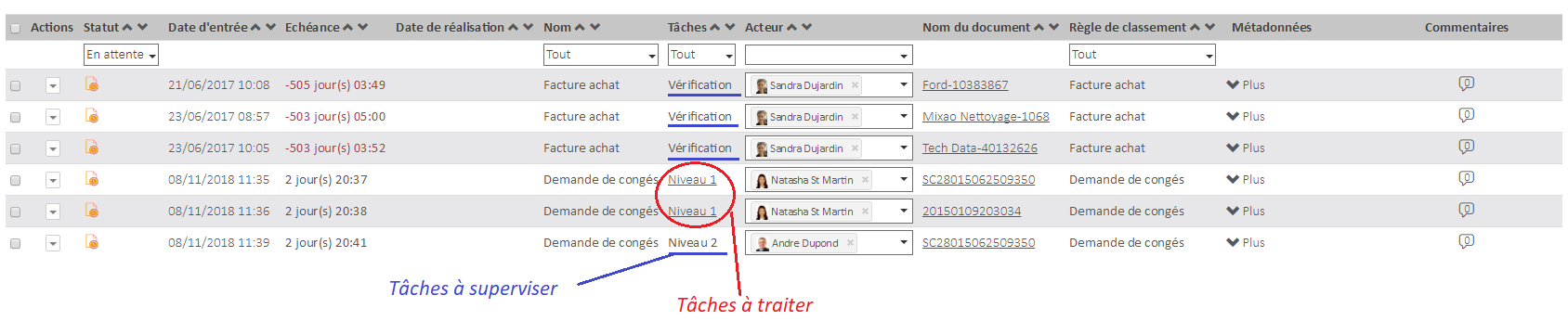
After:

Tasks to be processed
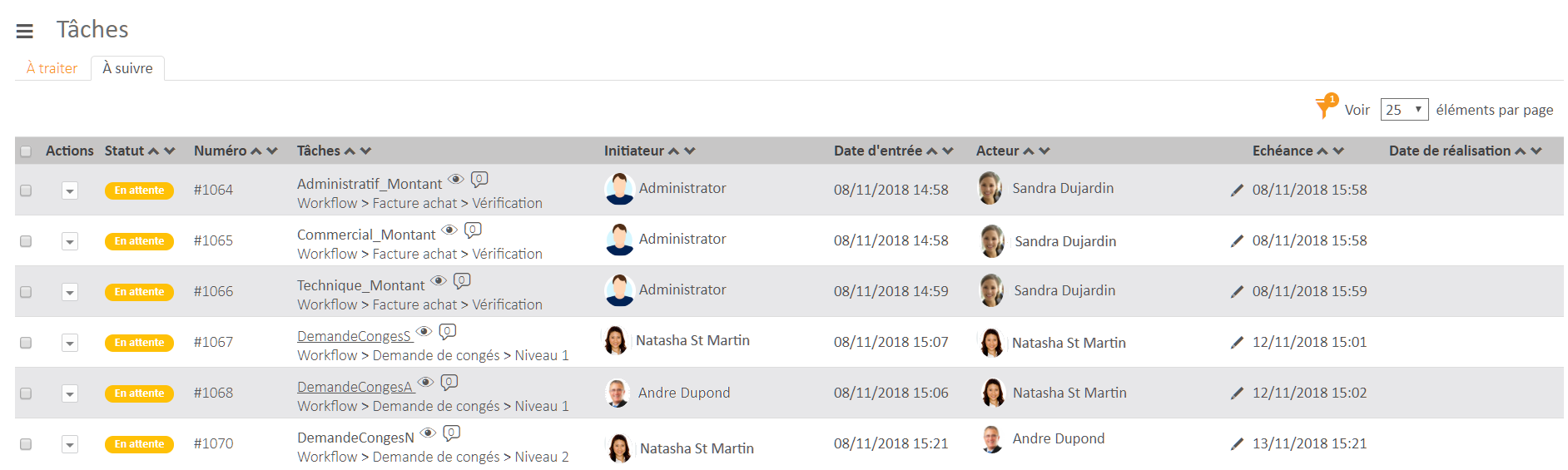
Tasks to follow
-
Modifying the task list
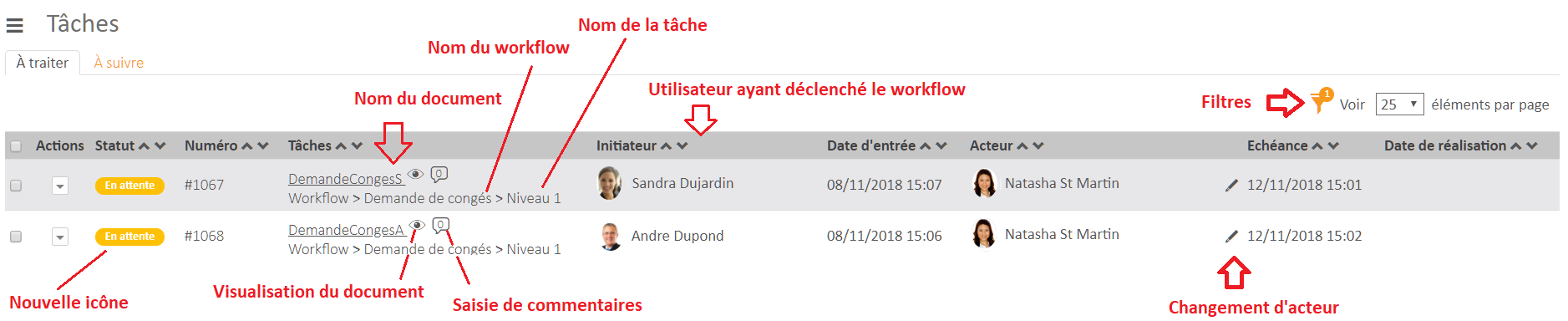
The to-do list has been redesigned to improve its ergonomics and usability.
Here’s a set of features that have been moved:
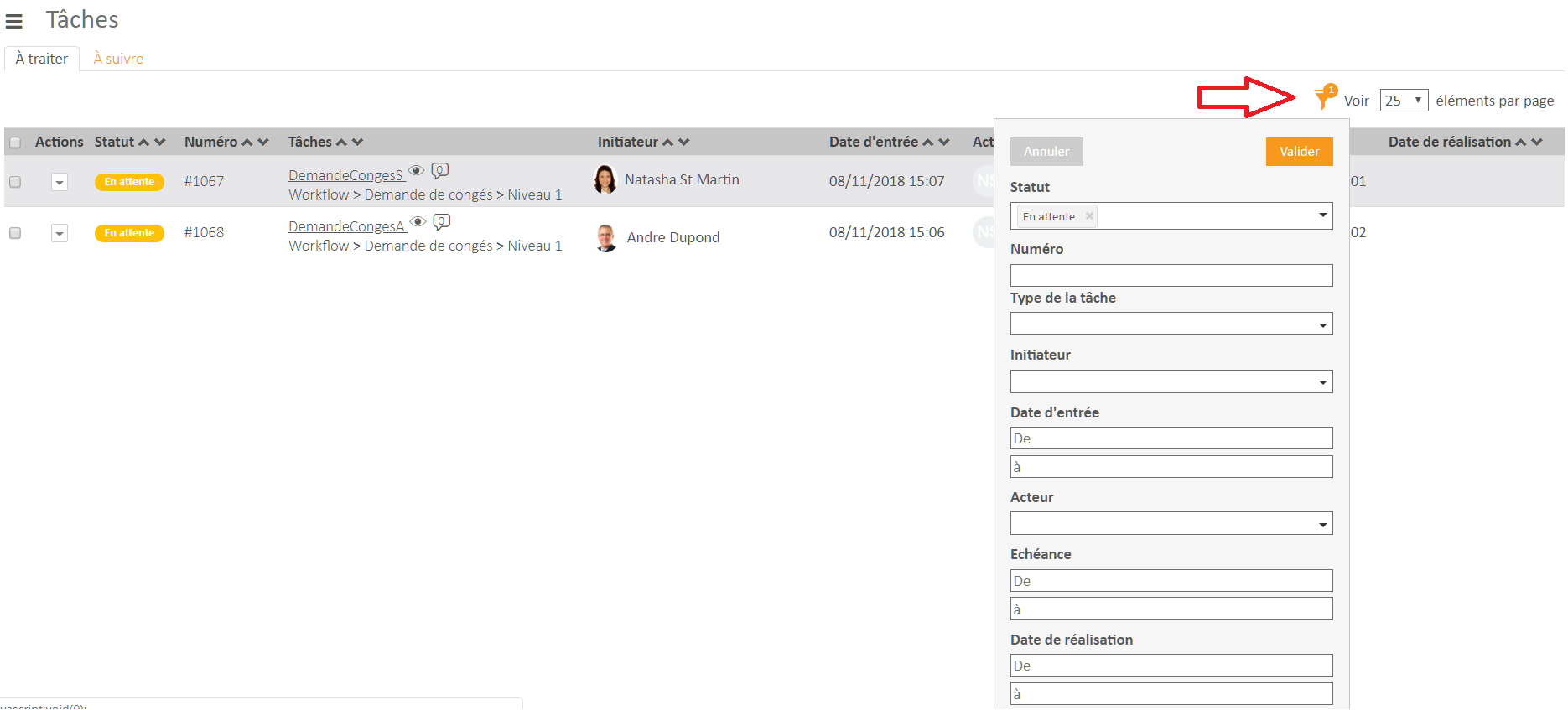
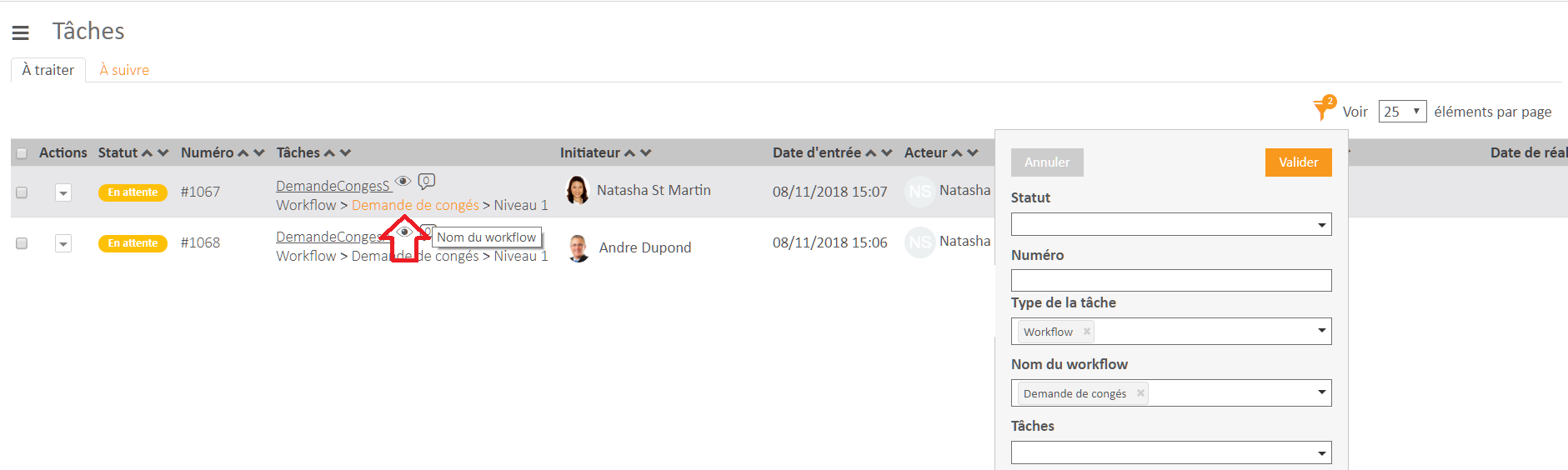
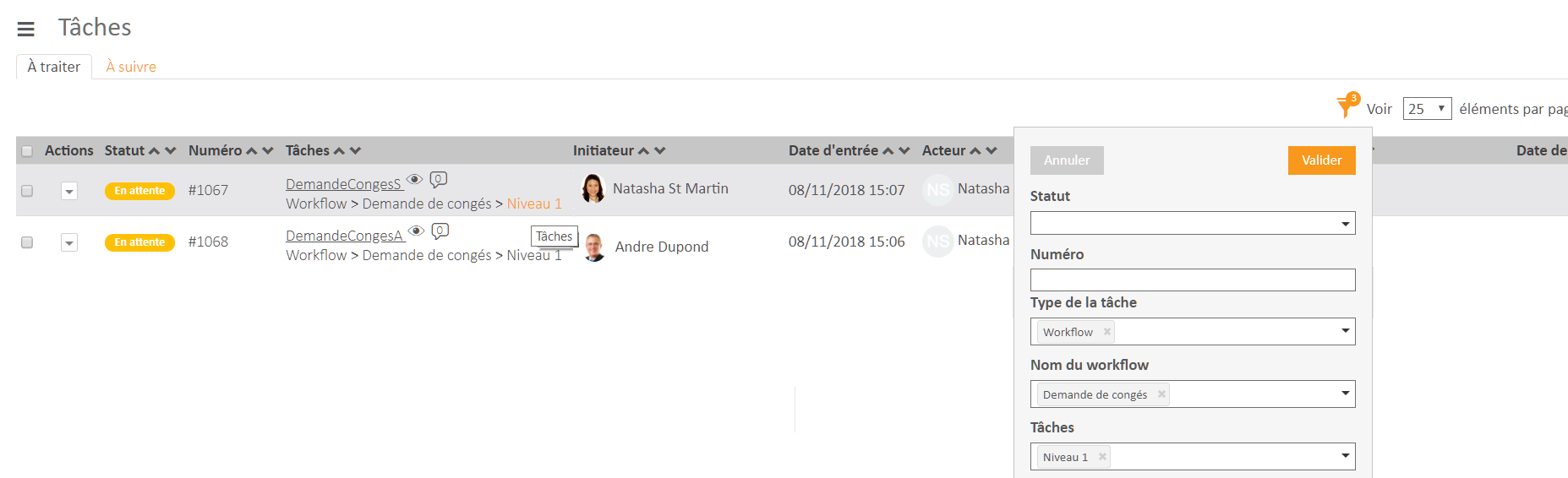
- Filters have been moved to a menu
- Reordering the Document and Task Name
- The comment box is positioned next to the document name
- More readable status icon
- Changing the actor can always be done on a line
- New “Initiator” column: information about the person who triggered the workflow
- Metadata is no longer grouped in a single column, but there is one column per metadata, which makes it possible to sort and filter these values.
Filtering and sorting on metadata was not possible on the previous version.
These columns only appear if a filter on a single workflow is set.

-
Filter management
-
Changing the Actor of a Task
You can change the actor of a task directly on the table row by clicking on the pencil.
The change is immediately taken into account.
Before:

After:

-
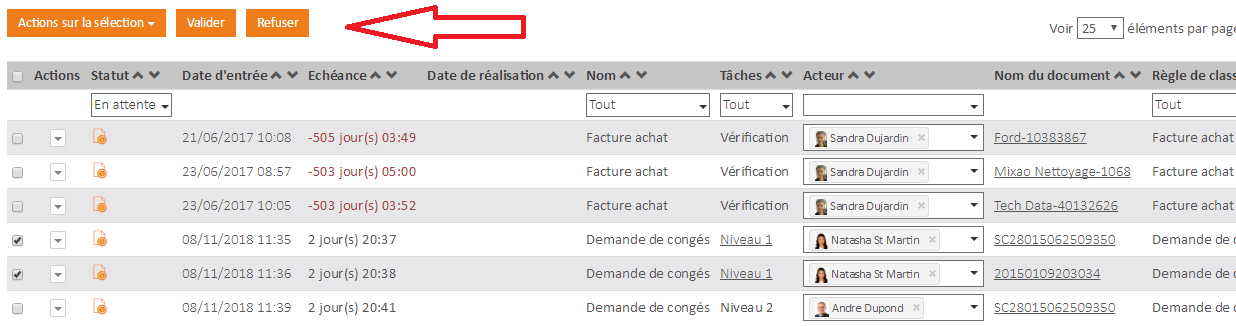
Batch actions
Actions were always visible at the top of the list in the previous version. Now, these actions are contextual and only appear if at least one task is selected.
In the “To be processed” tab, you will find the validation and rejection actions.
In the “To be continued”, you will find the supervision actions such as the reminder by email, the change of the actor or the deletion of the task.
Be careful, if tasks of different types are selected, i.e. simple tasks and workflow tasks then batch processing is not possible !
Before:
After:
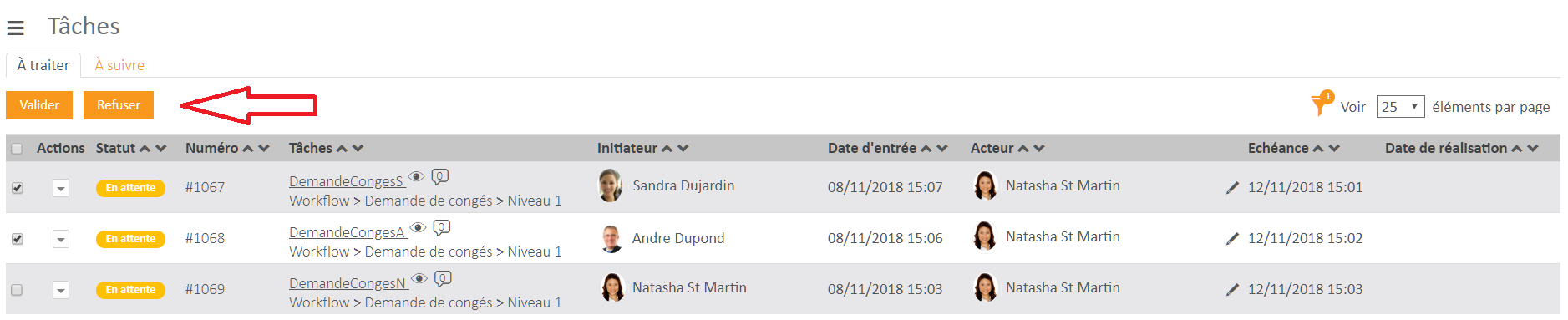
Batch actions of tasks to be processed
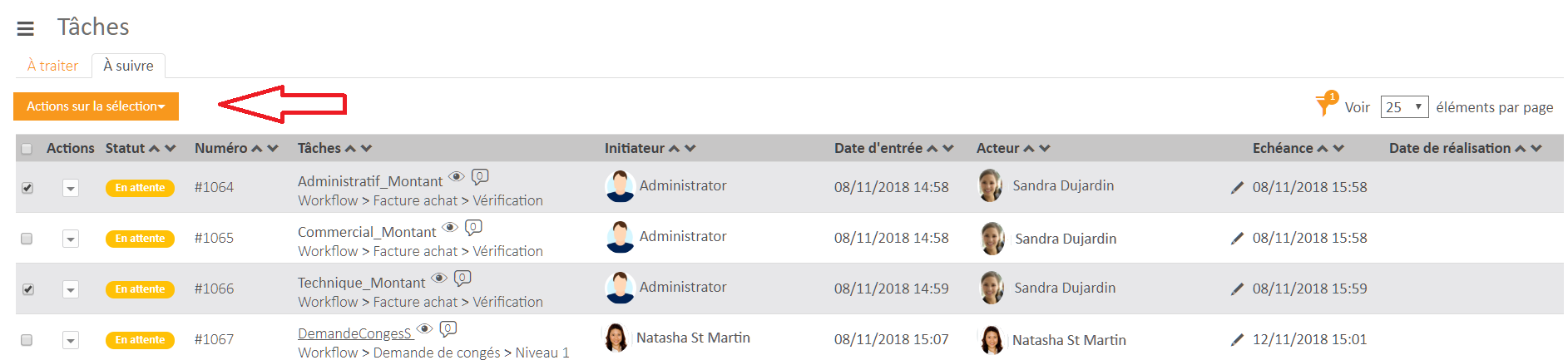
Batch actions of tasks to be tracked
-
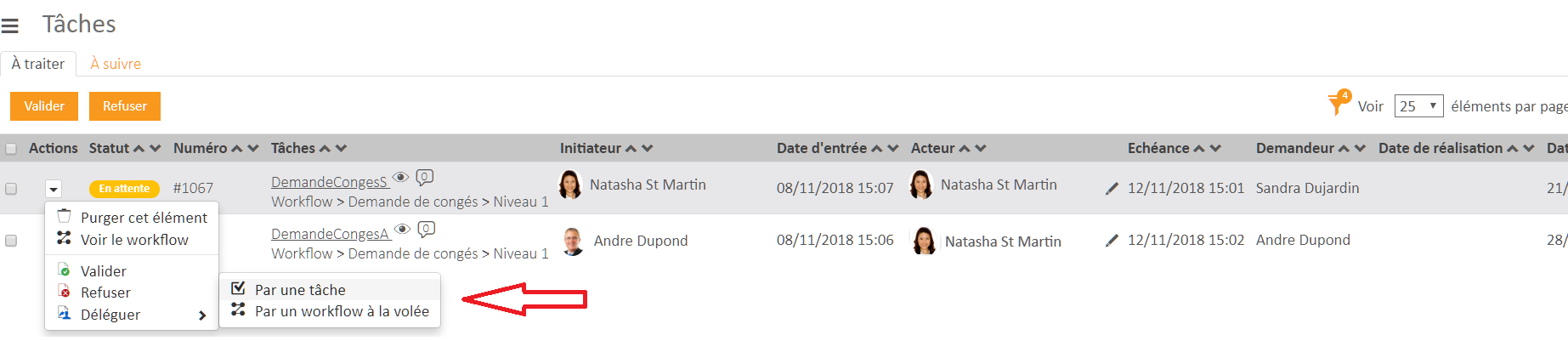
Delegating a task

-
Redesign of the task history screen
The ability to delegate tasks to other users has led to the need to redesign the task history screen.
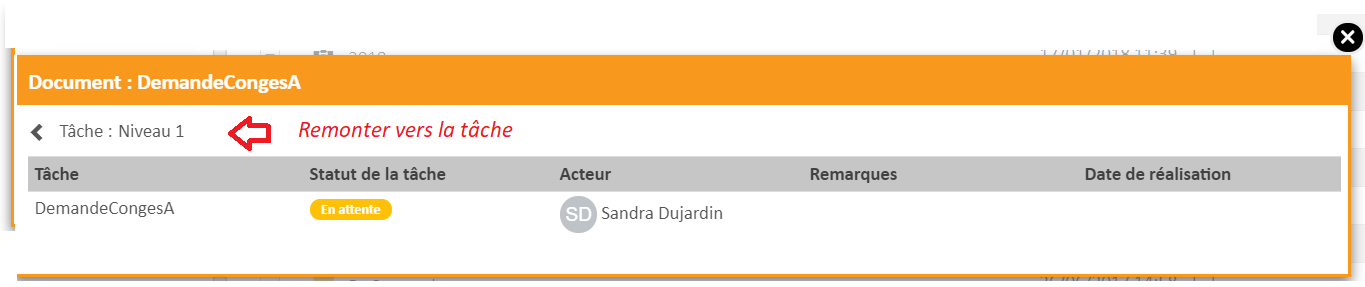
Since the validation of a document can be spread over several levels, the history must now also be displayed on several levels.
- A first level displays the list of different workflows and/or simple tasks that have been created on the document.
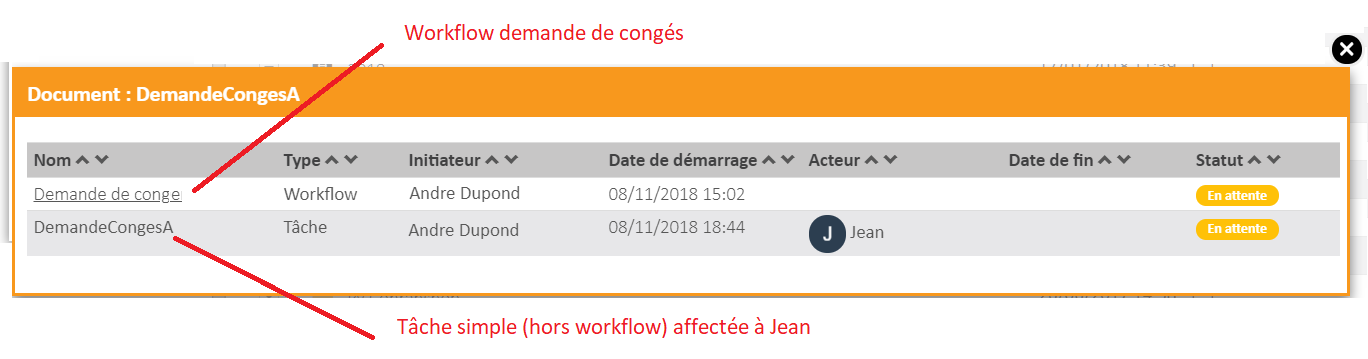
- A second level will be displayed by clicking on the name of the workflow so that you can view all the tasks performed during this workflow.
It is possible to go up to the next level by clicking on the arrow at the top left.
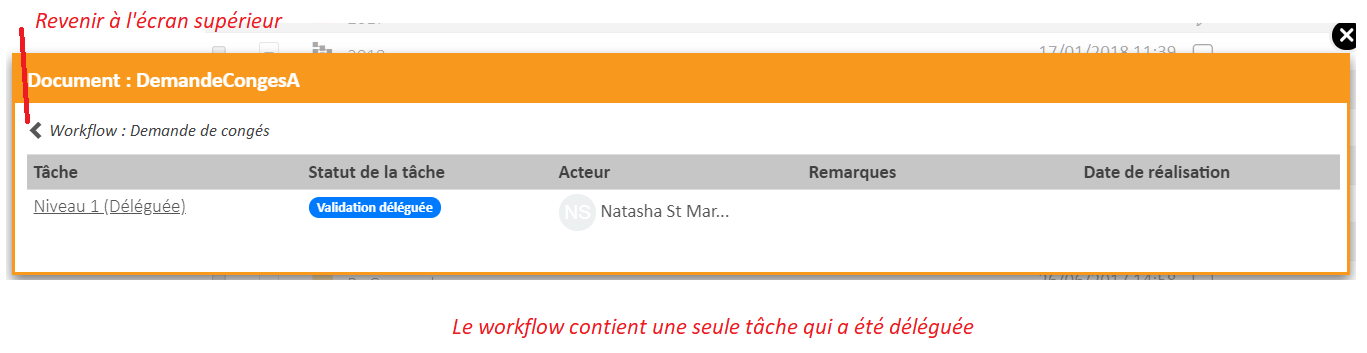
- In case of delegating a task, it is also possible to view all the tasks created during this delegation by clicking directly on the name of the task.
-
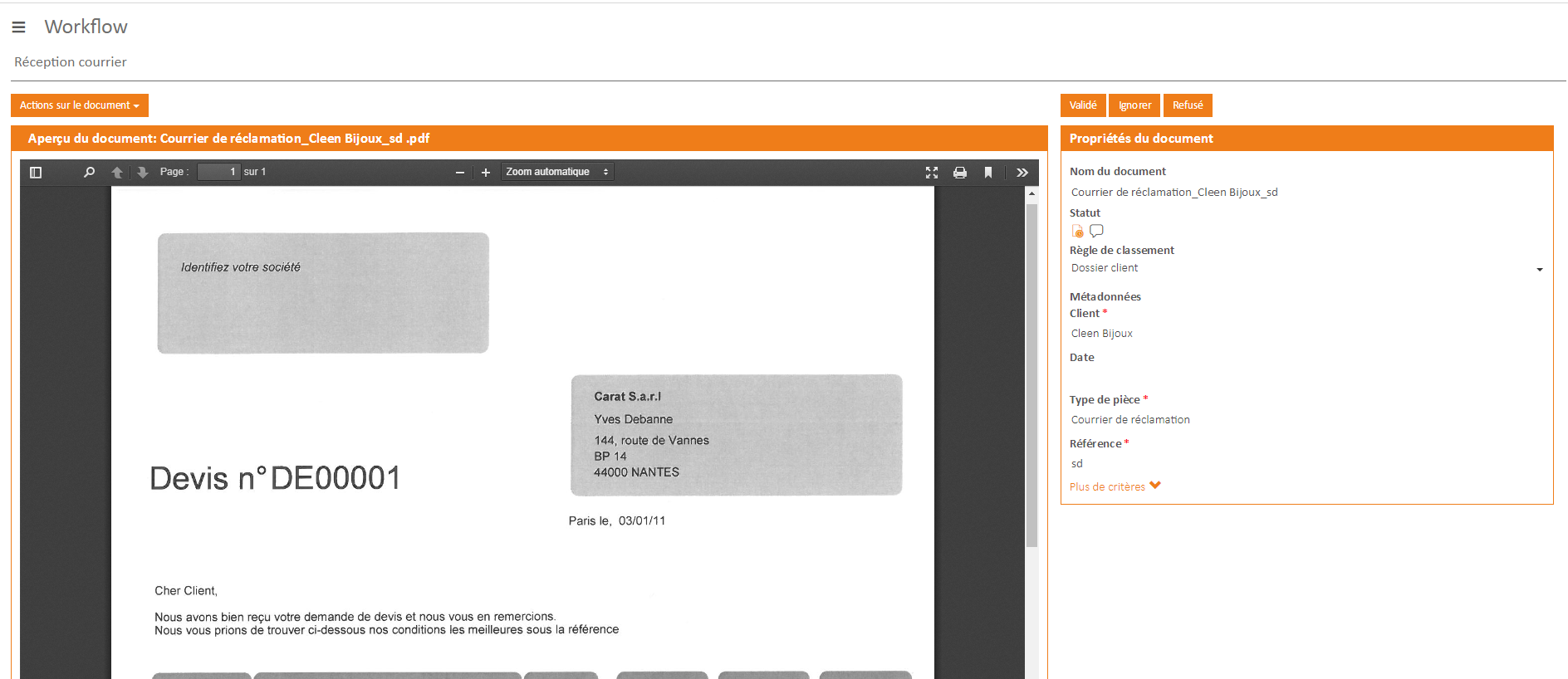
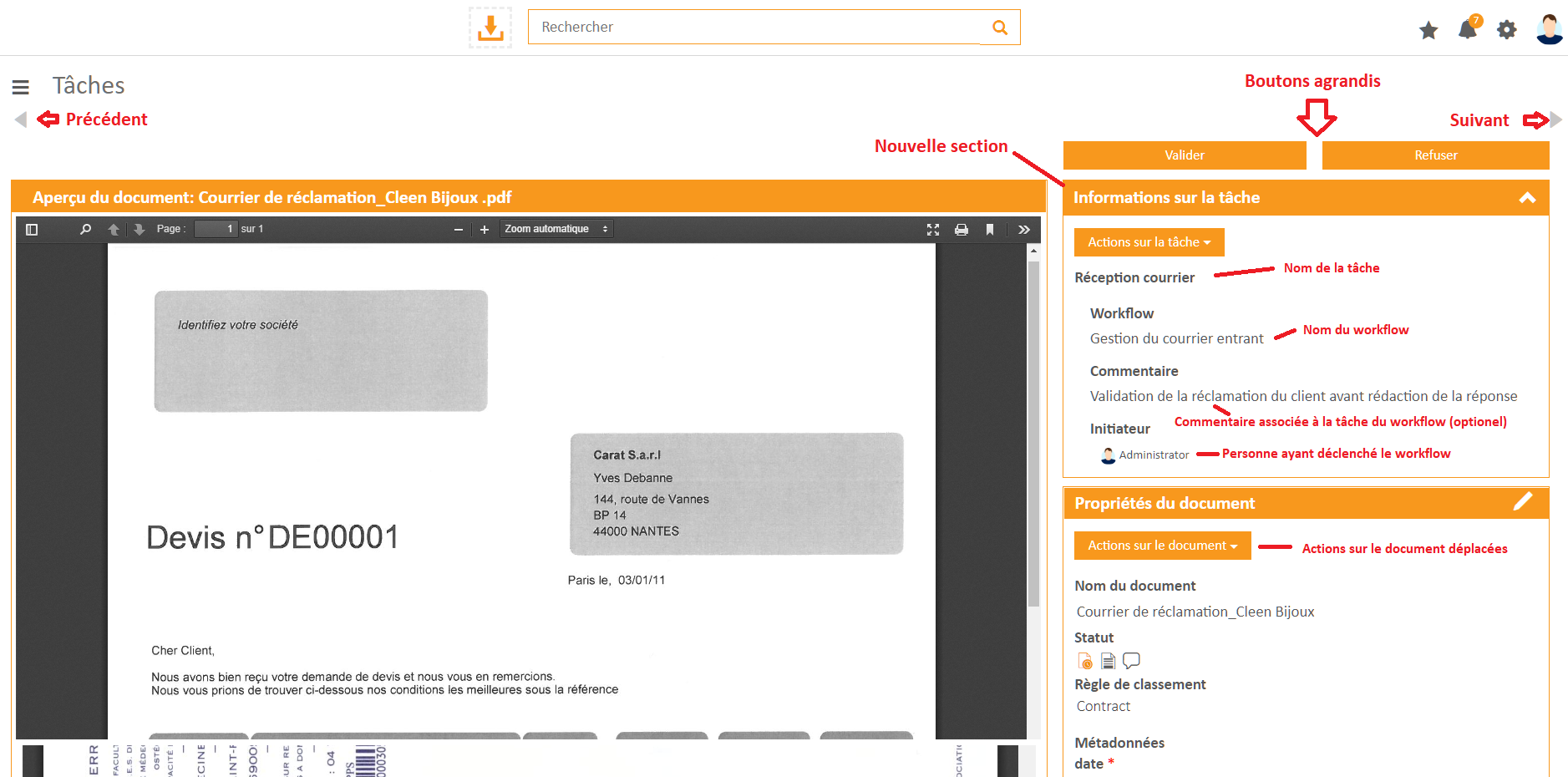
Resuming the Task Validation Screen
The task name has been moved to a “Task Information” block
Actions on the document have been moved to the already existing “Document Properties” block
The “Validate” and “Decline” buttons have been enlarged
The “Skip” button has been removed as it is now possible to navigate directly by the arrows to the next and previous tasks
A new “Task Information” section allows you to display more decision-making information
Before
After