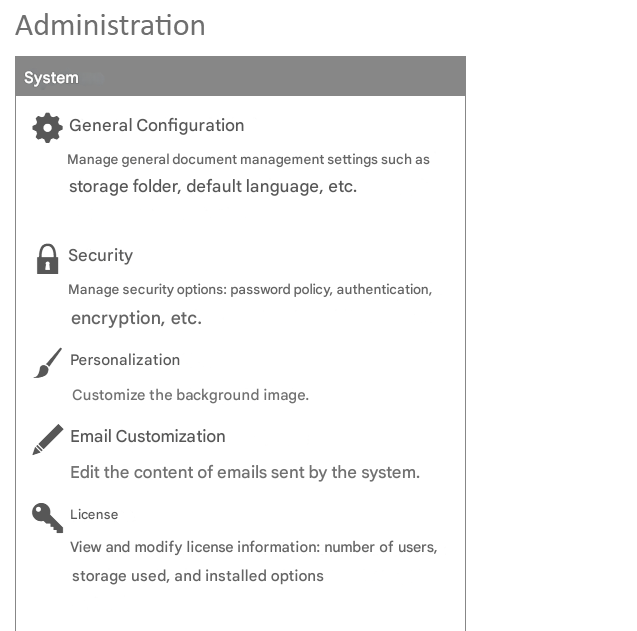
This interface allows you to modify the content of sent emails.
To access, click on “Administration” “Email customization“.
Viewing an email template
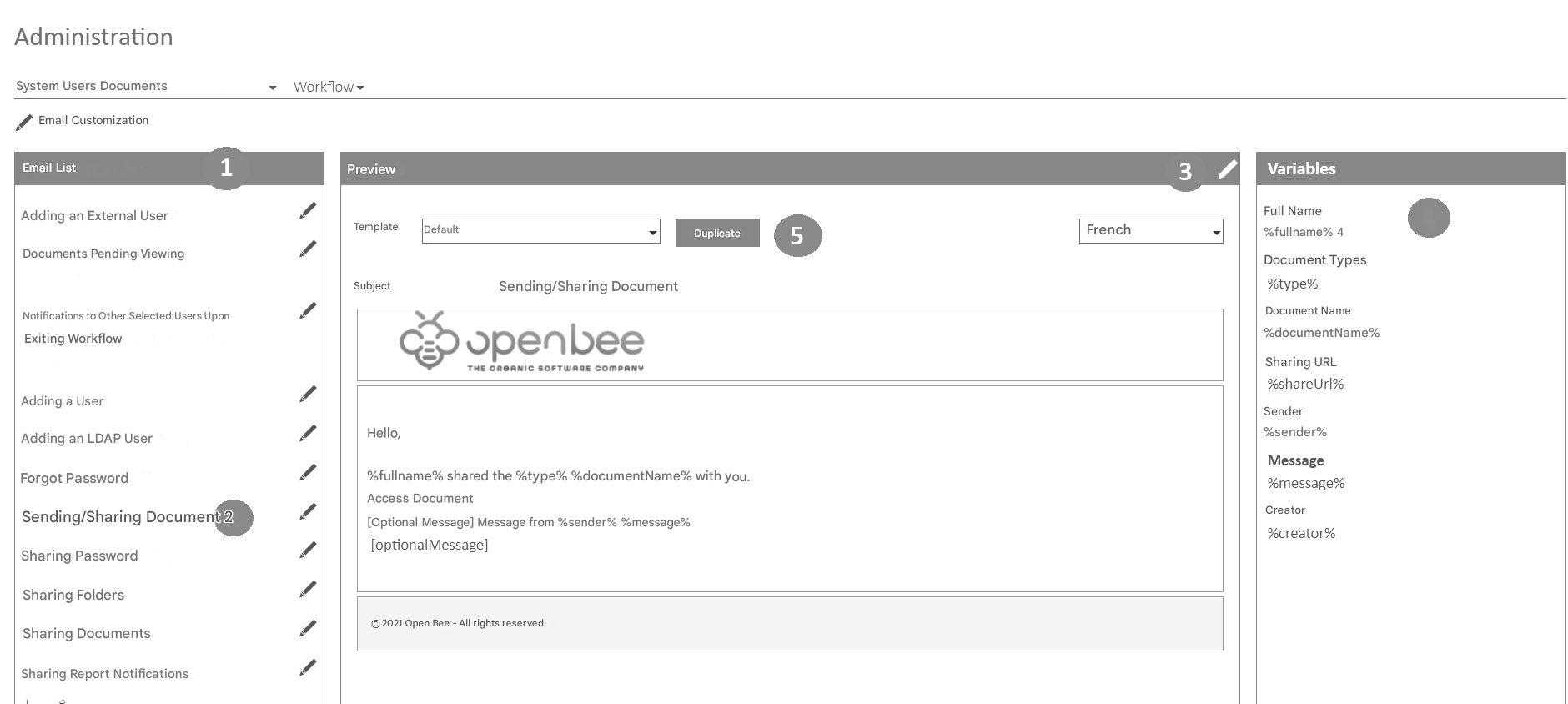
1/ In the left column is the list of emails used by Open Bee™ Portal.
2/ Click on the name of a template to view it
3/ Click on the pen next to a template to edit it
4/ In the right-hand column, you will find a list of variables related to email. These variables can be used in the content of the email and will be dynamically replaced by Open Bee™ Portal when the email is sent.
Example: “%fullmane%” will be replaced by “Pierre” when sending an email to a user whose name is “Pierre”.
5/ Some email templates can be duplicated in order to send different messages depending on the context
Editing an email template
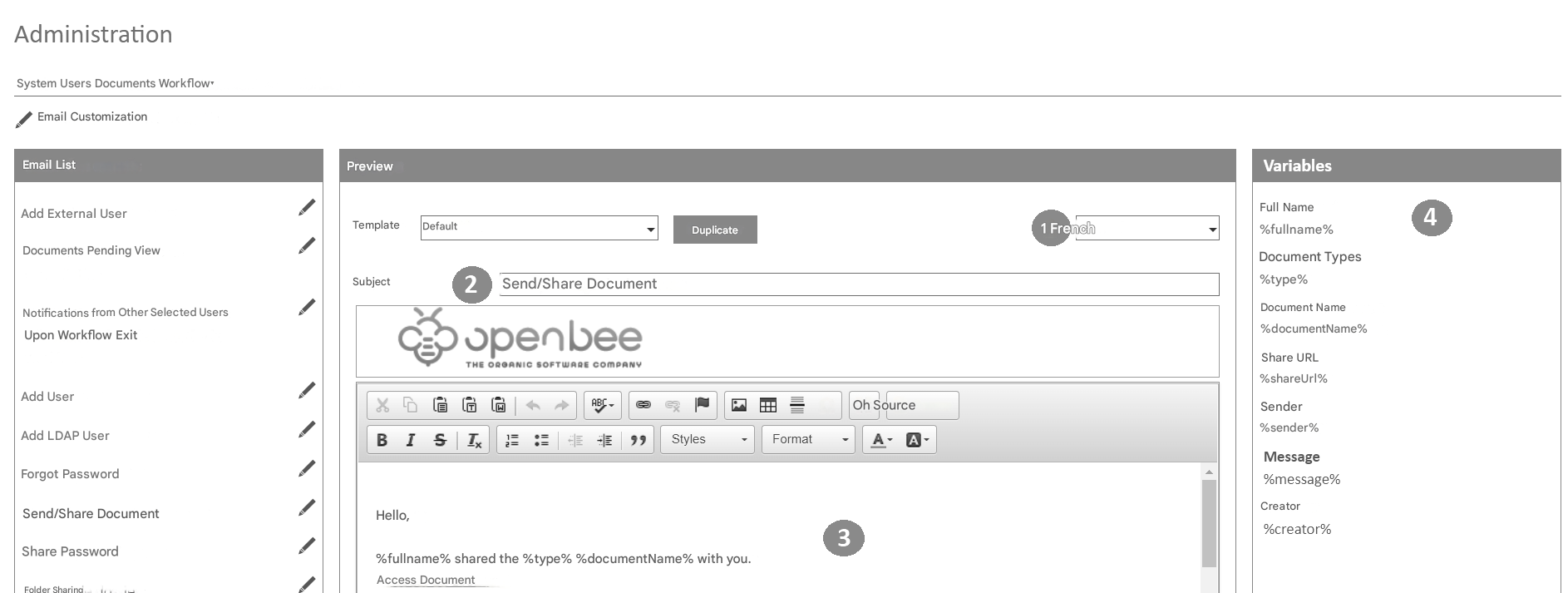
1/ Select the language of the email you want to change
2/ Modify the subject of the email to be sent
3/ Modify the content of the body of the email to be sent
4/ In the right-hand column, you will find a list of variables related to email. These variables can be used in the content of the email and will be dynamically replaced by Open Bee™ Portal when the email is sent.
Duplicating an email template
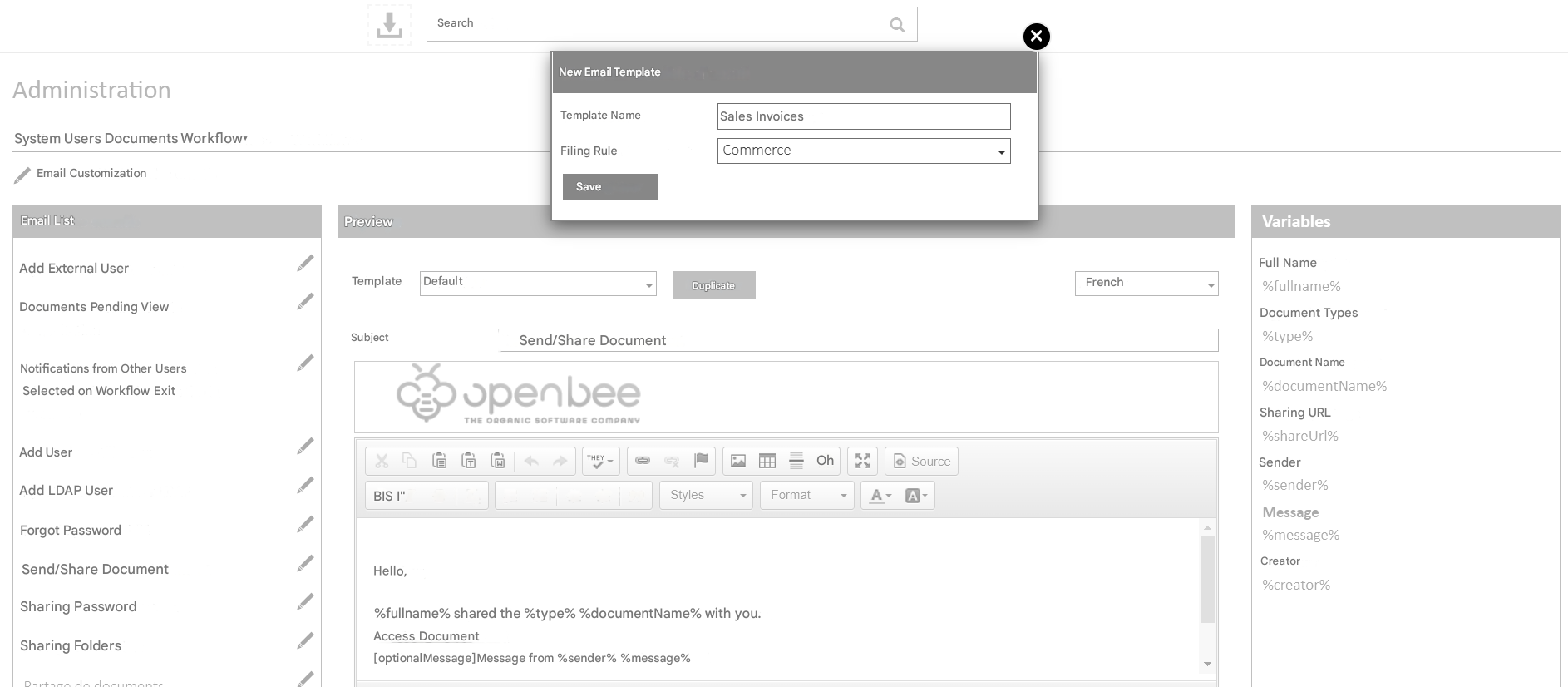
1/ Define a name for this new email template
2/ Optional : associate a classification rule with this email template so that you can use the metadata as variables in the body of the email
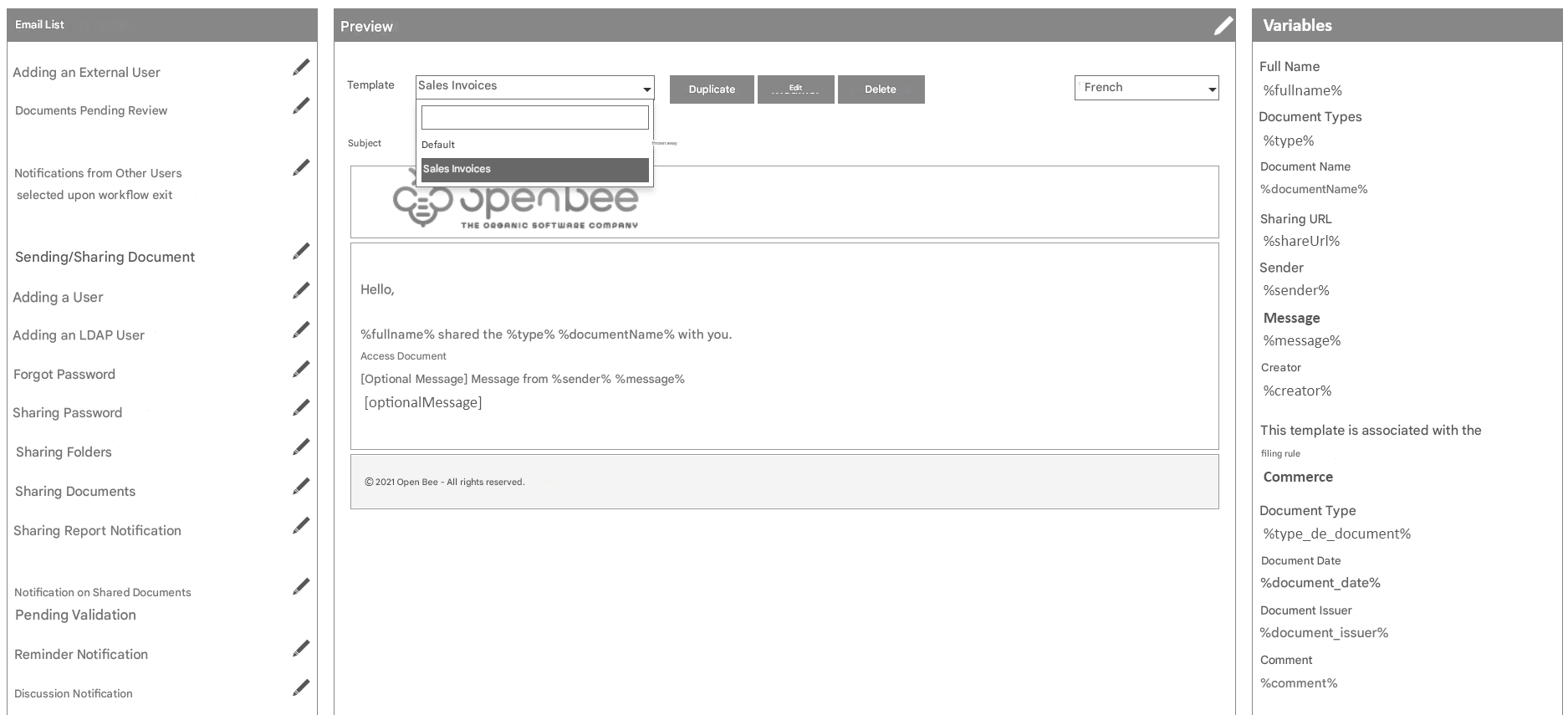
A new template is added. Its content can be changed from that of the default template.
In the right-hand column, in addition to the list of email variables, you will find the list of metadata of the ranking rule associated with the email template.
Using email templates in automatic sharing
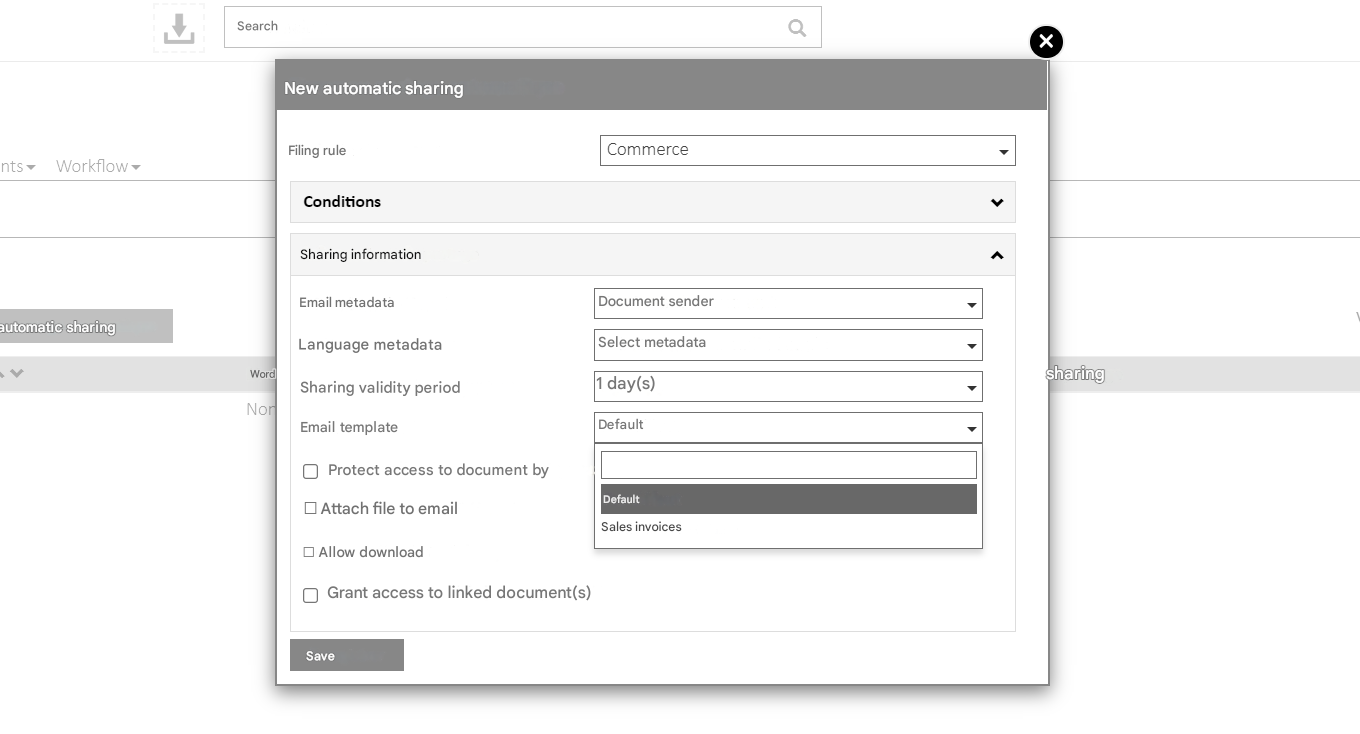
When creating an automatic share, you can define the email template sent to notify a user that a document has been shared with them.
Using email templates in the administration of an Extranet
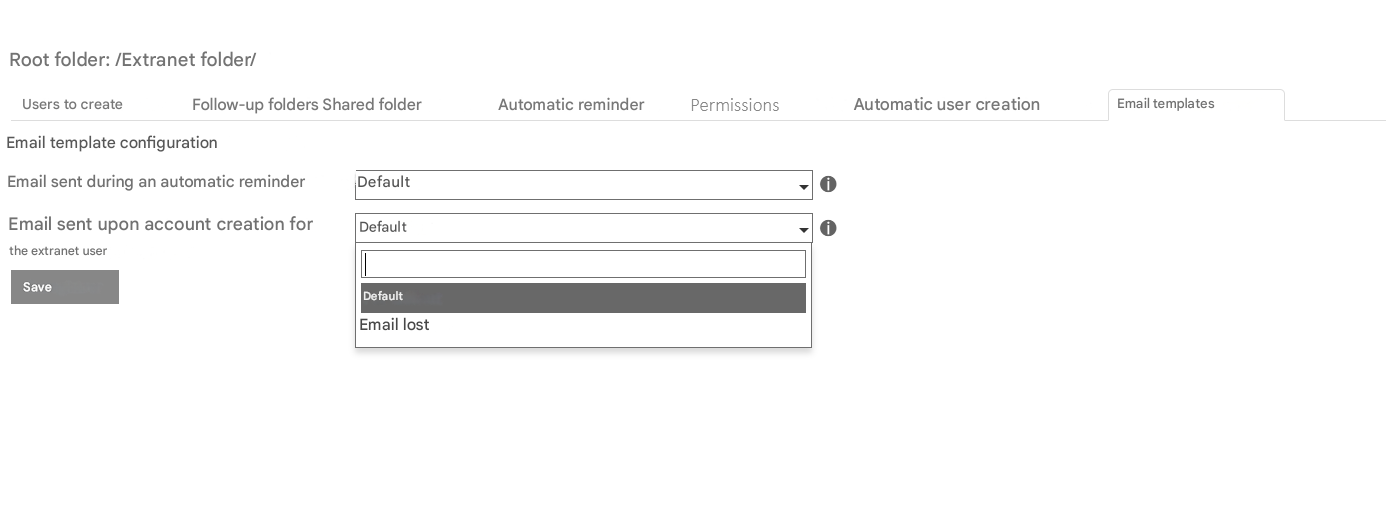
In the administration of an Extranet you can define the email template sent when the extranet user sends reminders or when the account is created.
Using Email Templates in a Workflow Editor
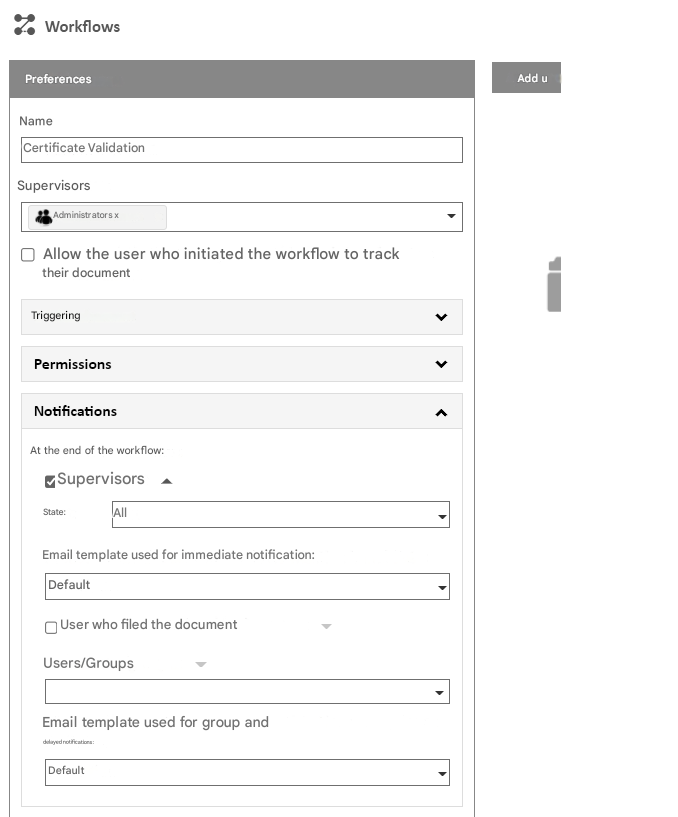
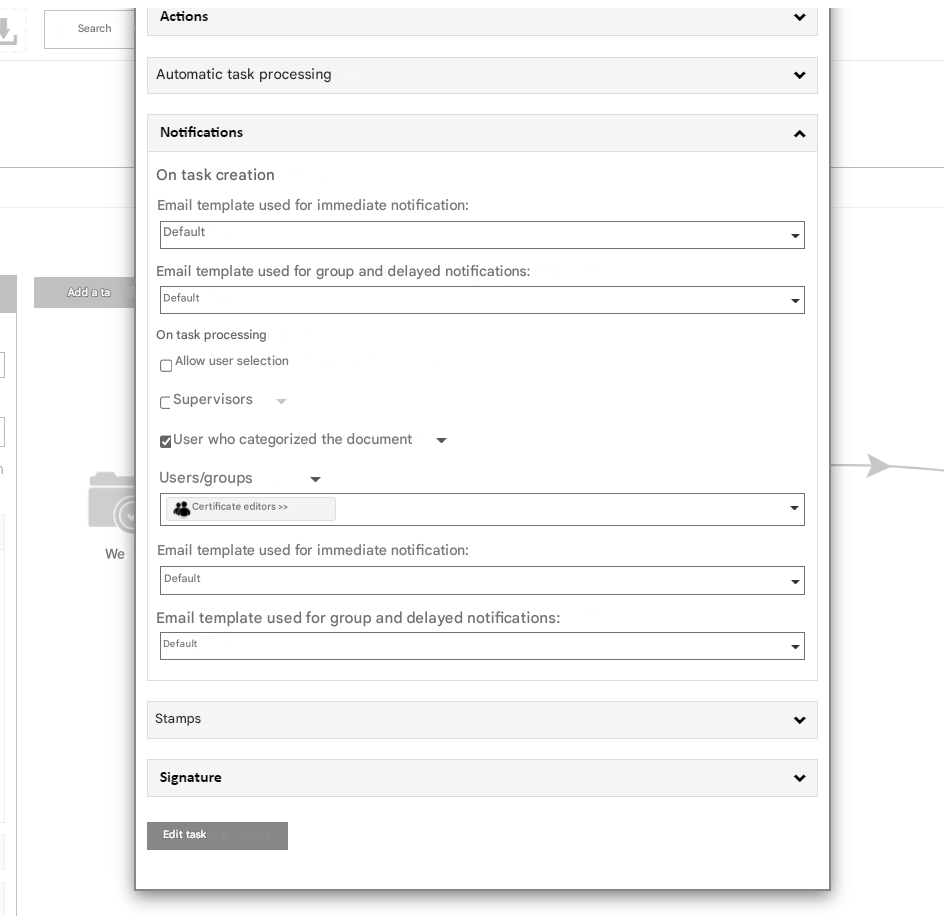
When setting up a workflow, you can define the email template sent in case of:
- Validating or rejecting a workflow
- Validating or rejecting a task
- Creating a new task