The folder permissions system in Open Bee™ Portal is designed to allow members of the “Administrators” group to view all folders and documents.
This behavior is sometimes problematic, for example in the case of archiving sensitive documents that an administrator should not view.
The Secure Storage Space has been designed to address this issue. A “Secure Storage Area” is a folder that is no longer accessible by the “Administrators” group. It is also the main component for the use of the Open Bee™ Portal within the framework of the NFZ42-020 standard.
Create a Secure Storage Space
Prerequisites :
- A user account with the “Administrator” role
- A user who will become the manager of the Secure Storage Area
- The Open Bee™ Portal license includes the “Secure Storage Area” option
A Secure Storage Space requires that only a user defined as the manager of the Secure Storage Area (and any guest(s)) can access its content. This behavior is provided by the notion of Secure Storage Space in the Open Bee™ Portal.
Log in with an “Administrator” account.
- From the “Secure Storage Area Administration” section, click on “Add a Secure Storage Area“.
- Select the manager of the “Secure Storage Area” (the owner of the Secure Storage Area)
- Choose the folder that will be transformed into a “Secure Storage Area“. It is possible to create this folder at this step if it does not already exist.
In the screen below, we have chosen an “HR” folder at the root of the tree. - Set the permissions that the manager will have on the Secure Storage folder .
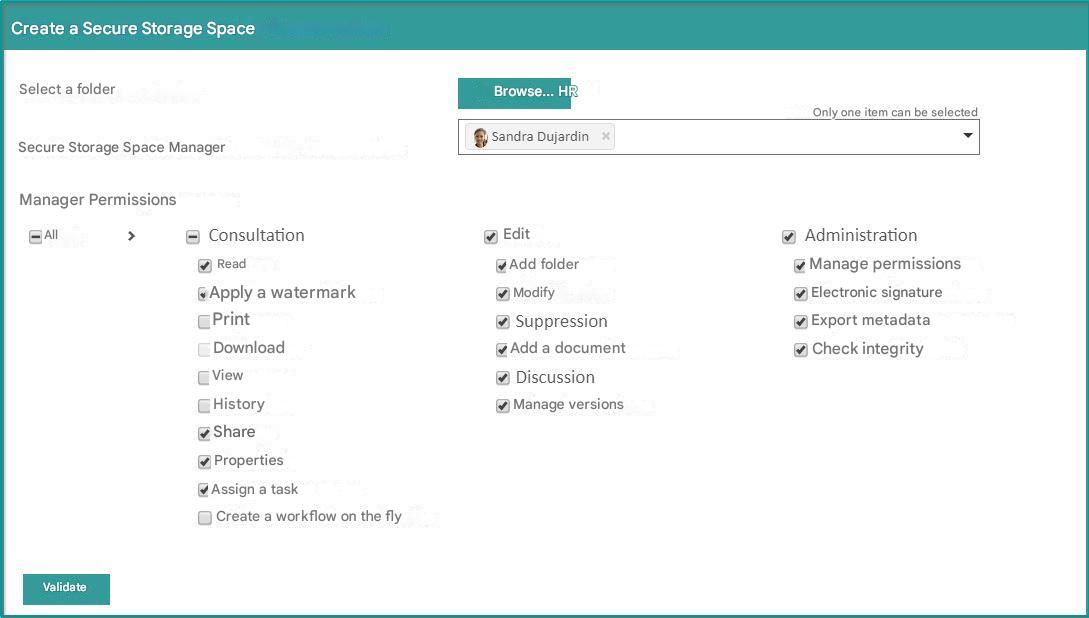
Once this operation has been carried out, the manager of the
Secure Storage Area becomes the one and only user who can access the file.
The creation of the Secure Storage Space also has the effect of automatically activating:
- Encryption of documents stored in the Secure Storage Area, even if this option is not enabled in the general configuration of Open Bee™ Portal
- A second factor of authentication by email when authenticating the manager of the Secure Storage Area
- Prevent administrators from changing the password of the managing user.
Verify the integrity of a Secure Storage Area
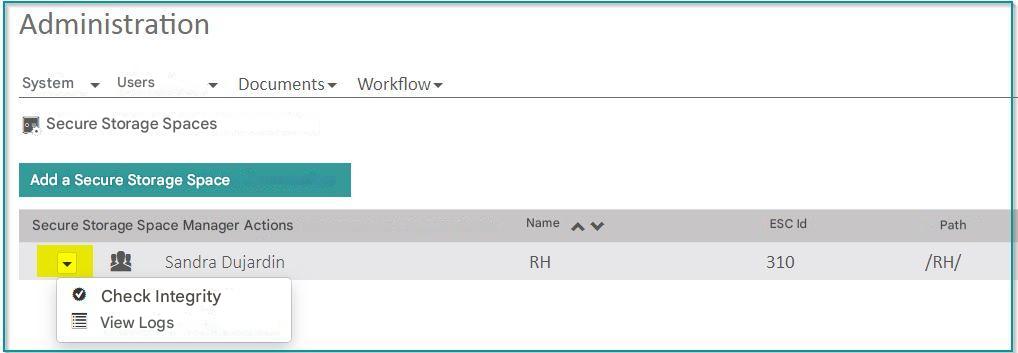
Although an administrator cannot view the documents, they have the ability to verify the integrity of the documents stored in a Secure Storage Area.
This function can be accessed via the context menu associated with each Secure Storage Areain the “Administration Secure Storage Areas” section .
The operation carried out is identical to that which a manager of the Secure Storage Space can perform. In particular, for the result of the operation, which will be displayed in the notifications.
View logs from a Secure Storage Area
An administrator can view the logs of operations performed in a Secure Storage Area.
This function can be accessed through the context menu associated with each Secure Storage Areain the “Administration of Secure Storage Areas” section .
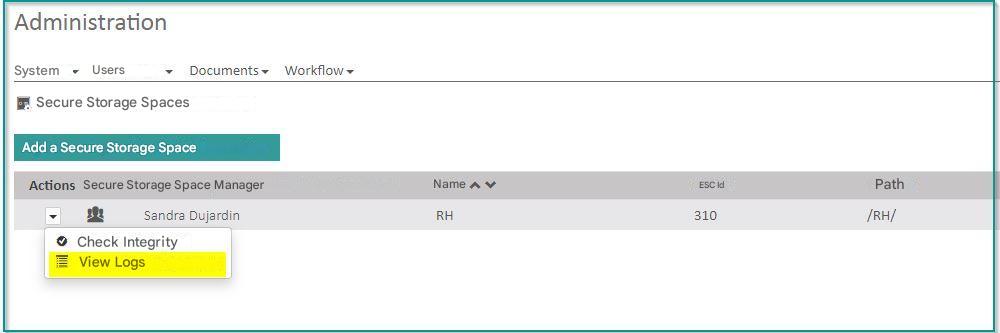
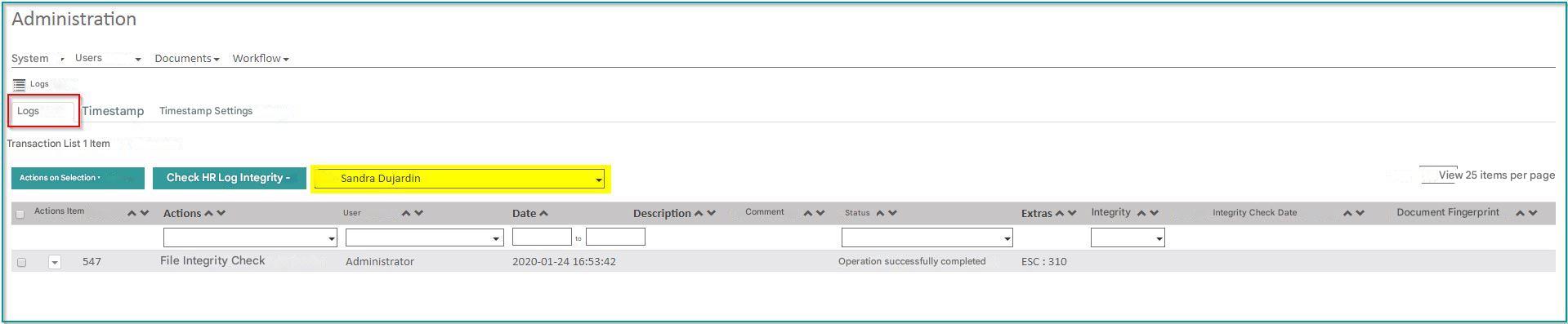
The same result can be achieved by navigating to the “Administration Logs” section and selecting a Secure Storage Areain the filter at the top of the table.