In Open Bee™ Portal, only the administrator can create a workflow and administer it.
Prerequisite
User accounts and groups must be created in the Open Bee™ Portal before starting to create a workflow.
Otherwise, tasks cannot be assigned to actors.
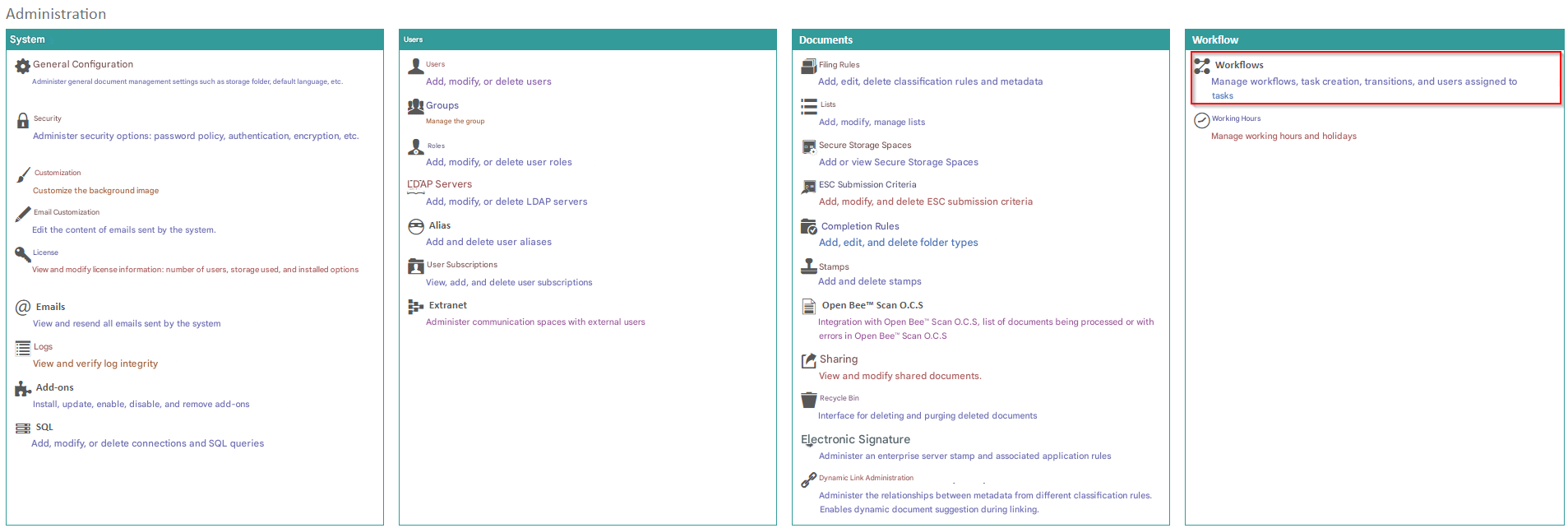
From the ” Administration ” section, click on the ” Workflows ” tab.
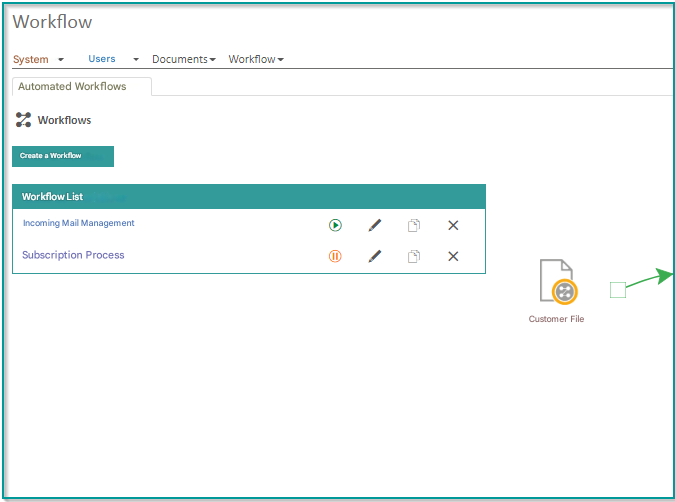
1 – In “Workflows” “List of Workflows“, click “Create Workflow“
2 – Create a workflow
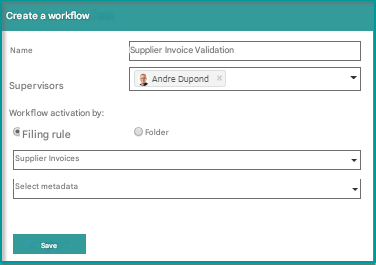
- Enter the name of the workflow “Supplier Invoice Validation”.
- Select the supervisor (in this case André Dupond) by clicking on the drop-down menu.
You can also set one or more supervisors on the same workflow Only the supervisor(s) and administrator(s) have access to manage and monitor the workflow .
. - Choose how you want the workflow to be activated. Which criteria is used to trigger a workflow when adding a document to the Open Bee™ Portal.
To perform this step, it is necessary that the selected folder or filing rule already exists in Open Bee™ Portal
- You have the option to activate the workflow either:
- By filing rule: the workflow will be activated as soon as a document with a rule corresponding to the selected one is filed in Open Bee™ Portal (e.g. Commerce).
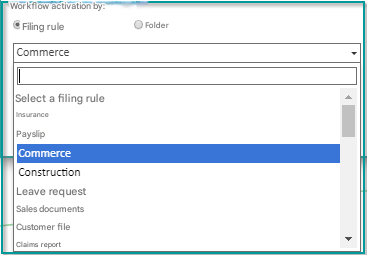
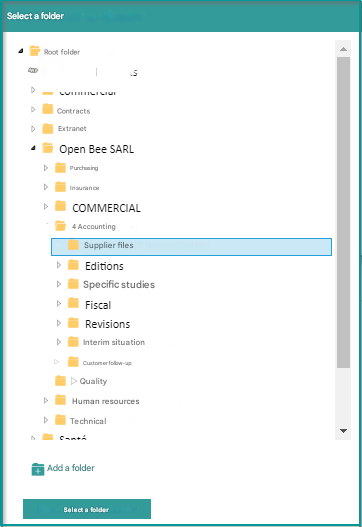
- Per folder: the workflow will activate as soon as a document is filed in the selected Open Bee™ Portal folder (or subfolder) (e.g. “SUPPLIER FILES” folder )
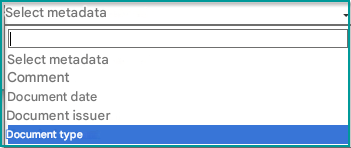
- Select Metadata: Select a metadata to inject into the workflow only documents with the selected metadata (e.g. “Document Type” metadata)
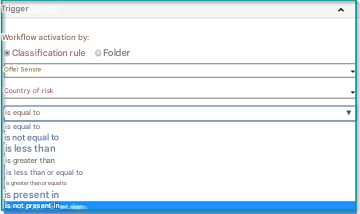
- Conditions for triggering a workflow
This interface allows you to test the value of a ranking rule’s metadata using the different values
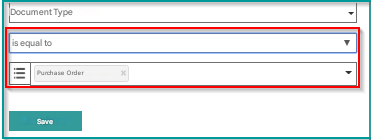
Once you have chosen the metadata, enter the values related to the metadata (e.g. “equals ” “Purchase order”)
Do not trigger the workflow when the document is added: This option allows you not to trigger a workflow automatically when the document is added while associating it with a filing rule in order to take advantage of actions that can only be performed when a workflow is associated with a filing rule.
This workflow can be triggered either manually or by another module.
- Click the “Save” button to finish.
A message will appear confirming that the workflow has been added successfully. It will appear in the list of workflows.
- The name, supervisor and how the workflow is activated are required fields, the description is an optional field.
- The supervisor is the person who will be in charge of starting the workflow and who will have a global view of the entire processing chain (see: Workflow supervision)
- Conditional workflows require a special license.
Multi Workflow for a Document
A document can now be present in multiple workflows at once.
There are no longer constraints on the number of workflows per filing rule.
You can then configure advanced preferences and create workflow tasks .
The tasks in a workflow are the actions that need to be performed. Each task is associated with an actor. An actor is a user or group of users created in Open Bee™ Portal.
Transitions are the links between tasks in the workflow.
The configuration of tasks and transitions varies depending on the type of workflow chosen: linear or conditional.