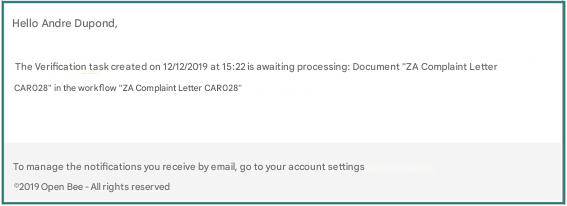
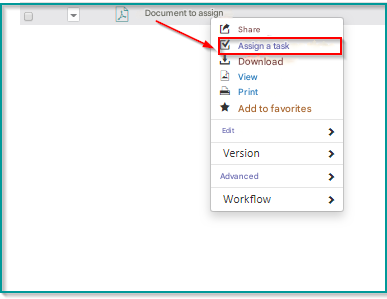
To create a single task , simply :
- View the document.
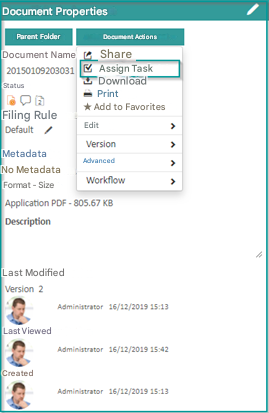
- Click Document Actions
- Click Assign Task
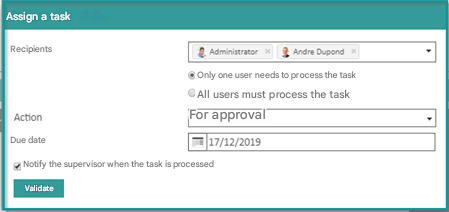
A window will appear, you will have to fill in all the fields starting by choosing the Recipients : You can assign the task to one or more recipients.
“Define if Only one user needs to process the task or if all users need to process it.”
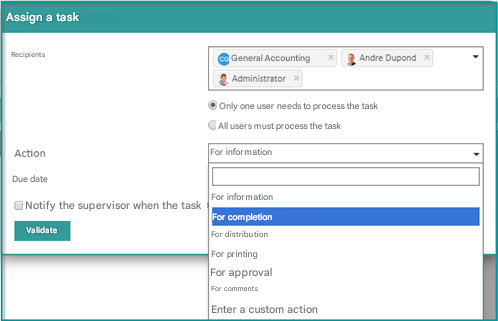
Choose the Action by clicking on the drop-down list:
- For information
- For Completion
- For Broadcast
- For printing
- For Approval
- For comment
Or Enter a custom action
- Set the validity period of the task in the “Due date” field
- Click on the “Notify supervisor when task is processed ” checkbox to receive approval or rejection notifications when creating a simple task.
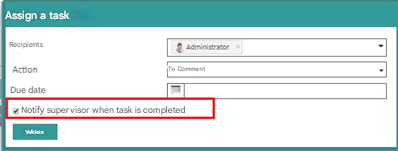
- Click on Validate
Once you validate the task, an email notification is immediately sent to the recipient(s) that contains all the information of the task with a link in the footer of the email.