By default, no transitions are created between tasks.
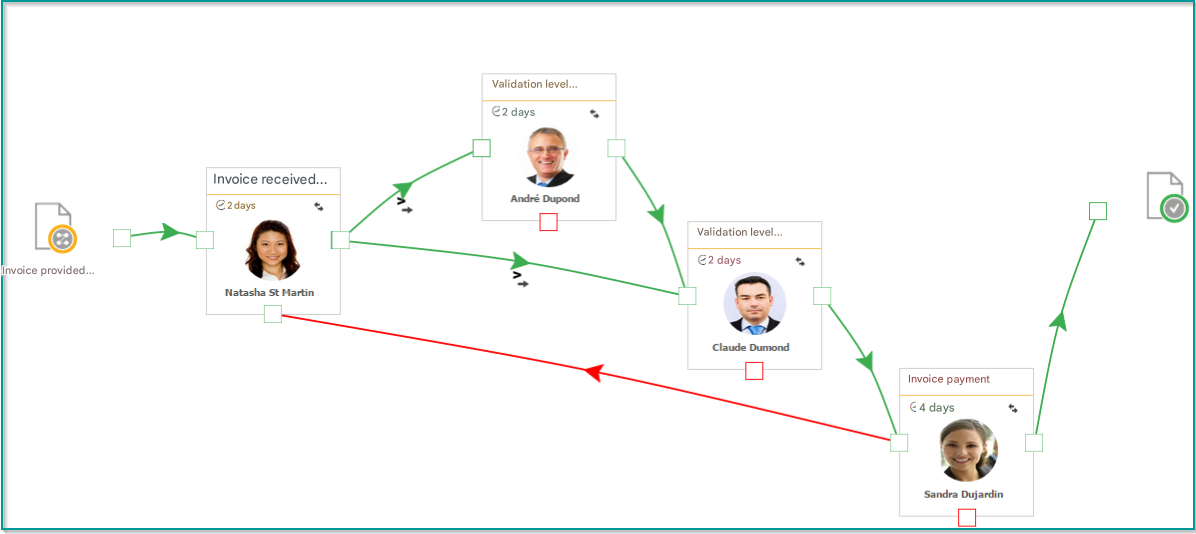
The workflow input and output transitions are implicit:
- By default, the first task created is the workflow input task.
- Tasks without transition (which is the case when they are created) end the workflow: accepting or rejecting the task ends the workflow.
On this page:
Refusal and Acceptance Transition
Transitions in a conditional workflow can be created by dragging and dropping just like in a linear workflow.
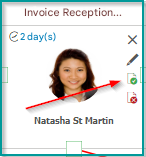
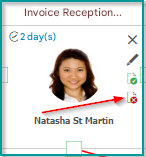
To set up a transition, click on the appropriate icon in the header of a task:
- Green Arrow: Acceptance Transition
- Red Cross: Refusal Transition
| Document Acceptance Transition | Document Rejection Transition |
|---|---|
 |  |
Unlike a linear workflow, it is possible in a conditional workflow to keep the document in the workflow when a document is rejected.
This is possible by setting up adeny delay. Icon
If the deny or accept transition configuration for a task does not exist, rejecting or accepting a document in that task will complete the workflow for that document.
Set up a transition
The form for setting up a transition is the same for both decline and acceptance transitions.
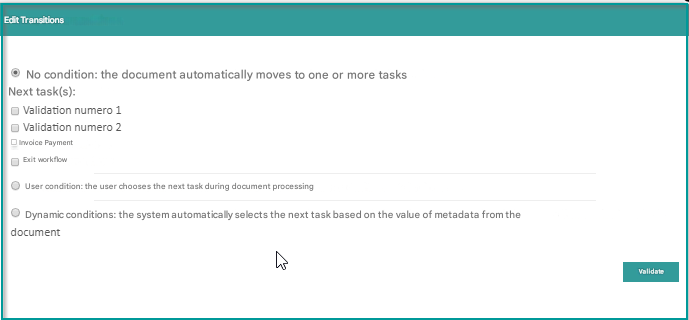
It allows you to choose between three types of transitions:
- No strings attached
- User Condition
- Dynamic Condition
Transition with no strings attached
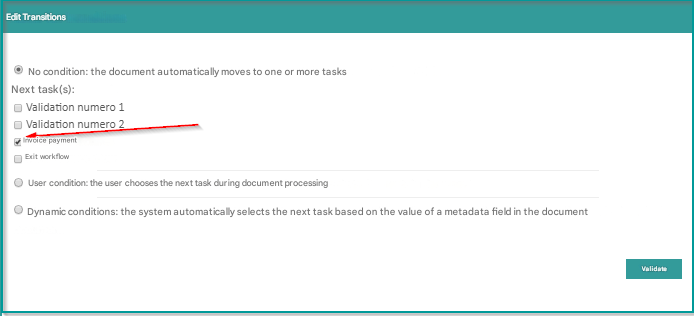
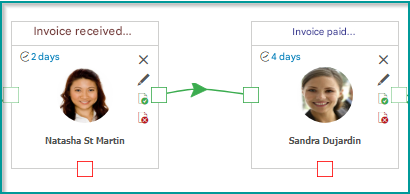
This option allows you to systematically send the document in one or more tasks.
By using this option, it is possible to reproduce the behavior of a linear workflow. One task simply follows another.
| Setting up the transition | Visual representation |
|---|---|
 |  |
This option also allows you to send a document in multiple tasks in parallel, by simply checking the different tasks.
| Setting up the transition | Visual representation |
|---|---|
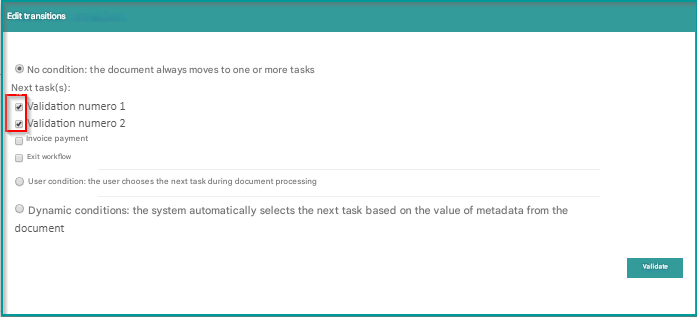 | 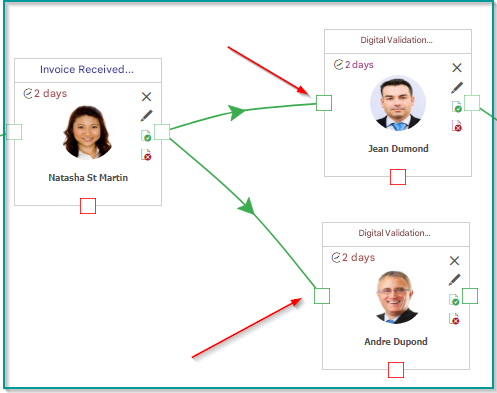 |
In this case, when Natasha validates a document, it will be sent to John and Andrew at the same time.
Transition with User Condition
With this option, the actor of the task will choose the next task.
The sequence of tasks is therefore not determined in advance. It will depend on the choice of the actor of the task.
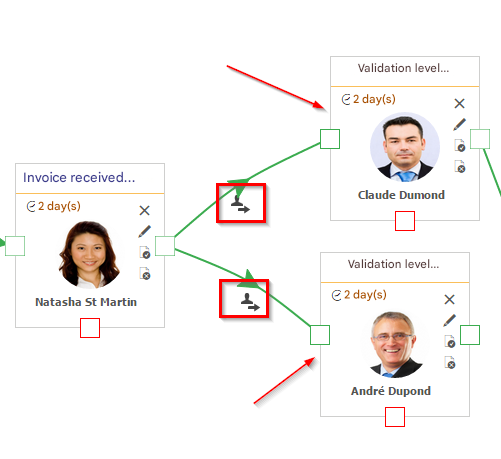
| Setting up the transition | Visual representation |
|---|---|
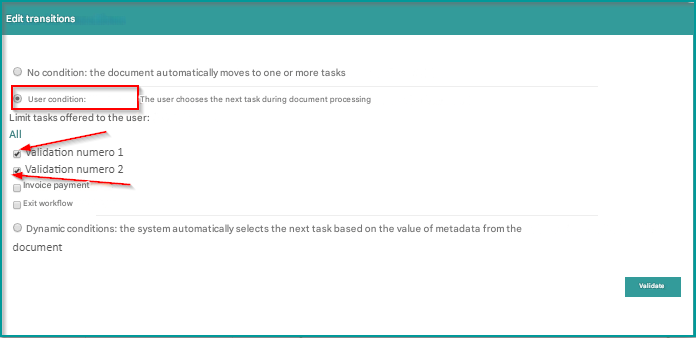 |  |
The administrator must select the tasks from which the actor will have the choice of the next task.
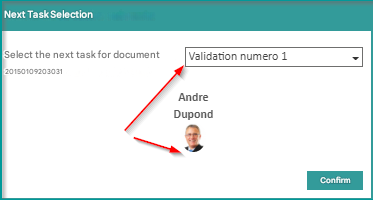
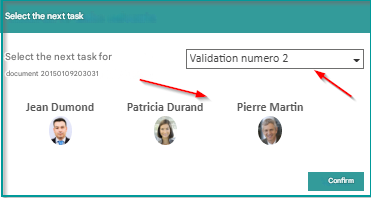
In this case, when Natasha validates a document, a form will offer her to choose the next task from the “Validation number 1” and “Validation number 2” tasks. The selected task actor is then displayed:
Dynamic Condition Transition
With this option, the value of one or more of the document’s metadata is used to determine the next task.
The choice of the next task is automatically managed by Open Bee™ Portal according to the conditions that have been defined.
Default Task
This is the task to which the document will be sent if the document’s metadata does not meet any condition group.
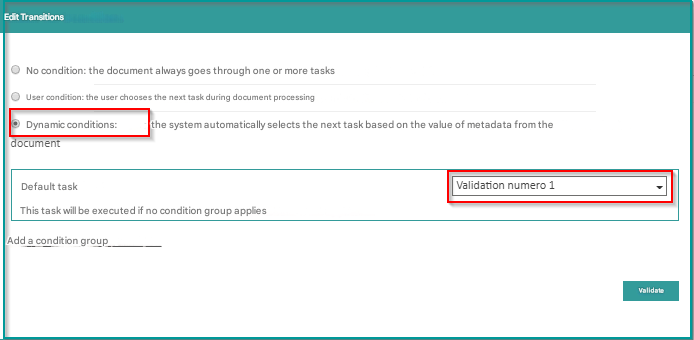
Condition Group
A conditional transition can have multiple groups of conditions.
- To add a condition group, click on the “add condition group” link in the transition form.
- To delete a condition group, use the cross at the top right of the condition group
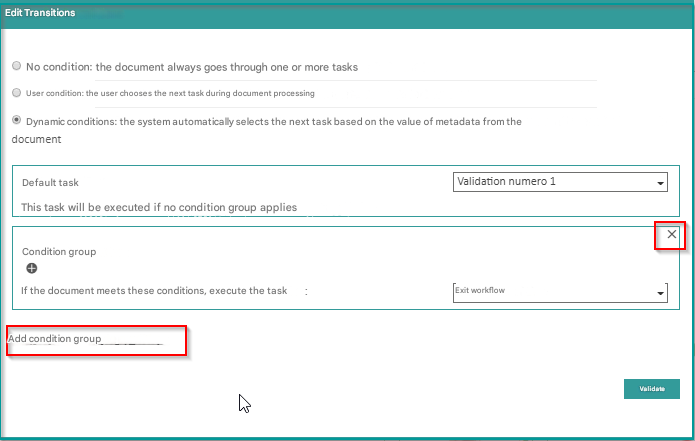
A condition group is used to define the conditions that trigger a document to be sent in a given task.
It therefore contains:
- A task to which the document will be sent if it meets all the conditions.
- A list of conditions on the document’s metadata.
It is possible to add and remove conditions from a group using the “+” and “-” buttons.
Condition
A condition is defined by:
- Metadata belonging to a ranking rule
- a comparison operator: “=”, “”, “IN”, “NOT IN”<=” , “{{{wpml_tag_1}}}=”, “>
- a reference value
It is possible to add and remove conditions from the group using the “+” and “-” buttons.

Example:
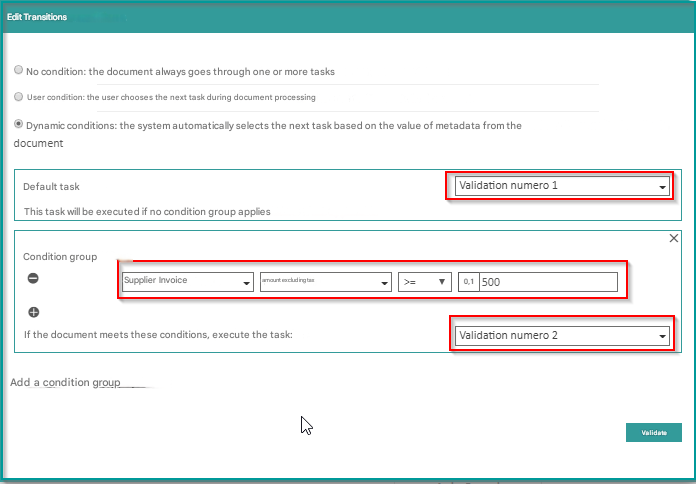
We want all invoices with an amount of >= to 500 to be validated by Claude (Level 2 Validation). Invoices of a lower amount can be posted directly after Andre’s one-time validation (Validation number 1).
- The default task: “Validation number 1”.
- The condition: the “amount excl. VAT” metadata of the “Supplier Invoice” classification rule is greater than or equal to 500.
- The condition group, which contains a single condition in this example, is used to send the document in the “Validation number 2” task if the invoice amount is greater than or equal to 500.
Important Notes Icon
- If multiple conflicting conditions are entered in the same condition group, the task in that group can never be executed.
- If a document’s metadata meets the criteria for multiple condition groups, only one will be arbitrarily selected.
Care must be taken to ensure that the groups of conditions are exclusive. - The conditions are connected to each other by logical operators “OR” (logical disjunction) or “AND” (logical conjunction).
Specificity of Workflow Input Tasks
It is possible to configure a dynamic condition on the input transition of the workflow.
Not all tasks connected to the workflow input can have a user group as an actor.