The “SQL Queries” screen allows you to create and configure queries that will retrieve data from your existing database to populate Open Bee™ Portal metadata.
To add a query, click “+”.
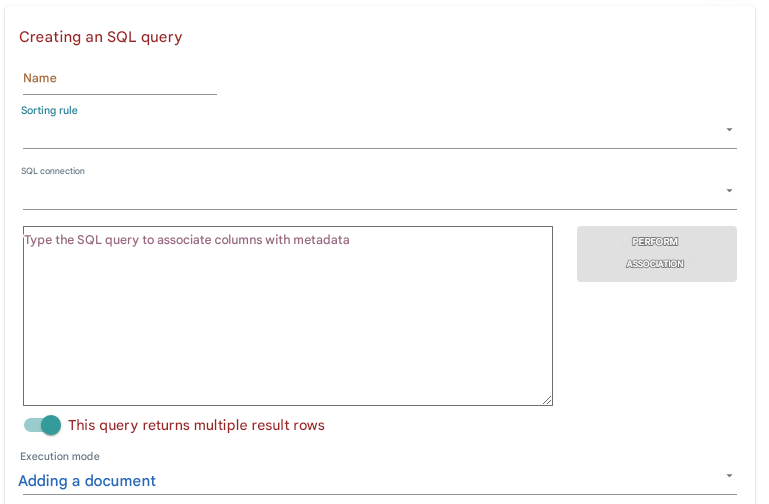
Name : the name of The SQL query name,
Ranking rule : The ranking rule or form that will be used to trigger the query.
SQL Connection: The SQL connection defined in the first tab to use.
SQL Query
In this block, you can enter your SELECT query.
In the WHERE clause of your query, you can call a single metadata by putting it between < >.
Example:
SELECT nom, prenom, email
FROM ma_table
WHERE ref_contrat = <Numéro de contrat>
In this example, when the user enters the value of the metadata “Contract number” the request will be executed and 3 pieces of information will be retrieved, the last name, first name and email.
Example of a request to an xls file:
SELECT [Entête_de_ma_colonne_résultat]
FROM [Nom_de_la_feuille$]
WHERE [Entête_de_ma_colonne_source] = '<Métadonnée_de_déclenchement>'
In an xls file , please put a $ after the sheet name .
Another example of a request to a csv file:
SELECT [COL1] FROM fichier.csv WHERE [COL2] LIKE '<Nom_index>'
Here, we can assume that “This query returns a single result row“. Indeed, by entering a contract number, a unique reference, one expects to receive a unique record.
Consider the following example:
SELECT nom, prenom, email FROM ma_table WHERE client = <Nom du client>
Let’s say we want to retrieve a customer’s sales contacts, so we can expect to receive multiple rows of results,
In this case, it is important to choose “This query returns several rows of results” because the storage will have to be done in a metadata of type Tableau.
Once the query has been entered, click on the “Perform association ” button to test the query and verify that the columns mentioned in the SELECT query are correctly returned.
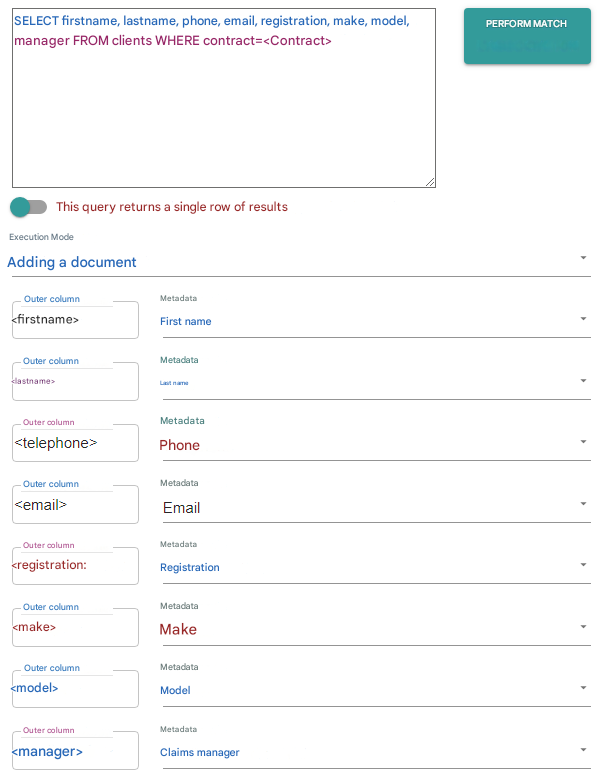
In this example, the columns of the SELECT query are displayed after clicking “Perform Association“.
Then, for each column, we choose a metadata of the classification rule or the form that will receive the data.
You can’t leave a column unassociated.
Execution mode : Choose when The SQL query name will run either when you add a document, or change a metadata, or both.
Possible values are: Add a document, Edit a document, Add or edit a document.
Once the request is configured, save by clicking on “Validate“.