To create metadata:
- From the “Administration” interface, click on “Ranking rules”
- Select the ranking rule
- Click “Add Metadata”
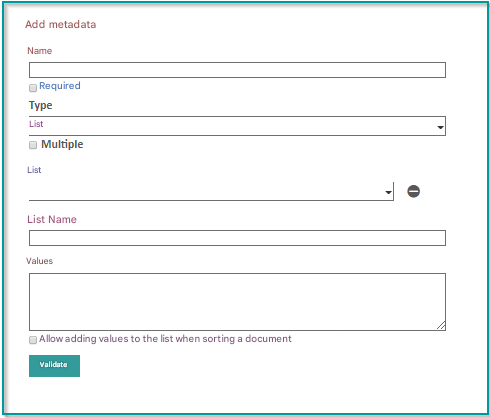
Enter the label of the metadata you want to create.
Check the ” Required ” box, which will require the user in charge of the classification to fill in this metadata. If this box is unchecked, then the metadata may be left blank during the ranking.
Choose the type of metadata you want to create from the drop-down list:
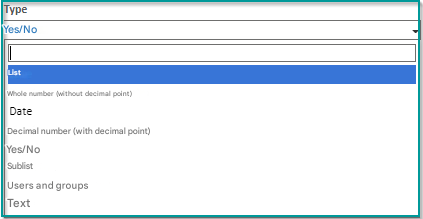
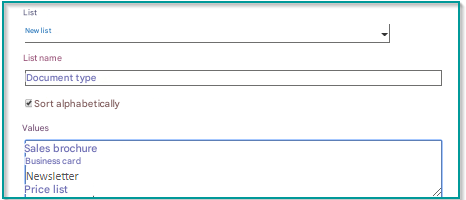
If “List” is selected as the metadata type, choose:
- Or an existing list in the menu
- Either create a new list and add values of your choice
If Type “Group and Users”
To access this feature:
- Click on Ranking Rule
- Click Add Metadata
- Click on List
- Select the “Users & Groups” metadata
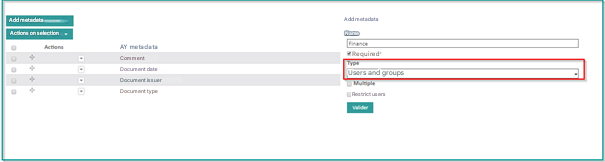
The “Multiple” checkbox allows you to enter multiple values in the same metadata.
For example, a “Packing slip” metadata may store multiple packing slip numbers if the “Multiple” checkbox is checked.
Repeat this operation as many times as metadata needs to be created.
You can then edit your ranking rule to define the associated dynamic tree.
Default value
Since version 6.11.4 of Open Bee™ Portal, it is possible to enter a default value to a metadata.
This default value is used to auto-populate the metadata when ranking from the Open Bee™ Portal ranking interface.