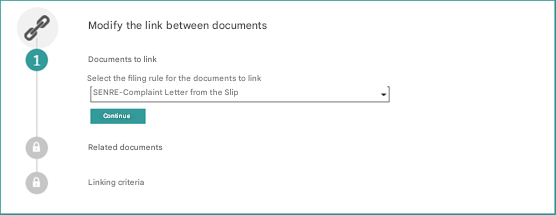
This section of the administration allows you to configure how Open Bee™ Portal selects related documents to link.
In order to manage dynamic links, click on “Administration” “Dynamic links“.
The selection algorithm is based on relationships between document metadata. The configuration consists of linking the metadata of two collation rules together.
Example: Let’s say we want to automatically link complaint mails and replies to those emails.
We have an “Invoice” classification rule and a “Purchase Order“ classification rule with the following metadata:
| Invoice | Purchase Order |
|---|---|
| Amount excl. VAT | Amount excl. VAT |
| Vendor Name | Vendor Name |
| date | date |
We’ll set up relationships between metadata:
- Invoice Date andPurchase Order Date
- Invoice Vendor Name and Purchase Order Vendor Name
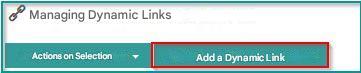
Click the ” Add Dynamic Binding” button to add a relationship between two collation rules:
A window appears:
Documents to be linked
- Select the document classification rule you want to link
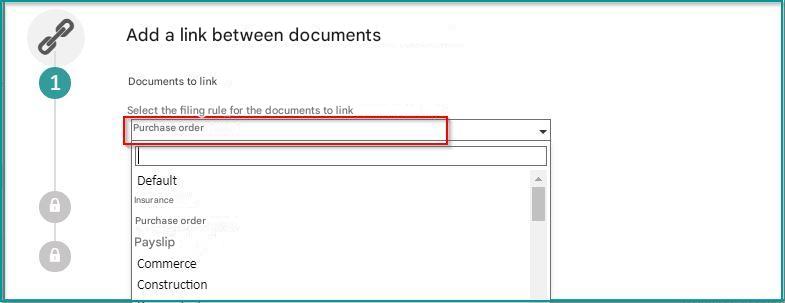
Click Continue to proceed to the next step:
Related documents
- Select the Related/Suggested Document Classification Rule
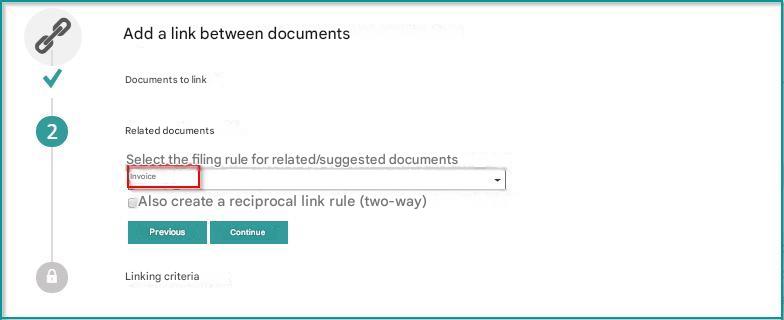
One-way binding rules
By default, binding rules are one-way. For example, the system will expect an invoice to be consistently linked to a purchase order, but not for a purchase order to be consistently linked to an invoice.
Checking the ” Also create a reciprocal binding rule” option allows you to create bidirectional binding rules.
- Click Continue to proceed to the next step
Linking Criteria
The “Automatically link documents that meet these criteria” checkbox allows you to automatically link documents, without manual operation. If it is not checked, the link will only be suggested and a user will have to validate it manually.
Please note that the automatic creation of links is not retroactive
Documents that have already been sorted and meet the linking criteria will be able to be linked in bulk manually from the link suggestion screen.
Documents are automatically linked to two stages of a document’s lifecycle:
– when filing a document
– when modifying one of its metadata.
The “All conditions are true/At least one condition is true” option is used to determine the behavior if multiple metadata is used. In this example, it will be necessary for the “Vendor Name” metadata AND the “Date” metadata to be identical for the documents to be linked.
The “At least one condition is true” option is typically used when the binding is not automatic to provide as many suggestions as possible to the user. The “All conditions are true” option is preferred in case of automatic links.
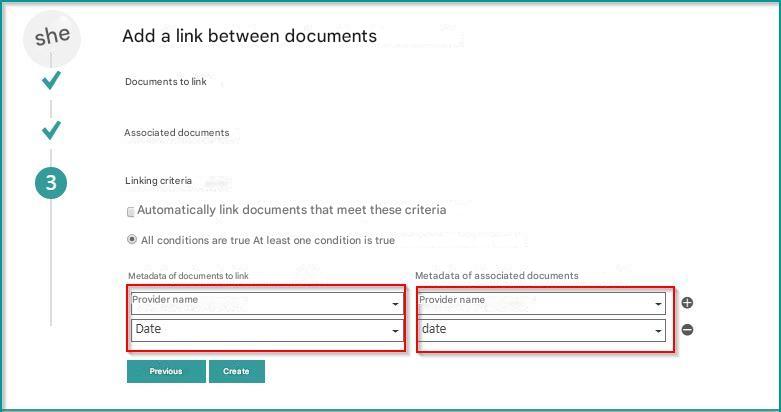
- Click “Create“
Once this configuration is done, if a user wants to file an invoice in the amount of €1000 issued by the company Open Bee and if a purchase order of €1000 from the company Open Bee™™ is available, the documents will be automatically linked.
In the linking screen, by default, five suggestions per page are displayed. It is possible to change this setting from the “/administration/config” screen.
Edit binding rules
Hover over the link you want to edit
- Click on ” edit a link”
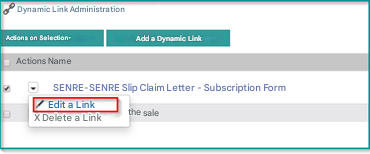
The following interface is displayed to change the linking of documents