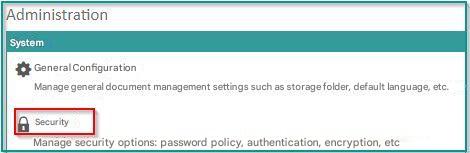
This interface allows the EDM administrator to manage general settings related to EDM security.
It is divided into several subsections:
To access it, click on “Administration” “Security“.
Password
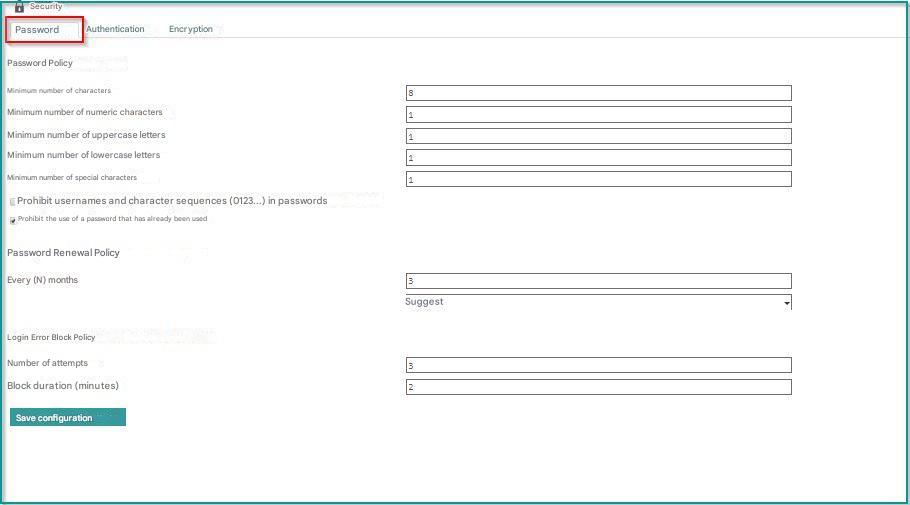
This tab allows the administrator to change the various settings that control password management.
Password Policy
This section allows the administrator to change the structure of the password requested from the user during creation or renewal.
The minimum structure of a password is as follows: 8 characters minimum, including 1 uppercase, 1 lowercase and 1 number.
The administrator cannot simplify the word structure below this minimum configuration.
- Min. number Characters: Minimum number of characters in the password
- Min. number numeric characters: Minimum number of digits in the password
- Min. number Uppercase characters: Minimum number of uppercase letters in the password
- Min. number lowercase characters : Minimum number of lowercase letters in the password
- Min. number Special Characters : Minimum number of special characters in the password (examples of special characters: !,$, §, +, etc.)
- Prohibit usernames and sequences of characters (0123…) in passwords: This setting allows you to prohibit character sequences and the use of their username when a user creates or renews their password.
- Prohibit the use of a password that has already been used: When renewing a password, the user cannot use a password that they had previously used.
Password Renewal Policy
The administrator can decide to force or suggest to the user to change their password every X months.
Once the set time has passed, the moment the user logs back into their Open Bee™ Portal, they will be asked to change their password.
This action is mandatory or optional depending on the configuration chosen. They can also disable this option by choosing the ” Not applicable” option.
Connection Error Blocking Policy
In case of several attempts with connection error, the account is blocked for a few minutes.
By default the account is blocked for 2 minutes following 3 unsuccessful attempts, the administrator can choose to change this setting.
Authentication
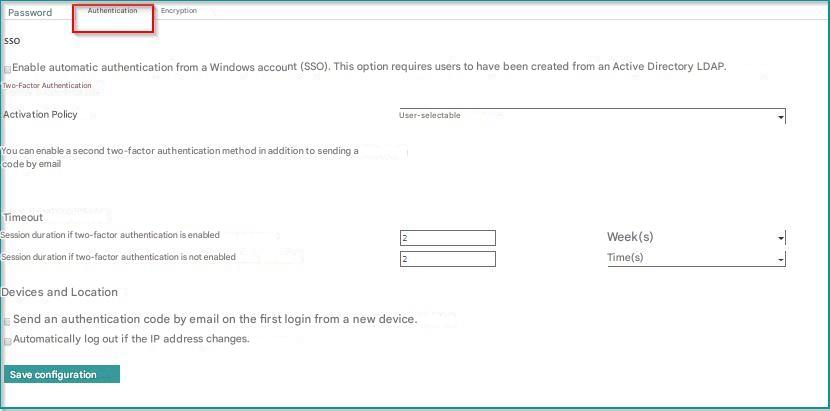
This tab allows the administrator to change authentication-related settings such as two-factor authentication or session duration.
They can also choose to enable additional security features that will force the user to re-identify themselves in the event of a change in behavior, such as changing their usual IP address or using a new device.
SSO
Automatic authentication from a Windows account (SSO) can be automatic by checking this box.
There are a number of prerequisites and other configurations that are required for this feature to function properly.
See this page for more details.
Two-factor authentication
The administrator can configure his two-factor authentication management here.
- Activation Policy: The admin can choose:
-
-
-
-
- To give EDM users the choice to activate or not a two-factor authentication, users must then go to their profile to activate this option
- Require users to use two-factor authentication.
-
-
-
-
- Activating a second two-factor authentication mode: By default, the two-factor authentication is done by sending an email.
Open Bee™ Portal allows you to use other two-factor authentication methods. In order to use another mode, the administrator must enable it at this step. This mode will be usable by all EDM users. Please note that the choice of mode is at the user’s discretion.
Waiting time exceeded
The administrator can choose to differentiate the duration of sessions based on the authentication security level chosen by the user
Session duration if two-factor authentication is enabled: This is the amount of time that the web browser session remains active before the user is asked to authenticate again.
Session duration if two-factor authentication is not enabled: This is the amount of time that the web browser session remains active before the user is asked to authenticate again.
Devices & Location
The administrator can choose to strengthen the security of his EDM by requiring the user to re-identify himself in the event of a change in behavior.
Send an authentication code by email when logging in for the first time from a new device: When the user logs in to Open Bee™ Portal for the first time from a new device, they are forced to perform two-factor authentication by email even if this option is not enabled. Afterwards, they will no longer have to perform this operation until they change devices.
Automatically log out when IP address changes: Open Bee™ Portal can detect that the public IP address of the logged-in user has changed. In this case, when the user wants to perform a new action, it is automatically disconnected in order to force him to identify himself again in order to validate that the change of IP address is normal.
Advanced settings
Allow the use of Open Bee™ Portal cookies from a third-party website
In order to fight against CSRF attacks, Open Bee™ Portal no longer allows the use of its cookies for any request from another site since version 6.11.3.
This results in a user being forced to authenticate every time they want to access an Open Bee™ Portal screen from a link hosted on another website.
Disabling this option allows the user to skip the authentication screen if they already have an active session.
Encryption
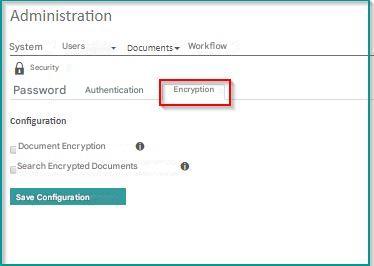
Document Encryption : Select this checkbox to enable AES 256-bit encryption of documents stored by Open Bee™ Portal. This option is transparent to the end user.
 It is not retroactive, only documents and versions added after activating the option will be encrypted. To encrypt existing documents please contact support.
Search encrypted documents : Select this checkbox to search the contents of encrypted documents.
This feature implies less security due to the unencrypted storage of the content of the documents in the Open Bee™ Portal database