Open Bee™ Portal Update
Summary
- Introduction
- Warning – Mandatory Backup
- Compatibility and interim updates
- Preparing for the update
- Update Procedure
- Server restart
- Post-update checks
- Troubleshooting
Introduction
This guide describes the complete procedure for updating the Open Bee™ Portal software on a Windows platform. The update is done via an executable that requires administrator rights. This procedure is applicable for all updates, whether major or minor.
Warning – Mandatory Backup
Please note: before any update, you must make a complete backup of your Open Bee™ Portal environment.
The backup must cover at least:
- Documents stored in Open Bee™ Portal.
- The associated database .
The backup procedure is described in the Backup section.
Open Bee™ recommends keeping this backup in a secure, tested location.
Open Bee™ declines all responsibility in the event of loss of data following an update carried out without prior backup.
Compatibility and interim updates
If the currently installed version of Open Bee™ Portal is several versions behind, some interim updates may be required before installing the target version.
These intermediate versions are identified by a star in the Version History section.
Important: Interim updates marked with a star must be installed in the order listed before you can perform the final update you want.
Preparing for the update
Before you start the update executable:
- Inform users that the service will be temporarily unavailable during the update.
- Cut third-party services (Data importer, Scan capture, …) adding content on Open Bee™ Portal.
- Make sure you have a complete and recent backup.
- Copy the update executable to the Windows server hosting Open Bee™ Portal.
- Disable all addons from the Open Bee™ Portal addons interface.
Update Procedure
- Double-click the update executable. Windows displays an elevation of privilege request (UAC).
Click Yes to allow execution as an administrator. - The Update Wizard opens. Click Next to start the update process.
- The Open Bee™ Portal service is automatically stopped by the installer. During this phase, the product instance is inaccessible.
- Continue by clicking Next at the different steps.
- At the end of the process, a confirmation screen indicates that the update has been successfully completed. Click Finish to close the wizard.
Server restart
Once the update is complete, it is mandatory to perform a full restart of the Windows server.
- close the installer;
- restart the machine;
- wait for the reboot to complete and return to a steady state.
Reminder: Open Bee™ Portal will remain unavailable until the complete system reboot is complete.
Post-update checks
After the server restarts, perform the following checks:
- Check access to the usual Open Bee™ Portal URL.
- Control the version displayed in the app’s system information.
- Re-enable the disabled addons from the Open Bee™ Portal addons interface.
- Test a deposit and consultation of documents.
- Check the operation of any services or connectors: LDAP, SMTP, OCR, etc.
Troubleshooting
The installer does not launch
- Verify that the executable is successfully launched as an administrator.
- Check that the antivirus or security solution does not block the file.
Update fails
- Verify that all required interim updates (marked with a star on the Version History page) have been installed in the recommended order.
Open Bee™ Portal is inaccessible after the update
- Check that the Windows services associated with Open Bee™ are started.
- Check the Windows Event Viewer for errors.
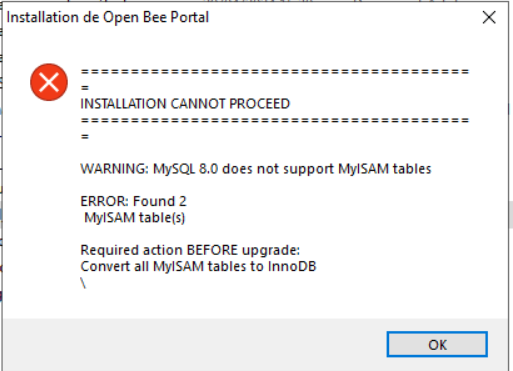
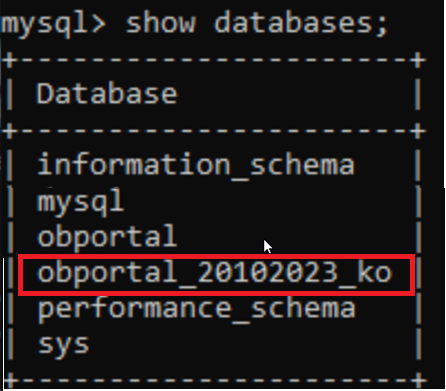
MyISAM tables are detected when the update is initiated
- If the migration script has been successfully launched, check that there is no other database that contains MyISAM tabs
- Delete these databases not required to run the Open Bee Portal application